
Meeting your Service Level Agreements is not just about keeping promises. It's about building trust with your customers and maintaining operational efficiency in your support team. When you're using Zendesk, you have access to a powerful reporting platform called Explore that can help you track, analyze, and improve your SLA performance.
This guide will walk you through everything you need to know about Zendesk SLA reporting in Explore. You'll learn how to build meaningful reports, understand the metrics available, and troubleshoot common issues. We'll also explore how AI tools like eesel's AI agent for Zendesk can complement your reporting by helping you proactively meet SLA targets rather than just tracking them after the fact.
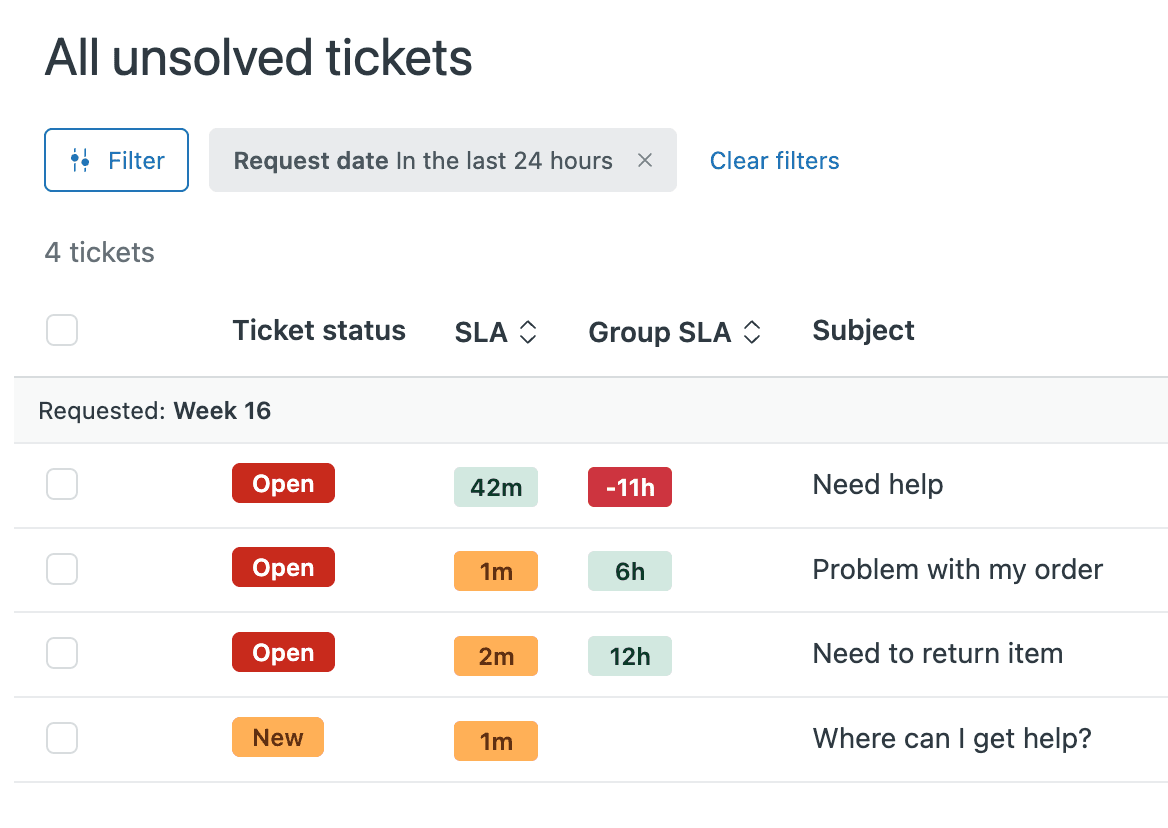
Understanding Zendesk SLA basics
Before diving into Explore, let's make sure we're on the same page about what SLAs are and how they work in Zendesk.
An SLA, or Service Level Agreement, is essentially a promise you make to your customers about how quickly you'll respond to and resolve their issues. In Zendesk, you configure these promises through SLA policies that automatically apply to tickets based on conditions you define.
Key SLA metrics in Zendesk
Zendesk tracks several standard metrics that cover different aspects of your support performance:
First Reply Time (FRT) measures the time from when a customer submits a ticket until an agent sends the first public reply. This is often your first impression metric. It tells customers you've received their request and are working on it.
Next Reply Time (NRT) tracks the time between a customer's follow-up comment and your agent's next response. Unlike First Reply Time, which happens once per ticket, Next Reply Time can be measured multiple times throughout a conversation.
Requester Wait Time (RWT) is the total time a customer spends waiting for your team to respond. This clock runs when a ticket is in New, Open, or On-hold status, and it pauses when the ticket is Pending (waiting for customer input). This gives you a fairer picture of actual wait times.
Agent Work Time (AWT) measures the total time a ticket spends in New or Open status. This reflects how much active effort your team is putting into a ticket.
Full Resolution Time covers the entire lifecycle of a ticket from creation to its final resolution. This is your end-to-end metric for how long it takes to completely solve a customer's problem.
Setting targets and measuring time
When you configure SLA policies, you set target times for each metric based on ticket priority. A common setup might be 15 minutes for Urgent tickets, 4 hours for High priority, 24 hours for Normal, and 72 hours for Low priority.
You can also choose whether targets are measured in business hours (respecting your operating schedule) or calendar hours (24/7). Business hours give you a more accurate view of your team's actual performance, while calendar hours reflect the total customer experience including off-hours.
Getting started with the SLAs dataset in Explore
Zendesk Explore is your analytics platform for turning SLA data into actionable insights. To build SLA reports, you'll work with the Support: SLAs dataset, which contains all the data about how your tickets performed against your SLA policies.
Understanding the dataset
The SLAs dataset is structured around a few key concepts you need to understand:
SLA metric completion time is the actual time it took to fulfill an SLA target. If your First Reply Time target was 60 minutes and an agent responded in 45 minutes, the completion time is 45 minutes.
SLA metric target time is the goal you set in your policy. This might be 60 minutes for First Reply Time on Normal priority tickets.
SLA target status tells you whether the target was Achieved (met within the goal), Breached (missed), or is still Active (not yet fulfilled).
SLA Tickets vs SLA Targets
Here's where many people get confused. Zendesk offers two ways to count SLA performance:
SLA Tickets looks at the entire ticket. If any single target on that ticket was breached, the whole ticket counts as breached. This gives you a customer-centric view.
SLA Targets counts each individual instance separately. Because a ticket can have multiple Next Reply Time targets (one for each back-and-forth), this gives you a more granular view of performance.
For example, imagine a ticket where you hit the First Reply Time target but missed two subsequent Next Reply Time targets. Using SLA Tickets, this is one breached ticket. Using SLA Targets, this is two breaches out of three total targets.
Instance-based reporting
This distinction matters because some metrics, like Next Reply Time and Periodic Update Time, can have multiple instances per ticket. When calculating your % Achievement rate, Zendesk divides achieved instances by total instances. Understanding this helps you interpret your reports correctly.
Building your first SLA report
Let's walk through creating a basic SLA performance report step by step.
Step 1: Create a new report Open Explore and click the reports icon. Click New report and select the Support: SLAs dataset.
Step 2: Add your metrics Drag these metrics into your report:
- % Achieved to see your success rate
- Breached tickets to count failures
- Total tickets for context
Step 3: Add attributes for segmentation Add these attributes to break down your data:
- SLA policy to see performance by different policy types
- Metric name to compare FRT vs NRT vs Resolution time
- Priority to see if urgent tickets are being handled appropriately
Step 4: Configure time filters Use the date filter to focus on relevant time periods. For ongoing monitoring, you might use "This week" or "This month." For analysis, you might look at "Last 90 days" to spot trends.
Step 5: Choose visualizations Select chart types that make your data clear:
- Bar charts work well for comparing groups (agents, teams, priorities)
- Line charts show trends over time
- Pie charts can show the proportion of achieved vs breached
Step 6: Save and share Save your report and add it to a dashboard for easy access. You can schedule dashboard deliveries to stakeholders on a regular cadence.
Common SLA reporting scenarios
Here are four practical reporting configurations you can implement today.
Scenario 1: Breach rate by agent group
This helps you identify which teams need additional support or training.
Metrics: % Achieved, Breached tickets, Total tickets
Attributes: Ticket group, SLA policy
Visualization: Bar chart sorted by % Achieved (ascending)
Insight: Groups with lower achievement rates may need process improvements, additional staffing, or training on priority handling.
Scenario 2: First reply time trends
Track how your initial response performance changes over time.
Metrics: % Achieved (filtered to First Reply Time metric only)
Attributes: Ticket created - Date (by week)
Visualization: Line chart with trend line
Insight: Look for patterns like declining performance during busy periods or improvements after process changes.
Scenario 3: Multi-metric comparison
Compare performance across different SLA metrics to identify bottlenecks.
Metrics: % Achieved
Attributes: Metric name, Priority
Visualization: Grouped bar chart
Insight: If First Reply Time is strong but Resolution Time is weak, you may have a triage problem rather than a response time problem.
Scenario 4: Tickets nearing breach (workaround)
Unfortunately, Explore cannot report on "time until breach" for active tickets. This data is only available in real-time views. Here's a workaround:
- Create a ticket view filtered to tickets with SLA breach in the next hour
- Add the "Next SLA breach" column to see countdown timers
- Use this view for real-time monitoring during busy periods
- Export limitations apply: CSV exports lose the hours remaining and convert to timestamps
For automated alerting on tickets nearing breach, consider third-party dashboard tools that refresh more frequently than Explore.
Creating alternate SLA metrics for edge cases
Sometimes the native SLA metrics may not accurately reflect reality. This typically happens when:
- You have changed business schedules and active tickets have split data
- You need to measure achievement based on duration rather than the stored status
- The SLA status badge shows one thing but the duration metrics show another
Building the alternate breach time metric
Create a standard calculated metric with this formula:
VALUE(SLA metric completion time (min)) - VALUE(SLA metric target time (min))
This calculates the difference between how long it actually took and how long it should have taken. A positive number means the target was breached by that many minutes. A negative number means it was achieved with time to spare.
Building the alternate status attribute
Create a standard calculated attribute with this formula:
IF VALUE(SLA metric completion time (min)) - VALUE(SLA metric target time (min)) >= 0
THEN "Breached"
ELIF VALUE(SLA metric completion time (min)) - VALUE(SLA metric target time (min)) < 0
THEN "Achieved"
ELSE "Unknown"
ENDIF
This labels each ticket as Breached or Achieved based purely on duration, bypassing any status inconsistencies.
When to use alternate metrics
Use these alternate calculations only when you suspect your native metrics are inaccurate. For most tickets and most reporting needs, the native SLA target status attribute works correctly. These alternates are specifically for troubleshooting data quality issues.
Known limitations and workarounds
Explore is powerful, but it has limitations you should understand.
Time until breach not available
Explore is a historical reporting tool, not a real-time monitoring system. It can't show you "hours until breach" for active tickets. This data only exists in ticket views.
Workaround: For teams needing proactive breach monitoring, third-party dashboard tools like Geckoboard offer more frequent data refresh and can display tickets nearing breach in real-time.
Data refresh delays
Depending on your Zendesk plan, Explore data refreshes hourly or daily. This means you can't use it for immediate operational decisions.
Workaround: Use Zendesk views for real-time operations and Explore for trend analysis and reporting. The tools complement each other.
Schedule changes can split data
If you modify your business hours schedule, tickets active during the change may have split SLA data where the status uses the old schedule but duration metrics use the new schedule.
Workaround: Use the alternate metrics described above when analyzing historical data spanning schedule changes.
Taking SLA management beyond reporting
Here's the thing about SLA reporting: it only tells you what already happened. It's valuable for understanding trends and identifying problems, but it won't help you prevent breaches in the moment.
The real goal should be to consistently meet your SLAs, not just track when you miss them. This is where AI can make a significant difference.
How AI prevents SLA breaches

eesel AI is an AI teammate that plugs directly into your Zendesk workflow. Unlike Explore, which looks backward, eesel AI helps you in real-time:
Meeting First Reply Time targets: eesel AI can draft replies instantly when tickets come in. Instead of an agent spending precious minutes reading and formulating a response, they get a ready-to-send draft that they can review and send. This dramatically reduces your First Reply Time.
Speeding up resolution: For ongoing conversations, eesel AI suggests responses based on your team's best-performing tickets. Agents spend less time typing and more time solving problems.
Learning continuously: eesel AI learns from every interaction. When you edit a draft, it remembers. When you leave internal notes, it incorporates that knowledge. The drafts get better over time.
Seamless integration: eesel AI works inside Zendesk. There's no separate interface to learn or log into. It's just there when you need it.
Combining Explore analytics with AI action
The most effective approach combines both tools. Use Explore to understand your SLA performance trends and identify opportunities for improvement. Use eesel AI to execute on those improvements by helping your team respond faster and more consistently.
For example, if Explore shows your First Reply Time is consistently missing the target during morning hours when ticket volume spikes, eesel AI can help by drafting those initial responses instantly, giving your agents a head start on every ticket.
Start improving your SLA performance today
You now have a solid foundation for building SLA reports in Zendesk Explore. You understand the key metrics, know how to build basic reports, and are aware of the platform's limitations.
Here's what to do next:
-
Audit your current SLA policies. Make sure your targets are realistic and aligned with customer expectations.
-
Build your first report. Start simple with % Achieved by priority. Get comfortable with the interface before adding complexity.
-
Identify your biggest opportunity. Look at your data to find where you're missing targets most often. Is it First Reply Time? Resolution Time? A specific team or priority level?
-
Consider AI augmentation. If you're missing First Reply Time targets because agents can't keep up with volume, or if Resolution Time is high because agents spend too much time crafting responses, eesel AI can help.
Remember, reporting is a means to an end. The goal isn't perfect dashboards. The goal is keeping your promises to customers and giving them the support experience they deserve.
Ready to take your SLA performance to the next level? Try eesel AI alongside your Zendesk SLA tracking and turn insights into action.