How to Set Up Zendesk SLA Breach Automations and Alerts in 2026

Stevia Putri
Written by

Stevia Putri

Reviewed by

Stanley Nicholas

Last edited February 20, 2026

Expert Verified

Banner image for How to Set Up Zendesk SLA Breach Automations and Alerts in 2026

Missed SLAs don't just hurt your metrics. They damage customer relationships, trigger escalations, and can even impact renewals. Yet most support teams only discover SLA breaches after they've already happened, when the customer's already frustrated and your metrics are already damaged. Understanding how Zendesk SLA policies work is the first step toward better alert management.

Setting up proactive SLA breach alerts in Zendesk can help you catch at-risk tickets before they become problems. This guide walks you through setting up native Zendesk automations, explains their limitations honestly, and explores AI-powered alternatives for teams that need more than what native features provide.

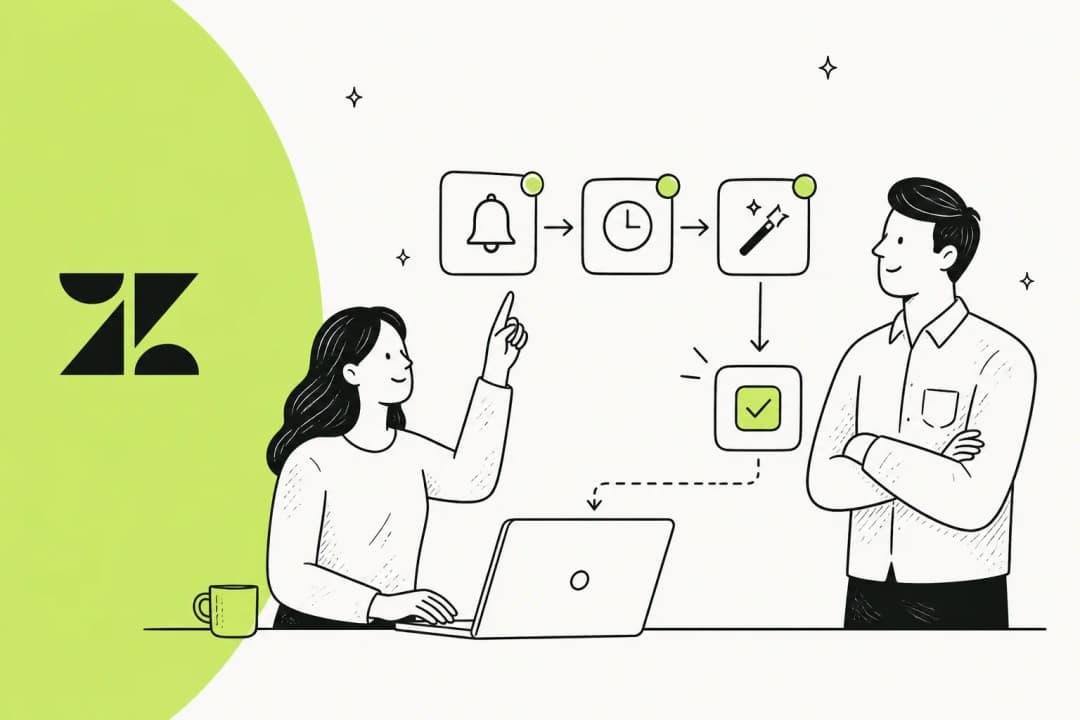
Escalation path visualization identifying critical intervention points to prevent customer dissatisfaction


What you'll need

Before setting up SLA breach automations, make sure you have:

  • A Zendesk account with Professional or Enterprise Suite (SLA policies require Suite Professional or higher)
  • Defined SLA policies with clear targets for first reply, next reply, and resolution times
  • Notification channels configured (email addresses, Slack webhooks)
  • Admin or permission to create automations in your Zendesk instance

If you're on Suite Team or lower tiers, SLA policies are limited or unavailable. You'll need to upgrade to access full SLA automation capabilities.


Understanding Zendesk SLA breach conditions

Zendesk provides two key automation conditions for working with SLAs. Knowing how each works is essential for building effective alerts.

Infographic showing Zendesk SLA automation conditions with Hours until next SLA breach and Hours since last SLA breach illustrated as timeline gauges with warning indicators and breach alerts

Hours until next SLA breach is your early warning system. This condition checks how much time remains before any active SLA target on the ticket will breach. Use it to send alerts when tickets are approaching their limits but haven't breached yet.

Hours since last SLA breach triggers after a breach has occurred. Use this for post-breach workflows like escalating to managers, adding escalation tags, or triggering follow-up actions.

A critical limitation to understand: automations run only once per hour. This means your "2 hours until breach" alert might fire anywhere from 2 hours to 1 hour and 1 minute before the actual breach. You can't get real-time, minute-by-minute alerts using native Zendesk automations.

Also note that you can't create triggers based on SLA status. Only automations can reference SLA conditions. Triggers fire on ticket changes, but SLA breaches happen as time passes, not as ticket updates.


Step 1: Create an automation for nearing SLA breach

Let's set up an alert that fires when tickets are approaching their SLA limits.

Navigate to Admin Center, then Objects and rules, then Automations. Click Add automation.

Name your automation clearly. Something like "Alert: Ticket nearing SLA breach" works better than vague labels.

Set your conditions:

  • Hours until next SLA breach | Less than | 2
  • Status category | Less than | Solved
  • Tags | Contains none of | sla_alert

The tag condition is crucial. Without it, this automation will fire every hour until the ticket is solved, spamming your team with repeated notifications. The tag acts as an "already alerted" marker.

Add your notification action. You can notify a specific user, a group, or send an email. Choose based on your team's structure. For most teams, notifying the ticket assignee plus a group like "Support Managers" provides good coverage.

Finally, add an action to add the tag "sla_alert". This prevents the automation from firing again on this ticket.

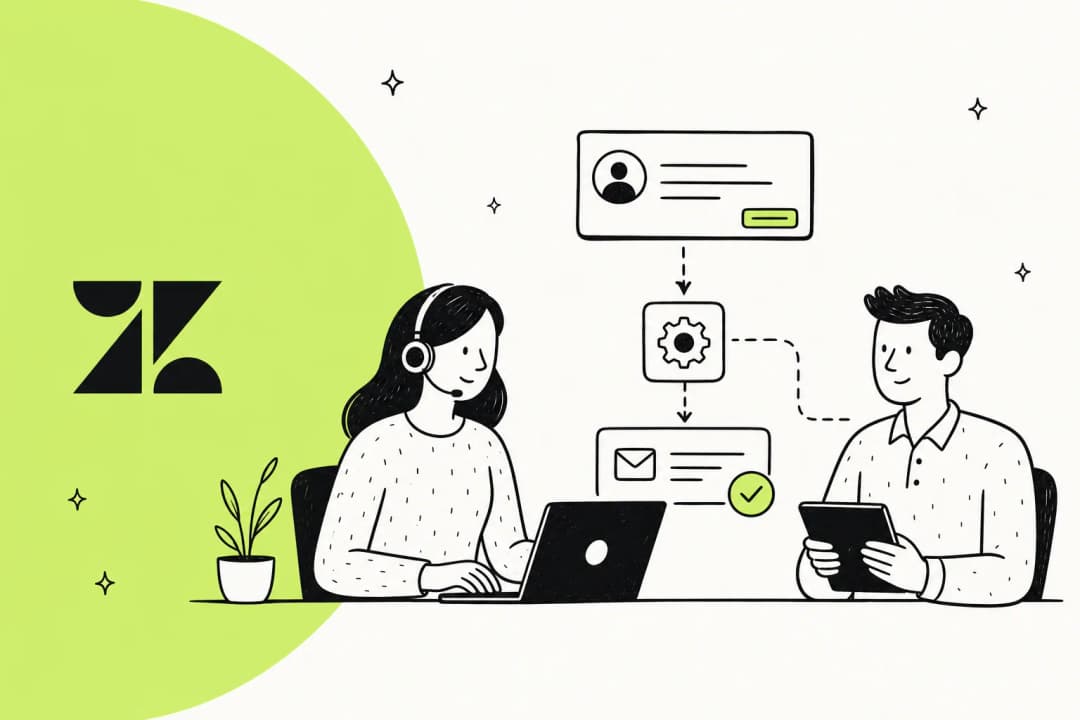
Infographic showing Zendesk automation builder interface with condition fields for SLA alerts and action fields for notifications and tagging workflow

Save your automation and test it on a ticket that has an active SLA target. You might need to wait up to an hour to see the automation fire, since automations run on an hourly schedule.


Step 2: Create an automation for breached SLAs

Now let's handle tickets that've already breached their SLAs.

Create another automation named something like "Alert: SLA breached - escalate."

Set your conditions:

  • Hours since last SLA breach | Greater than | 0
  • Status category | Less than | Solved
  • Tags | Contains none of | sla_breached

The "Greater than 0" condition ensures this only fires after a breach has occurred.

For actions, consider a more aggressive notification strategy:

  • Notify the assignee's manager or team lead
  • Add a high-priority tag
  • Change the priority field to High or Urgent
  • Post to a Slack channel if your team uses Slack

Add the "sla_breached" tag to prevent repeated notifications.

One important note: Zendesk can't tell you which specific SLA target breached in an automation. Your notification won't say "First Reply Time breached" versus "Resolution Time breached." It only knows that some target breached. If you need target-specific alerts, you'll need to build separate automations for different ticket types and make assumptions about which target applies.

Ticket view showing SLA and Group SLA statuses for unsolved tickets


Step 3: Add SLAs to views for visibility

Automations help with alerts, but your agents also need visibility into SLA status while working tickets.

Go to your Views section and select a view to edit. In the Formatting options, click Add column and select SLA or Group SLA.

The SLA column displays the calendar time remaining before the next target breaches. Tickets appear with different visual indicators based on status:

  • Green/OK: Target is on track
  • Yellow/Nearing breach: Getting close to the limit
  • Red/Breached: Target has been breached

To prioritize at-risk work, set your view to order by SLA in ascending order. This puts the most urgent tickets at the top of the queue.


Native Zendesk limitations you should know

Native Zendesk SLA automations work, but they have significant constraints that affect how useful they are in practice.

Hourly automation runs are the biggest limitation. Automations only execute once per hour, not continuously. This means:

  • You can't get alerts at exactly 2 hours before breach
  • A ticket could breach between automation runs without warning
  • Time-sensitive escalation workflows are inherently imprecise

You can't create triggers based on SLA status. Many teams want to escalate tickets the moment they breach, but triggers only fire on ticket updates, not as time passes. Automations are your only option for time-based SLA workflows.

Target ambiguity is frustrating. When "Hours since last SLA breach" fires, you don't know which target breached. Was it First Reply Time? Next Reply? Resolution? The automation doesn't tell you, making it hard to route breaches appropriately.

Tag-based prevention is fragile. Using tags to prevent automation spam works, but if someone removes the tag manually or through another automation, you get notification floods. There's no native "fire once per ticket" option.

Business hours complexity. If you use multiple schedules, the SLA conditions reference whichever schedule applies to that ticket. This can create confusing scenarios where tickets show different remaining times than agents expect.

These limitations are well-documented in Zendesk's community forums, where users have been requesting more granular SLA automation controls for years.


Alternative approaches for enhanced SLA alerts

If native Zendesk automations don't meet your needs, several alternatives exist.

Dashboard tools like Geckoboard can pull Zendesk data and send Slack notifications when metrics cross thresholds. This works well for team-level visibility but doesn't provide per-ticket alerting.

SMS automation services like D7 Networks can trigger text alerts via ActiveCampaign when SLAs breach. This is useful for after-hours critical escalations but requires additional integration setup.

Zendesk apps from the Marketplace extend native capabilities. SweetHawk's Swiftdesk app for Zendesk provides more granular controls than native automations. These apps add cost but fill functional gaps.

Comparison of four approaches to SLA monitoring balancing automation complexity against real-time ticket monitoring needs

AI-powered solutions represent the next evolution. Rather than working within Zendesk's automation constraints, AI platforms can monitor tickets in real-time, understand content context, and take sophisticated actions beyond simple notifications.


AI-powered SLA breach management with our AI

For teams that've outgrown Zendesk's native limitations, we offer a fundamentally different approach to AI customer service and SLA management.

eesel AI dashboard interface for configuring the AI agent

Rather than relying on hourly automation runs and simple time-based rules, our AI learns from your past tickets and understands context. This enables several capabilities that native Zendesk automations can't provide.

Real-time monitoring instead of hourly batch processing. Our AI evaluates tickets continuously, not once per hour. You can get alerts at exactly the right moment, not within a 60-minute window.

Content-aware escalation. Native automations only see time remaining. Our AI reads ticket content and can make escalation decisions based on what the customer actually said. A VIP customer's complaint about billing gets different treatment than a routine how-to question, even if both have the same SLA target approaching.

Target-specific alerts. Unlike Zendesk's ambiguous breach notifications, our AI can identify which specific SLA target is at risk and route accordingly. First Reply Time breaches go to your triage team. Resolution Time breaches escalate to assigned agents.

Actions beyond notifications. Native automations can only send emails or add tags. Our AI can change ticket priority, reassign to different agents, update custom fields, or even draft response suggestions based on your historical replies. Learn more about AI agent assist capabilities.

Simulation before going live. One of our most valuable features is the ability to test SLA workflows against past tickets. You can see exactly how the AI would've handled historical breaches before enabling it on live tickets. This eliminates the risk of broken workflows affecting real customers.

Setting up SLA alerts with our AI involves connecting your Zendesk instance (one-click integration), training the AI on your past tickets and documentation, then configuring escalation rules in plain English rather than complex automation conditions.

For example, instead of building three separate automations with tag conditions, you simply describe: "If a ticket from a VIP customer is approaching First Reply Time breach, change priority to Urgent and notify the team lead."


Common mistakes to avoid

After helping hundreds of teams set up SLA alerts, we've seen the same mistakes repeat. Here's what to watch for:

Forgetting nullifying tags is the most common error. Without a tag to mark "alert already sent," your team gets notified every hour until the ticket closes. Test your automations carefully to ensure tags are being added correctly.

Setting too many alerts creates notification fatigue. If agents get pinged for every ticket approaching any SLA target, they start ignoring alerts entirely. Focus on high-impact scenarios rather than comprehensive coverage.

Not testing before going live leads to embarrassing mistakes. A typo in an automation condition can spam your entire organization or, worse, silently fail when you need it most. Create test tickets and verify behavior.

Ignoring business hours causes confusion. Make sure your SLA policies and automation logic account for your support schedule. A ticket created Friday evening shouldn't trigger Monday morning alerts based on weekend hours.

Failing to monitor effectiveness. Set a calendar reminder to review your SLA alerts monthly. Are they catching real problems? Are they firing too often? Automations need maintenance just like any other system.


Getting started with smarter SLA alerts

Setting up SLA breach alerts in Zendesk involves tradeoffs. Native automations are free but limited. Third-party tools add features at additional cost. AI-powered solutions offer the most capability but require budget and implementation time.

For teams just starting, implement the basic automations described in Steps 1 and 2. They'll catch most urgent situations and cost nothing beyond your existing Zendesk license.

If you find yourself fighting the hourly automation limitation or needing target-specific alerts, consider whether your investment in Zendesk's higher tiers might be better redirected to a specialized solution. Our flat-rate pricing ($239-639/month regardless of agent count) often proves more cost-effective than Zendesk's per-agent model for teams of 10 or more agents.

Whatever approach you choose, the key is starting simple, measuring results, and iterating. The best SLA alert system is the one your team actually responds to.

eesel AI public pricing page showing transparent flat-rate costs

Frequently Asked Questions

No, full SLA policies and automations require Suite Professional ($115/agent annually) or higher. The Team plan has limited SLA capabilities that won't support comprehensive breach alerting.
Native Zendesk automations run once per hour. This means alerts can fire anywhere within a 60-minute window of your threshold. For real-time alerts, you would need an external solution like eesel AI.
Unfortunately, no. Native automations only know that 'a' target breached, not whether it was First Reply Time, Next Reply Time, or Resolution Time. This is one of the most requested features in Zendesk's community forums.
Triggers fire when tickets are updated. Automations fire based on time passing. Since SLA breaches happen as time passes (not when tickets change), you must use automations for SLA alerts. You cannot use triggers.
Add a nullifying tag action to your automation, then include 'Tags contains none of [your tag]' as a condition. This ensures the automation only fires once per ticket. Without this, the automation will notify your team every hour.
For teams needing real-time alerts, target-specific notifications, or actions beyond email, AI-powered solutions like eesel AI provide more sophisticated capabilities. eesel AI monitors tickets continuously, understands content context, and can take actions like changing priority or reassigning tickets, not just sending notifications.

Share this post

Stevia undefined

Article by

Stevia Putri

Stevia Putri is a marketing generalist at eesel AI, where she helps turn powerful AI tools into stories that resonate. She’s driven by curiosity, clarity, and the human side of technology.