How to manage Zendesk recurring billing: Complete 2026 guide

Stevia Putri
Last edited March 3, 2026
Managing your Zendesk subscription doesn't have to feel like navigating a maze. Whether you're trying to add more agents for a growing team, switch from monthly to annual billing to save money, or simply understand what you're paying for, this guide walks you through everything you need to know about Zendesk recurring billing.
When we talk about "Zendesk recurring billing," there are actually two contexts to consider. First, there's managing your own Zendesk subscription (what most people mean). Second, there's using Zendesk to manage recurring billing for your own customers (which requires integrations). We'll cover both so you have the complete picture.
If you're looking for ways to streamline your support operations beyond billing management, eesel AI works alongside Zendesk as an AI teammate that can handle routine tickets autonomously. But let's focus on getting your billing sorted first.

What you'll need
Before diving into subscription management, make sure you've got:
- A Zendesk account with appropriate permissions
- Account owner or billing admin role (regular admins can view but can't change subscriptions)
- Understanding of your account type: self-service, online-assisted, or managed
- Access to the Admin Center
Not sure about your account type? Don't worry. We'll cover how to identify it in the steps below. If you're also exploring ways to enhance your support workflow, check out our guide on the best AI chatbots for Zendesk.
Step 1: View your current Zendesk subscription
Let's start with the basics. To see what you're currently paying for, head to Admin Center > Account > Billing > Subscription.
The subscription page shows a complete breakdown of your plan:
| Information | What it shows |
|---|---|
| Product | Which Zendesk products you have (Support, Guide, Chat, Talk, etc.) |
| Plan | Your tier: Team, Growth, Professional, Enterprise, or Enterprise Plus |
| Details | Number of full agent seats included |
| Cost | Itemized costs and total subscription amount |
| Billing cycle | Current period and renewal date |
| Payment method | Credit card or other payment info on file |
Take a moment to review this information. Many administrators discover they're paying for agent seats they don't use, or realize they could save money by switching to annual billing. The subscription page is your source of truth for all billing questions. For more on Zendesk plans and features, see our Zendesk pricing guide.
Step 2: Understand your Zendesk account type
Here's where things get interesting. Not all Zendesk accounts have the same billing flexibility. Zendesk offers three account types, and yours determines what changes you can make yourself versus what you'll need to contact support for.
Self-service accounts
If you signed up online and pay by credit card, you likely have a self-service account. This gives you the most flexibility:
- Add or remove agent seats anytime
- Upgrade or downgrade plans
- Switch between monthly and annual billing
- Cancel subscriptions directly in Admin Center
Online-assisted accounts
These are sales-assisted accounts with some self-service capabilities enabled. You can:
- Add agent seats
- Buy additional products
- Upgrade your plan
But you can't downgrade or cancel without contacting Zendesk support.
Managed accounts (sales-assisted)
Enterprise and Enterprise Plus customers often fall into this category. With managed accounts:
- Most billing changes require contacting your Zendesk representative
- You can't make changes from the Subscription page
- All modifications go through Zendesk's sales or support team
How to check your account type: In Admin Center, go to Account > Billing. If you see a "Manage" button next to your subscription details, you've got self-service or online-assisted access. If not, you've got a managed account.
Step 3: Make changes to your Zendesk subscription
Once you know your account type, you can proceed with the changes you need. Here's how the most common modifications work.
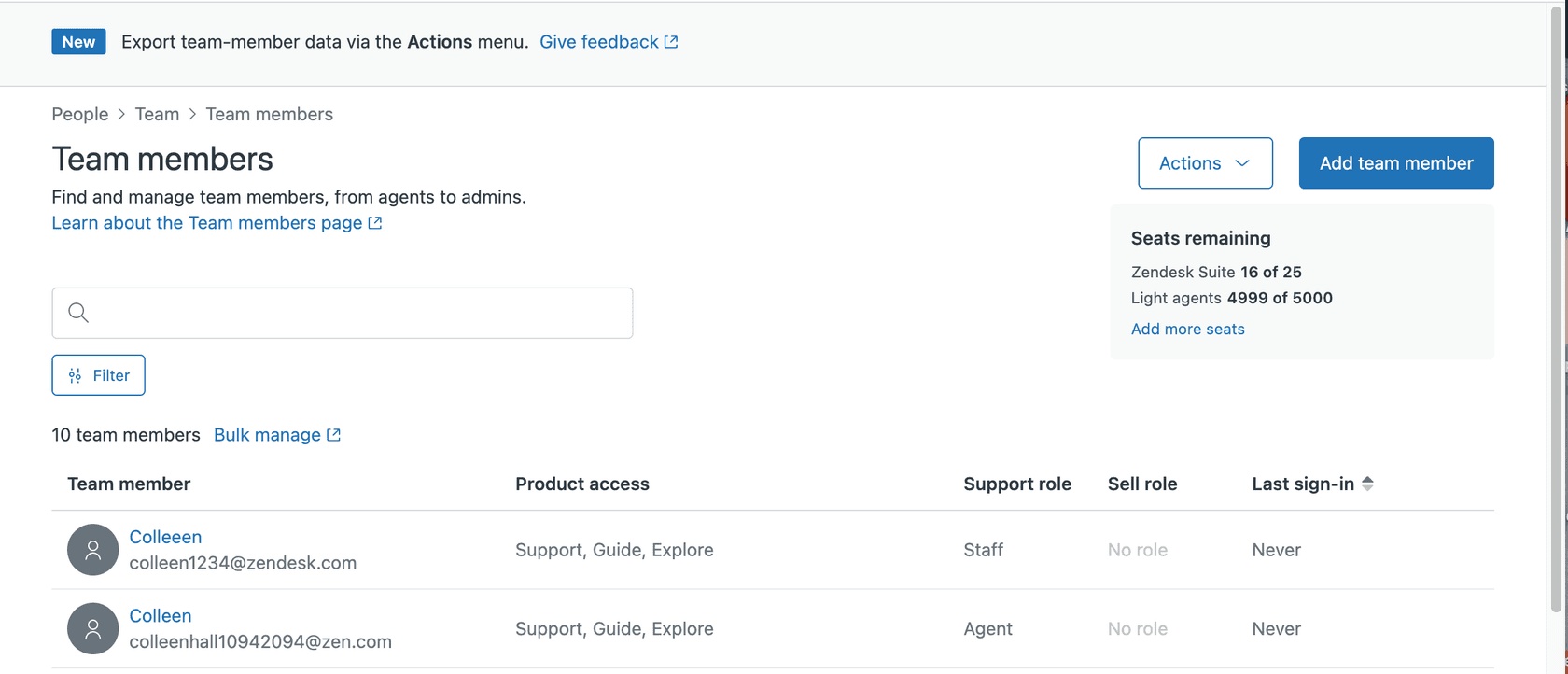
Adding or removing agent seats
This is the most frequent billing change for growing (or shrinking) teams.
- Go to Admin Center > Account > Billing > Subscription
- Click Manage next to your subscription
- Adjust the number of agent seats
- Review the prorated charges or credits
- Confirm the change
Changes take effect immediately. If you're adding seats mid-cycle, Zendesk prorates the charge. If you're removing seats, you'll see a credit applied to your next invoice. Learn more about optimizing your support workflow in our Zendesk AI guide.
Upgrading or downgrading plans
Want more features? Upgrading is straightforward for self-service accounts:
- In the Subscription page, click Manage
- Select your new plan tier
- Review the pricing difference
- Confirm the upgrade
Downgrading works similarly, though some plans require contacting support if you have a managed account. Note that downgrading may remove access to features you're currently using, so review what's included in the lower tier first.
Changing billing periods
Switching from monthly to annual billing can save you approximately 20-25%. Here's how:
- Go to Admin Center > Account > Billing > Subscription
- Click Manage
- Select annual billing
- Review the new rate and next billing date
- Confirm the change
Your annual billing starts immediately, and you'll be charged for the full year (minus any credits from your current monthly cycle).
Step 4: Manage billing admins and contacts
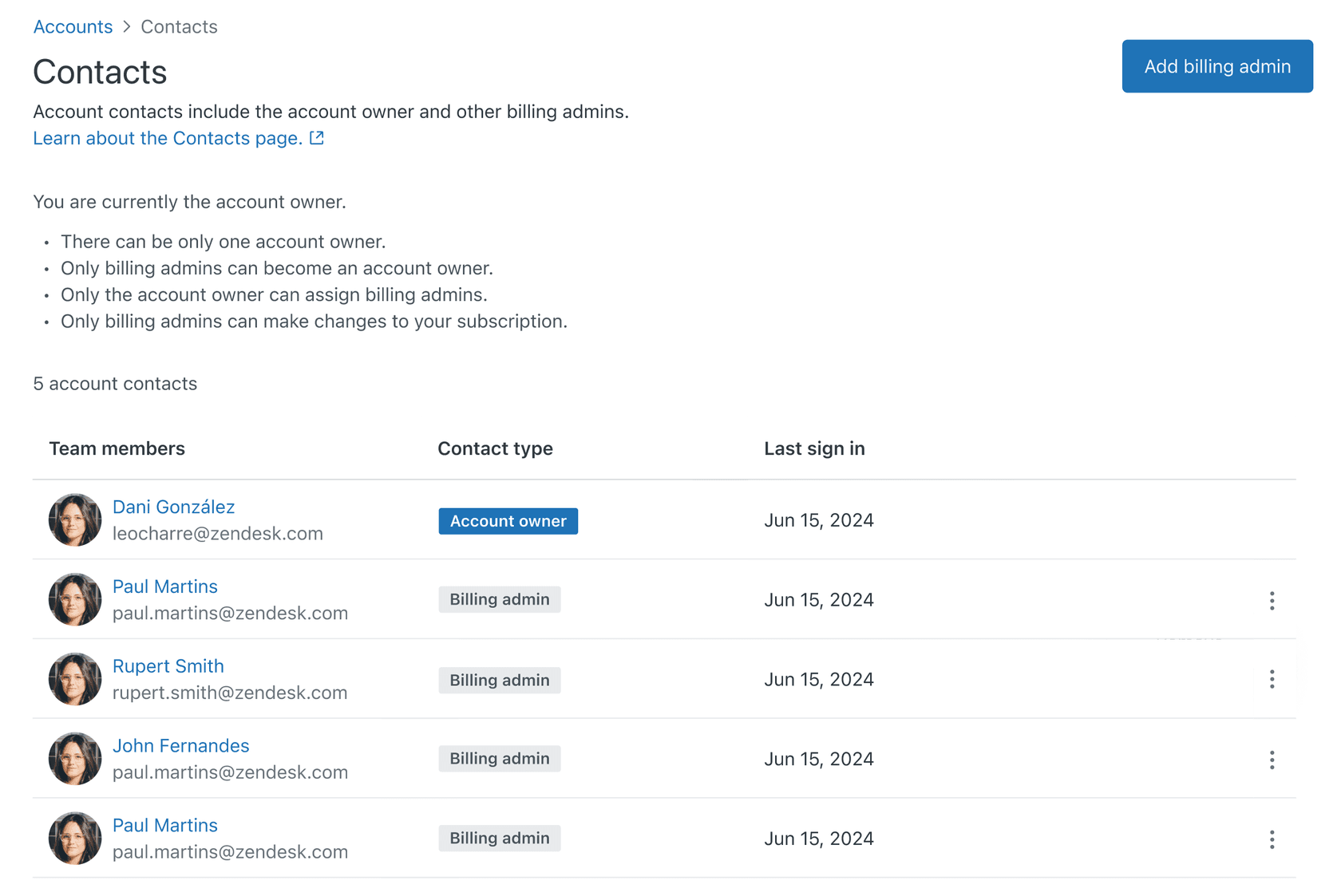
You don't have to handle billing alone. Zendesk lets you designate billing admins who can make subscription changes without having full account owner privileges.
Adding billing admins
- Go to Admin Center > Account > Billing > Payment methods
- Click Billing admins
- Click Add billing admin
- Select the user from your team
- Save changes
What billing admins can do
- View subscription details
- Add agent seats
- Update payment methods
- Make most subscription changes (for self-service accounts)
What billing admins cannot do
- Cancel the account entirely
- Change the account owner
- Access non-billing admin functions
If you're a regular admin without billing permissions, you can still request subscription changes through your account owner or designated billing admin. For more details on billing roles, see Zendesk's guide to allowing admins to manage subscriptions.
Step 5: Cancel or modify your Zendesk subscription
Sometimes you'll need to reduce your footprint rather than expand it. Here's how cancellations and downgrades work.
Canceling products
To remove a specific product (like Chat or Talk) while keeping others:
- Go to Admin Center > Account > Billing > Subscription
- Find the product you want to cancel
- Click Manage (if available for your account type)
- Select Cancel product
- Confirm the cancellation
For managed accounts, contact your Zendesk representative to remove products.
Canceling your entire account
If you're closing your Zendesk account entirely:
- Go to Admin Center > Account > Billing > Subscription
- Click Cancel account (or contact support for managed accounts)
- Complete the cancellation survey
- Confirm the cancellation
Important: Zendesk retains your data for a period after cancellation (typically 30 days for self-service accounts, longer for enterprise). You can reactivate during this window if needed. After the retention period, your data is permanently deleted.
Data retention and reactivation
| Account type | Data retention | Reactivation |
|---|---|---|
| Self-service | ~30 days | Reactivate through Admin Center |
| Managed/Enterprise | Longer periods | Contact Zendesk support |
Troubleshooting common Zendesk billing issues
Even with a straightforward system, billing questions come up. Here are solutions to the most common issues.
"Manage" button not visible
If you don't see the Manage button on your subscription page, one of these is likely:
- You don't have billing permissions (contact your account owner)
- You've got a managed account requiring support contact
- Your account has restrictions due to pending invoices or other issues
Credit card payment failures
Payment failures usually stem from:
- Expired credit card
- Insufficient funds
- Bank security blocks on recurring charges
Update your payment method in Admin Center > Account > Billing > Payment methods. If issues persist, contact your bank to authorize Zendesk charges.
Understanding prorated charges
Zendesk bills prorated amounts when you make changes mid-cycle. Here's how it works:
- Adding seats: You pay for the remaining days in your billing cycle
- Removing seats: You receive a credit for unused days
- Upgrading plans: You pay the difference for remaining days
- Downgrading plans: You receive a credit for the difference
These adjustments appear on your next invoice with clear line items explaining the proration.
When to contact Zendesk Customer Support
You'll want to reach out to support when:
- You have billing disputes or incorrect charges
- Your managed account needs changes
- Payment issues aren't resolved by updating your card
- You need clarification on complex billing scenarios
The Zendesk billing FAQ covers most common questions and is worth checking first. For detailed subscription management instructions, refer to Zendesk's subscription management documentation.
Managing recurring billing for your customers through Zendesk
So far we've covered managing your Zendesk subscription. But what if you want to use Zendesk to handle recurring billing for your own customers? That's where integrations come in. Check out the Zendesk Marketplace for more billing-related apps and integrations.
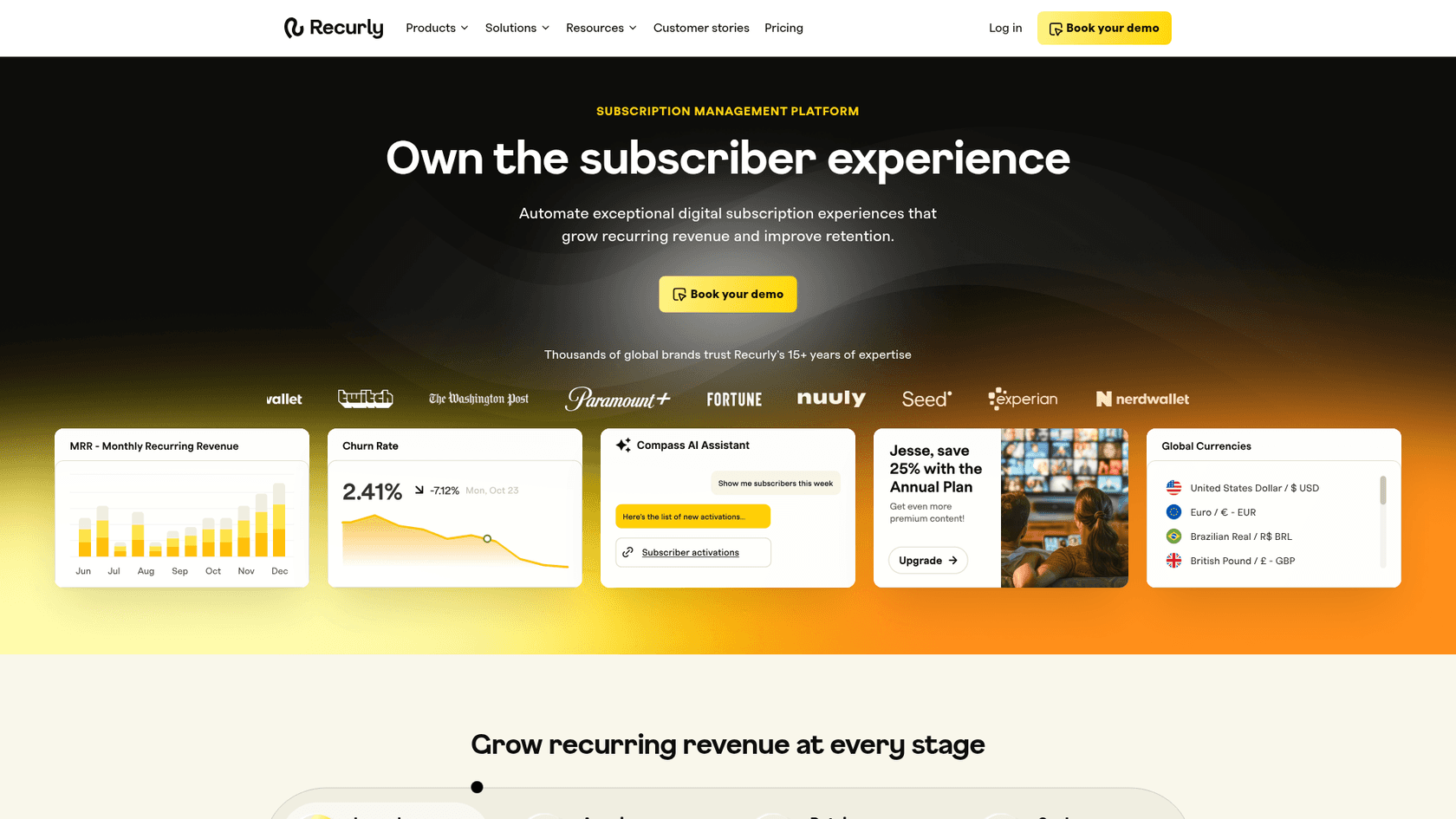
Recurly for Zendesk integration
Recurly is a subscription management platform that integrates directly with Zendesk. It allows your support agents to:
- View customer subscription details without leaving Zendesk
- Pause, cancel, or modify customer subscriptions
- Issue refunds directly from support tickets
- See billing history and payment status
This integration works across Zendesk Support, Chat, and Sell (though the Sell integration is read-only). It's particularly useful for SaaS companies, subscription box services, or any business with recurring revenue models. Learn more about Zendesk account types and billing permissions in the official documentation.
To set it up, you'll need:
- Active Recurly and Zendesk accounts
- Administrator access to Zendesk
- Recurly API key
SweetHawk Recurring Tickets
SweetHawk's Recurring Tickets app takes a different approach. Instead of managing customer billing, it automates ticket creation on a schedule. This is useful for:
- Monthly account reviews
- Quarterly business reviews
- Regular maintenance checklists
- Scheduled customer check-ins
While not a billing tool per se, it helps teams stay on top of recurring customer touchpoints that often relate to subscription health.
Streamlining support operations with eesel AI
Managing billing is just one piece of the support puzzle. If you're looking to reduce the volume of routine tickets your team handles (including billing-related questions), eesel AI offers an interesting approach.
Rather than configuring another tool, you invite eesel AI to your team like a new hire. It learns from your existing Zendesk tickets, help center articles, and any connected documentation. Then it can draft responses or handle tickets autonomously, escalating only the complex issues to your human agents. You can explore more about AI-powered support in our overview of AI customer service tools.

The teammate model means you start with oversight (eesel drafts replies for review) and level up to full autonomy as it proves itself. For billing questions that follow predictable patterns ("How do I update my card?", "When does my subscription renew?"), an AI teammate can handle these end-to-end while your team focuses on more complex customer needs.
If you're interested in exploring how AI can complement your Zendesk setup, check out eesel AI's Zendesk integration or browse our AI customer service solutions.


Frequently Asked Questions
Share this article

Article by
Stevia Putri
Stevia Putri is a marketing generalist at eesel AI, where she helps turn powerful AI tools into stories that resonate. She’s driven by curiosity, clarity, and the human side of technology.



