How to set up Zendesk post-purchase surveys: A complete guide

Stevia Putri
Last edited March 3, 2026
Post-purchase surveys are your direct line to understanding what customers really think after they buy. Unlike general feedback requests, these surveys capture sentiment while the experience is still fresh. For support teams using Zendesk, setting up effective post-purchase surveys can reveal gaps in your process, highlight standout performers, and give you actionable data to improve customer retention.
This guide walks you through configuring post-purchase surveys in Zendesk, from native CSAT setup to advanced automation workflows. We'll also look at when it makes sense to extend Zendesk with third-party tools, and how eesel AI can help automate the follow-up work that turns survey responses into actual improvements.
What you'll need
Before diving into setup, make sure you have the following:
- Zendesk account: You'll need Suite Professional or higher, or Support Professional/Enterprise. The native CSAT feature isn't available on Team plans.
- Admin access: Only administrators can configure satisfaction settings and modify automations.
- Clear survey goals: Know what you're trying to learn before you start building.
- Optional: A third-party survey tool if you need features Zendesk doesn't offer natively.
Step 1: Enable customer satisfaction surveys in Zendesk
The first step is turning on Zendesk's built-in CSAT feature. Here's how to do it:
Navigate to Admin Center → Objects and rules → Business rules → Customer satisfaction. You'll see a toggle to enable customer satisfaction ratings. Turn it on.
Next, you'll choose between two CSAT experiences:
- Legacy CSAT: The original two-option format (Good/Bad). Simple but limited.
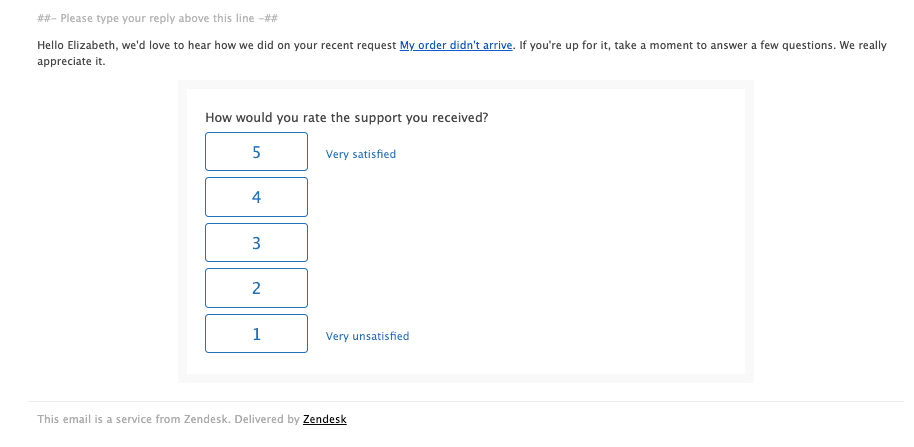
- New CSAT experience: Offers 1-5 rating scales, customizable questions, and satisfaction reasons for negative feedback.
The new experience is recommended for most teams. It gives you granular data while still being simple for customers to complete.
Once enabled, you can customize the survey question text. The default is "How would you rate the support you received?" For post-purchase scenarios, consider something more specific like "How satisfied are you with your recent purchase experience?"

Step 2: Configure survey timing and delivery
Timing can make or break your response rates. Send too early and customers haven't formed an opinion yet. Send too late and they've moved on.
Zendesk's default automation sends surveys approximately 24 hours after a ticket is marked "Solved." This works well for support interactions, but for post-purchase surveys you might want different timing.
To customize, go to Admin Center → Objects and rules → Business rules → Automations. Look for the "Request customer satisfaction rating" automation. You can modify the conditions to change when surveys trigger.
For immediate post-purchase feedback, you might create a custom trigger that sends surveys as soon as an order-related ticket is solved. For product feedback, you might wait a few days to let customers actually use what they bought.
Zendesk supports CSAT across multiple channels:
- Email: Survey links sent via email (most common)
- Messaging: In-chat surveys after conversations end
- Voice: Post-call surveys (requires additional configuration)
For more details on trigger setup, see our guide on Zendesk trigger request satisfaction on solve.
Step 3: Customize your survey questions
The default question works for general support, but post-purchase surveys benefit from more targeted questions. Zendesk's new CSAT experience lets you customize several elements:
Survey question: Instead of the generic support question, try:
- "How satisfied are you with your recent purchase?"
- "How easy was it to complete your order?"
- "How likely are you to recommend us to a friend?"
Rating scales: Choose between binary (Good/Bad) or 1-5 scales. The 1-5 scale gives you more nuanced data and lets you track trends over time.
Satisfaction reasons: For negative ratings, you can display a dropdown asking why. Options might include "Product didn't meet expectations," "Shipping took too long," or "Customer service was unhelpful."
Open-ended comments: Always include an optional comment field. This is where you'll find the most actionable insights.
For e-commerce specifically, consider these question types:
| Survey Type | Best For | Example Question |
|---|---|---|
| CSAT | Overall satisfaction | "How satisfied are you with your purchase?" |
| CES | Ease of process | "How easy was it to complete your order?" |
| NPS | Loyalty and advocacy | "How likely are you to recommend us to a friend?" |
CSAT measures happiness with a specific interaction. CES gauges how easy you made things. NPS predicts future loyalty. For post-purchase surveys, CSAT is usually your baseline, but adding a CES question can reveal friction points in your buying process.
Step 4: Set up automation workflows
Surveys are only useful if you act on the responses. Zendesk's automation tools help you route feedback to the right people automatically.
The default "Request customer satisfaction rating" automation handles basic survey delivery. But you can create custom triggers for more sophisticated workflows:
Escalate negative feedback: Create a trigger that assigns tickets with bad ratings to a senior agent or manager immediately.
Exclude certain ticket types: Not every ticket deserves a survey. Use conditions to exclude internal notes, spam, or specific request types.
Prevent survey fatigue: Tag customers who've received surveys recently and exclude them from new survey triggers for a set period.
Route by product or category: If you sell multiple product lines, create different survey flows for each, routing feedback to the appropriate team.
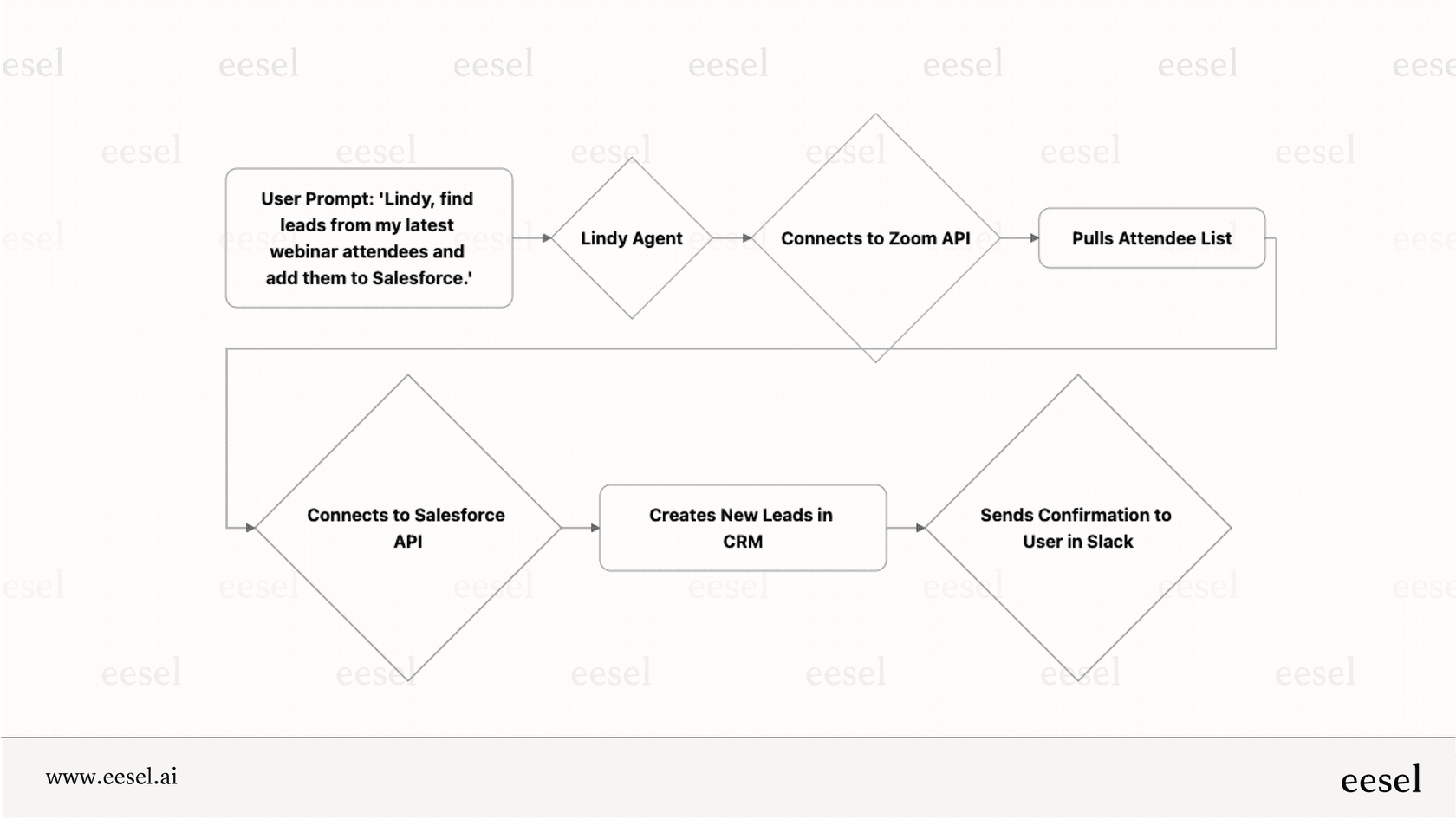
Our Zendesk integration can help here too. Instead of manually routing every negative review, eesel AI reads survey responses, understands the sentiment and topic, and automatically assigns tickets to the right team or even drafts responses for your agents to review.
Best practices for Zendesk post-purchase surveys
Getting surveys set up is just the start. Here's how to get meaningful responses:
Get the timing right: For digital products, survey within 24-48 hours of delivery. For physical goods, wait until the package has likely arrived. For complex products, give customers a week to actually use what they bought.
Keep it short: Every additional question reduces completion rates. Stick to 1-2 core questions plus an optional comment field. If you need more data, run separate surveys for different customer segments rather than one massive survey.
Use emotion-driven language: "How did we do?" performs better than "Please rate your experience." Make it feel like a conversation, not an evaluation.
Consider incentives: A small discount on their next order can boost response rates significantly. Just be transparent that you're offering an incentive.
Close the loop: When someone takes time to give feedback, acknowledge it. Even a simple "Thanks for your feedback, we're looking into this" email shows you care. For detailed negative feedback, have a human follow up personally.
Enhancing surveys with third-party tools
Zendesk's native CSAT works well for basic needs, but some teams need more. Consider a third-party tool if you need:
- Multi-step surveys: Asking follow-up questions based on previous answers
- Advanced analytics: Trend analysis, sentiment scoring, or automated categorization
- Better UI: More modern survey designs that match your brand
- Cross-platform collection: Gathering feedback from your website, app, and email in one place
Two popular options for Zendesk users:
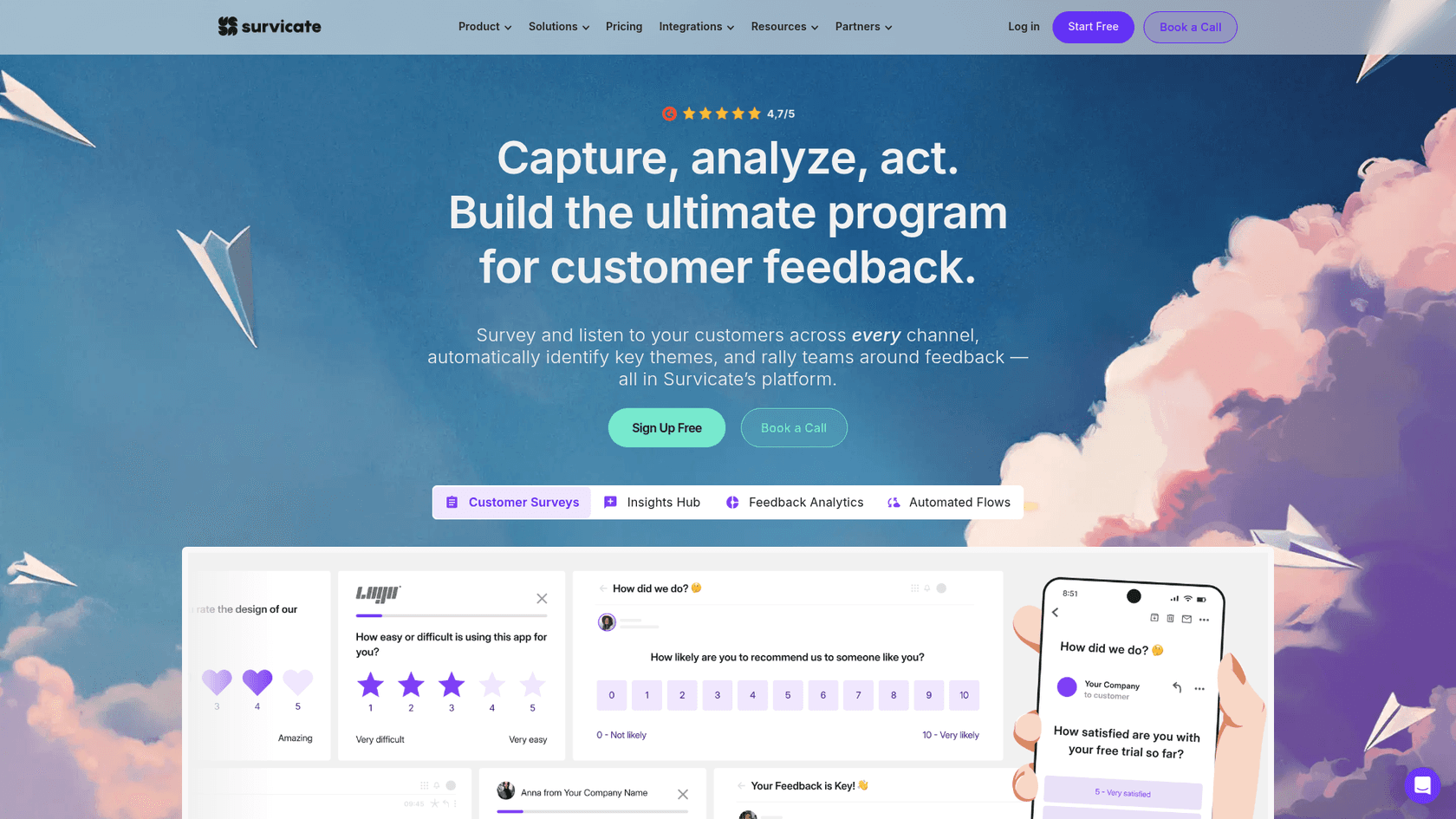
Survicate offers deep Zendesk integration with AI-powered analysis. Their Insights Hub automatically categorizes feedback, and their Research Assistant helps identify trends. Pricing starts at $114/month for annual plans.
NiceReply focuses on one-click surveys with in-signature options. Their agent leaderboard feature helps identify your top performers. Plans start at $59/month annually.
For a broader look at AI-powered support tools, check out our guide to the best AI helpdesk tools.
Analyzing and acting on survey results
Collecting feedback is pointless if you don't use it. Here's how to turn survey data into action:
View satisfaction ratings in Zendesk Explore: The built-in reporting shows response rates, average scores, and trends over time. Look for patterns by agent, ticket category, or time period.
Track CSAT scores over time: Don't just look at today's number. Track week-over-week or month-over-month trends. A dropping score is an early warning signal.
Identify trends and patterns: Are certain products generating more negative feedback? Are specific agents consistently scoring higher? Use this data to guide training and process improvements.
Create escalation workflows: Set up triggers so negative ratings immediately notify managers or create follow-up tasks.
Our AI Triage product can automate much of this work. Instead of manually reviewing every survey comment, eesel AI analyzes the text, identifies the topic and sentiment, and routes issues to the right team automatically. It can even draft responses for your agents based on your past ticket history.

For more on measuring support quality, see our guide on Zendesk CSAT measurement and reporting.
Start improving your post-purchase experience today
Setting up post-purchase surveys in Zendesk takes some initial configuration, but the insights are worth it. Start with the native CSAT feature, get your timing and questions right, then build automation workflows that ensure feedback reaches the right people.
As your survey program matures, consider whether third-party tools or AI automation could help you process feedback faster. The goal isn't just collecting data. It's making your customers feel heard and turning their input into tangible improvements.
If you're looking to automate the follow-up work that comes with survey responses, eesel AI can help. Our AI teammate integrates with Zendesk to analyze survey comments, route issues automatically, and even draft responses based on your historical data. You can start with AI-assisted drafting and level up to full automation as the AI learns your business.


Frequently Asked Questions
Share this article

Article by
Stevia Putri
Stevia Putri is a marketing generalist at eesel AI, where she helps turn powerful AI tools into stories that resonate. She’s driven by curiosity, clarity, and the human side of technology.



