How to install apps from the Zendesk Marketplace: A complete guide

Stevia Putri
Last edited March 2, 2026
The Zendesk Marketplace is home to over 1,000 apps and integrations that extend your support operations. Whether you want to add AI capabilities, connect your e-commerce platform, or streamline agent workflows, there's likely an app for it.
But installing apps isn't always straightforward. Different apps have different requirements, some need OAuth setup, and others require pre-installation configuration with third-party services. This guide walks you through the entire Zendesk Marketplace app install process so you can extend your Zendesk instance with confidence.

What you'll need before you start
Before diving into the Zendesk Marketplace, make sure you have:
- Administrator access to your Zendesk account (only admins can install apps)
- A clear idea of what you want to achieve (faster ticket resolution, better reporting, AI assistance, etc.)
- Any required third-party accounts (some apps need you to have an existing account with the service before installation)
Let's break it down.
Step 1: Access the Zendesk Marketplace
There are two ways to get to the Marketplace:
Option A: Through Admin Center
- Log into your Zendesk account
- Click the Admin Center icon in the sidebar
- Navigate to Apps and integrations > Marketplace
Option B: Direct URL
- Visit zendesk.com/apps in your browser
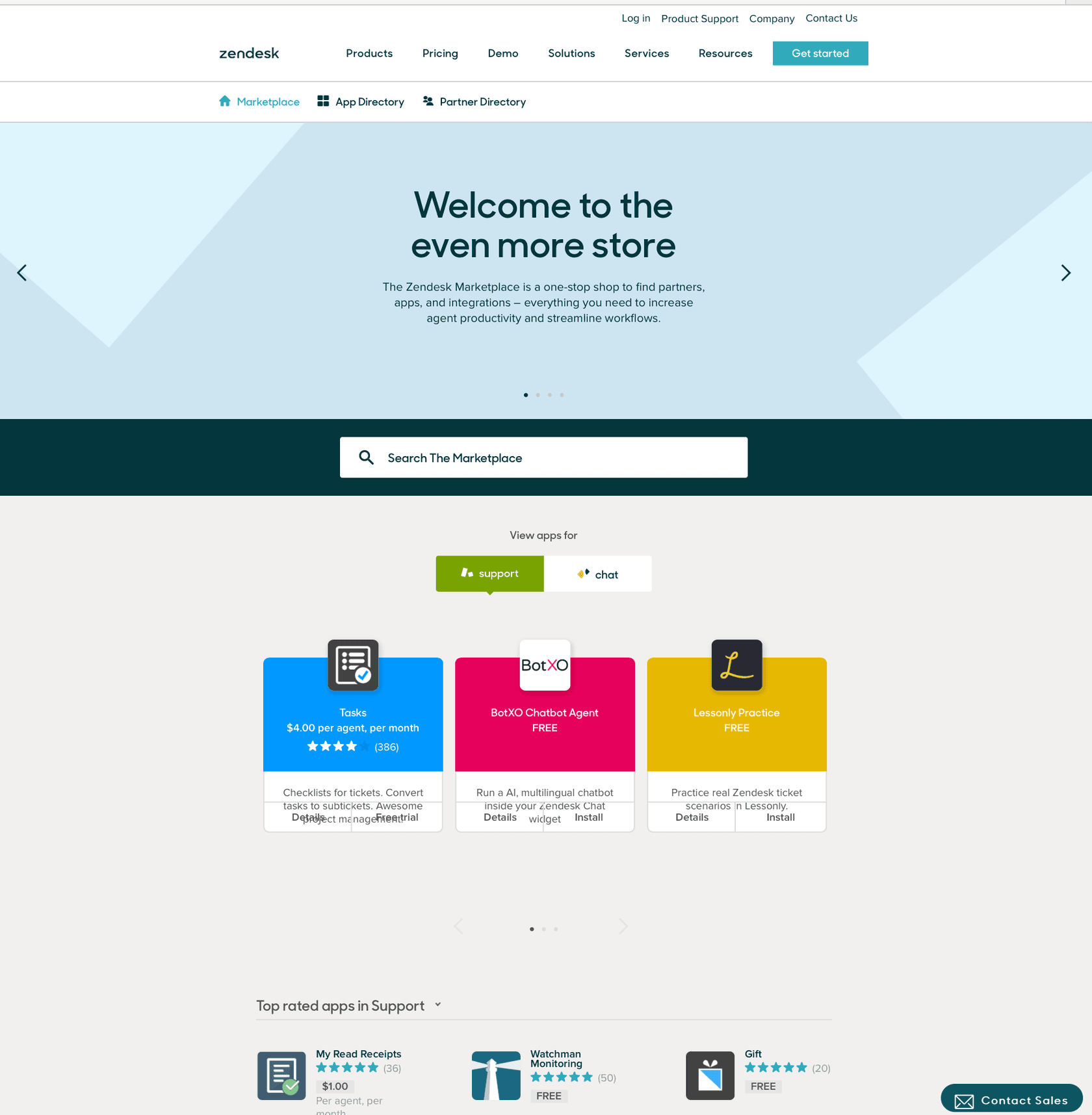
The Marketplace homepage displays featured apps, popular integrations, and category filters to help you browse.
Step 2: Find the right app
With over 1,000 options, finding the right app requires some strategy:
Browse by category: The Marketplace organizes apps into logical categories:
- AI and Bots AI-powered assistants and automation tools
- Agent Productivity Tools to streamline workflows and reduce manual tasks
- Reporting and Analytics Advanced data visualization and insights
- eComm and Payments Shopify, payment processors, and e-commerce tools
- CRM and Marketing Salesforce, HubSpot, and marketing platform integrations
Use search: Enter specific keywords in the search box at the top right. The search looks at app names, functionality descriptions, and keywords.
Review before installing: Click any app to see:
- Detailed description and screenshots
- Pricing (many are free, some have paid tiers)
- User ratings and reviews
- Installation requirements
- Supported Zendesk products (Support, Chat, Sell, etc.)
Popular free apps worth considering include Slack for Zendesk (manage tickets from Slack), Shopify for Zendesk (view customer orders), and Tables (add tables to tickets).
Step 3: Install the app
Once you've found an app you want to try:
- Click the app's icon to open its detail page
- Review the "How To Install" tab many apps have pre-installation requirements or setup steps
- Click the "Install" button in the upper-right corner
- Select your Zendesk subdomain if you have multiple accounts
- Review and accept the Zendesk Marketplace Terms of Use
- Click "Install" to complete the initial installation
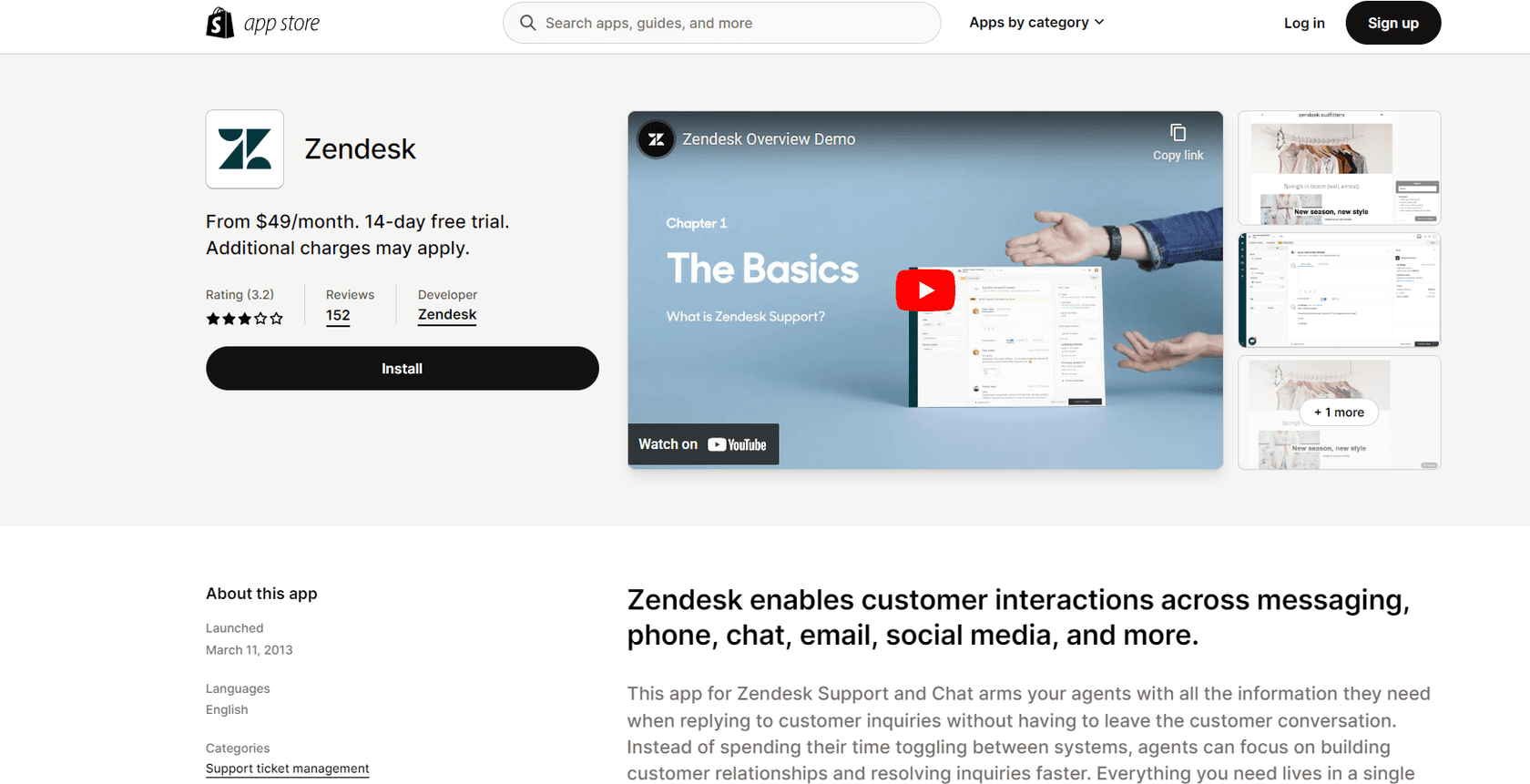
The app will now appear in your Admin Center > Apps and integrations > Zendesk Support apps section.
Note on private apps: Some enterprise integrations (like certain contact center solutions) aren't publicly listed. These require you to upload a ZIP file directly via Admin Center > Apps > Upload private app.
Step 4: Configure app settings
Installation is just the beginning. Most apps need configuration before they work:
Access app settings:
- Go to Admin Center > Apps and integrations > Zendesk Support apps
- Find your newly installed app
- Click the options menu (three dots) and select Change settings
Common configuration steps:
-
OAuth authentication: Many apps need you to create an OAuth client in Zendesk. Go to Admin Center > Apps and integrations > Zendesk API > OAuth Clients to set this up.
-
API tokens: Some apps require API tokens. Generate these at Admin Center > Apps and integrations > Zendesk API > Settings.
-
Third-party credentials: Apps like SendSafely or Unbabel need you to enter credentials from their platform.
-
Role restrictions: Control which agent roles can see and use the app.
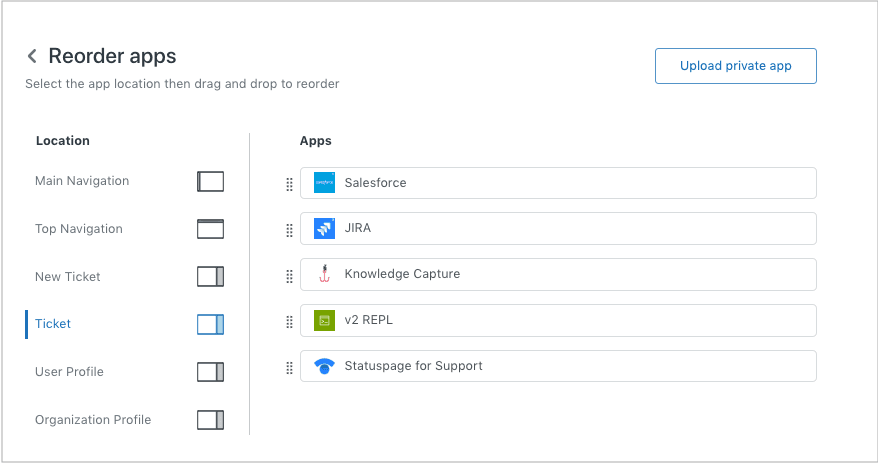
Test before rolling out: After configuration, test the app with a few tickets to make sure it works as expected before enabling it for all agents.
Popular app categories to explore
AI and Bots
This is where you'll find tools that bring artificial intelligence to your support operations. AI apps can draft replies, route tickets automatically, and even handle frontline support conversations.
At eesel AI, we offer an AI Agent that plugs into Zendesk and learns from your past tickets and documentation. It handles routine queries autonomously and escalates complex issues to your human team. You can start with our AI Copilot drafting replies for review, then gradually expand to full automation as the AI proves itself.

Agent Productivity
These apps eliminate repetitive tasks and streamline workflows:
- Time tracking (Harvest, Toggl)
- Advanced search (Advanced Search Plus)
- Ticket organization (Tables, SweetHawk Suite)
- Macros and templates enhancement tools
eCommerce integrations
If you run an online store, these apps are essential:
- Shopify for Zendesk View customer orders and process refunds
- ChannelReply Connect Amazon, eBay, Etsy, and other marketplaces
- Trustpilot Reviews Manage reviews from within Zendesk
Tips for managing your installed apps
Keep apps updated: Developers regularly release updates with new features and security patches. Check Admin Center > Apps periodically for update notifications.
Monitor usage: Not every app delivers value. If an app hasn't been used in months, consider uninstalling it to reduce clutter.
Review permissions: Apps can access Zendesk data. Regularly audit what permissions each app has and revoke access for apps you no longer use.
Uninstall when needed: To remove an app, go to Admin Center > Apps, hover over the app, click the options menu, and select Uninstall.
Getting more from Zendesk with AI
While the Marketplace offers many point solutions for specific tasks, AI represents a fundamental shift in how support teams operate. Instead of adding yet another tool to your stack, an AI teammate works within your existing Zendesk instance to handle the work that consumes most of your agents' time.
Here's how it works with eesel AI:
- Connect to Zendesk The integration takes minutes, not weeks
- Learn from your data eesel AI reads your past tickets, help center articles, and macros to understand your business
- Start with guidance Have the AI draft replies for your agents to review before sending
- Level up gradually As the AI proves itself, expand its scope to handle more tickets autonomously
- Define escalation rules In plain English, tell the AI when to hand off to humans ("Always escalate billing disputes" or "For VIP customers, CC the account manager")
The result? Mature deployments achieve up to 81% autonomous resolution with a typical payback period under two months.
Unlike traditional apps that add features, AI teammates like eesel actually reduce your workload by handling routine queries, drafting responses, and keeping your knowledge base current. It integrates with Zendesk, Freshdesk, Gorgias, and other platforms you already use.
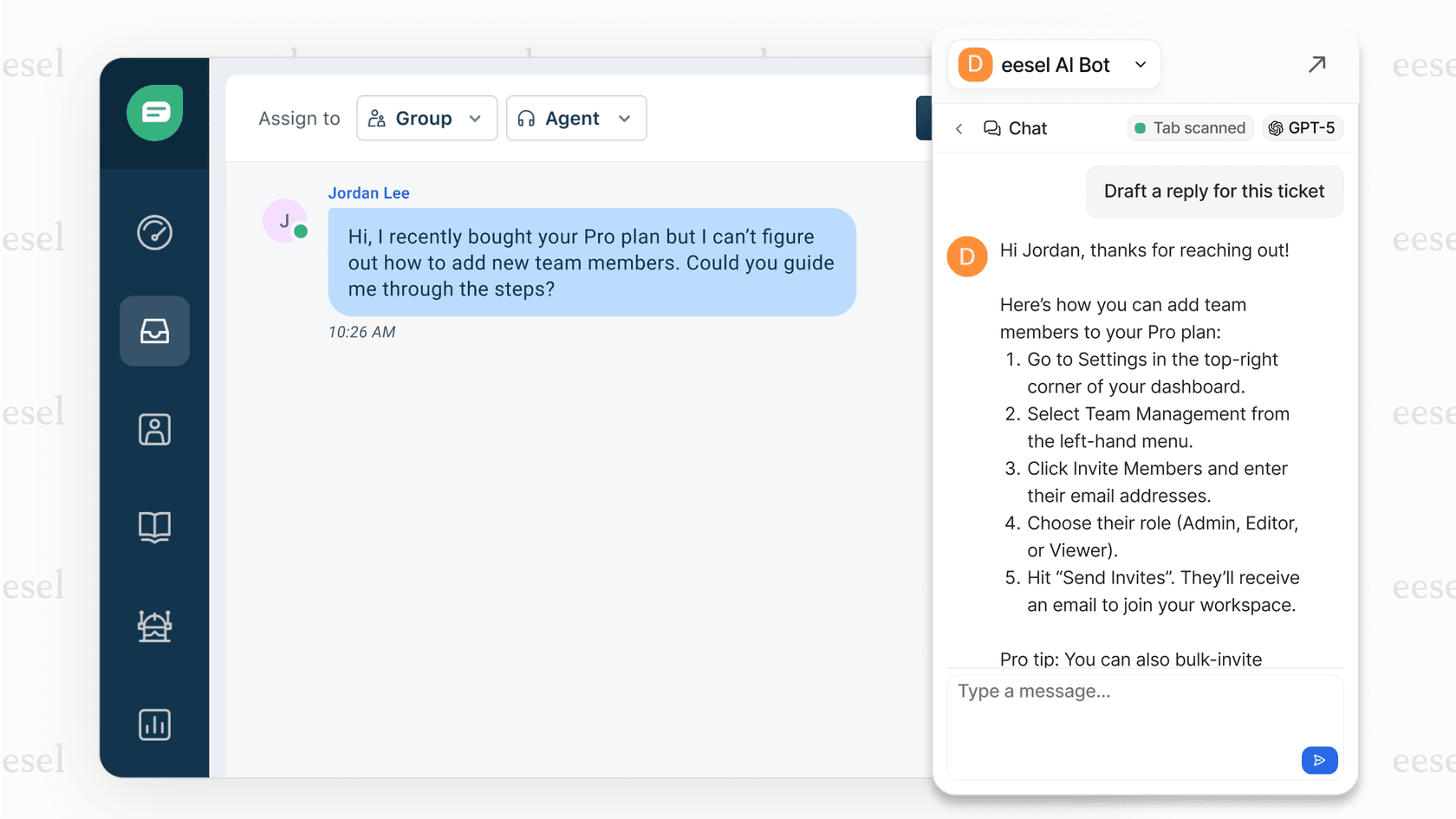
Pricing starts at $299/month for the Team plan (1,000 interactions, up to 3 bots) with a 7-day free trial to test everything out. Try eesel AI free and see how an AI teammate can transform your Zendesk support operations.


Frequently Asked Questions
Share this article

Article by
Stevia Putri
Stevia Putri is a marketing generalist at eesel AI, where she helps turn powerful AI tools into stories that resonate. She’s driven by curiosity, clarity, and the human side of technology.
