How to set up Zendesk escalation paths by priority in 2026

Stevia Putri
Written by

Stevia Putri

Reviewed by

Stanley Nicholas

Last edited March 2, 2026

Expert Verified

Banner image for How to set up Zendesk escalation paths by priority in 2026

Not every support ticket deserves the same response time. A password reset and a complete system outage should travel through very different escalation paths, yet both might arrive in your queue marked with the same priority. Getting this wrong means angry customers, missed SLAs, and burned-out agents.

Setting up escalation paths by priority in Zendesk ensures urgent issues reach the right people immediately while routine requests follow standard workflows. This guide walks you through configuring priority-based escalation from basic triggers to advanced automation.

This hierarchy ensures that critical system outages reach management immediately while routine queries follow standard support workflows.

Understanding priority-based escalation in Zendesk

Zendesk gives you four priority levels: Low, Normal, High, and Urgent. Each should trigger different escalation behaviors based on the urgency and impact of the issue.

Here's how most teams map priority to escalation response:

  • Urgent: Critical outages, security breaches, or anything that stops business operations. These should bypass standard queues entirely and notify managers immediately.
  • High: Significant issues affecting multiple users or key functions. Escalate to senior agents or specialized teams within hours.
  • Normal: Standard support requests that need resolution but aren't blocking work. Follow standard tiered escalation.
  • Low: General questions and feature requests. Minimal escalation, handled by first available agent.

The key is consistency. If one agent marks "can't log in" as urgent while another marks it as normal, your metrics become meaningless and customers get wildly different experiences. That's where clear escalation paths help everyone stay aligned.

For a deeper dive into the priority, urgency, and impact framework, see our complete guide on ticket prioritization.

The four types of escalation paths you need to know

Before configuring anything, understand the four escalation types that work together in a complete system:

Functional escalation routes tickets based on required expertise. A technical issue moves from a general support agent to an engineer. A billing question goes to the finance team. The escalation path depends on what skills are needed, not hierarchy.

Hierarchical escalation moves tickets up the chain of authority. When a customer asks for a supervisor or when an agent lacks authority to approve a refund, the ticket escalates to someone with more decision-making power.

Automated escalation uses time-based rules and SLA thresholds to move tickets without human intervention. If a High priority ticket sits unresolved for 4 hours, automation bumps it to Urgent and notifies the team lead.

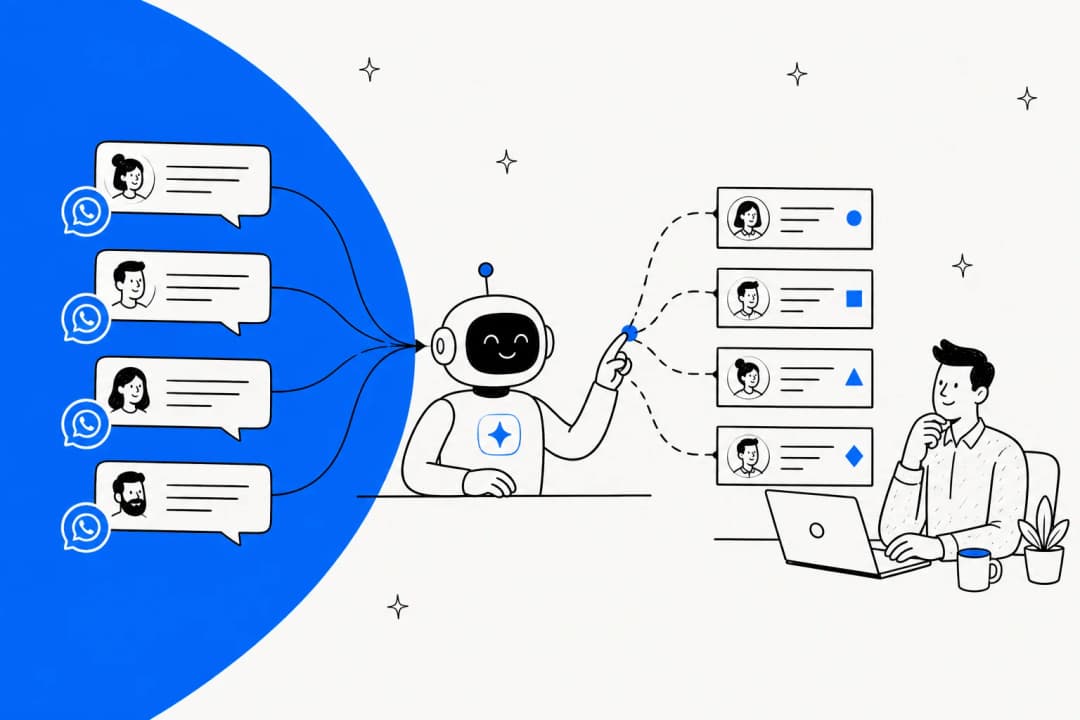
Priority escalation fast-tracks tickets based on urgency. Urgent tickets skip the first-line queue entirely and go straight to senior agents or specialized teams. This is what most people mean when they talk about escalation paths by priority.

Most teams use all four types together. A ticket might start with functional escalation (route to technical team), trigger automated escalation when SLA is at risk, and end with hierarchical escalation if the customer demands a manager.

Setting up priority-based triggers in Zendesk

Triggers are your first line of defense for priority-based escalation. They fire immediately when tickets are created or updated, routing urgent issues before they sit in a queue.

A screenshot of Zendesk's landing page.

Step 1: Access trigger settings

Navigate to Admin Center → Objects and rules → Business rules → Triggers. You'll see a list of existing triggers. Click Add trigger to create a new one.

Step 2: Create priority-based routing triggers

Set up triggers that automatically route tickets based on priority level:

Under Meet ALL of the following conditions:

  • Ticket | Is | Created
  • Priority | Is | Urgent

Under Actions:

  • Group | Support Managers (or your escalation group)
  • Add tags | urgent_escalation
  • Notifications | Email group | Support Managers

Create a similar trigger for High priority tickets routing to your senior agent group. The key is having dedicated groups ready to receive escalated tickets.

Step 3: Configure VIP customer triggers

Priority isn't just about the issue, it's also about who reported it. Set up triggers for your VIP customers:

Under Meet ALL of the following conditions:

  • Ticket | Is | Created
  • Organization | Is | VIP Customers (or your VIP org name)

Under Actions:

  • Priority | High
  • Group | VIP Support Team
  • Add tags | vip_customer

This ensures your most valuable customers get appropriate attention regardless of how they phrase their request. For more on VIP customer workflows, see our detailed setup guide.

Building time-based escalation automations

Triggers handle immediate routing. Automations handle what happens when tickets age. This is where you prevent tickets from sitting unresolved because they weren't initially flagged as important.

Automated time-based triggers prevent tickets from stagnating by progressively increasing their priority as they approach SLA deadlines.

Step 1: Create SLA-aware automations

Navigate to Admin Center → Objects and rules → Business rules → Automations. Unlike triggers, automations run on a schedule (hourly) and check time-based conditions.

Step 2: Set up "Hours until next SLA breach" alerts

Create an automation that warns your team before SLAs break:

Under Meet ALL of the following conditions:

  • Hours until next SLA breach | Less than | 2
  • Status category | Less than | Solved
  • Tags | Contains none of the following | sla_warning_sent

Under Actions:

  • Notifications | Email group | (your escalation group)
  • Add tags | sla_warning_sent

The tag prevents the automation from spamming your team every hour. For more on SLA-based escalation automations, see our automation guide.

Step 3: Priority-based time escalation

Create automations that increase priority if tickets sit too long:

For Normal priority escalation:

  • Hours since created | Greater than | 24
  • Priority | Is | Normal
  • Status | Is | Open

Actions:

  • Priority | High
  • Add tags | auto_escalated

Create a similar automation for High tickets escalating to Urgent after 4 hours. This ensures nothing gets forgotten just because it wasn't initially urgent. Learn more about Zendesk automations and their limitations in our detailed overview.

Connecting SLAs to your escalation paths

SLAs define how quickly you commit to responding and resolving tickets. Your escalation paths should align with these commitments.

Here's how typical SLA targets map to priority levels:

PriorityFirst ResponseResolution TimeEscalation Trigger
Urgent15-60 minutes2-4 hoursImmediate manager notification
High1-4 hours8 hoursEscalate after 50% of SLA elapsed
Normal4-12 hours24 hoursEscalate after 24 hours
Low24 hours5 business daysNo automatic escalation

To set up SLA policies, go to Admin Center → Objects and rules → Service level agreements. Create separate policies for each priority tier with appropriate targets.

The key integration point: use "Hours until next SLA breach" in your automations, not "Hours since last SLA breach." The former warns you before a breach happens. The latter only tells you after you've already failed.

For a complete walkthrough, see our guide on creating Zendesk SLA policies.

Creating escalation views for your team

Views are your team's dashboard for managing escalated tickets. Set up dedicated views so agents know exactly what needs attention.

Urgent/High priority queue: Show all tickets where Priority is Urgent or High, sorted by Next SLA breach ascending. This puts the most time-sensitive tickets at the top.

Escalated tickets view: Filter for tickets with escalation tags (like "urgent_escalation" or "auto_escalated"). This gives you a clean list of everything that's been escalated for special handling.

VIP customer view: Show tickets from your VIP organization, sorted by creation date. Your senior agents can monitor this throughout the day.

Overdue escalations view: Filter for tickets where SLA has already breached. These need immediate attention and possibly managerial involvement.

Create these views in Admin Center → Workspaces → Agent tools → Views. Share them with the appropriate groups so everyone sees what matters for their role.

Common escalation mistakes and how to avoid them

Even with perfect configuration, human factors can break your escalation system:

Over-escalating routine issues trains your team to ignore escalations. If every other ticket is marked Urgent, nothing is urgent. Define clear criteria for each priority level and hold agents accountable.

Missing context during handoffs frustrates customers and slows resolution. When a ticket escalates, the receiving agent should have everything they need. Use internal notes to document what's been tried and what the customer expects.

Not tracking escalation metrics means you can't improve. Monitor your escalation rate (aim for 15-20% for mature teams), average resolution time by priority, and SLA breach rates. If Urgent tickets consistently miss SLAs, you need more senior agents, not better rules.

Failing to notify customers creates anxiety. When you escalate a ticket, tell the customer what happened and when they can expect an update. Silence makes them think their issue was dropped.

Streamlining escalation with AI automation

Manual priority assignment and routing works for small teams. As volume grows, you need systems that understand context, not just keywords.

AI triage tools - Dashboard showing AI performance monitoring metrics.

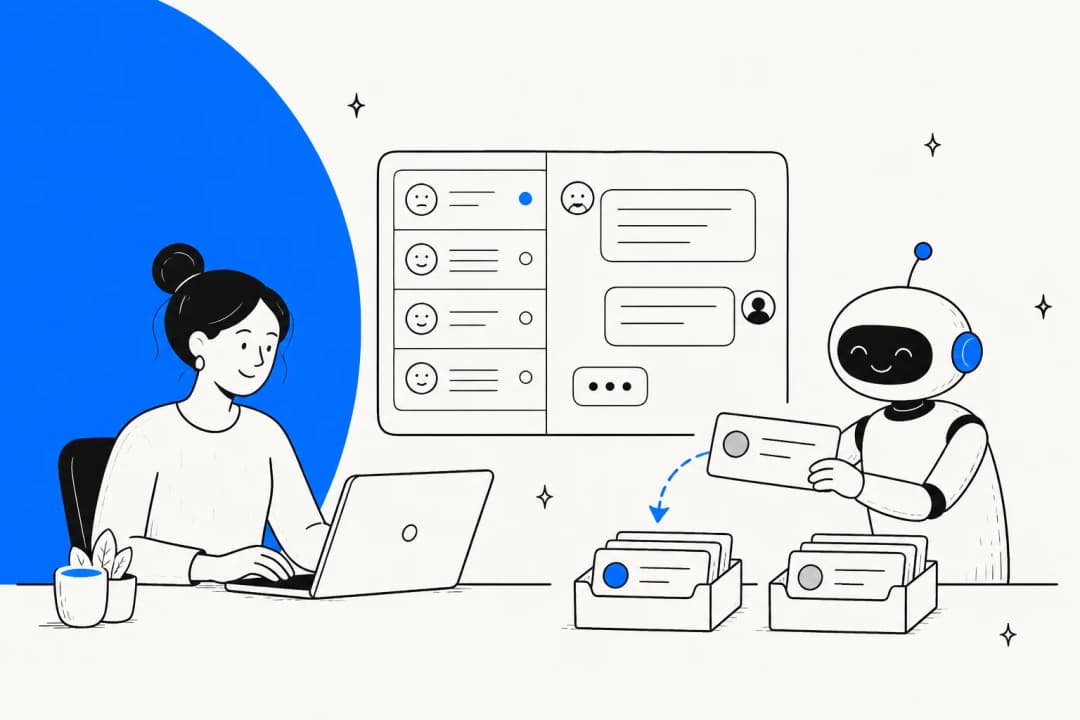
Our AI Triage analyzes ticket content, sentiment, and customer history to suggest or automatically set priorities. It catches nuances that keyword triggers miss. For example, "slightly concerned about the charge" from a VIP customer might warrant higher priority than the same message from a free trial user.

The AI learns from your past ticket resolutions and agent actions, improving its recommendations over time. It integrates directly with Zendesk to enhance your existing priority workflows without replacing them.

You can also deploy our AI Agent to handle routine issues before they ever need escalation. It resolves common requests autonomously and only escalates what truly needs human attention, with full context preserved.

Frequently Asked Questions

Start by evaluating business impact (how many people affected) and urgency (how quickly it deteriorates). Use the urgency-impact matrix: high impact plus high urgency equals urgent priority, high impact plus medium urgency equals high priority, and so on. Document these criteria so your team applies them consistently.
Zendesk has four priority levels: Low, Normal, High, and Urgent. Each should trigger different escalation behaviors. Urgent tickets bypass standard queues and notify managers immediately. High tickets route to senior agents or specialized teams. Normal tickets follow standard tiered escalation. Low tickets get minimal escalation and are handled by first available agents.
Yes, use automations with the 'Hours until next SLA breach' condition. Set up automations that notify your escalation group when tickets are within 2 hours of breaching their SLA. Add a tag like 'sla_warning_sent' to prevent repeated notifications.
Create separate triggers for each priority level. For Urgent priority, route directly to managers or specialized teams. For High priority, route to senior agent groups. Use automations to escalate Normal tickets to High after 24 hours and High tickets to Urgent after 4 hours if unresolved.
Triggers fire immediately when tickets are created or updated. Use them for instant routing based on priority. Automations run hourly and check time-based conditions. Use them for SLA warnings and aging ticket escalation. Both work together for a complete escalation system.
Define clear criteria for each priority level with specific examples. Train agents on these criteria and review priority choices regularly. Track escalation rates by agent to identify patterns. Use automation to escalate based on time, not just agent judgment, to ensure consistency.

Share this post

Stevia undefined

Article by

Stevia Putri

Stevia Putri is a marketing generalist at eesel AI, where she helps turn powerful AI tools into stories that resonate. She’s driven by curiosity, clarity, and the human side of technology.