
Most support teams eventually hit a wall. They've got tickets, users, and organizations covered, but what about the equipment customers use? The subscription plans they've purchased? The orders they're asking about?
Zendesk Custom Objects solve this problem. They let you extend Zendesk's data model to store whatever matters to your business, then connect that data directly to support tickets.
This guide covers everything you need to know about the Zendesk custom objects API. Whether you're a developer building integrations, a Zendesk admin extending your instance, or a technical consultant implementing solutions, you'll find practical examples and real-world patterns you can use immediately. For teams looking to enhance their Zendesk setup further, eesel AI's Zendesk integration can help automate support workflows using your custom data.
What are Zendesk custom objects?
Zendesk gives you standard objects out of the box: tickets, users, organizations, and articles. These work great for basic support scenarios. But businesses are more complex than that.
Custom objects let you create your own data structures within Zendesk. Think of them as database tables you define yourself. You create the object (the table), define its fields (the columns), then add records (the rows).
To work effectively with custom objects, you need to understand four core concepts:
- Custom objects - The container or template for your data. This defines what type of thing you're tracking.
- Custom object fields - The schema that defines what properties each object has. Without fields, your object is just an empty shell.
- Lookup relationship fields - Special fields that create connections between your custom objects and standard Zendesk objects (or other custom objects).
- Custom object records - Individual instances of your custom data. If your object is "Software," each record is a specific piece of software.
Common use cases include tracking hardware assets (laptops, printers), managing software licenses, linking e-commerce orders to support tickets, or storing subscription data. Any scenario where you need to reference business-specific data during support interactions is a candidate for custom objects. The Zendesk developer documentation provides detailed tutorials on implementing these use cases.
New API vs Legacy API: What you need to know
Here's something critical that trips up a lot of developers: Zendesk has two completely separate Custom Objects APIs. They are not compatible. Data created with one cannot be accessed by the other.
The New Custom Objects API
The modern API uses the endpoint /api/v2/custom_objects and is deeply integrated with the Zendesk Agent Workspace. Records appear natively in the interface, lookup fields work on ticket forms, and the whole experience feels like a native Zendesk feature. You can learn more about getting started with custom objects in the official documentation.
This is the API you should use for all new projects.
The Legacy Custom Objects API
The older API uses /api/sunshine/ and was Zendesk's first attempt at custom data. It works, but it feels bolted on rather than integrated. The Legacy Custom Objects API documentation refers to this as the "Legacy Custom Objects API" and it's primarily maintained for existing implementations.
If you're maintaining an older integration, you might need this API. Otherwise, stick with the new one.
Which should you use?
Unless you have a specific reason to use the Legacy API (like maintaining existing code), always choose the New Custom Objects API. It's better documented, better integrated, and where Zendesk is investing future development effort.
Getting started: Prerequisites and setup
Before you can start making API calls, you'll need a few things in place.
Required Zendesk plan
Custom objects aren't available on all plans. According to Zendesk's plan documentation, you need one of the following:
- Support Enterprise
- Any Zendesk Suite plan (Team, Growth, Professional, Enterprise, or Enterprise Plus)
The plan tier affects how many custom objects you can create, so check the limits section later in this guide.
Enable custom objects in Admin Center
An admin needs to activate the feature before you can use it.
- Go to Admin Center
- Click Objects and rules in the sidebar
- Select Custom objects > Objects
- Click Get started
If your account previously used legacy custom objects, you'll see a banner offering to try the new experience. Click Try it out to enable the modern API.
Create an API token
All API requests use Basic Authentication with an API token. The Zendesk API documentation explains how to create one:
- In Admin Center, go to Apps and integrations > APIs > Zendesk API
- Click the Settings tab
- Enable Token Access if it's not already on
- Click the + button to add a new token
- Give it a descriptive name like "Custom Objects Integration"
- Copy the token immediately (Zendesk won't show it again)
Authentication format
Every API request needs an Authorization header with your email and token:
Authorization: Basic {base64({email_address}/token:{api_token})}
For example, if your email is admin@company.com and your token is abc123xyz, you'd Base64 encode admin@company.com/token:abc123xyz and include that in the header.
Working with the Custom Objects API
Now let's walk through the core operations you'll use most often.
Creating custom objects
To create a custom object, send a POST request to /api/v2/custom_objects with three required fields:
- key - A unique identifier for the object (cannot be changed later)
- title - The singular display name (e.g., "Software")
- title_pluralized - The plural display name (e.g., "Software")
Here's a cURL example:
curl --request POST https://{subdomain}.zendesk.com/api/v2/custom_objects \
  --header "Content-Type: application/json" \
  -u {email_address}/token:{api_token} \
  --data-raw '{
    "custom_object": {
      "key": "software",
      "title": "Software",
      "title_pluralized": "Software"
    }
  }'
Optional fields include:
- description - What this object represents
- allows_attachments - Whether records can have file attachments
- include_in_list_view - Whether agents see this object in the Custom Objects records page
Defining custom object fields
An object without fields is just an empty container. You define the schema using the Custom Object Fields API. The official documentation on creating custom objects provides additional guidance on field configuration:
curl --request POST https://{subdomain}.zendesk.com/api/v2/custom_objects/software/fields \
  --header "Content-Type: application/json" \
  -u {email_address}/token:{api_token} \
  --data-raw '{
    "custom_object_field": {
      "key": "version",
      "title": "Version",
      "type": "text"
    }
  }'
Available field types include text, textarea, checkbox, date, integer, decimal, regexp, dropdown, multiselect, and lookup. See the Custom Object Fields API reference for complete details on each field type.
Lookup fields are particularly powerful. They create relationships between objects. To link your Software object to tickets, create a lookup field on tickets that points to Software:
curl https://{subdomain}.zendesk.com/api/v2/ticket_fields.json \
  -H "Content-Type: application/json" -X POST \
  -u {email_address}/token:{api_token} \
  --data-raw '{
    "ticket_field": {
      "type": "lookup",
      "title": "Affected Software",
      "relationship_target_type": "zen:custom_object:software"
    }
  }'
Managing custom object records
Once your object and fields are set up, you can create records.
import requests
from requests.auth import HTTPBasicAuth

url = "https://{subdomain}.zendesk.com/api/v2/custom_objects/software/records"
payload = {
    "custom_object_record": {
        "name": "Zendesk Support",
        "custom_object_fields": {
            "version": "2024.1",
            "license_type": "Enterprise"
        }
    }
}
headers = {"Content-Type": "application/json"}
auth = HTTPBasicAuth(f'{email_address}/token', api_token)

response = requests.request("POST", url, auth=auth, headers=headers, json=payload)
The API supports cursor-based pagination for listing records, which is more efficient than offset pagination for large datasets. Use the page[after] and page[size] parameters to navigate through results. See the Custom Object Records API reference for complete pagination details.
Plan limits and best practices
Understanding limits helps you design within constraints from the start.
Custom object limits by plan
| Plan | Custom Objects Limit | Lookup Fields per Object |
|---|---|---|
| Suite Team | 3 | 5 |
| Suite Growth | 5 | 5 |
| Support Enterprise | 30 | 10 |
| Suite Professional | 30 | 10 |
| Suite Enterprise | 50 | 10 |
| Suite Enterprise Plus | 50 | 10 |
Other important limits
- 100 fields maximum per custom object (standard fields don't count)
- 32KB maximum per record
- 50 million records maximum per account
- 100 records per page when listing via API
Best practices for data modeling
Plan your object relationships before you start building. Changing keys or fundamental structures later requires recreating objects and migrating data.
Use the external_id field for records when syncing with external systems. This lets you reference records by your own identifiers rather than Zendesk's internal IDs.
For performance, use cursor-based pagination when iterating through large record sets. Offset pagination gets slower as you page deeper into results. Review the Zendesk API pagination documentation for additional optimization tips.
Integrating custom objects into your workflow
The real power of custom objects comes from how they integrate with the rest of Zendesk.
Ticket forms and Agent Workspace
When you add lookup fields to ticket forms, agents can search and select custom object records directly while viewing tickets. The selected record's data appears in the ticket sidebar, giving agents full context without switching contexts. Check out Zendesk's guide on getting started with custom objects for setup instructions.
Zendesk Apps Framework
You can build sidebar apps that display custom object data in the Agent Workspace. This is useful when you need to show computed data, related records from external systems, or custom visualizations that go beyond what lookup fields provide.
Triggers and automation
Custom objects work with Zendesk triggers, allowing you to automate based on custom data. For example, you could automatically route tickets about expired licenses to a renewals team, or escalate issues affecting VIP customers based on data in a custom object.
External system integration
The API enables bidirectional sync with external systems. You might sync product catalog data from your e-commerce platform, pull asset information from your IT asset management system, or push support insights back to your CRM.
Using eesel AI with Zendesk custom data
Once you have custom objects storing your business data, you can put that information to work in your support operations. At eesel AI, we've built our platform to work seamlessly with Zendesk data, including custom objects.
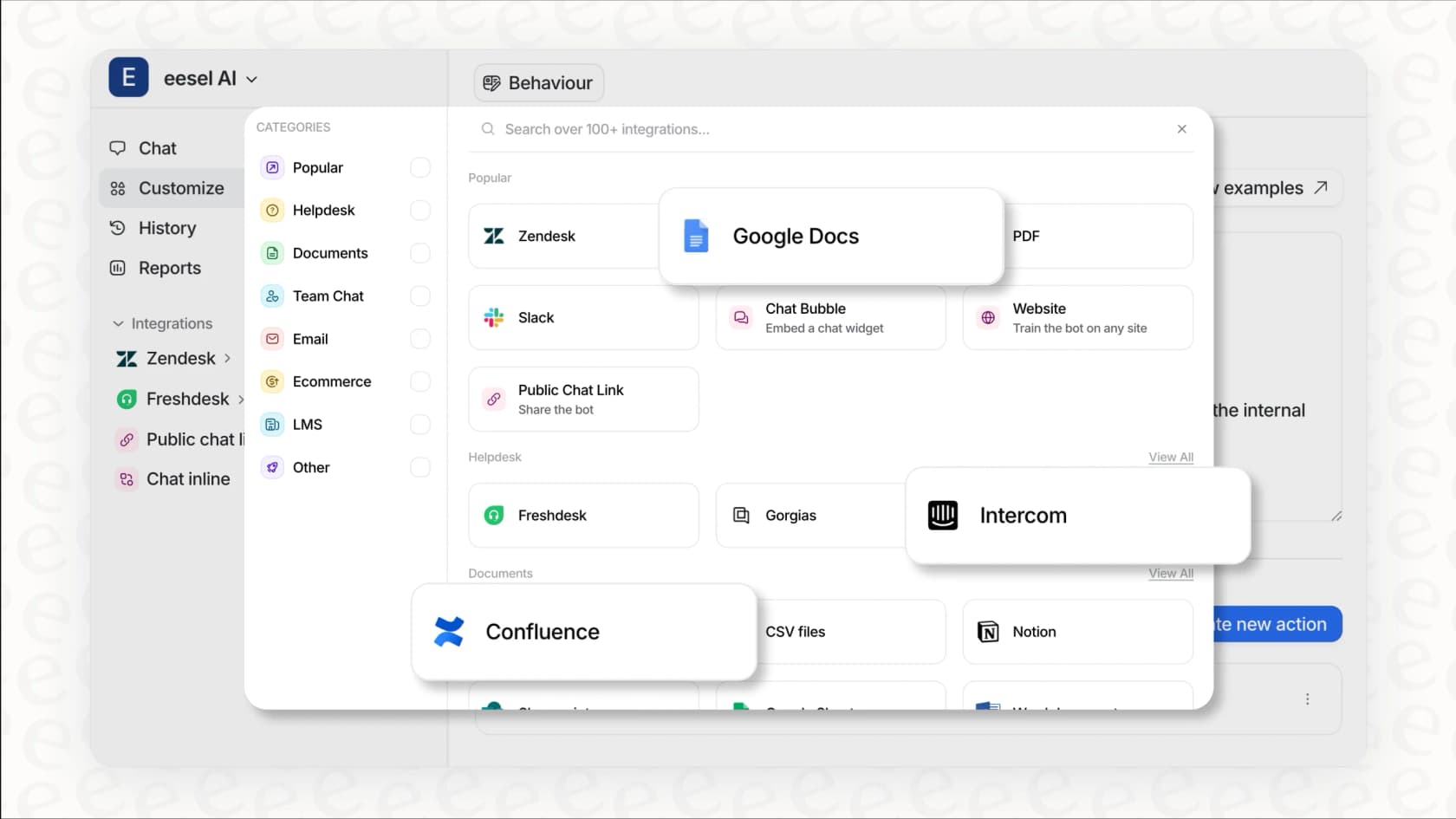
Our AI agents can reference custom object records when responding to tickets. If a customer asks about their software license, the AI can look up the license record, check expiration dates, and provide accurate information without human intervention.
We also use custom object relationships to personalize interactions. When the AI knows which products a customer uses (from your custom objects), it can tailor responses with relevant context and suggest appropriate solutions.
If you're investing in custom objects to model your business data, consider how AI can leverage that investment. The combination of structured custom data and intelligent automation creates support experiences that feel genuinely helpful rather than generic. You can try eesel AI free and see how it works with your Zendesk setup.
Start building with Zendesk custom objects today
The Zendesk custom objects API gives you the tools to model your unique business data and integrate it directly into your support workflow. You've learned the core concepts, the difference between API versions, how to authenticate, and the key operations for creating objects, defining fields, and managing records.
Your next steps depend on your goals. If you're building an integration, start with a small proof of concept, perhaps one custom object with a few fields. Test the CRUD operations, then expand to relationships and external system connections.
If you're a Zendesk admin, work with your team to identify which business data would most improve support interactions. The best custom object implementations solve real problems agents face daily.
And if you're looking to get more value from your Zendesk investment, explore how AI can leverage your custom data for smarter, more personalized support. The combination of structured data and intelligent automation is where modern support is heading. Book a demo to see how eesel AI works with your Zendesk custom objects.