How to automate Zendesk on-hold ticket status duration

Stevia Putri
Last edited February 24, 2026
If you've ever found a ticket buried in your queue that's been sitting on-hold for weeks, you already know why automation matters. The on-hold status is useful for tracking tickets that are waiting on someone outside your support team, but without proper automation, those tickets can easily be forgotten.
In this guide, we'll walk through how to set up Zendesk automations that monitor on-hold ticket status duration. You'll learn how to create reminder workflows, escalate stale tickets, and keep your queue moving efficiently. We'll also look at how modern AI tools like eesel AI can complement these automations for smarter ticket management.
What is the on-hold status in Zendesk?
The on-hold status is an optional ticket state in Zendesk that indicates a ticket is waiting for information or action from a third party. This could be a vendor, an internal developer, the finance team, or anyone who's not the ticket requester and doesn't have an agent account in your Zendesk.
Here's the key distinction: Pending means you're waiting on the customer. On-hold means you're waiting on someone else entirely. This distinction matters for reporting and workflow management.
The on-hold status is internal-only. While agents see the ticket as "On-hold," customers see it as "Open" in their help center. This prevents confusion since "on-hold" might suggest to customers that their issue is stalled, when really, work is happening behind the scenes.
By default, the on-hold status is deactivated. To enable it, go to Admin Center > Objects and rules > Tickets > Fields, click the options menu next to the Status field, and select Edit. Under Field Values, check "Enable On-hold status" and click Update field. For more details, see Zendesk's documentation on enabling the on-hold status.
Understanding Zendesk automation hold status duration vs. triggers
Before building workflows, you need to understand the difference between triggers and automations. Many people search for "Zendesk trigger condition hours since status change" when what they actually need's an automation.
Triggers are event-based. They fire immediately when something happens to a ticket, like when it's created, updated, or assigned. If a customer submits a ticket with "urgent" in the subject, a trigger can immediately assign it to your priority queue. Triggers work in seconds.
Automations are time-based. They run on a schedule, typically once per hour, and check for conditions involving the passage of time. This is where "hours since" conditions live. Automations are perfect for "follow up after X days" scenarios.
The "hours since on-hold" condition only exists in automations because it fundamentally requires time to pass. A trigger can't know how many hours have elapsed since a status change because triggers only evaluate the ticket at the moment it changes.
Automations run hourly and can process up to 1,000 tickets per cycle. If you have more tickets meeting your conditions, the remainder wait for the next cycle. For a deeper dive into time-based conditions, check out our guide on Zendesk trigger condition hours since status change.
Setting up your first Zendesk automation hold status duration workflow
Let's build a practical automation that notifies agents when tickets have been on-hold for 48 hours. This is one of the most common use cases and a great starting point.
Step 1: Navigate to Admin Center automations
Start by opening your Zendesk Admin Center. In the sidebar, click "Objects and rules," then select "Business rules" and click on "Automations." This shows you all existing automations in your account, including any default ones Zendesk has created.

Step 2: Create the automation conditions
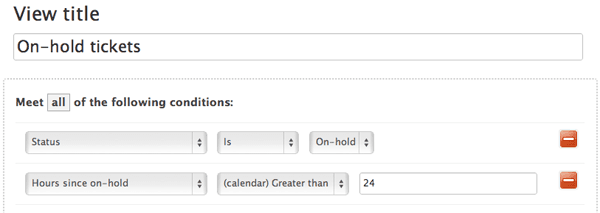
Click "Add automation" to create a new one. You'll see two sections: "Meet all of the following conditions" and "Perform these actions."
For our reminder automation, add these conditions:
- Ticket: Status category | Is | On-hold
- Ticket: Hours since on-hold | (calendar) Greater than | 48
- Ticket: Tags | Contains none of the following |
on_hold_reminder_sent
The status condition ensures we only look at on-hold tickets. The hours condition sets our 48-hour threshold. The tag condition is our nullifier, ensuring this automation only runs once per ticket.
Step 3: Configure the actions
In the "Perform these actions" section, add:
- Ticket: Add tags |
on_hold_reminder_sent - Notifications: User email | (assignee)
- Email subject: "Ticket on-hold for 48 hours: {{ticket.title}}"
- Email body: "Hi {{ticket.assignee.first_name}}, ticket #{{ticket.id}} has been on-hold for 48 hours. Time to follow up: {{ticket.link}}"
The tag action is critical. By adding on_hold_reminder_sent, we ensure the ticket no longer meets our conditions, preventing the automation from firing repeatedly.

Step 4: Test and activate
Before activating, create a test ticket and set it to on-hold. Wait for the automation to run (or check the automation revision history to see when it last ran). Verify that:
- The email was sent to the assignee
- The tag was added to the ticket
- The automation did not fire again on subsequent runs
Once verified, activate your automation. It will start processing tickets on its next hourly cycle.
Business hours vs. calendar hours: what you need to know
When setting up Zendesk automation hold status duration workflows, you need to choose between calendar hours and business hours. This choice affects when your automations fire.
Calendar hours count every hour that passes, 24/7. If you set an automation to act after 48 hours, it fires exactly 48 hours later regardless of weekends or holidays.
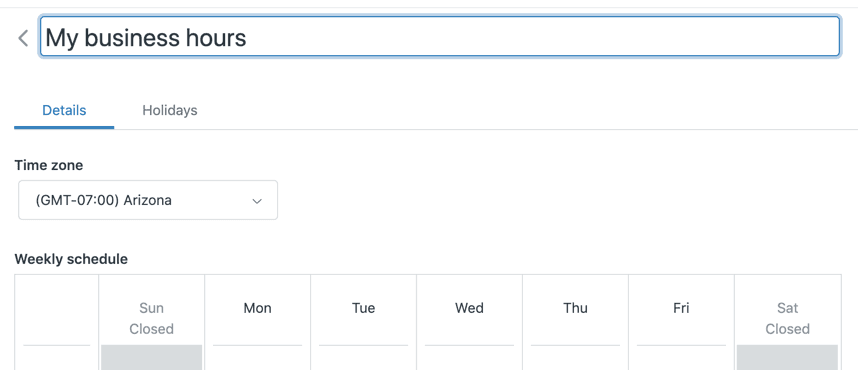
Business hours only count the hours within your defined business schedule. If your support team works 9 AM to 5 PM on weekdays (8-hour days), and you set an automation for 24 business hours, it won't fire until three business days have passed.
This distinction matters because 24 business hours isn't the same as one calendar day. If you promise customers a response within business hours, use business hours for your SLAs and escalation automations. For general housekeeping like internal reminders, calendar hours usually work fine.
To configure business hours, go to Admin Center > Objects and rules > Business rules > Schedules. Define your working hours, holidays, and time zones. Then, when creating automations, select the business hours option in your time-based conditions. Learn more about setting up business hours in Zendesk.
Document which automations use business hours versus calendar hours. This prevents confusion when team members expect an automation to fire on Saturday, but it waits until Monday because it's using business hours.
Common Zendesk automation hold status duration use cases
Once you understand the basics, you can build more sophisticated workflows. Here are three common patterns:
Reminder notifications for agents
The simplest and most useful automation alerts agents when their on-hold tickets need attention. Set up tiered reminders:
- First reminder: 24 hours on-hold (gentle nudge)
- Second reminder: 48 hours on-hold (standard follow-up)
- Manager escalation: 72+ hours on-hold (requires intervention)
Each tier should use a different tag nullifier so they fire independently. The escalation to managers helps catch tickets that might otherwise slip through the cracks.
Auto-reopen workflows
Instead of just sending reminders, you can automatically return tickets to Open status after a threshold. This brings the ticket back into the assignee's active queue.
Conditions: Status category is On-hold, Hours since on-hold is Greater than 72, Tags contains none of auto_reopened
Actions: Status category = Open, Add tag auto_reopened, Add internal note: "Automatically reopened after 72 hours on-hold"
The internal note helps agents understand why the ticket reappeared in their queue.
Custom status "snooze" patterns
For teams using custom ticket statuses, you can create sophisticated "snooze" workflows. Create multiple on-hold statuses like "Snooze 1 day," "Snooze 3 days," and "Snooze 1 week."
Each status has its own automation that reopens tickets after the specified duration. Agents choose the appropriate snooze duration based on when they expect to hear back from the third party. This gives agents more control than a single fixed reminder period.
Best practices and troubleshooting
Even experienced Zendesk admins make mistakes with automations. Here are the most common pitfalls and how to avoid them:
Always use "Greater than" not "Is" for time conditions. When you use "Hours since on-hold is 24," you're asking Zendesk to catch that ticket at exactly the 24-hour mark. But automations run hourly at unpredictable times. If the automation runs at 23.5 hours, the condition isn't met. If it then runs at 24.5 hours, the "is 24" condition is no longer true. The ticket never triggers the automation. "Greater than 24" catches all tickets that have exceeded 24 hours.
Always include nullifying conditions. Without a nullifier, your automation runs repeatedly on the same ticket. The standard pattern is checking that a specific tag is not present, then adding that tag as an action when the automation fires.
Document which automations use business versus calendar hours. This prevents confusion when expectations don't match reality. Include this information in your internal documentation.
Common mistakes to watch for:
- Decimal hours aren't supported. If you set "Hours since on-hold is 1.5," Zendesk interprets this as 1 hour.
- Closed tickets cannot be updated. If your conditions would match a closed ticket, the automation simply won't act on it.
- Time-based conditions can't be used in "Meet any of these conditions." They must be in "Meet all of the following conditions."
When troubleshooting, check the automation revision history in Admin Center. This shows which automations ran, when they ran, and how many tickets they processed. If an automation isn't firing, verify that your test ticket actually meets all conditions at the time the automation runs. See Zendesk's automation documentation for additional troubleshooting tips.
Taking it further: intelligent ticket management with eesel AI
Zendesk's native automations are powerful for time-based actions, but they work best when tickets are already properly categorized. Rule-based systems can only act on the conditions you explicitly define. They cannot understand intent, sentiment, or urgency without human configuration.
This is where eesel AI complements your Zendesk setup. Our AI Agent integrates directly with Zendesk to handle the intelligence layer before your time-based rules kick in.

Here's how it works together: eesel AI reads incoming tickets and routes them to the right team based on what the customer actually needs. Then your time-based automations handle the follow-ups, reminders, and escalations according to your schedule.
For example, instead of just escalating any ticket that's been open for 4 hours, you could have our AI Triage identify high-priority issues immediately and route them to senior agents, while your automations handle standard follow-up sequences for everything else.
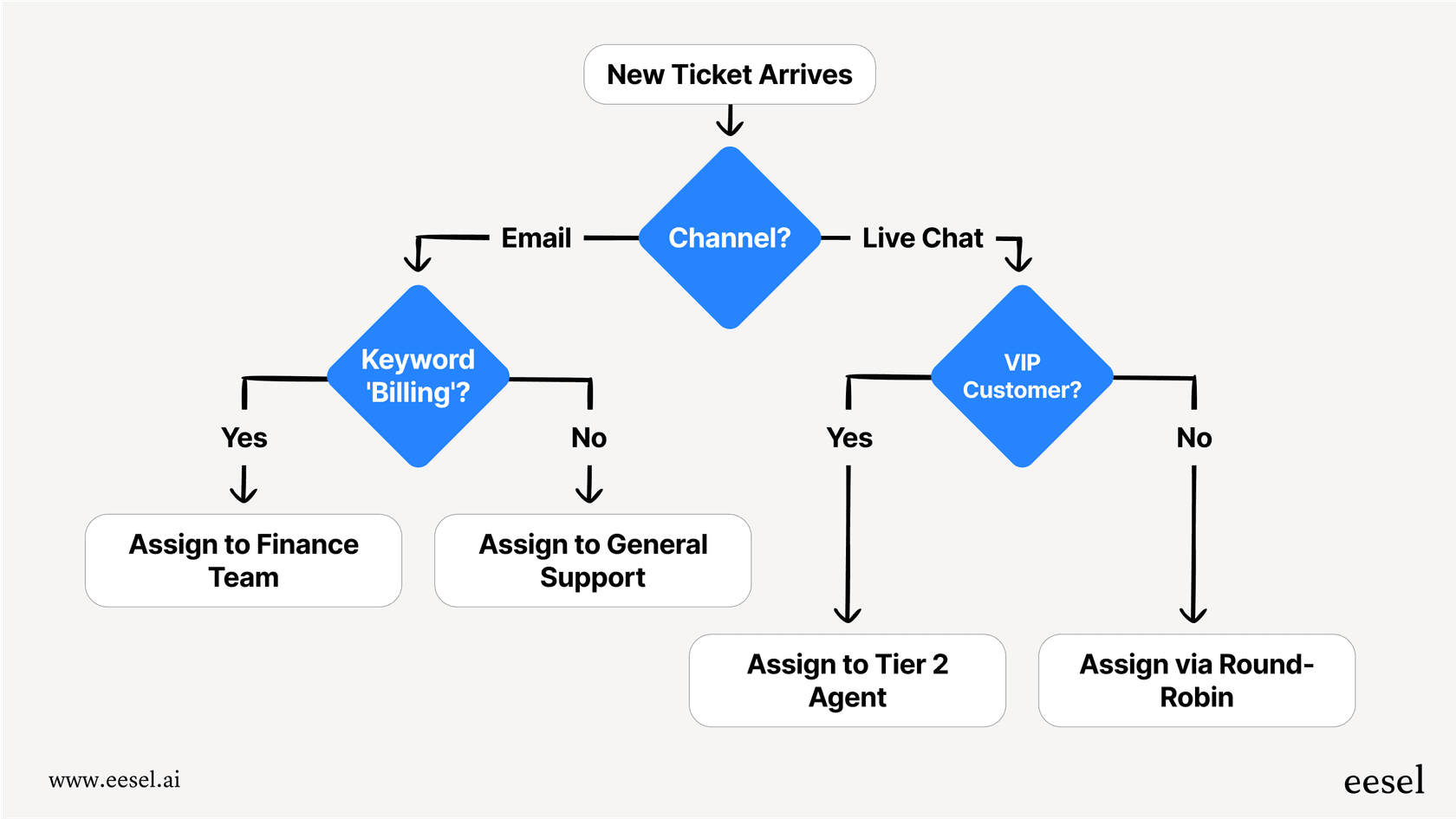
The result's a workflow where tickets reach the right people faster, and your automations handle the timing. You get the reliability of rules with the flexibility of AI-powered understanding.
If you're looking to add intelligence to your Zendesk workflows beyond what time-based rules can provide, try eesel AI and see how it complements your existing automations.
Start automating your on-hold ticket workflows
You now have everything you need to set up Zendesk automation hold status duration workflows that keep tickets from falling through the cracks. Start simple: create one reminder automation for tickets that have been on-hold for 48 hours. Once that works reliably, add tiered reminders or auto-reopen workflows.
The key's to start with one automation, test it thoroughly, and then expand. Don't try to build your entire workflow suite at once. Each automation you add should solve a specific problem you have observed in your support process.
If you find yourself wanting more intelligent routing before your time-based rules apply, consider how eesel AI could enhance your setup. The combination of AI-powered triage and time-based automation creates a support workflow that's both smart and reliable.

Frequently Asked Questions
Share this article

Article by
Stevia Putri
Stevia Putri is a marketing generalist at eesel AI, where she helps turn powerful AI tools into stories that resonate. She’s driven by curiosity, clarity, and the human side of technology.
