
Connecting your IT service desk with your team's communication hub makes sense. When Freshservice and Microsoft Teams work together, agents get ticket notifications where they already spend their day, and employees can request help without leaving Teams.
This integration happens through Servicebot, a virtual agent that bridges the two platforms. But getting it running requires some setup, and the features you can access depend heavily on which Freshservice plan you are on.
Let's break down what this integration actually does, how to set it up, and whether it is the right approach for your team. We will also look at how eesel AI offers a different approach to AI-powered support that works directly with your existing tools.

What you'll need before starting
Before diving into the setup, make sure you have everything in place:
- A Freshservice account on any plan (Starter, Growth, Pro, or Enterprise)
- Microsoft Teams with admin credentials to authorize the integration
- Matching email addresses between your Freshservice and Microsoft accounts
- Understanding of your plan limitations so you know which features are actually available to you
The email matching is particularly important. If an agent's Teams email does not match their Freshservice email exactly, they will not be able to use the integration properly. You will also need admin rights on both platforms to complete the initial setup.
If you are exploring alternatives to traditional ITSM setups, you might want to see how eesel AI integrates with Freshservice to provide AI-powered assistance without the complexity.
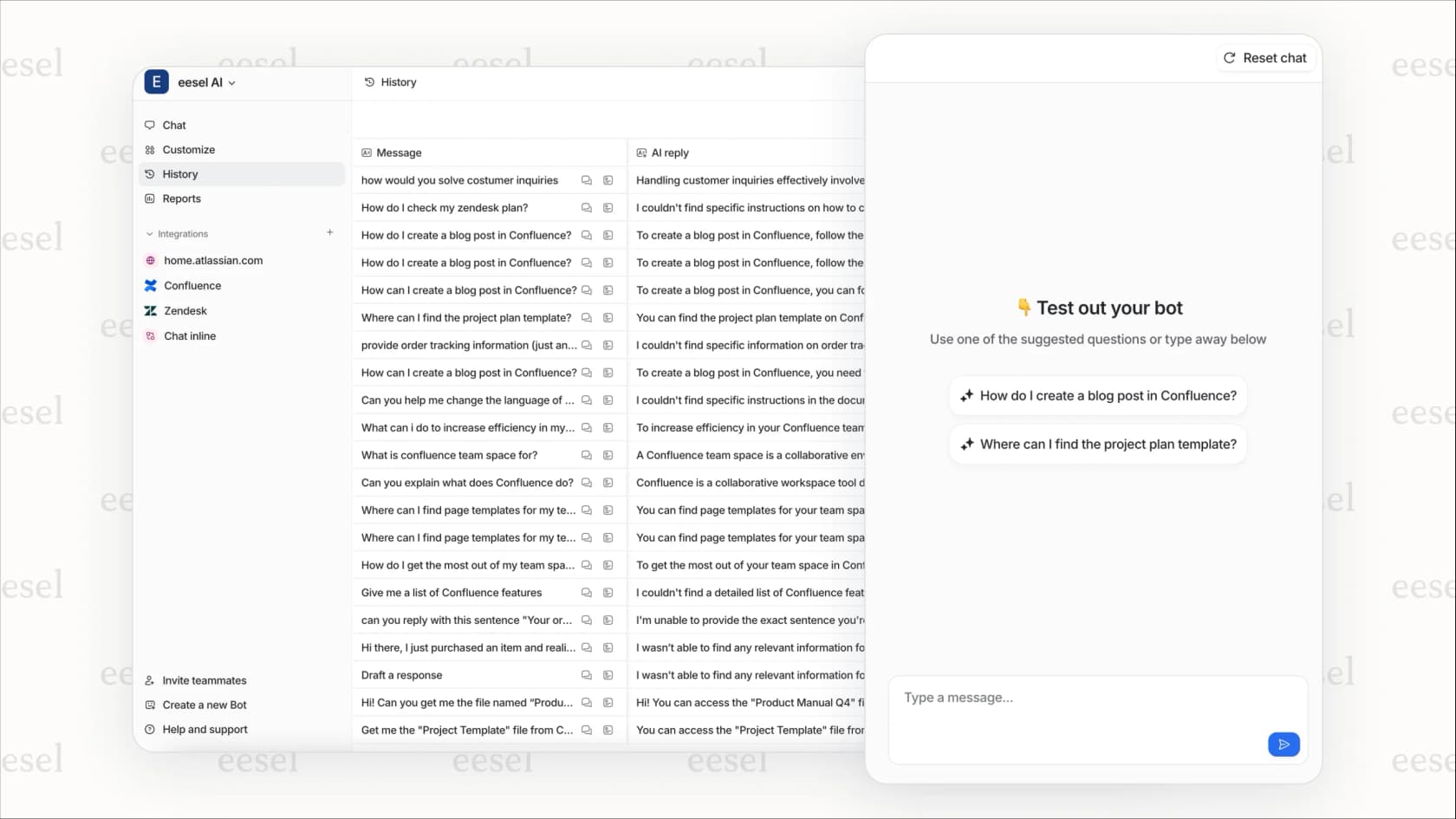
How to set up the Freshservice Teams integration
The setup process takes about 15-20 minutes if you have the right permissions. Here is how it works:
Step 1: Install Servicebot from Freshservice Admin
Start by logging into Freshservice as an admin. Navigate to Admin > Channels > Servicebot for Microsoft Teams and click Install. This opens the integration configuration panel where you will set up the connection between the two platforms.

Step 2: Select features and authorize
Once installed, you will see a list of available Servicebot features. The options you see here depend on your Freshservice plan. Select the features you want to enable, then click to authorize with your Microsoft admin credentials.
This authorization step is critical. You need a Microsoft 365 admin to approve the app permissions for your organization. Without this approval, the integration cannot access Teams channels or send notifications.

Step 3: Configure notification triggers
Now decide which ticket events should trigger Teams notifications. Common triggers include:
- New ticket created
- Ticket status changes
- Priority updates
- SLA breaches
- Approval requests
You can configure different notification rules for different Teams channels. For example, high-priority incidents might go to an #urgent-support channel while routine requests go to #general-it.
Step 4: Set up Freddy AI Agent (Enterprise only)
If you are on the Enterprise plan, you can configure Freddy AI Agent to handle employee queries directly in Teams. This creates dedicated AI Agent channels where employees can ask questions and get instant responses based on your knowledge base.
To set this up, go to Admin > Freddy AI > AI Agent Configuration and enable the Teams channel. You will need to map which knowledge base articles the AI should reference and set escalation rules for when human agents need to take over.
Note: This feature is only available on Enterprise plans. If you are on Starter, Growth, or Pro, you will not see these options.
Step 5: Associate Teams with Freshservice groups
The final step is mapping your Microsoft Teams channels to Freshservice agent groups. This ensures tickets get routed to the right people based on which channel they originate from.
For example, you might map:
- #hardware-support channel → Hardware Support group in Freshservice
- #software-issues channel → Software Support group
- #facilities channel → Facilities Management group
This mapping also controls which agents can see and interact with tickets from each channel.

Features available by Freshservice plan
Here is where things get important. The integration features you can actually use depend entirely on your plan tier.
Starter plan features
On the Starter plan ($19/agent/month), you get basic functionality:
- Ticket updates and notifications in Teams channels
- Group notifications when tickets are assigned
- Basic ticket management through the bot
This is enough for small teams who just want visibility into tickets without switching apps. But you will not get any collaboration features or AI capabilities.
Growth plan additions
The Growth plan ($49/agent/month) adds collaboration features:
- Ticket collaboration within Teams channels
- On-call management capabilities
- Ability to create Teams channels directly from tickets
- Import conversation history back to Freshservice
This tier makes sense for teams that need to collaborate on complex tickets without leaving Teams.
Pro plan additions
The Pro plan ($99/agent/month) includes everything in Growth plus:
- Project management integration
- Advanced collaboration widgets
- Sandbox environment for testing changes
This is aimed at larger IT organizations managing multiple projects alongside support tickets.
Enterprise plan (full features)
The Enterprise plan (custom pricing) unlocks the full integration:
- Freddy AI Agent for conversational support in Teams
- Instant ticket resolution via AI for common issues
- Knowledge base integration with SharePoint
- Analytics and performance tracking
- 1,200 AI sessions per license per year
Here is the complete breakdown:
| Plan | Ticket Notifications | Collaboration | AI Agent | Project Mgmt |
|---|---|---|---|---|
| Starter | ✓ | Limited | ✗ | ✗ |
| Growth | ✓ | ✓ | ✗ | ✗ |
| Pro | ✓ | ✓ | ✗ | ✓ |
| Enterprise | ✓ | ✓ | ✓ | ✓ |
Source: Freshservice Pricing
The key takeaway: if you want AI-powered support in Teams, you need Enterprise. The lower tiers give you notifications and basic collaboration, but not the automated responses that actually reduce ticket volume.
Using Servicebot after setup
Once configured, agents and employees interact with Servicebot through commands and actions.
Bot commands
Agents can use these commands in any Teams channel where Servicebot is installed:
@Servicebot Help- Shows available commands@Servicebot Fetch Tickets- Lists tickets assigned to you@Servicebot Ticket [ID]- Shows details for a specific ticket
Ticket actions from Teams
When Servicebot posts a ticket notification, agents can take action directly from Teams:
- Reply to the requester
- Approve or reject service requests
- Add private notes
- Update ticket status
- Reassign to another agent
Real-time notifications
Servicebot sends notifications for configured events, keeping agents informed without them needing to check Freshservice manually. This reduces context switching and helps teams respond faster.
Collaboration features
On Growth plans and above, agents can:
- Create dedicated Teams channels for specific tickets
- Import conversation history from Teams back into the ticket
- Collaborate with other departments without leaving the ticket context
For teams looking to automate more of their ticket handling, our guide on using AI to classify and tag support tickets covers additional automation strategies.
Alternative integration methods
If the native Servicebot integration does not meet your needs, there are third-party alternatives worth considering.
Zapier integration
Zapier offers no-code automation between Freshservice and Teams. You can build workflows like:
- When a new ticket is created in Freshservice, send a message to a Teams channel
- When a ticket is updated, notify the assigned agent via Teams chat
- When a requester is added, create a Teams channel for onboarding
Zapier pricing starts at $19.99/month for the Professional plan, which includes multi-step Zaps and premium app access. The free plan supports 100 tasks per month with basic two-step automations.
The advantage here is flexibility. You can connect Freshservice and Teams in ways the native integration does not support, and you can include other apps in your workflows.
n8n integration
n8n is an open-source workflow automation tool that offers self-hosting options. This appeals to organizations with strict data residency requirements or those who want more control over their automation infrastructure.
n8n supports EU data residency and offers more technical flexibility than Zapier, though it requires more setup effort.
Integrately
Integrately focuses on simple, 1-click automation setup. It is cost-effective for small teams who need basic trigger-action workflows without the complexity of more powerful platforms.
Pricing starts lower than Zapier, making it accessible for teams just getting started with automation.
Common issues and limitations
Before committing to this integration, understand its limitations.
No direct 1:1 chat with requesters
This is the most commonly cited limitation in user reviews. Servicebot only works through Teams channels, not direct messages. Agents cannot start a private chat with a requester to troubleshoot issues. All communication happens in shared channels.
As one user noted in a review: "Does not open Direct Chat with Requestor, downgrade from the old Skype for Business integration FreshService had years ago."
Email address matching requirement
Every agent's Teams email must exactly match their Freshservice email. If they differ, the agent will not be able to use the integration. This can be problematic in organizations with different email conventions across platforms.
Plan-based feature restrictions
The feature gaps between plans are significant. If you are on Starter or Growth and expect AI-powered responses, you will be disappointed. Freddy AI Agent is Enterprise-only.
User activation requirements
Agents must be activated in Freshservice before they can use the Teams integration. Inactive or occasional agents will not be able to interact with tickets through Servicebot.
"You do not have permissions" errors
This error usually means one of three things:
- The agent's Teams email does not match their Freshservice email
- The agent is not activated in Freshservice
- The agent is not part of the mapped agent group for that Teams channel
If these limitations are dealbreakers for your workflow, consider exploring eesel AI's Microsoft Teams integration as an alternative approach.
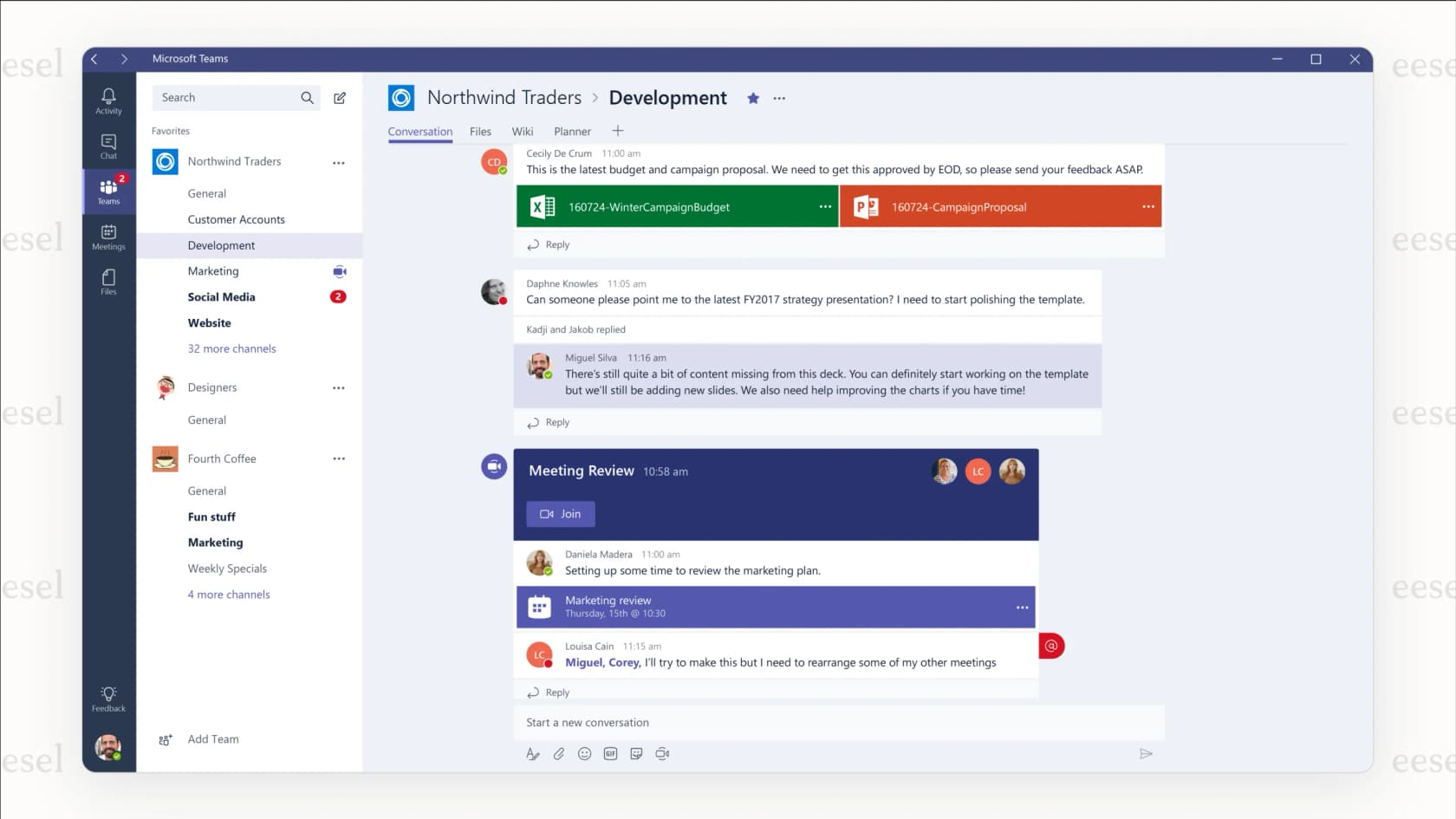
Is Freshservice Teams integration right for you?
This integration makes the most sense for specific use cases.
When it works well
- IT teams already using Freshservice who want notifications in Teams
- Organizations with structured ITSM processes and dedicated agents
- Teams that primarily work through channels rather than direct messages
- Companies willing to upgrade to Enterprise for AI capabilities
When to consider alternatives
You might want to look elsewhere if:
- You need AI-powered support but cannot justify Enterprise pricing
- Direct 1:1 chat with requesters is essential to your workflow
- You want a simpler setup without plan-based feature restrictions
- Your agents frequently switch between multiple tools and need unified access
A different approach with eesel AI
At eesel AI, we take a different approach to AI-powered support. Instead of bolt-on AI features locked behind enterprise pricing tiers, we provide an AI teammate that learns from your existing data (past tickets, help center articles, documentation) and works directly within your tools.
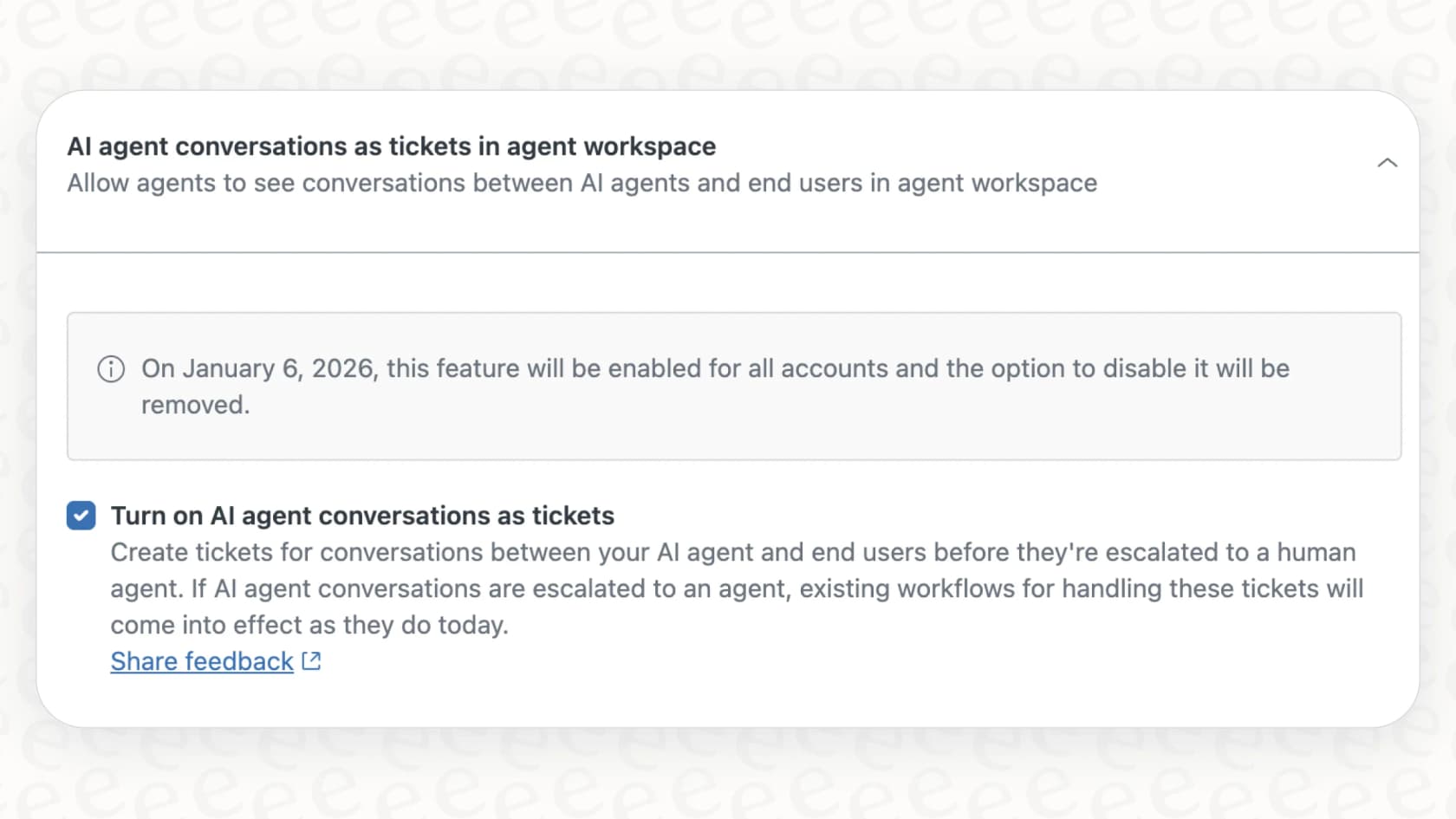
Our Microsoft Teams integration allows employees to get instant answers from AI trained on your knowledge, with seamless escalation to human agents when needed. There are no complex plan restrictions or feature gates. You simply connect your knowledge sources and the AI starts helping your team immediately.
For IT teams specifically, our AI for ITSM solution handles ticket classification, routing, and even resolution for common issues, all while integrating with the tools you already use.
The key difference: Freshservice's Teams integration extends their traditional ITSM platform into Teams. eesel AI brings intelligent automation directly to where your team works, without requiring a complete platform migration or enterprise-level commitments.