
If you're trying to use regular expressions in your Zendesk ticket trigger conditions, I have some news that might save you a few hours of frustration. Zendesk ticket triggers don't support regex. Not partially, not in a limited way. They simply don't have it.
This is one of those limitations that catches experienced admins off guard. You'd expect pattern matching to be standard in a platform as mature as Zendesk, especially when you're dealing with complex routing rules or tag-based workflows. But the reality is that ticket trigger conditions only offer basic operators like "is," "is not," "contains," and "contains at least one of the following."
The good news? There are workarounds. Some are built into Zendesk (just not where you might expect), and others involve rethinking how you structure your data. Let's break down what actually works and how to solve common pattern-matching problems without regex.
The short answer: Regex isn't supported in ticket trigger conditions
Let's get this out of the way first. If you open a ticket trigger in Zendesk and look at the available operators for conditions like "Ticket > Tags" or "Ticket > Subject text," you won't find a regex option. The official documentation lists these operators for most text conditions:
- Is / Is not (exact match)
- Contains / Does not contain (partial string match)
- Contains at least one of the following (for tags)
- Contains none of the following (for tags)
That's it. No "matches pattern," no "regex," no wildcards beyond the basic "contains" operator.
This limitation has been raised in the Zendesk community. A feature request from January 2025 specifically asked for regex support in the "Ticket > Tags" condition to handle partial tag matching. The use case was straightforward: tags like "australia-premium-user" and "uk-premium-user" couldn't be matched with a single "premium" pattern. Instead, admins have to list every possible variation or maintain strict tag naming conventions.
So why doesn't Zendesk add regex support? There's no official statement, but ticket triggers are designed for speed and simplicity. Regex can be computationally expensive and error-prone (a poorly written pattern can cause performance issues). Zendesk seems to have made a deliberate trade-off: keep ticket triggers fast and predictable, even if it means less flexibility.
Where regex actually works in Zendesk
Before we dive into workarounds, it's worth noting that regex isn't completely absent from Zendesk. It just lives in different places.
Live chat triggers
If you're using Zendesk live chat, triggers there DO support regex through a dedicated "Reg Ex" operator. This uses the Python RegEx framework and looks for a full match (not partial) against the condition value.

For example, you could match visitor page URLs against a pattern like .*\/pricing\/.* to trigger actions when visitors are on any pricing page. The documentation even recommends Pythex as a validation tool for testing your patterns.
This is genuinely useful if you're doing proactive chat or custom routing based on visitor behavior. But it only applies to chat interactions, not tickets.
Messaging triggers
Similarly, messaging triggers (for the Web Widget, mobile SDKs, and social channels) also include regex support. The operator works the same way as live chat: Python RegEx framework, full match required.
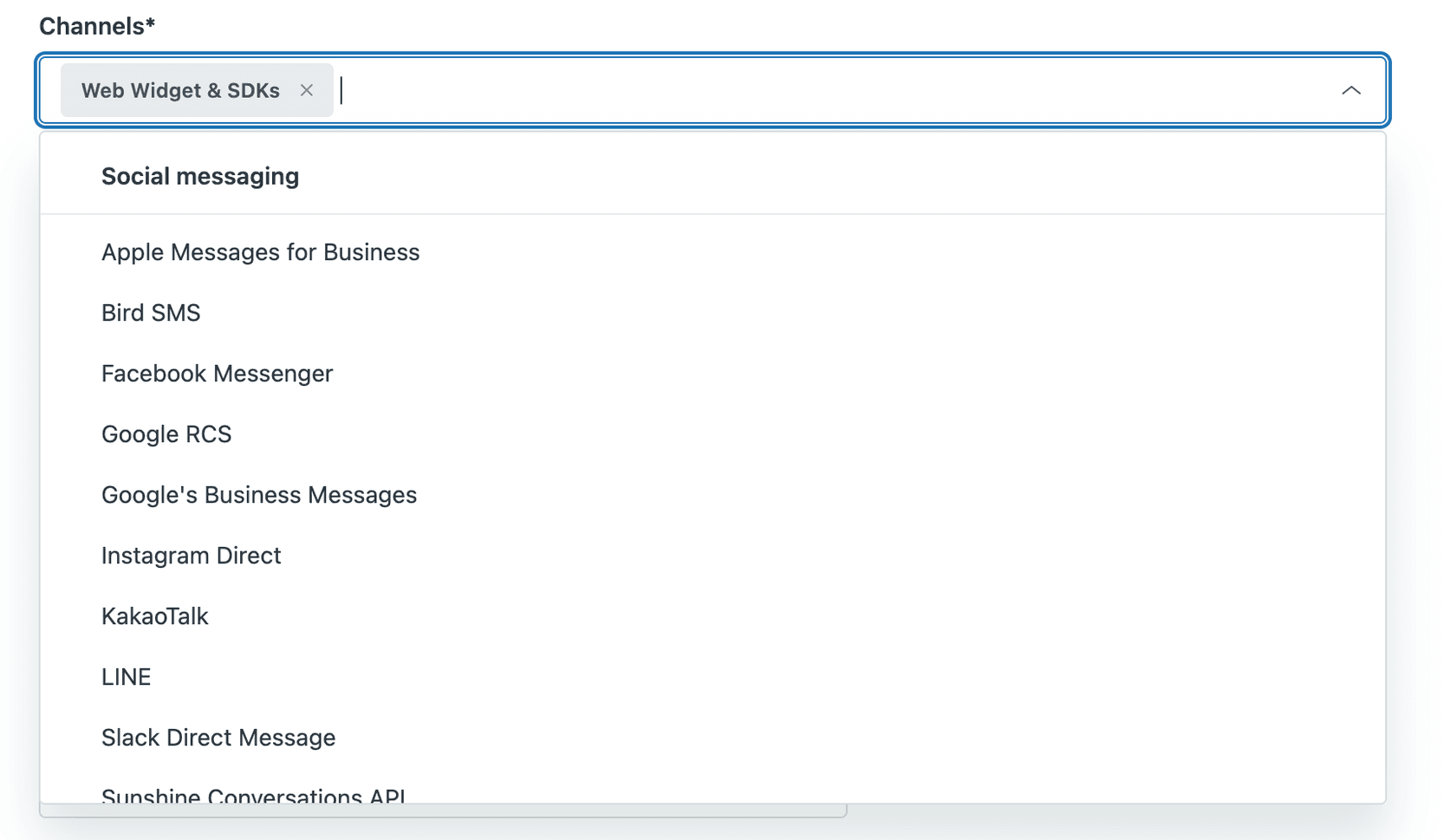
You can use this to match message content, customer page URLs, or other text-based conditions. If your workflow involves messaging channels rather than traditional tickets, you have more pattern-matching flexibility.
Custom field validation
There's also a "Regex" field type available when creating custom ticket fields. This isn't for trigger conditions, it's for field validation. When a user submits a ticket with a regex field, Zendesk validates the input against your pattern before allowing the submission.
This is useful for enforcing data formats (like order numbers, phone numbers, or IDs), but it doesn't help with trigger logic. The validation happens at form submission, not during trigger evaluation.
Workarounds for pattern matching in ticket triggers
Since ticket triggers are where most admins need pattern matching, let's look at practical alternatives.
Using the "contains" operator strategically
The "contains" operator is your best friend for partial matching in ticket triggers. It's available for:
- Ticket > Subject text
- Ticket > Comment text
- Most custom text fields
For subject text, Zendesk explicitly notes that "the Contains condition does not have to be an exact match. If any part of the Subject text has the string specified in the condition, the condition will be satisfied."
This means if you need to catch tickets about refunds, a condition like "Subject text > Contains the following string > refund" will match "Refund request," "Requesting refund," and "Refund #12345."
Important caveat: The "contains" operator for tags works differently. For tags, "contains" means "contains the exact tag," not "contains this string within a tag." This is the core of the regex limitation frustration.
Tag-based approaches
Since you can't do partial tag matching, you need to design your tagging strategy around exact matches. Here are a few approaches:
Hierarchical tagging with multiple tags: Instead of a single tag like "australia-premium-user," use two tags: "australia" and "premium-user." Then your trigger can check for "premium-user" using "contains at least one of the following."
Standardized prefixes or suffixes: If you must use compound tags, establish a consistent format and list variations in your trigger. For example, if premium users get tagged with either "premium-australia" or "premium-uk," your trigger condition would be:
- Tags > Contains at least one of the following > premium-australia, premium-uk, premium-us, premium-germany
It's not elegant, but it works.
API-based tag standardization: If your tags are being created by external systems (like an API integration), enforce consistent naming at the source. It's easier to prevent messy tags than to clean them up with triggers.
Webhook solutions for complex matching
For scenarios where you genuinely need regex or complex pattern logic, you can use Zendesk webhooks combined with triggers.
Here's how it works:
- A trigger fires on ticket creation/update
- The trigger calls a webhook to an external service
- That service performs the regex matching or complex logic
- The service updates the ticket via Zendesk API (adds tags, changes fields, etc.)
- A second trigger picks up those changes and takes action
This is obviously more complex than a native trigger condition. You need:
- An external service to host the logic (could be a simple AWS Lambda, Zapier, or Make.com workflow)
- API credentials and webhook configuration
- Error handling for when the external service is down
But it does unlock true regex pattern matching and any other logic you can code.
Common use cases for webhooks:
- Changing ticket subjects based on pattern matching
- Adding CCs conditionally
- Updating custom fields that triggers can't directly modify (like regex, multi-line, or numeric fields)
As noted in Swifteq's best practices guide, webhooks are the escape hatch when you've hit Zendesk's native limitations.
Third-party apps and integrations
The Zendesk Marketplace has apps that extend trigger functionality. For example, Triggers+ChatGPT can analyze ticket content and perform actions based on AI understanding rather than rigid rules.
Alternatively, platforms like eesel AI take a different approach entirely. Instead of building increasingly complex trigger logic, you can use AI that learns from your past tickets and help center to handle routing, tagging, and responses. It understands context and intent without requiring regex patterns or dozens of trigger rules. You can see exactly how eesel's AI agent for Zendesk handles this kind of routing natively.

Common scenarios and solutions
Let's look at specific problems admins often face and how to solve them within Zendesk's constraints.
Matching partial tag names
Problem: You have tags like "australia-premium-user," "uk-premium-user," and "us-premium-user," and you want a trigger that fires for any premium user regardless of region.
Solution options:
-
Restructure your tags: Use two separate tags: "premium-user" and "region-australia." Then your trigger checks for "premium-user" only.
-
Use a custom dropdown field: Instead of tags, use a custom field for user tier (Free, Premium, Enterprise) and another for region. Triggers can evaluate dropdown fields with exact matching.
-
List all variations: If you can't change the tagging, use "contains at least one of the following" and list every regional variation. It's maintenance-heavy but functional.
Pattern matching in email subjects
Problem: You want to route tickets based on order numbers, ticket IDs, or product codes in the subject line.
Solution: The "contains" operator for subject text is more flexible than tag matching. You can:
- Match "Order #" to catch any order number (though you can't extract the specific number)
- Match "Refund" to catch refund-related subjects
- Use multiple conditions with "any" logic to catch variations ("refund," "return," "money back")
If you need to extract specific data from subjects (like the actual order number), you'll need a webhook to parse the subject and populate a custom field.
Detecting keywords in ticket comments
Problem: You want to trigger actions based on keywords in the customer's message.
Solution: Use the "Ticket > Comment text" condition with these operators:
- Contains at least one of the following words: Matches if any of the listed words appear (space-separated, not comma-separated)
- Contains the following string: Matches exact string (case-insensitive)
For example, to catch urgent requests, you might use:
- Comment text > Contains at least one of the following words > urgent emergency asap critical
Note that this only checks the most recent comment when the trigger fires, not the entire ticket history.
Best practices for complex trigger logic
When you're working within Zendesk's constraints, these practices will keep your triggers manageable:
Keep triggers simple and focused. Every trigger should have one clear purpose. If you're trying to do too much in one trigger, split it into multiple triggers that fire in sequence. Swifteq's guide emphasizes this: "Every trigger should have one clearly defined purpose and goal."
Organize by lifecycle. Structure your triggers in this order:
- Ticket creation (categorization, initial tagging)
- Routing (assignment to groups/agents)
- Ongoing workflows (status changes, escalations)
- Notifications (emails, Slack alerts)
Test before deploying. Use Zendesk's test feature or create test tickets to verify your triggers work as expected. A trigger that misfires can cause routing chaos.
Document externally. Zendesk's trigger descriptions are limited. Maintain an internal knowledge base documenting what each trigger does and why. Future you (or your replacement) will thank you.
Know when to stop. If you find yourself building a Rube Goldberg machine of triggers, webhooks, and external services, it might be time to consider whether Zendesk's native automation is the right tool for your complexity level.
When to consider alternatives to Zendesk triggers
There's a point where workarounds stop being practical. Here are signs you've outgrown trigger-based automation:
- You're managing 50+ triggers and losing track of what does what
- Your routing logic requires regex or complex conditional logic
- You need to understand context and intent, not just keyword matching
- Agents are spending more time managing trigger edge cases than solving customer problems
At this stage, you have a few options:
Build custom middleware: Use the Zendesk API to build your own routing layer. This gives you full control but requires development resources.
Use a workflow automation platform: Tools like Zapier, Make.com, or custom webhooks can handle complex logic and feed clean data back into Zendesk.
Consider AI-powered alternatives: eesel AI works alongside (or instead of) traditional triggers. It learns from your help center, past tickets, and macros to understand context and intent. You define escalation rules in plain English ("always escalate billing disputes to the finance team"), and the AI handles the routing.

The difference is that AI understands that "my card was charged twice" and "I see a duplicate transaction" are the same issue, without you writing regex patterns or keyword lists. It also handles 80+ languages automatically, which is useful if you're supporting a global customer base.
If you're curious how this compares to your current trigger setup, you can try eesel AI free or book a demo to see it in action.


