How to set up Zendesk ticket SLA by organization: A complete guide

Stevia Putri
Last edited March 2, 2026
Not all customers are created equal. Your enterprise clients paying $50,000 a year expect faster responses than your free trial users. Organization-based SLA policies in Zendesk let you set different response and resolution targets based on which organization a ticket belongs to.
This guide breaks down exactly how to configure these policies and when to use them.
What are organization-based SLA policies in Zendesk?
An organization-based SLA policy is a Zendesk SLA policy that uses the Organization field (or Organization tags) as a condition. Instead of applying the same response times to every ticket, you can create tiered service levels: VIP customers get 1-hour first replies, standard customers get 8 hours, and internal requests follow a different schedule entirely.
This differs from standard SLAs, which typically filter by channel, priority, or group. It also differs from Group SLAs, which measure internal ownership time rather than customer-facing commitments.
Common use cases include:
- Contractual obligations Enterprise customers with guaranteed response times in their contracts
- Support tiers Bronze, Silver, and Gold service levels tied to subscription plans
- VIP treatment Flagged organizations that get priority handling
- Internal vs external Different targets for employee requests versus customer tickets
The main benefit is precision. You can meet customers where they are instead of using a one-size-fits-all approach that either over-delivers (expensive) or under-delivers (risky).
Prerequisites for organization-based SLAs
Before you start creating policies, make sure you have the following in place:
- Zendesk plan SLA policies require Suite Professional or higher ($115 per agent per month when billed annually). Organization field conditions are available on these plans.
- Organizations enabled Your Zendesk instance needs to have organizations turned on and populated with your customer data.
- Priority field configured SLAs only apply to tickets with a priority set (Low, Normal, High, or Urgent). You'll want triggers to auto-set priority based on organization or other criteria.
- Business hours defined Decide whether you're measuring in calendar hours (24/7) or business hours (your operating schedule). Most B2B support teams use business hours.
One thing to note: if you're on Suite Enterprise ($169 per agent per month annually), you also get access to Group SLAs for tracking internal handoffs. But for customer-facing commitments, standard organization-based SLAs work perfectly.
Step-by-step: Creating an organization-based SLA policy
Here's how to set up your first organization-specific SLA policy in Zendesk.
Step 1: Access SLA settings in Admin Center
Navigate to Admin Center > Objects and rules > Business rules > Service level agreements.

You'll see a list of existing SLA policies if you have any. Policies are evaluated from top to bottom, and the first matching policy applies to each ticket. This ordering matters a lot for organization-based policies.
Step 2: Create a new policy
Click Create policy, then enter a descriptive name and description. Good names make maintenance easier six months later.
Examples:
- "VIP Customer SLA Enterprise Tier"
- "Standard Support Non-Contract Customers"
- "Internal IT Requests Employees Only"
Click Next to move to the conditions section.
Step 3: Add organization conditions
This is where the magic happens. In the conditions section, you'll set which tickets this policy applies to.
For organization-based targeting, you have two main options:
Option A: Specific organizations
- Condition: Organization is [select organization names]
- Best for: A handful of VIP customers with unique contracts
Option B: Organization tags
- Condition: Organization tags includes at least one of [tag names]
- Best for: Scalable tier management (tag all Enterprise customers with "enterprise-tier")
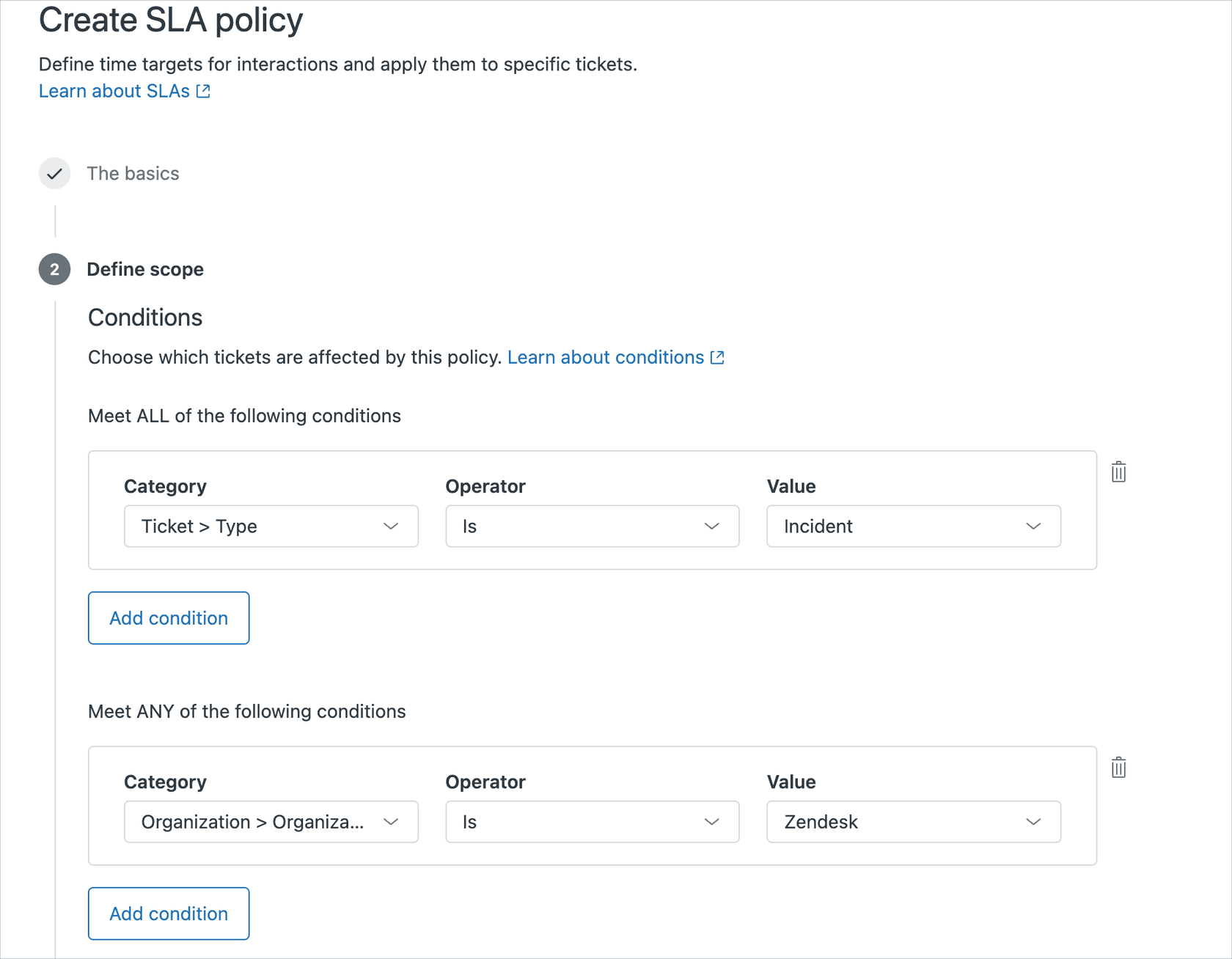
You can combine organization conditions with other filters. For example: "Organization tags includes 'enterprise' AND Channel is Email" to set different targets for email versus chat.
Click Next to configure your metrics.
Step 4: Configure SLA metrics and targets
Now you'll set the actual time targets. Zendesk offers seven metrics:
| Metric | What it measures | When to use it |
|---|---|---|
| First Reply Time | Time from ticket creation to first agent response | Most common sets initial customer expectations |
| Next Reply Time | Time between customer follow-up and your next reply | For ongoing conversations |
| Periodic Update | Time between each public agent comment | Keeps customers informed during long resolutions |
| Pausable Update | Like Periodic Update, but pauses when ticket is Pending | Measures actual work time, not waiting time |
| Requester Wait Time | Total time ticket spends in New, Open, or On-hold | Good for overall resolution commitments |
| Agent Work Time | Time in New or Open status only | Measures actual agent effort |
| Total Resolution Time | Entire ticket lifespan from creation to solved | End-to-end commitment |
Source: Zendesk SLA documentation
For each metric you choose, set targets for each priority level:
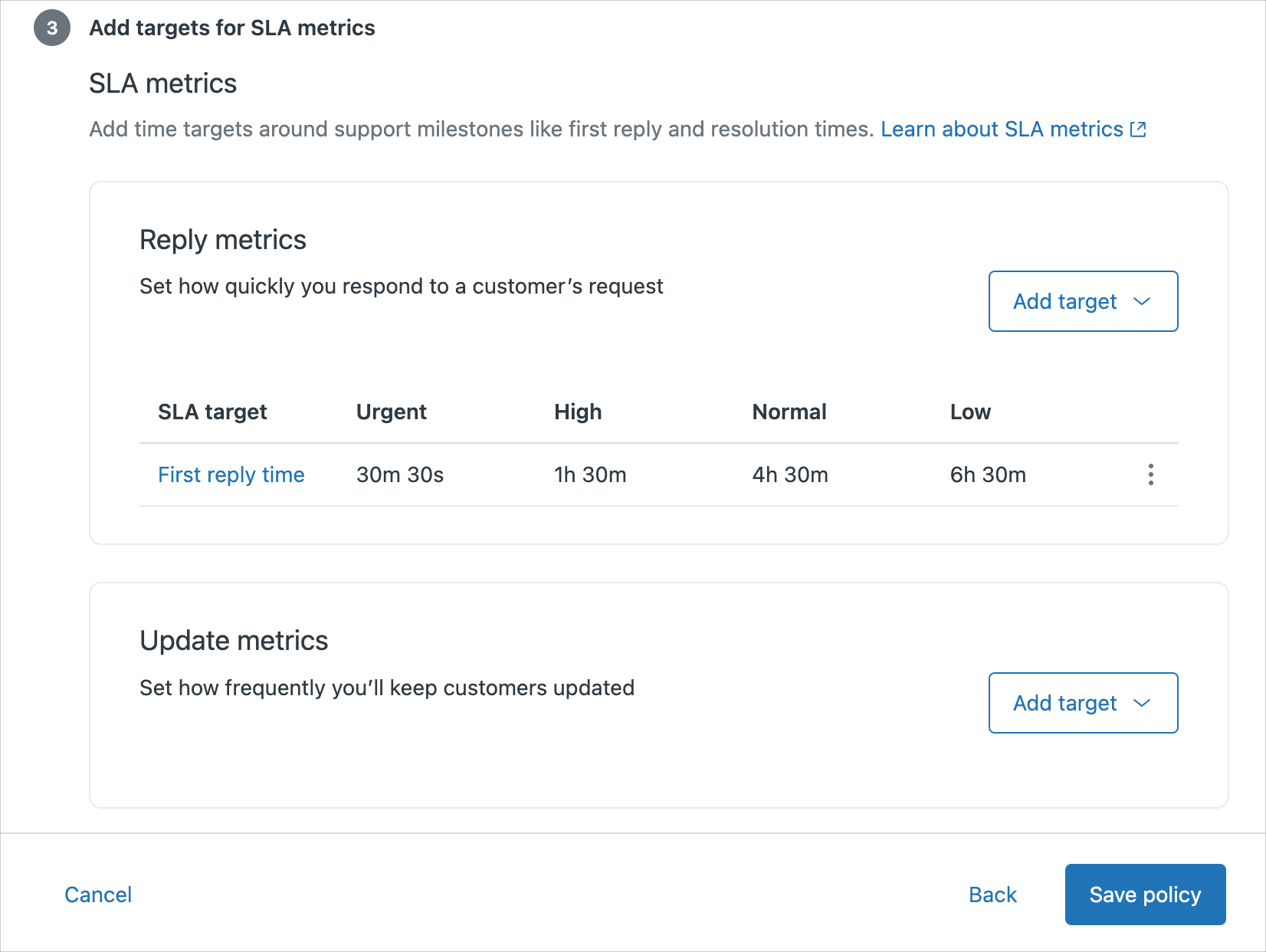
Best practice: Start with just First Reply Time and one resolution metric. You can always add more later, but too many metrics create confusion.
Step 5: Set business hours and save
For each target, choose your Hours of operation:
- Business hours Only counts time during your scheduled business hours. Use this for B2B support where customers don't expect weekend responses.
- Calendar hours Counts 24/7. Use this if you have global customers or contractual obligations that don't pause for weekends.
Click Add to add each metric, then Save policy when you're done.
Common organization SLA scenarios
Let's look at three real-world setups.
Scenario 1: VIP or enterprise customers
You have 5 enterprise customers who pay for premium support with guaranteed 2-hour first replies. Instead of creating 5 separate policies, tag all their organizations with "vip-enterprise" and create one policy:
- Condition: Organization tags includes at least one of "vip-enterprise"
- First Reply Time: Urgent 1 hour, High 2 hours, Normal 4 hours, Low 8 hours
- Hours: Business hours
Place this policy at the top of your SLA list so it takes precedence over your default policy.
Scenario 2: Excluding internal organizations
Your company uses the same Zendesk instance for customer support and internal IT help desk. You don't want employee password reset requests triggering your customer SLA commitments.
Create a catch-all policy at the bottom of your list:
- Condition: Organization is not "Internal Employees"
- Metrics: Your standard customer-facing targets
Then create a separate policy above it for internal requests with more relaxed targets (or no SLA at all).
Scenario 3: Multi-tier support levels
You offer Bronze, Silver, and Gold support tiers as part of your product packages. Each tier gets progressively faster response times.
Set up organization tags for each tier, then create three policies:
- Gold SLA (top of list) Organization tags includes "gold-tier"
- Silver SLA Organization tags includes "silver-tier"
- Bronze SLA (default) Organization tags includes "bronze-tier"
This way, as customers upgrade or downgrade, you just change their organization tag. No policy editing required.
Best practices for managing organization SLAs
After setting up dozens of these policies, here's what actually works:
- Order matters Put your most restrictive policies at the top. Zendesk applies the first matching policy and stops looking.
- Use tags for scale Organization tags are easier to maintain than listing individual organizations in conditions. When you onboard a new enterprise customer, just tag their organization instead of editing policies.
- Set realistic targets Look at your actual performance over the last 90 days before setting targets. If your average first reply is 6 hours, don't promise 1 hour without adding resources.
- Document your setup Keep a spreadsheet of which organizations have special SLAs and why. Future you (or your successor) will thank you.
- Review quarterly SLA targets that made sense in January might be too loose or too tight by June. Check your breach rates and adjust.
- Automate priority Use triggers to set ticket priority based on organization tags. Remember: no priority means no SLA applies at all.
Monitoring and reporting on organization SLAs
Setting up SLAs is only half the battle. You need to track how you're performing against them.
Zendesk Explore has built-in SLA reporting. You can create dashboards showing:
- Overall SLA achievement rate
- Breach rates by policy
- Time to breach analysis
Organization-specific views help agents prioritize. Create views that:
- Show tickets sorted by SLA time remaining (ascending)
- Filter by organization tags for tier-specific queues
- Display SLA breach status prominently
Breach notifications keep you proactive. Set up triggers to:
- Email managers when VIP customer SLAs are at risk
- Post to Slack when any ticket is 30 minutes from breach
- Escalate urgent tickets automatically when SLA is missed
For deeper analysis, export your SLA data and correlate it with organization attributes. Are certain organization types consistently breaching? That might indicate a training need or unrealistic targets.
How eesel AI helps you hit organization SLA targets
Setting up organization-based SLAs is smart. But hitting them consistently is what actually matters.
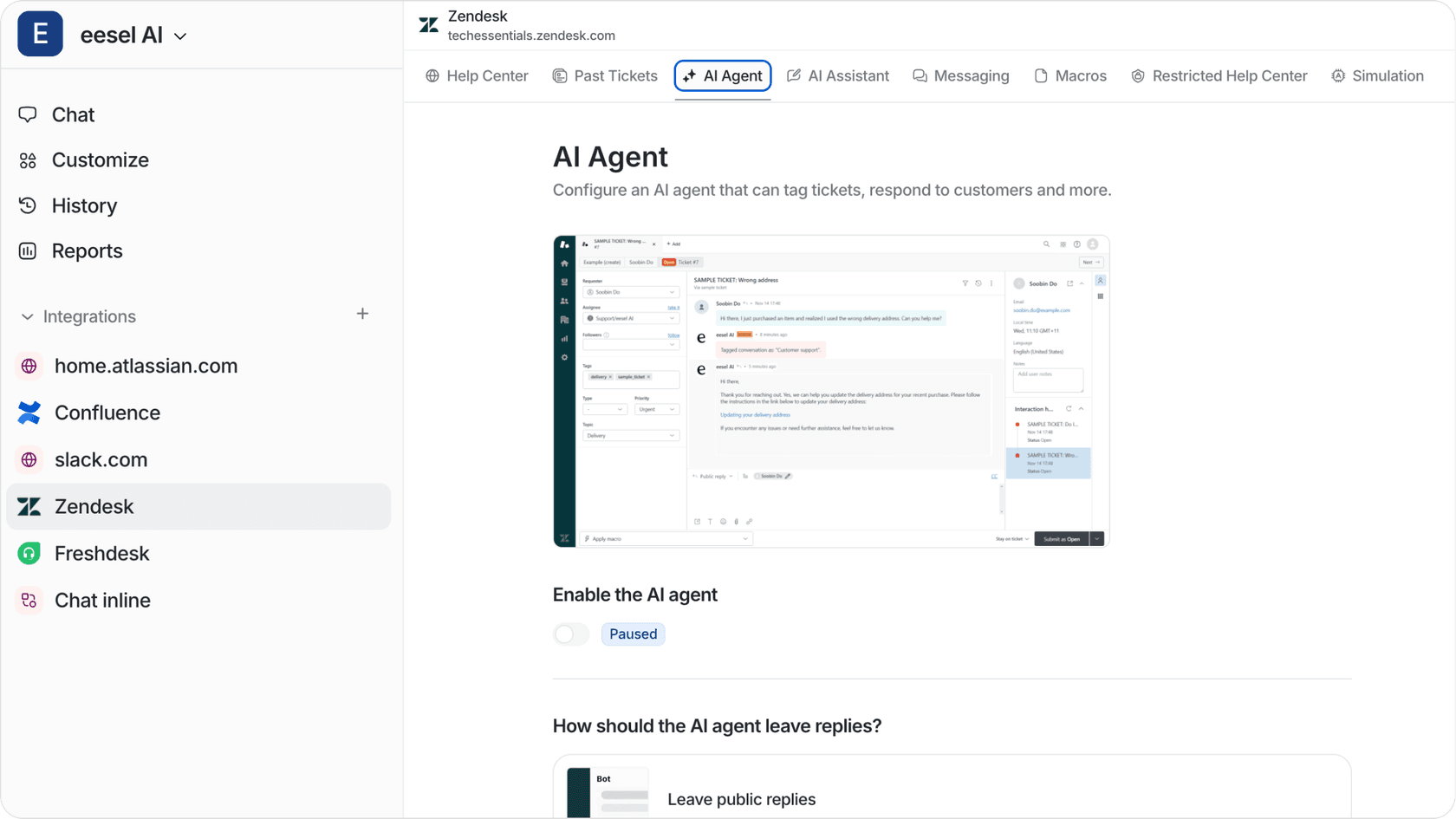
We built eesel AI to work alongside Zendesk and improve your SLA performance without adding headcount.
Instant first replies with AI Agent. For common questions like password resets or order status checks, our AI Agent responds immediately. That brings your First Reply Time from hours down to seconds. It integrates directly with Zendesk and learns from your past tickets to match your voice.
Faster resolution with AI Copilot. For complex tickets that need a human touch, our AI Copilot drafts replies by pulling from your knowledge sources. Whether that's your help center, Confluence, Google Docs, or past resolved tickets, agents get accurate drafts in seconds instead of hunting for answers.
Test before you deploy. Our simulation mode lets you run AI responses against your historical tickets. You can see exactly how it would have affected your SLA metrics before turning it on for real customers.
The result? Better SLA performance without hiring more agents. You can start with our Team plan at $299 per month no per-agent fees, just pay for the AI interactions you use.


Frequently Asked Questions
Share this article

Article by
Stevia Putri
Stevia Putri is a marketing generalist at eesel AI, where she helps turn powerful AI tools into stories that resonate. She’s driven by curiosity, clarity, and the human side of technology.