
Managing support tickets efficiently is one of the biggest challenges for customer service teams. When customers submit the same issue multiple times, or when they add unrelated problems to existing tickets, your team needs clear workflows to keep everything organized.
Zendesk offers powerful tools for ticket management, but the platform handles merging and splitting quite differently. While merging duplicate tickets is built right into Zendesk, splitting tickets when customers raise new issues requires some creative workarounds or third-party apps.
In this guide, we'll walk you through everything you need to know about Zendesk ticket merge and split workflows. You'll learn the native merge process, discover options for splitting tickets, and explore how AI-powered tools can automate these tasks to save your team hours every week.

What you will need
Before diving into ticket management workflows, make sure you have the following set up:
- A Zendesk Support account (any plan level works for basic merging)
- Admin permissions or agent rights to edit tickets in your groups
- For ticket splitting: access to the Zendesk Marketplace to install third-party apps
- Optional: an eesel AI integration if you want to explore intelligent automation for duplicate detection
How to merge tickets in Zendesk
Zendesk's native merge functionality lets you combine two tickets into one. The ticket you merge FROM gets closed, and all its comments transfer to the ticket you merge INTO. This is perfect when a customer accidentally submits the same request twice or follows up through a different channel.
Here's the step-by-step process:
Step 1: Open the source ticket
Navigate to the ticket you want to merge from. This is typically the newer or less complete ticket. Remember, this ticket will be closed after the merge, so make sure you're selecting the right one.
Step 2: Access the merge option
Click the Ticket options menu (the three dots) in the upper right corner of the ticket. Select "Merge into another ticket" from the dropdown. This opens the merge dialog where you will select your target ticket.
Step 3: Select the target ticket
Enter the ticket number you want to merge into. You can also search through recently viewed tickets or select from the current requester's open tickets. Zendesk will show a preview so you can confirm you've got the right one.
Step 4: Review and confirm
Add an optional comment explaining why you're merging. This helps other agents understand the context. You can choose whether the requester sees this comment. Click "Confirm and Merge" to complete the process.
Understanding merge limitations
Before you start merging tickets left and right, there are some important constraints to keep in mind:
- Merges are permanent. Once you merge two tickets, you cannot undo it. The closed ticket stays closed.
- Only two tickets at a time. You cannot bulk merge multiple tickets in one action using the native feature.
- CCs don't transfer automatically. If the closed ticket had CCs, you'll need to add them manually to the surviving ticket.
- Status requirements. Both tickets must be less than "Solved" status to merge, though you can merge an unsolved ticket into a solved one.
For teams dealing with high volumes of duplicates, these limitations can become frustrating. That's where third-party automation apps or AI-powered solutions like eesel AI come in handy.
How to split tickets in Zendesk
Here's where things get tricky. Zendesk does not have a built-in ticket splitting feature. When a customer replies to an existing ticket with a completely new issue, you cannot natively separate that into its own ticket while preserving the connection.
This is a highly requested feature that Zendesk has on their backlog, but it's not available yet. Fortunately, you have options.
Option 1: Manual workaround
If you only need to split tickets occasionally, you can do it manually:
- Create a new ticket for the new issue
- Copy the relevant comment content from the original ticket
- Add a tag like "split-from-12345" to both tickets for tracking
- Update the original ticket with an internal note explaining the split
- Link the tickets using the free Linked Ticket app from Zendesk
This works in a pinch, but it's time-consuming and easy to miss important context.
Option 2: Third-party split apps
For teams that regularly need to split tickets, dedicated apps from the Zendesk Marketplace are worth the investment.
Split 'n' Close is the most popular solution with over 1,000 installs and 82 reviews. It adds a "Split Ticket" button directly to your Zendesk interface. The free version handles basic splitting: it creates a new ticket from the current comment, auto-fills the content, and adds cross-reference notes to both tickets.
The premium version at $3 per agent per month unlocks advanced features: choosing specific comments to copy over, selecting a different assignee or requester for the split ticket, adding attachments, and using custom fields.
Linked Ticket (free, built by Zendesk) offers a different approach. Instead of splitting, it creates child tickets linked to a parent. This works well when you need to loop in third parties or create sub-tasks, though it does not fully replace true splitting functionality.
When to merge vs. split tickets
Knowing which action to take is just as important as knowing how to do it. Here's a quick reference:
| Scenario | Action | Why |
|---|---|---|
| Customer submitted the same issue twice | Merge | Consolidates duplicate work and keeps conversation unified |
| Customer added a new unrelated issue to an existing ticket | Split | Separates concerns for accurate tracking and reporting |
| Follow-up email created a new ticket accidentally | Merge | Maintains context in one place |
| Multi-part request needs different teams | Split | Lets you assign each part to the right specialist |
| Incident generated multiple tickets from different customers | Merge | Centralizes incident response and coordination |
| Customer replied to an old ticket with a fresh problem | Split | Prevents mixing unrelated issues in one thread |
The key principle: merge when the content is the same, split when the content is different.
Automating ticket management with AI
Manual merging and splitting works fine for small teams with low ticket volumes. But as you scale, these repetitive tasks eat up serious agent time. Worse, duplicates often get missed during busy periods, leading to multiple agents working the same issue or customers receiving conflicting responses.
The problem with manual processes
Consider this: if your agents spend just 2 minutes identifying and merging each duplicate, and you get 50 duplicates per day, that's over 8 hours of wasted time every week. That's a full workday lost to ticket hygiene instead of solving customer problems.
AI-powered alternatives
Zendesk's native merge suggestions (part of the Copilot add-on) take an assisted approach. The AI identifies tickets from the same requester within a two-week window and displays them in the Related tickets panel with a red badge. Agents review the suggestions and decide whether to merge. This keeps humans in control while surfacing potential duplicates that might otherwise be missed.
However, Copilot suggestions are limited: they only show up to 3 tickets at a time, only match by requester (not content similarity), and require the add-on subscription.
Third-party automation apps offer fully automatic merging:
Knots Merge Tickets is completely free and runs entirely in the background. You set criteria like matching requester + subject, or custom fields like Order ID, and it automatically merges duplicates as they arrive. One user reported processing 51,000 tickets and saving over $800 compared to their previous merge app.
Swifteq Merge Duplicate Tickets starts at €59 per month and offers more advanced customization. You can match by text extracted from ticket descriptions, filter out internal users or bots, and even merge tickets from different requesters if they contain the same Order ID. They also offer a one-time backlog merging service starting at €199.
How we approach intelligent ticket management
At eesel AI, we take a different approach to ticket hygiene. Instead of rigid rule-based merging or blind automation, our AI understands ticket content and context to make intelligent recommendations.
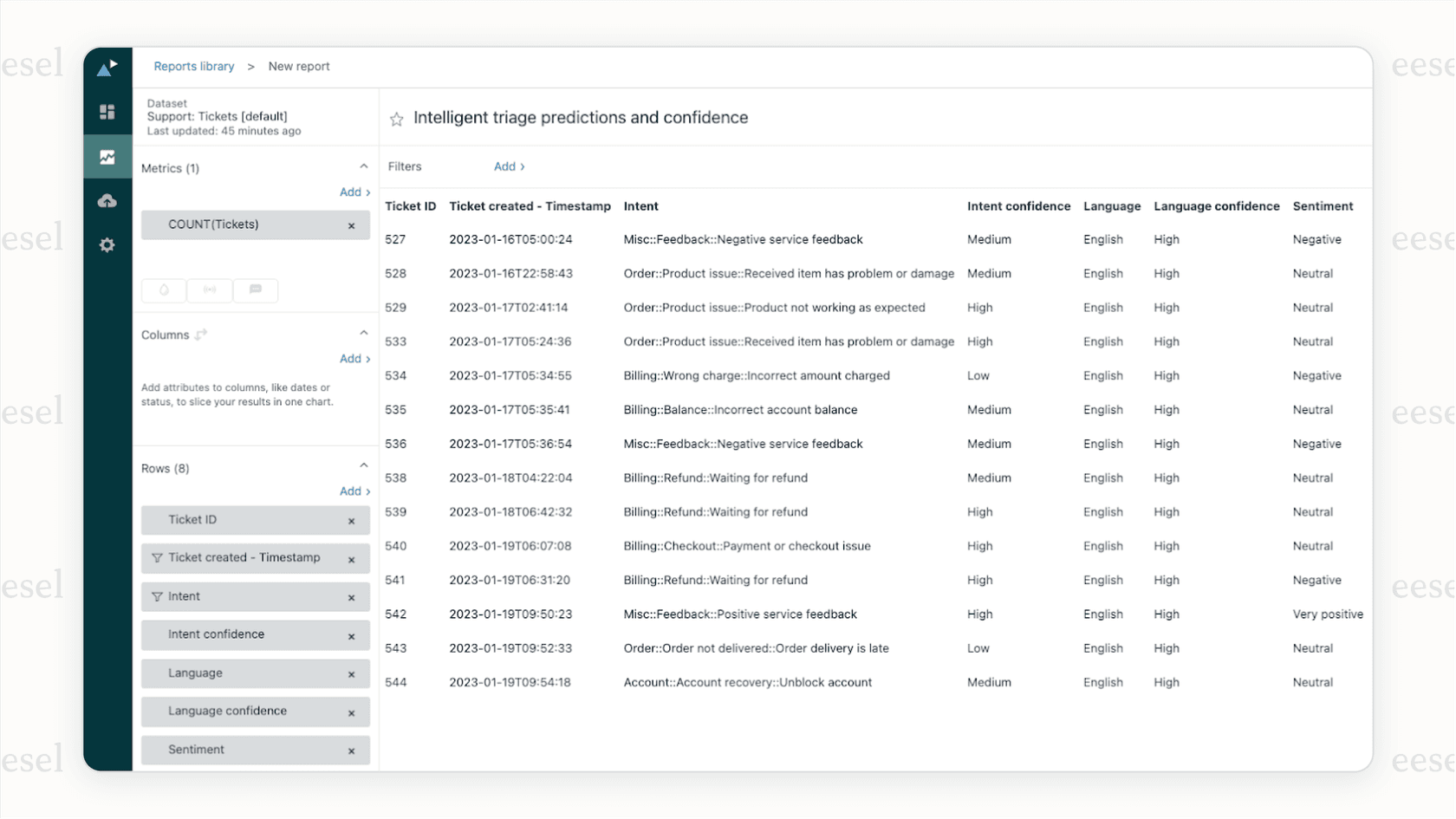
Here's how it works: our AI Triage analyzes incoming tickets and identifies potential duplicates using semantic understanding, not just keyword matching. It looks at the actual content, customer history, and issue type to suggest merges that make sense. Agents see these suggestions in their workflow and can confirm with one click.
The difference is nuance. Rule-based apps might merge two tickets because they've got the same subject line, even if the issues are different. Our AI recognizes when tickets that look similar are actually distinct problems that should stay separate. This "assisted" approach gives you the efficiency of automation without the risk of incorrect merges.
We also handle the splitting problem intelligently. When a customer adds a new issue to an existing ticket, our AI can flag it and suggest creating a separate ticket, preserving the connection while keeping issues organized.
Best practices for ticket hygiene
Whether you're merging manually or using automation, these practices will keep your ticket queue clean:
- Train agents on decision criteria. Make sure everyone knows when to merge, when to split, and when to leave tickets separate. Document your team's conventions in an internal guide.
- Use consistent tagging. Apply tags like "merged" or "split-from-[ticket-id]" to track these actions for reporting and auditing.
- Keep customers informed. When you merge tickets, consider whether the customer should know. Sometimes it helps them understand why they are receiving a response on a different ticket number.
- Review merge patterns monthly. Look for trends: are duplicates coming from a specific channel? Is there a form issue causing accidental resubmissions? Fix the root cause.
- Set up automation for common scenarios. If you regularly get duplicates from specific sources, create triggers or use merge apps to handle them automatically.
- Audit your merge quality. Periodically check merged tickets to ensure agents are making good decisions. Incorrect merges hurt customer experience and reporting accuracy.
Common mistakes to avoid
Even experienced agents make these errors when managing tickets:
- Merging tickets with different requesters without checking CC settings. If CCs aren't enabled, you might lose visibility into one of the requesters.
- Forgetting that merges are irreversible. Double-check your ticket numbers before confirming. There's no undo button.
- Not adding context comments. Other agents (and future you) will thank you for explaining why a merge happened.
- Over-automating without oversight. Fully automatic merging saves time but can combine tickets that should stay separate. Start with assisted suggestions.
- Splitting without preserving context. When splitting manually, make sure you copy over relevant custom fields, tags, and history so the new ticket has full context.
Streamline your Zendesk ticket management with intelligent automation
Managing tickets should not be a full-time job. Whether you're dealing with dozens or thousands of tickets per day, the right approach to merging and splitting keeps your team focused on solving problems, not shuffling tickets around.
Zendesk's native merge functionality works for basic needs, but the lack of native splitting and the manual nature of the process creates friction for growing teams. Third-party apps like Split 'n' Close fill the splitting gap, while automation tools like Knots and Swifteq handle high-volume merging.
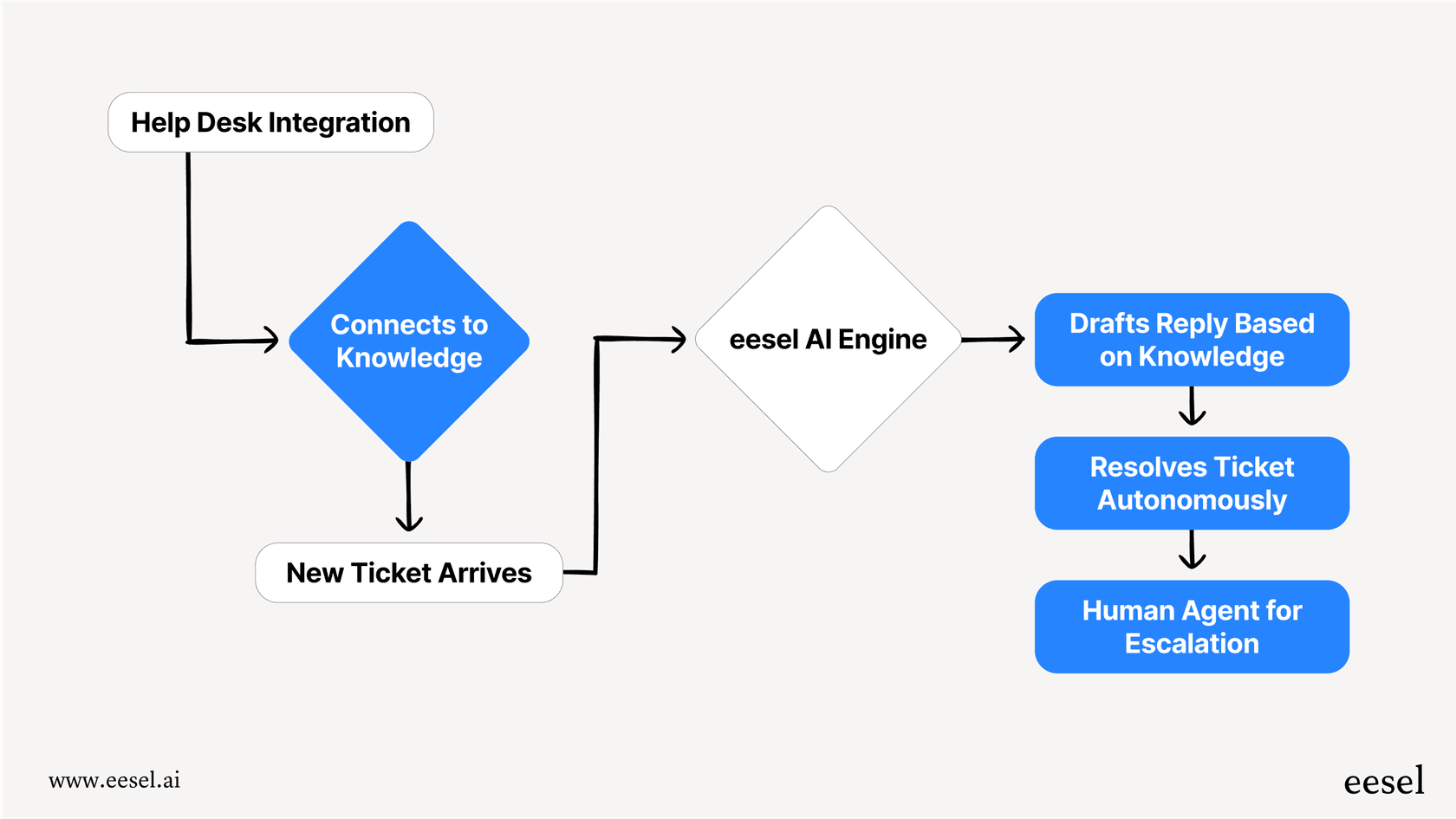
If you're looking for a smarter approach, we built eesel AI to bring intelligent automation to your Zendesk workflow. Our AI understands your tickets the way a human would, suggesting merges when they make sense and flagging opportunities to split when customers raise new issues. You stay in control, but you spend less time on ticket hygiene and more time helping customers.
Want to see how it works? Try eesel AI free or book a demo to see intelligent ticket management in action.


