Every support ticket tells a story. From the moment it arrives in your inbox to its final resolution, each ticket moves through a series of stages, handoffs, and updates that collectively form its activity timeline. Understanding this timeline isn't just about knowing where a ticket stands. It's about spotting bottlenecks, coaching your team, and ultimately delivering faster, better support.
If you're using Zendesk, you've got access to a robust set of tools for tracking ticket activity. But with multiple layers of data available, from basic event logs to advanced workforce analytics, it can be tricky to know which features to use and when. This guide breaks down everything you need to know about the Zendesk ticket activity timeline, from the fundamentals of ticket statuses to advanced reporting that can transform how you manage your support operation.

What is the Zendesk ticket activity timeline?
At its core, the Zendesk ticket activity timeline is a complete record of everything that happens to a support ticket from creation to closure. Think of it as a digital paper trail that captures every status change, agent comment, automated trigger, and time entry associated with a ticket.
Zendesk tracks activity through several interconnected systems:
- Ticket events show granular changes to ticket properties, communications, and user information
- Activity history provides a chronological view of agent interactions and updates
- Audit trails (accessible via API) offer programmatic access to ticket changes for compliance and integration purposes
For support managers, this data is invaluable. It helps you understand how long tickets sit in each stage, which agents handle complex issues most efficiently, and where your workflows could be creating unnecessary delays. For agents, activity tracking provides context when picking up tickets mid-stream and accountability when questions arise about how an issue was handled.
While Zendesk's native tools cover the basics well, teams needing deeper analysis sometimes look to alternatives. We built eesel's AI agent for Zendesk to help support teams analyze ticket patterns using natural language queries, automatically identifying trends that might take hours to spot manually in traditional dashboards. You can learn more about AI-powered help desk solutions on our blog.

Understanding ticket statuses and lifecycle
Before diving into activity tracking, you need to understand the six standard ticket statuses that form the backbone of Zendesk's workflow. Each status represents a distinct stage in a ticket's journey.
| Status | Indicator | What it means |
|---|---|---|
| New | Orange | Ticket just arrived, no action taken yet |
| Open | Red | Assigned to an agent and actively being worked |
| Pending | Blue | Waiting for customer response |
| On-hold | Dark gray | Waiting for internal team or third party |
| Solved | Light gray | Agent submitted a resolution |
| Closed | Light gray | Ticket archived by system, cannot be reopened |
Let's break down how tickets typically flow through these statuses. A ticket arrives as New. Once an agent takes ownership, it becomes Open. If the agent needs more information from the customer, they set it to Pending, which automatically resets to Open when the customer replies. For issues requiring input from another department or an external vendor, agents use On-hold (an internal status customers never see). When the agent provides a solution, the ticket moves to Solved. Finally, after a set period (typically four days by default), automation closes the ticket.
Here's the short version: tickets can bounce between Open, Pending, and On-hold multiple times depending on complexity. A ticket might go Open → Pending → Open → On-hold → Open → Solved → Closed. Or it could take a simpler path for straightforward issues.
Two important exceptions exist. When a customer responds to a solved ticket, it reopens and returns to Open status, assigned to the original agent. And when someone responds to a closed ticket, Zendesk automatically creates a new follow-up ticket that references the original.
Administrators can also create custom ticket statuses if the standard six don't match their workflow. When activated, these custom statuses become subcategories within the standard status categories. For more on optimizing your ticketing workflow, see our guide on the Zendesk ticketing process.
How to view ticket events in Zendesk
Now that you understand the lifecycle, let's look at how to access the detailed activity data behind it. Zendesk's ticket events view shows every update, notification, and property change associated with a ticket.
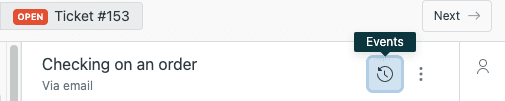
To access ticket events in Agent Workspace:
- Open any ticket
- Click the events icon in the conversation header
- Toggle between Conversations and Events views
In the classic Zendesk interface:
- Open a ticket
- Click Conversations under the active comment area
- Select Events from the dropdown
The events view displays several categories of information:
Property changes show modifications to ticket fields like status, assignee, priority, group, and custom fields. When a field changes, you'll see both the old and new values displayed, making it easy to track exactly what changed and when.
Communications log automated actions like triggers firing, email notifications sent, and messages pushed to external targets like JIRA. Enterprise customers can even click trigger titles to see the specific version that fired.
User information captures technical details about the customer's environment: submission channel (web form, email, X/Twitter), browser user agent string, IP address, and approximate location. Keep in mind that VPNs and browser security settings can affect the accuracy of location data.
Time tracking data appears here too if you're using the Time Tracking app. You'll see "Total time spent (sec)" and "Time spent last update (sec)" fields showing how long agents worked on the ticket.
Reviewing ticket events is particularly useful for troubleshooting workflow issues. If a customer claims they never received an email, you can check the events log to confirm whether a notification triggered and preview exactly what was sent. If a ticket status changed unexpectedly, the events show which automation or trigger caused it. For more troubleshooting tips, check out our article on how to use AI to classify or tag support tickets.
Analyzing ticket activity with Zendesk Explore
While ticket events give you granular detail on individual tickets, Zendesk Explore provides the bird's-eye view you need to manage your entire support operation. The prebuilt Support dashboard contains nine tabs, each focusing on different aspects of ticket activity.
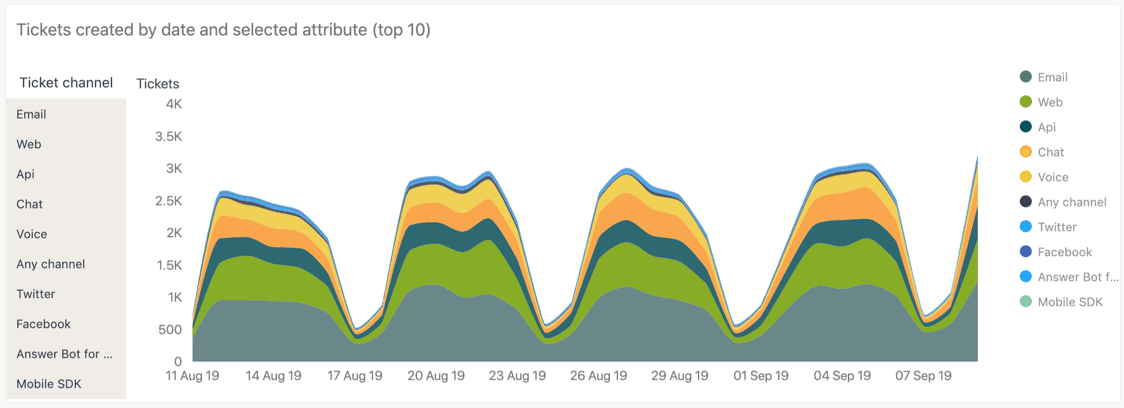
The Tickets tab tracks volume metrics: tickets created, unsolved, solved, and one-touch resolution rates. Use this to spot trends in incoming volume and measure your team's overall throughput.
The Efficiency tab focuses on speed metrics like first reply time, full resolution time, and how many agent replies tickets typically require. This is where you identify whether your team is responding quickly enough and which tickets are consuming the most effort.
The Assignee Activity tab drills into individual agent performance. See solved ticket counts, requester wait times, and one-touch percentages per agent. This helps you identify your top performers and spot agents who might need coaching.
The Agent Updates tab tracks commenting activity, showing public versus internal comments, tickets created by agents, and tickets solved. This helps distinguish between agents who solve through direct answers versus those who do extensive internal research.
The Unsolved Tickets tab gives you a real-time view of your backlog, broken down by status, assignment, and age. Use this for daily standups to ensure nothing is slipping through the cracks.
The SLAs tab measures your compliance with service level agreements, showing achievement rates, breached tickets, and when breaches typically occur by hour and day of week.
One important limitation to keep in mind: data refresh intervals vary by plan. Team and Growth plans update once daily at midnight. Professional and Enterprise plans refresh hourly. The live dashboard updates every 5-10 seconds, but historical reporting always has some latency. If no one accesses your reports for 30 days, refresh intervals drop to weekly until activity resumes. See Zendesk's documentation on data refresh intervals for more details.
Bottom line? Explore gives you powerful analytics, but the data isn't instantaneous. For real-time operational decisions, you'll need to look at live views rather than historical reports.
Tracking agent activity and time
Beyond ticket-level tracking, Zendesk offers tools for monitoring how agents spend their time throughout the workday. This matters for workforce planning, cost allocation, and identifying productivity blockers.
Time Tracking app
The native Time Tracking app tracks how long agents spend on each ticket update. It's available on Professional and Enterprise plans (Growth and up for Suite customers).
The app appears as a timer in the ticket sidebar. Agents can pause and resume as needed (useful when taking calls or handling interruptions), reset the timer if they make a mistake, and review timelogs showing time spent by different agents on the same ticket. When submitting a ticket, agents can edit the recorded time before confirmation.
Time tracking data feeds into Explore reports through calculated metrics. You can build custom reports showing total handling time per ticket, average time by ticket category, or agent productivity comparisons.
Zendesk Workforce Management (WFM)
For organizations needing deeper workforce analytics, the WFM add-on provides comprehensive agent activity tracking. This is a paid add-on requiring either Workforce Management or Workforce Engagement Management subscriptions.
WFM tracks three main activity types:
- Workstreams time spent actively working on tickets
- General tasks custom activities like breaks, meetings, training
- Untracked time time on non-ticket pages or idle
The Agent Activity page shows real-time visual timelines of what each agent is doing, adherence percentages comparing actual activity to schedules, and productivity points awarded for ticketing actions. You can export activity data to CSV for external analysis, with exports including agent names, activity types, durations, and timestamps.
Third-party integrations
If native options don't meet your needs, integrations like Harvest connect Zendesk to dedicated time tracking systems. These typically offer more sophisticated billing, project tracking, and invoicing capabilities than Zendesk's built-in tools.
Best practices for time tracking? Be consistent about when timers run. Train agents to pause during interruptions. And most importantly, use the data constructively rather than punitively. Time tracking works best as a coaching tool, not a surveillance mechanism. If you're looking to automate more of your support operations, check out our guide to customer support automation.
Using ticket activity data to improve support
Collecting activity data is only valuable if you act on it. Here's how support teams use Zendesk's timeline features to drive real improvements.
Identify workflow bottlenecks. Look at tickets with long Pending or On-hold times. Are customers slow to respond? Do internal handoffs get stuck? Long resolution times often point to process issues rather than agent performance problems.
Spot coaching opportunities. Agents with high reply counts per ticket might need training on first-contact resolution. Those with frequent status changes might be unsure when to use Pending versus On-hold. Use activity patterns to guide one-on-ones.
Understand customer behavior. Tickets created by hour and day reports reveal when your customers need help most. Use this for staffing decisions. One-touch ticket percentages by category show which issues are truly simple versus which need better self-service resources.
Make data-driven staffing decisions. Backlog trends, SLA breach patterns by time of day, and agent activity distributions all inform hiring and scheduling. If your Explore data shows consistent spikes on Monday mornings, that's when you need coverage, not Friday afternoons.
Automate pattern detection. While Zendesk's dashboards require manual analysis, modern AI tools can monitor activity patterns continuously and alert you to anomalies. We designed eesel AI to do exactly this: analyzing ticket timelines automatically to spot trends, suggest workflow improvements, and even predict which tickets are likely to escalate before they do. Learn more about ticket summarization and how AI can streamline your support workflow.
Getting more from your ticket data with eesel AI
Zendesk's native activity tracking covers the essentials, but teams often hit limitations when they want deeper insights. The dashboards require manual filtering and interpretation. Correlating activity across multiple tickets means exporting data and building custom spreadsheets. And spotting subtle patterns in thousands of tickets? That's nearly impossible without automated analysis.
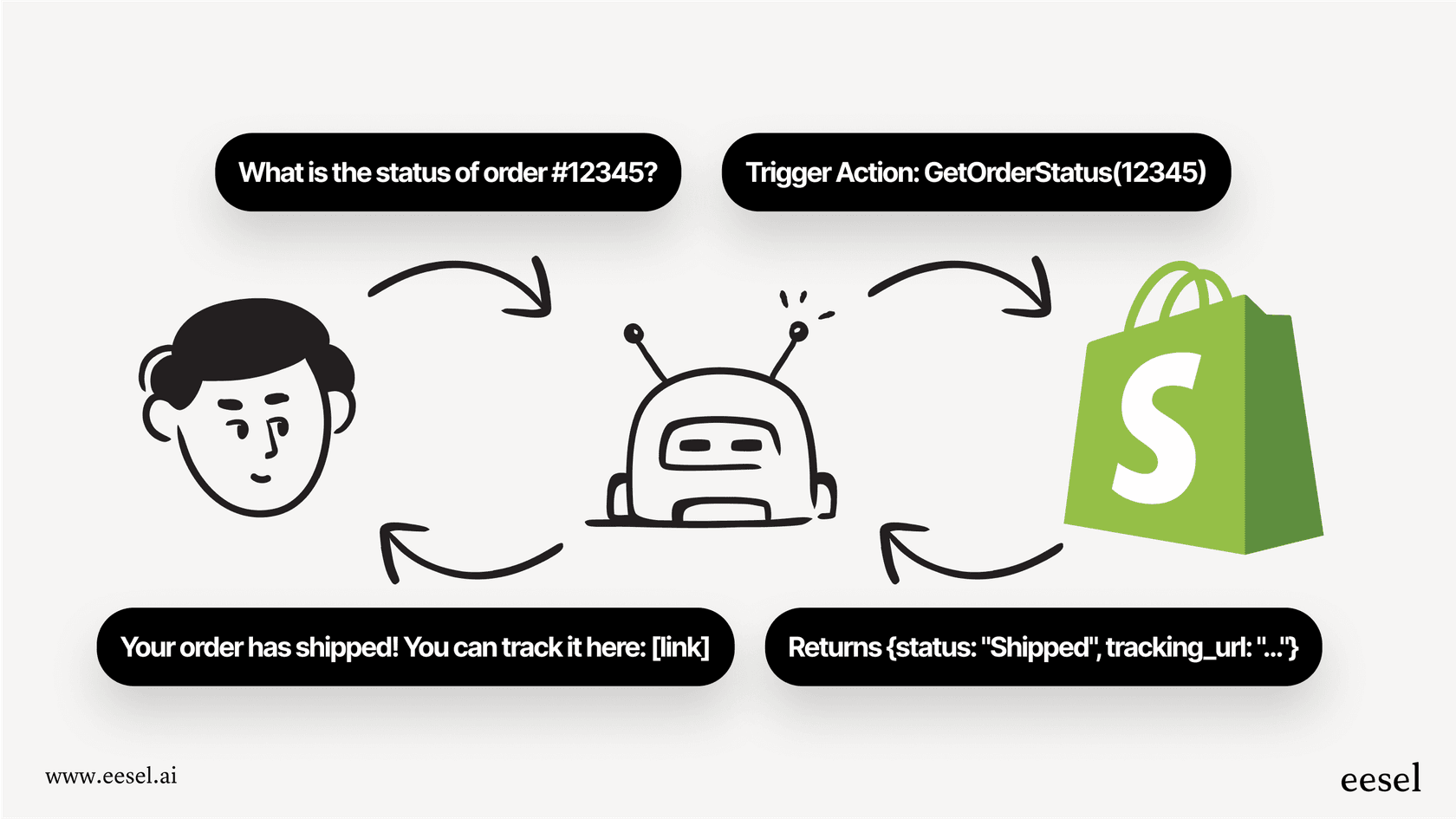
This is where we come in. At eesel AI, we built an AI teammate that connects directly to your Zendesk instance and analyzes your ticket activity automatically.
Instead of building complex Explore queries, you can ask questions in plain English: "Which agents handle refunds fastest?" or "What time of day do escalations usually happen?" Our AI analyzes your actual ticket timelines and returns answers with specific ticket examples.
We also monitor continuously for patterns you might miss. Sudden spikes in ticket volume from a specific customer segment. Agents spending unusually long on certain ticket types. Customers who've contacted you multiple times about the same issue. The system flags these automatically so you can intervene early.
The setup takes minutes, not weeks. Connect your Zendesk account, and we immediately begin learning from your historical tickets and help center content. No manual training, no complex configuration. You can run simulations on past tickets to verify accuracy before going live.
If you're already using Zendesk but want to get more from your ticket activity data, try eesel AI free and see what patterns emerge from your support history. You can also explore our Zendesk AI integration for more details.