How to set up Zendesk satisfaction trigger conditions

Stevia Putri
Last edited March 2, 2026
Customer feedback is the lifeblood of any support team. But if you're using Zendesk's default settings, you might be missing out on valuable insights. Here's why: out of the box, Zendesk waits 24 hours after a ticket is solved before sending a customer satisfaction survey. By then, your customer has moved on, and response rates suffer.
The good news? You can change this. Setting up a Zendesk trigger to request satisfaction immediately when a ticket is solved takes just a few minutes, and it can increase your CSAT response rates. In this guide, we'll walk through exactly how to configure this, step by step.

If you're looking for a more automated approach to customer satisfaction, we integrate with Zendesk to handle satisfaction surveys as part of a broader AI-powered support workflow.
What you'll need before starting
Before diving into the configuration, make sure you have the following:
- A Zendesk Support plan with CSAT enabled. You'll need Growth, Professional, or Enterprise on the Support plan, or any Suite plan from Growth upward. CSAT is not available on the Team plan.
- Admin access to your Zendesk account. Only administrators can create triggers and modify automations.
- CSAT enabled in your account. If you haven't turned this on yet, go to Admin Center > Objects and rules > Business rules > Satisfaction and enable it.
- Familiarity with Zendesk placeholders. You'll need to use
{{satisfaction.rating_section}}in your trigger (don't worry, we'll explain this).
One more thing to check: whether your account uses custom ticket statuses. If you have custom statuses enabled, you'll use "Status category" in your trigger conditions. If not, you'll use "Status." We'll note this difference in the steps below.
Understanding Zendesk satisfaction conditions
Before we change anything, let's understand how Zendesk handles satisfaction surveys by default.
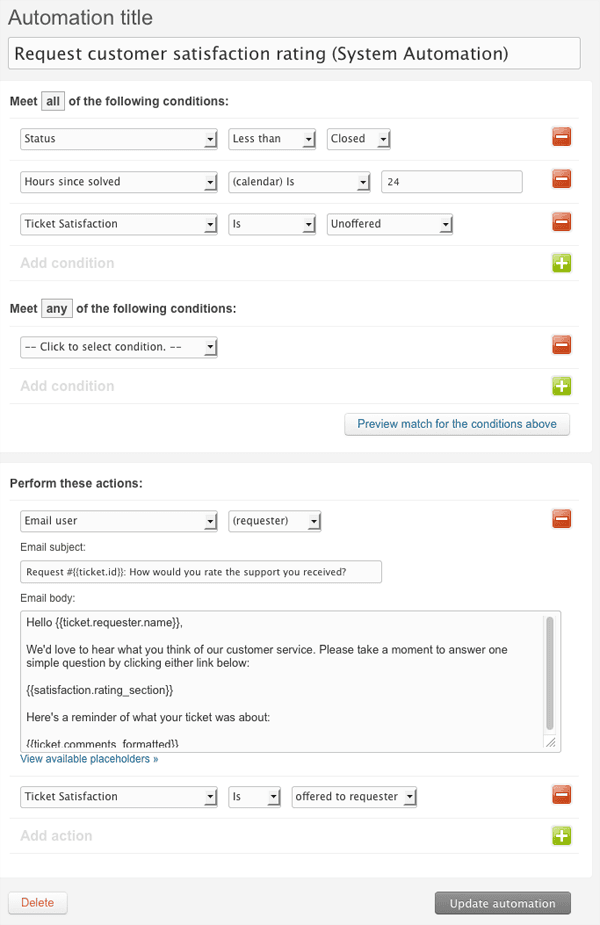
When you enable CSAT in your Zendesk account, the platform automatically creates a system automation called "Request customer satisfaction rating (system automation)." This automation runs on a schedule and sends survey requests 24 hours after a ticket's status changes to "Solved."
Why the delay? The idea is to give customers time to verify that their issue is actually resolved before asking for feedback. In theory, this prevents premature negative ratings from customers who discover the fix didn't work.
But there's a trade-off. That 24-hour window also means:
- Customers have mentally moved on from the support interaction
- The experience isn't fresh in their minds
- Response rates are typically lower than immediate surveys
Here's the key distinction to understand: Zendesk uses two different tools for automation. Triggers are event-based (they fire immediately when something happens). Automations are time-based (they check conditions periodically and act after time has passed). The default CSAT setup uses an automation. We're going to replace it with a trigger.
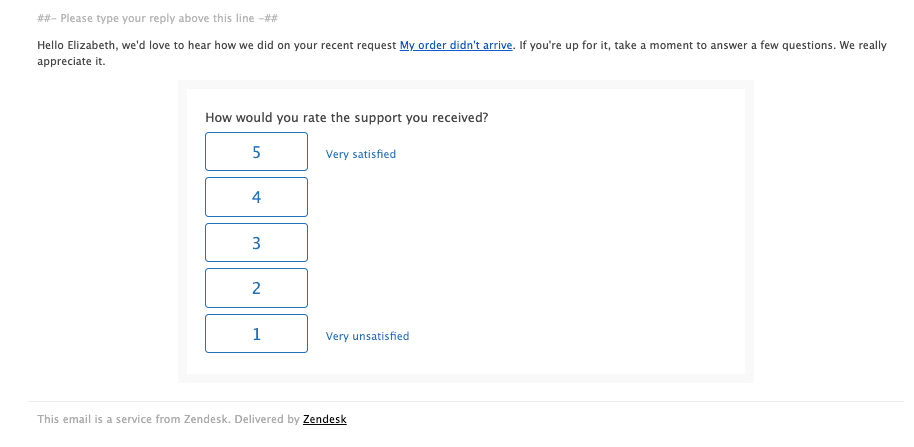
The six satisfaction states
Zendesk tracks satisfaction through six specific states:
- Unoffered - The survey has not been sent to the customer
- Offered - The survey has been sent but not yet rated
- Bad - The customer left a negative rating
- Bad with comment - Negative rating with written feedback
- Good - The customer left a positive rating
- Good with comment - Positive rating with written feedback
The "Unoffered" state is critical for our trigger setup. It ensures we only send a survey if one hasn't been sent already, preventing duplicates if a ticket is reopened and solved again.
Step 1: Disable the default automation
First, we need to turn off the default 24-hour automation so it doesn't conflict with our new trigger.
- Go to Admin Center > Objects and rules > Business rules > Automations
- Find the automation titled "Request customer satisfaction rating (system automation)"
- Click the three-dot menu button next to it and select Deactivate
This step matters because if you leave the automation active, customers might receive duplicate survey requests (one from the automation and one from your new trigger). Deactivating it ensures only your trigger sends surveys.
Step 2: Create your satisfaction trigger
Now let's build the trigger that will send surveys immediately when tickets are solved. For a more detailed walkthrough, you can also reference our guide on triggering Zendesk satisfaction surveys on ticket solve.
- Navigate to Admin Center > Objects and rules > Business rules > Triggers
- Click the Add trigger button
- Give your trigger a descriptive name like "Request satisfaction on solve" or "Send CSAT survey immediately"
- Add a description if you want (helpful for other admins who might edit this later)
Configure trigger conditions
This is where we define when the trigger fires. Under Meet ALL of the following conditions, add these two conditions:
Condition 1:
- Object: Ticket
- Field: Status category (or Status if custom statuses are disabled)
- Operator: Changed to
- Value: Solved
Condition 2:
- Object: Ticket
- Field: Satisfaction
- Operator: Is
- Value: Unoffered
The "Unoffered" condition is crucial. It ensures the survey is only sent if the customer hasn't already received one for this ticket. Without this, you risk sending duplicate surveys if a ticket is reopened and solved again.
Optional: You can add more conditions to target specific scenarios. For example:
- Only survey tickets with certain tags
- Exclude internal tickets (Organization is not Internal)
- Survey only specific brands or groups
Configure trigger actions
Now let's define what happens when the conditions are met. Under Actions, add these:
Action 1:
- Object: Ticket
- Field: Satisfaction
- Value: Offered to requester
This marks the satisfaction survey as "offered" so it won't be sent again for this ticket.
Action 2:
- Notify by: User email
- Ticket: (requester)
Now for the email content. You can copy the subject and body from the automation you deactivated in Step 1, or write your own. The key element is this placeholder:
{{satisfaction.rating_section}}
This placeholder inserts the actual survey question and rating buttons into the email. Without it, customers won't be able to submit their feedback.
Here's a simple template you can use:
Subject: How did we do?
Body:
Hi {{ticket.requester.first_name}},

We recently resolved your support request (#{{ticket.id}}): {{ticket.title}}

We'd love to hear about your experience. Your feedback helps us improve our support.

{{satisfaction.rating_section}}

Thanks,
The Support Team
Click Create to save your trigger. It's now active and will send satisfaction surveys immediately when tickets are solved.

Step 3: Set up a re-evaluation workflow
Not every customer will be happy. When someone leaves a negative rating, you have an opportunity to turn things around. A re-evaluation workflow lets you follow up, address the issue, and ask the customer to update their rating.
Here's how to set it up:
-
Create a new trigger called "Follow up on negative satisfaction"
-
Under Meet ALL of the following conditions, add:
- Satisfaction | Is | Bad (or "Bad with comment" if you only want to follow up on detailed feedback)
-
Under Actions, add:
- Add tags:
followup_satisfaction(or any tag your team will recognize) - Email user: (your support manager or team lead)
- Add tags:
Now when a negative rating comes in, your team gets notified and can add the follow-up tag after resolving the issue with the customer.
Create a second trigger for the actual re-evaluation request:
- Name it "Send re-evaluation request"
- Conditions:
- Tags | Contains at least one of the following |
followup_satisfaction - Status | Is | Solved
- Tags | Contains at least one of the following |
- Actions:
- Email requester with the
{{satisfaction.rating_section}}placeholder - Remove tags:
followup_satisfaction(so it doesn't send again if reopened)
- Email requester with the
This workflow, shared by a Zendesk community member back in 2013, still works today. The personal touch of calling customers who left negative feedback can lead to overwhelmingly positive responses.
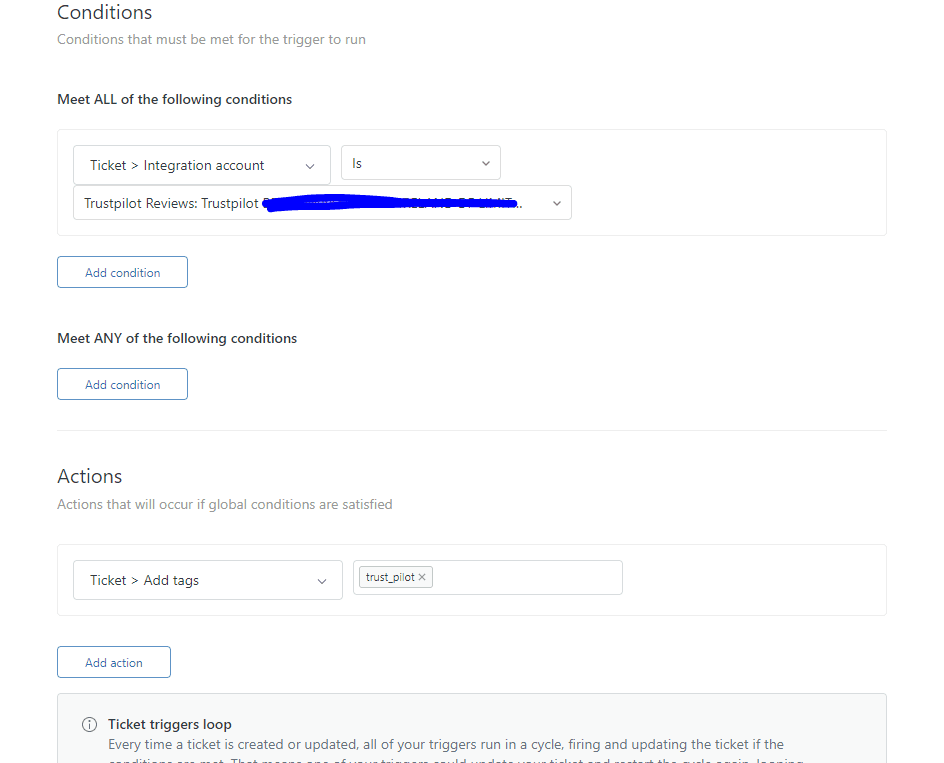
The complete workflow connects negative feedback detection with follow-up actions. When a customer leaves a bad rating, your team gets notified immediately, allowing you to address the issue and request a re-evaluation.
Advanced trigger configurations
Once you have the basics working, you can refine your triggers with additional conditions:
Add a delay: Instead of immediate surveys, wait a few hours by adding:
- Hours since solved | Greater than | 4
This gives customers time to verify the fix works while still being fresher than 24 hours.
Exclude internal tickets: Prevent surveys on tickets from your own team:
- Organization | Is not | Internal
Target specific groups: Only survey tickets handled by your tier-1 support:
- Group | Is | Tier 1 Support
VIP handling: Send different messaging for high-value customers:
- Organization | Is | VIP Customers
- Use a more personalized email template for this segment
Troubleshooting common issues
Even with the right setup, things sometimes don't work as expected. Here are the most common issues and how to fix them:
Surveys aren't being sent:
- Check that the Satisfaction condition is set to Unoffered
- Verify CSAT is enabled in Admin Center > Satisfaction
- Confirm the ticket status is actually changing to "Solved" (not just "Pending")
Duplicate surveys are going out:
- Make sure you deactivated the default automation in Step 1
- Check that your trigger has the "Unoffered" condition
- Verify the trigger action includes "Satisfaction: Offered to requester"
Timing issues with custom statuses:
- If you have custom ticket statuses enabled, use "Status category" instead of "Status" in conditions
- The "Changed to" operator requires the status to actually change, not just be set to that value
Satisfaction tab not visible to customers:
- Go to Admin Center > People > Configuration > End users
- Select the Satisfaction tab
- Ensure "Allow customers to rate tickets" is checked
Messaging vs. email tickets:
- The
{{satisfaction.rating_section}}placeholder works in email notifications - For messaging tickets, you may need to use customizable CSAT features
Measuring your CSAT trigger success
After implementing your new trigger, track these metrics to see if it's working:
Response rate: Compare your survey response rates before and after the change. Immediate surveys typically see 15-25% higher response rates than delayed ones.
CSAT scores: Watch for changes in your overall satisfaction scores. Immediate feedback tends to be more positive because the experience is fresh.
Re-evaluation success: Track how many negative ratings get changed to positive after your follow-up workflow. A success rate above 30% indicates your team is effectively turning situations around.
Use Zendesk Explore to build dashboards tracking these metrics over time. Look for trends weekly, not daily, since individual day fluctuations can be misleading.
Going beyond Zendesk triggers with eesel AI
Zendesk's native CSAT system works well for basic surveys, but it has limitations. The binary good/bad rating doesn't capture nuanced feedback. The re-evaluation workflow requires manual tag management. And you're still doing the follow-up work yourself.
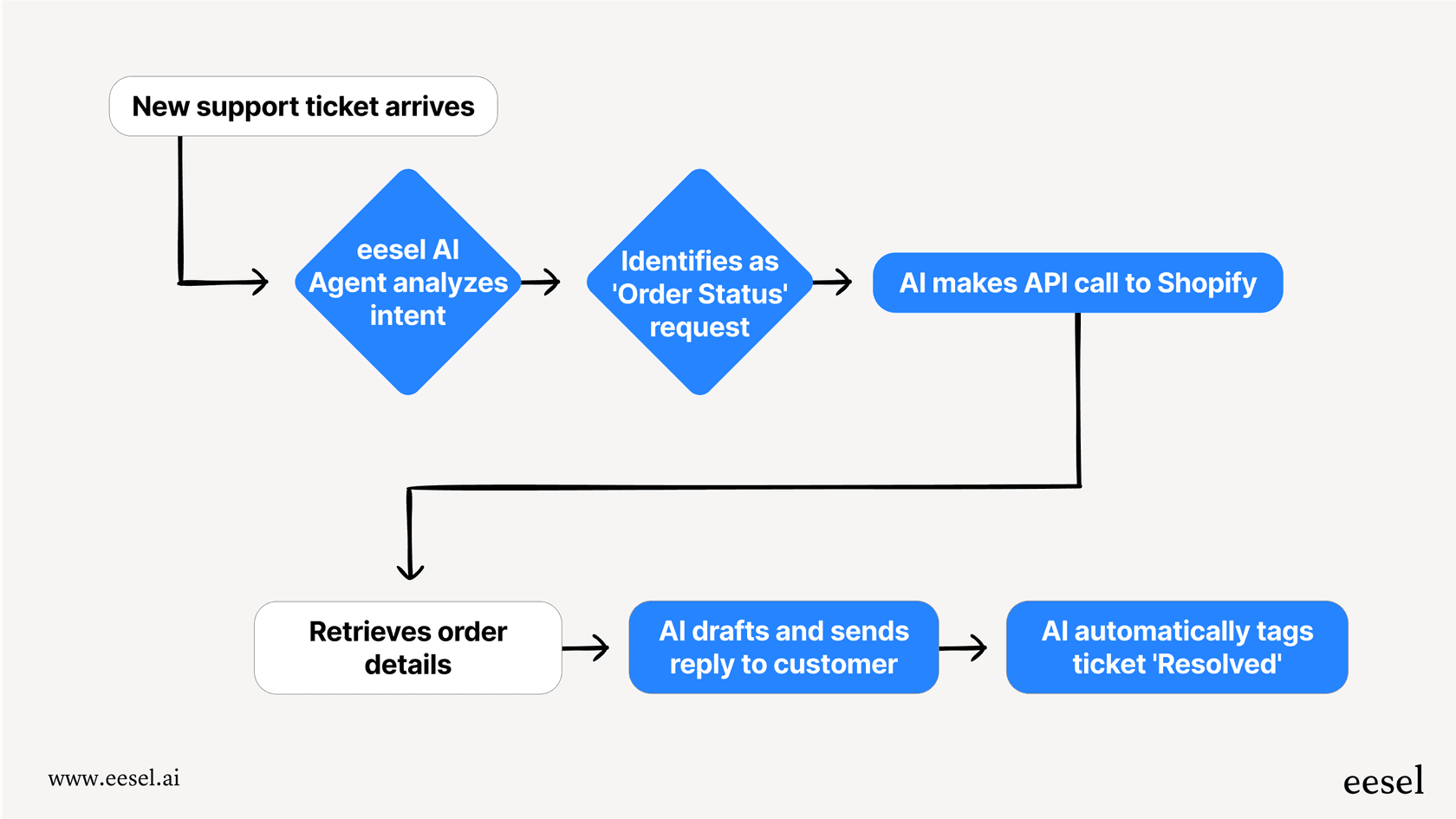
This is where eesel AI comes in. We handle satisfaction as part of autonomous support:
- AI-powered follow-up: When negative ratings come in, our AI analyzes the ticket history and drafts a personalized response addressing the specific issue
- Continuous learning: Every satisfaction rating feeds back into the AI's training, improving future responses
- No manual tagging: The system tracks satisfaction states automatically without trigger configurations
- Richer analysis: Beyond binary ratings, we analyze sentiment across the entire conversation
We integrate directly with Zendesk, so you can keep your existing setup while adding AI capabilities. Our pricing starts at $299/month for teams that want to automate more than just surveys.


Frequently Asked Questions
Share this article

Article by
Stevia Putri
Stevia Putri is a marketing generalist at eesel AI, where she helps turn powerful AI tools into stories that resonate. She’s driven by curiosity, clarity, and the human side of technology.



