How to track and report recurring issues in Zendesk: A complete guide

Stevia Putri
Last edited March 2, 2026
Support teams live in a paradox. The more successful you are at helping customers, the harder it becomes to spot the patterns hiding in your ticket volume. A dozen tickets about login problems might look like isolated incidents. By the time you realize they're connected, you've spent hours on redundant work and frustrated customers have started complaining on social media.
This is where a systematic approach to Zendesk recurring issue tagging and reporting becomes essential. When you can quickly identify, categorize, and track patterns in your support data, you stop playing defense and start getting ahead of problems.
This guide walks you through the native Zendesk workflow for tracking recurring issues. We'll cover the setup, the reporting, and the automation that makes it sustainable. We'll also look at where native tools hit their limits, and how modern AI solutions can fill those gaps.

What you will need
Before diving in, make sure you have the basics in place:
- A Zendesk Support account (Professional or Enterprise plan for access to Explore)
- Admin permissions to configure tags, triggers, and custom fields
- Zendesk Explore activated if you want advanced reporting capabilities
- Optional: Access to third-party automation tools or AI platforms if you plan to extend beyond native features
If you're on a Team plan, you can still implement most of this guide, but some reporting features will be limited.
Step 1: Set up a tagging strategy for issue categorization
Tags are the foundation of issue tracking in Zendesk. They're flexible, searchable, and work across the entire platform. But flexibility can become chaos without structure.
Start by enabling automatic ticket tagging. In Admin Center, navigate to Objects and rules, then select Tickets > Settings. Click Tags to expand the section, select Allow tags on tickets, then turn on automatic ticket tagging. This captures tags from dropdown fields and checkboxes automatically. You can find more details in the Zendesk documentation on ticket tags.
Next, create a taxonomy that actually helps with reporting. Avoid vague tags like "urgent" or "bug." Instead, use structured formats that tell you what and where:
- issue-billing-refund instead of just refund
- bug-login-mfa instead of just login-issue
- feature-request-mobile instead of just mobile
This structure makes filtering in reports much cleaner. You can search for all issue-* tags to see problem volume, or drill down to issue-billing-* for specific category analysis.
Use custom fields alongside tags for even better reporting. Custom fields load faster in Explore and have clearer values. A dropdown field called "Issue Category" with options like Billing, Technical, and Account is easier to report on than trying to parse a mess of inconsistent tags. Tags work best for details that cut across categories, like vip-customer or follow-up-needed. For teams looking to streamline their tagging process further, ticket summarization AI can help identify key issues automatically.
Train your team on the system. Create a shared reference doc with your approved tags and when to use them. Review tagging consistency monthly. Nothing ruins a reporting strategy faster than three agents using refund, refunds, and billing-refund for the same issue. You can learn more about using AI to classify or tag support tickets for additional automation options.
Step 2: Configure Problem tickets for known issues
Zendesk's Problem ticket type is designed specifically for recurring issues. Think of it as a parent ticket that groups all related incidents together.
When you notice a pattern (say, multiple reports of a checkout error), create a Problem ticket. Set the type to "Problem" and give it a clear title like "Checkout Error on Mobile App - March 2026." Add details about the symptoms, affected customers, and any workarounds. Learn more about AI for customer service to enhance your support workflows.
Now link related Incident tickets to this Problem. You can do this manually by editing each incident and selecting the Problem ticket from the dropdown. When you update the Problem ticket with status changes or resolution notes, those updates can be pushed to all linked incidents automatically.
This setup gives you a centralized view of the issue scope. You can see exactly how many customers are affected, track resolution progress in one place, and communicate updates without hunting through dozens of individual tickets.
Create a dedicated view for active Problems. Include columns for priority, linked incident count, and last update time. Review this view in team standups to ensure nothing slips through the cracks.
The limitation here is the manual linking. During a high-volume incident, agents are often too busy solving tickets to spend time categorizing them. By the time the dust settles, you might have dozens of unlinked incidents that should've been grouped together.
Step 3: Build reports to identify trends
Once your tagging and Problem ticket structure is in place, you need visibility into the data. Zendesk Explore is your primary tool here.
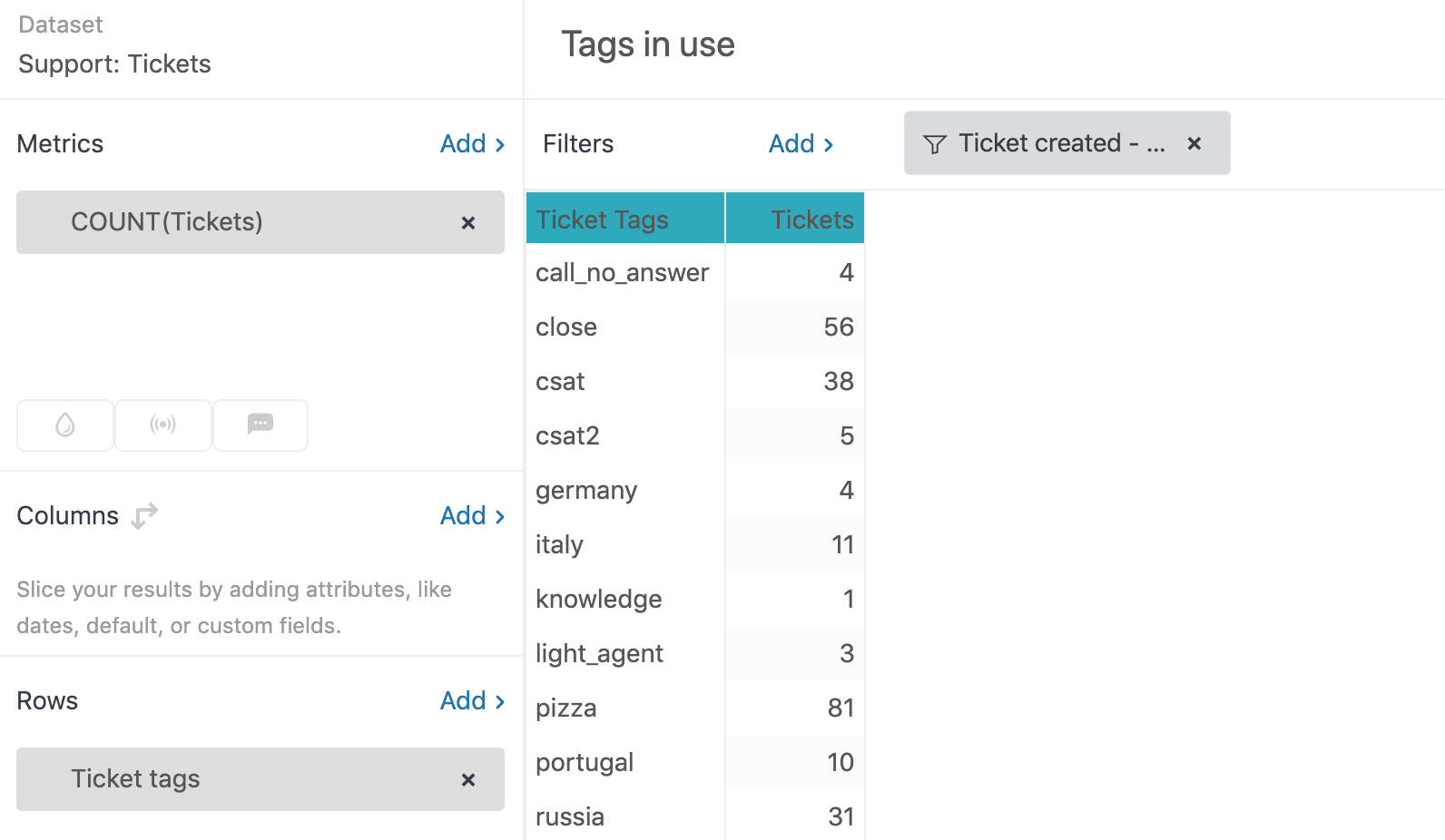
Start with a simple report showing ticket volume by tag. In Explore, create a new report using the Support - Tickets dataset. Add COUNT(Tickets) as your metric and Ticket tags as your row attribute. Filter to the last 30 days and you have a clear view of your most common issues.
Create dashboards for different audiences. Your support managers need operational metrics like tickets per tag and resolution times. Your product team needs insight into feature-related issues. Your executives need high-level trend summaries. Explore lets you schedule automatic delivery of these reports via email, so stakeholders stay informed without logging into Zendesk. For more insights on support analytics, check out our guide on AI-driven customer support automation platforms.
Set up filters for time-based analysis. A spike in issue-login-* tags this week compared to last week is a clear signal that something changed. Catching these trends early lets you communicate proactively with customers instead of waiting for complaints to pile up.
One critical limitation to understand: Explore cannot report on when a tag was added to a ticket. It only sees the current state. If a ticket was tagged escalated three days ago, Explore has no record of that timestamp. This makes it impossible to build reports like "tickets escalated in the last 24 hours" based on tags alone. As Zendesk's documentation on reporting with tags notes, this limitation affects time-based tag analysis.
Step 4: Automate incident linking with triggers
Manual processes break under pressure. When ticket volume spikes during an outage, your agents should focus on solving problems, not categorizing them.
Triggers can handle basic automation. Set up triggers that auto-tag tickets based on keywords in the subject or description. If a ticket contains "password reset" and "not working," automatically tag it issue-login-password.
For more advanced automation, use webhooks to link incidents to Problem tickets automatically. Create a dropdown custom field that lists your active Problems. When a customer selects "Login Issue" from the dropdown, a trigger fires a webhook that updates the ticket's problem_id field, converting it to an incident linked to the appropriate Problem ticket.
Let customers help with categorization. Add a required dropdown to your ticket form asking "What is this about?" with options mapped to your common issue types. This distributes the categorization work and often gives you cleaner data than agent-applied tags.
Automation reduces the manual overhead, but it requires maintenance. When you close a Problem ticket, you need to update your triggers and dropdown fields to remove it from the list. Outdated automation rules create confusion and bad data.
Common mistakes and how to avoid them
Even with the right setup, teams often stumble on the execution. Here are the most common pitfalls and how to avoid them.
Inconsistent tagging destroys report accuracy. When one agent uses billing-refund and another uses refund-billing, your reports split the same issue into two categories. Enforce your taxonomy through regular audits and team training.
Over-relying on manual processes breaks under volume. The manual Problem ticket linking that works fine during normal operations becomes impossible during a major incident. Build automation before you need it.
Tag proliferation makes reporting useless. When you have 500 tags and 400 of them appear on fewer than five tickets, you cannot extract meaningful insights. Retire outdated tags quarterly and resist the urge to create hyper-specific tags that will rarely be used.
Missing the linking window means lost data. If you don't link incidents to Problems within a day or two, the task becomes overwhelming and often gets skipped entirely. Automate this or assign a dedicated triage role during high-volume periods.
Expecting Explore to show tag history leads to frustration. Remember that Explore only sees current ticket state. If you need timestamped tag data, you'll need to look at ticket events via the API or use a third-party solution.
Taking it further with AI-powered issue detection
Native Zendesk tools work well for structured, predictable workflows. But they have hard limits. They cannot analyze the actual content of tickets to identify emerging issues. They cannot tell you that customers are increasingly using the phrase "keeps crashing" before that phrase becomes a formal tag. They cannot spot patterns across thousands of tickets in real time.
This is where AI makes the difference.
Modern AI tools can analyze every ticket as it arrives, identifying patterns in language, sentiment, and context that humans would miss. Instead of waiting for an agent to tag a ticket as issue-checkout-error, AI can flag the pattern the moment it detects multiple tickets mentioning checkout problems, even if the exact wording varies.
At eesel AI, we've built an AI teammate that connects directly to Zendesk and analyzes your ticket stream continuously. It identifies recurring issues automatically, without relying on perfect agent tagging. It surfaces trends in real time, so you catch problems in hours instead of days. And it provides natural language insights, telling you not just that ticket volume is up, but that customers are specifically frustrated with the new payment flow.

The difference is proactive versus reactive. Native Zendesk reporting shows you what happened after the fact. AI-powered analysis alerts you to what's happening right now, giving you a chance to get ahead of issues before they escalate.
Start tracking recurring issues more effectively
Zendesk recurring issue tagging and reporting isn't just about organization. It's about giving your team the visibility they need to work proactively instead of reactively.
The native workflow works: structured tags, Problem tickets for known issues, Explore reports for visibility, and triggers for automation. Set it up properly and you'll catch patterns faster, communicate more clearly with customers, and reduce the redundant work that burns out support teams.
But recognize the limits. When your volume grows, when your issues become more complex, when you need insights faster than manual processes can deliver, it may be time to look at AI-powered alternatives.
If you're ready to move beyond manual tagging and reactive reporting, we can help. Our AI teammate integrates directly with Zendesk to identify patterns, surface trends, and give you the insights you need to stay ahead of customer issues. See how eesel AI works with Zendesk or book a demo to see it in action on your own data.


Frequently Asked Questions
Share this article

Article by
Stevia Putri
Stevia Putri is a marketing generalist at eesel AI, where she helps turn powerful AI tools into stories that resonate. She’s driven by curiosity, clarity, and the human side of technology.



