
Connecting your customer support data to business intelligence tools shouldn't require a computer science degree. Yet many teams struggle to get their Zendesk data into Power BI, wrestling with API limits, authentication errors, and confusing connector options.
The good news? There're multiple ways to bridge Zendesk and Power BI, each suited to different technical skill levels and data needs. This guide walks you through every option, from the simple native connector to enterprise-grade solutions.
Why connect Zendesk to Power BI?
Your support team generates valuable data every day. Ticket volumes, resolution times, customer satisfaction scores, agent performance metrics. Zendesk's built-in reporting (Explore) handles basic analytics, but it can't do everything.
Power BI opens up more analysis possibilities:
- Cross-platform insights combine Zendesk data with Salesforce, Shopify, or your data warehouse
- Custom visualizations build dashboards that match how your business actually thinks about support
- Automated reporting schedule refreshes so stakeholders always see current numbers
- Advanced calculations use DAX for metrics that Zendesk Explore can't compute
For teams already invested in the Microsoft ecosystem, Power BI integration is a natural next step. But it isn't the only path to better support analytics. We'll also look at how eesel AI provides built-in analytics that might eliminate the need for external BI tools entirely.
Understanding your connector options
Before diving into setup instructions, let's map the landscape. You have four primary ways to connect Zendesk to Power BI:
Native Microsoft Connector (Beta)
Microsoft includes a Zendesk connector directly in Power BI Desktop. It's free and doesn't require additional software. The catch? A hard limit of 1,000 rows per table due to how Zendesk's API pagination changed in recent years.
Best for: Small teams with limited historical data who need quick, simple reporting.
Zendesk Data Connector (Official)
Zendesk released their own Power BI connector to solve the 1,000 row limitation. It uses Cursor Based Pagination to handle unlimited data volumes. This is the connector Zendesk officially recommends.
Best for: Most teams who want a reliable, officially supported solution without third-party costs.
Marketplace Apps (Alpha Serve/Tempo)
Available through the Zendesk Marketplace, these apps provide no-code installation and include data from Zendesk Sell, Talk, and Guide (not just Support). They work via OData feeds.
Best for: Teams using multiple Zendesk products who want the easiest setup experience.
Enterprise ODBC Drivers (CData, ZappySys)
These drivers install on your machine and provide DirectQuery support, meaning Power BI queries Zendesk live rather than importing data. They also support SQL-like querying and bi-directional operations.
Best for: Large enterprises with complex requirements, real-time analytics needs, or data volumes that break other connectors.
Method 1: Using the native Power BI Zendesk connector
Let's start with the built-in option. If you've got a small dataset, this gets you up and running in minutes.
Step 1: Access the connector in Power BI Desktop
Open Power BI Desktop and select Get Data > Online Services > Zendesk (Beta).
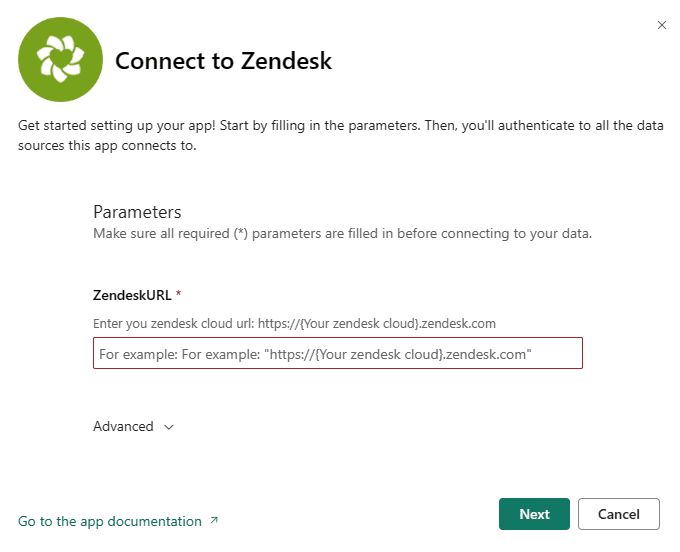
The "Beta" label is important. Microsoft hasn't moved this connector to general availability because of the data limitations we'll discuss shortly.
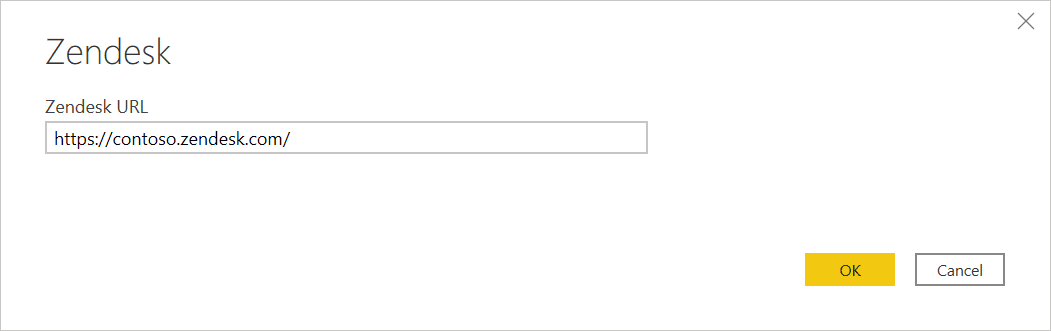
Step 2: Enter your Zendesk URL
Provide your Zendesk subdomain in the format company.zendesk.com. Don't include the https:// prefix or any trailing paths.
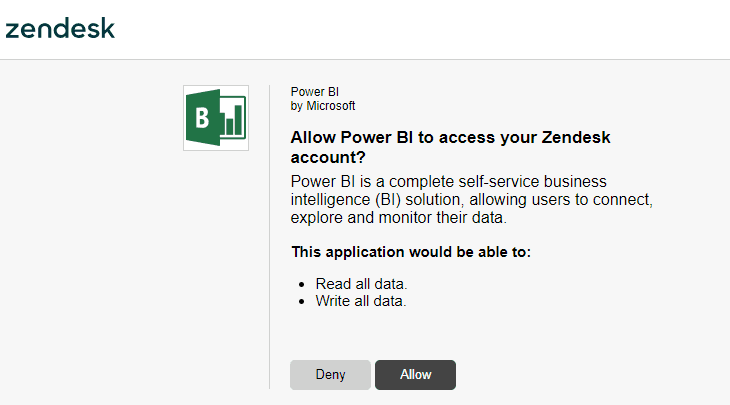
Step 3: Authenticate with OAuth 2.0
Power BI will prompt you to sign in with your Zendesk credentials. You'll need admin permissions to authorize the connection. The OAuth flow handles token generation automatically.
Step 4: Select your data tables
The connector exposes several tables:
- Tickets core ticket data including subject, status, priority
- Users end users and agents
- Organizations company/group associations
- Groups support groups in your Zendesk
- Ticket Metrics resolution times, first response times
Select the tables you need and load them into Power BI.
The 1,000 row limitation (critical)
Here's the problem: due to changes in Zendesk's API pagination, the native connector cannot retrieve more than 1,000 rows from any table. If you have 5,000 tickets, you'll only see the first 1,000.
This makes the native connector unsuitable for most production use cases. Microsoft acknowledges this limitation in its documentation and recommends using alternative connectors for larger datasets.
If you hit this limit, you'll see a 422 error or incomplete data. It's time to consider the other options.
Method 2: Using the Zendesk Data connector (recommended)
Zendesk built their own connector specifically to overcome the 1,000 row limit. It uses Cursor Based Pagination to fetch unlimited data volumes.
What's different about this connector
The Zendesk Data connector works similarly to the native one but implements proper pagination handling. Instead of the standard API endpoints that hit the 1,000 record cap, it uses cursor-based endpoints that can traverse your entire dataset.
Authentication works the same way (OAuth 2.0), and the available tables match what you'd expect from the native connector.
Migration steps from the native connector
If you've already built reports using the native connector, migration's straightforward:
- Open your existing Power BI file
- Go to Transform Data to open Power Query Editor
- Find your Zendesk queries
- Change the source from
Zendesk.Tables()toZendeskData.Contents() - Update any query references that depend on the old connector
Zendesk provides detailed documentation for this migration process. The key change is in the M language function used to access the data.
When to use this connector
This is the connector Zendesk officially recommends for Power BI integration. It's free, handles large datasets, and comes directly from the source. Unless you need features only available in third-party solutions (like Sell/Talk data or DirectQuery), start here.
Method 3: Using a marketplace app
For teams using Zendesk Sell, Talk, or Guide (not just Support), marketplace apps provide the most comprehensive data access.
Installing the Alpha Serve/Tempo connector
- Visit the Zendesk Marketplace and find the Power BI Connector
- Click Free trial to start your 14-day evaluation
- Install the app in your Zendesk instance
- Configure data sources in the Zendesk admin panel
The installation takes less than 10 minutes according to their documentation.
Creating your first data export
Once installed, you can configure what data to export:
- Select tables and fields (including custom fields)
- Apply filters to limit data to relevant records
- Generate an OData feed URL
- Copy this URL for use in Power BI
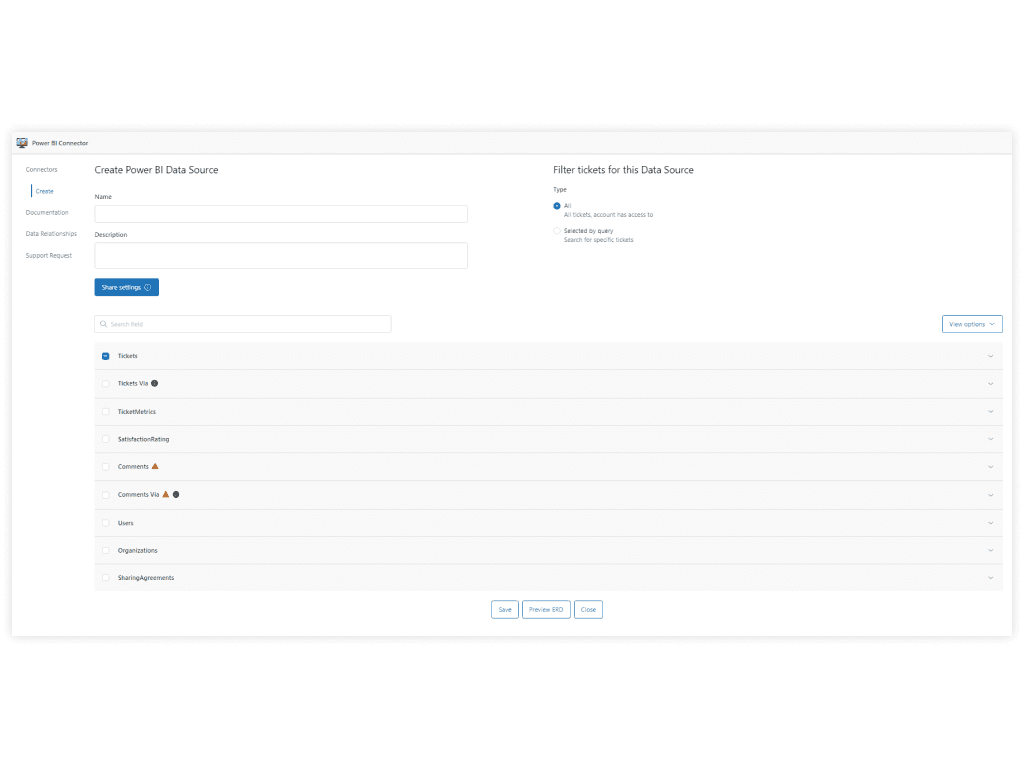
The app includes an Entity Relationship Diagram that dynamically maps your data structure, making it easier to understand table relationships.
Connecting in Power BI
- In Power BI Desktop, select Get Data > OData Feed
- Paste the OData URL from the connector
- Authenticate using your API token
- Load the data and build your reports
Pricing
| Plan | Monthly Price | Data Sources | Row Limit |
|---|---|---|---|
| Core | $49 | 5 | 5,000 per table |
| Professional | $99 | 20 | 20,000 per table |
| Unlimited | $199 | Unlimited | Unlimited |
Source: Zendesk Marketplace
The 14-day free trial lets you test before committing. For teams using multiple Zendesk products (Support, Sell, Talk, Guide), this connector provides the most complete data picture.
Method 4: Using enterprise ODBC drivers
When you need DirectQuery (real-time data without import), SQL-like querying, or bi-directional operations, ODBC drivers are your answer.
CData Zendesk Driver
CData's Zendesk driver is the enterprise standard. It supports:
- DirectQuery query live Zendesk data without the 1GB Power BI dataset limit
- SQL-92 support use familiar SQL syntax for complex queries
- Power BI Gateway native support for on-premises gateway deployments
- Cloud option CData Connect AI for cloud-to-cloud integration without gateway setup
The driver handles query optimization automatically, pushing filters down to Zendesk's API rather than fetching everything and filtering on your machine.
Pricing is license-based with a 30-day free trial. Contact CData for enterprise pricing.
ZappySys ODBC PowerPack
ZappySys offers a different approach with their API Driver. Key features include:
- 70+ actions not just reading data, but creating tickets, updating users, managing organizations
- SQL query language use familiar SQL to query REST APIs
- Data Gateway centralized data access for multiple users
- DirectQuery via SQL Server use Linked Server and OPENQUERY for live connections
ZappySys supports bi-directional operations, meaning you can write data back to Zendesk from Power BI (it's useful for bulk updates or automated workflows).
They offer a 30-day free trial. Pricing is license-based.
When to choose ODBC drivers
Consider ODBC solutions when:
- You need real-time data (DirectQuery) rather than scheduled refreshes
- Your dataset exceeds Power BI's 1GB import limit
- You want to query Zendesk using SQL syntax
- You need bi-directional capabilities (writing back to Zendesk)
- You're integrating with other ODBC-compatible tools beyond Power BI
The trade-off's complexity. ODBC drivers require installation, configuration, and often a gateway server for production deployments.
Connector comparison: Which method is right for you?
| Feature | Native (Beta) | Zendesk Data | Marketplace App | ODBC Driver |
|---|---|---|---|---|
| Cost | Free | Free | $49-$199/month | License-based |
| Row limit | 1,000 | Unlimited | Unlimited | Unlimited |
| Custom fields | Limited | Yes | Yes | Yes |
| Sell/Talk/Guide data | No | No | Yes | Varies |
| DirectQuery | No | No | No | Yes |
| Setup complexity | Low | Low | Medium | High |
| Official support | Microsoft | Zendesk | Third-party | Third-party |
Decision framework
Choose the native connector if: You have under 1,000 records per table and want the simplest possible setup.
Choose the Zendesk Data connector if: You want a free, officially supported solution that handles large datasets. This is the best starting point for most teams.
Choose a marketplace app if: You use Zendesk Sell, Talk, or Guide and want the easiest no-code experience. The $49-199/month cost is justified if you need the additional data sources.
Choose an ODBC driver if: You need DirectQuery, SQL querying, bi-directional operations, or are integrating with enterprise systems beyond Power BI.
Troubleshooting common connection issues
Even with the right connector, you might hit snags. Here're the most common issues and fixes.
422 errors (row limit exceeded)
If you see a 422 error with the native connector, you've hit the 1,000 row limit. Switch to the Zendesk Data connector or a third-party solution.
Authentication failures
- Verify your Zendesk account's got admin permissions
- Check that API access is enabled in Zendesk Admin > Channels > API
- For OAuth issues, try regenerating tokens
- If using basic auth, ensure 2FA is disabled (or use API tokens instead)
Scheduled refresh problems
For Power BI Service scheduled refreshes:
- Install the Microsoft On-premises data gateway if using ODBC drivers
- Configure gateway connections in Power BI Service settings
- Verify credentials are saved and privacy levels are set correctly
Data sync delays
All connectors experience some delay between Zendesk and Power BI:
- Native/Zendesk Data connectors: real-time on refresh
- Marketplace apps: depends on OData feed refresh schedule
- ODBC DirectQuery: near real-time (seconds)
Plan your reporting cadence accordingly. Real-time dashboards require DirectQuery, and that means ODBC drivers.
A simpler alternative: Built-in analytics with eesel AI
Here's something worth considering: maybe you don't need Power BI at all.
For many support teams, the complexity of BI integrations outweighs the benefits. Setting up connectors, managing gateways, building dashboards, training stakeholders. It can take weeks before anyone sees useful insights.
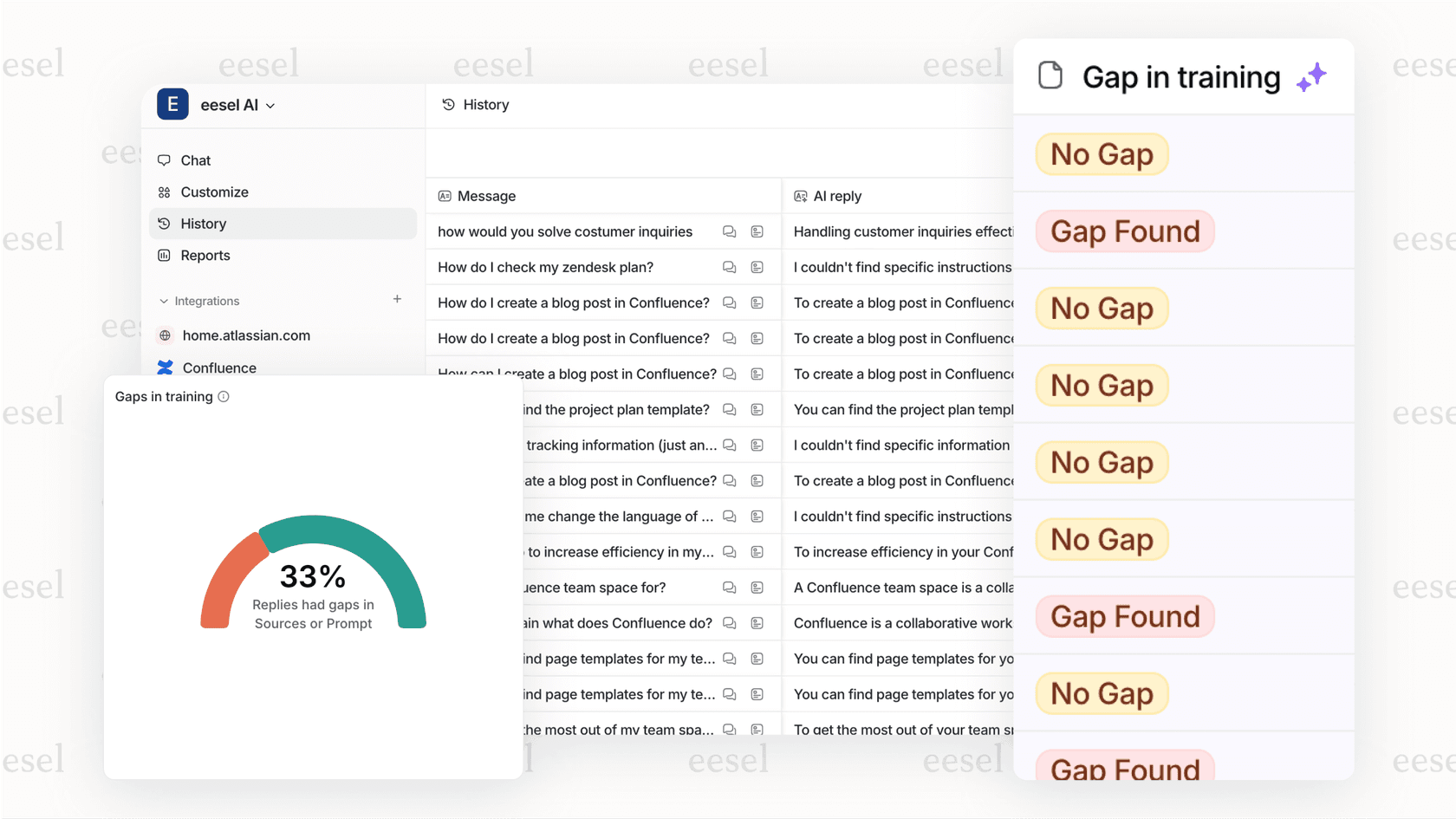
eesel AI takes a different approach. Instead of exporting data to external tools, it provides built-in analytics that work out of the box:
- Automatic topic detection see what customers actually ask about, not just what agents tag
- Trend analysis weekly summaries, sentiment tracking, feature request rollups
- Knowledge gap identification spot where your help center is missing articles
- Agent performance insights resolution times, customer satisfaction correlation
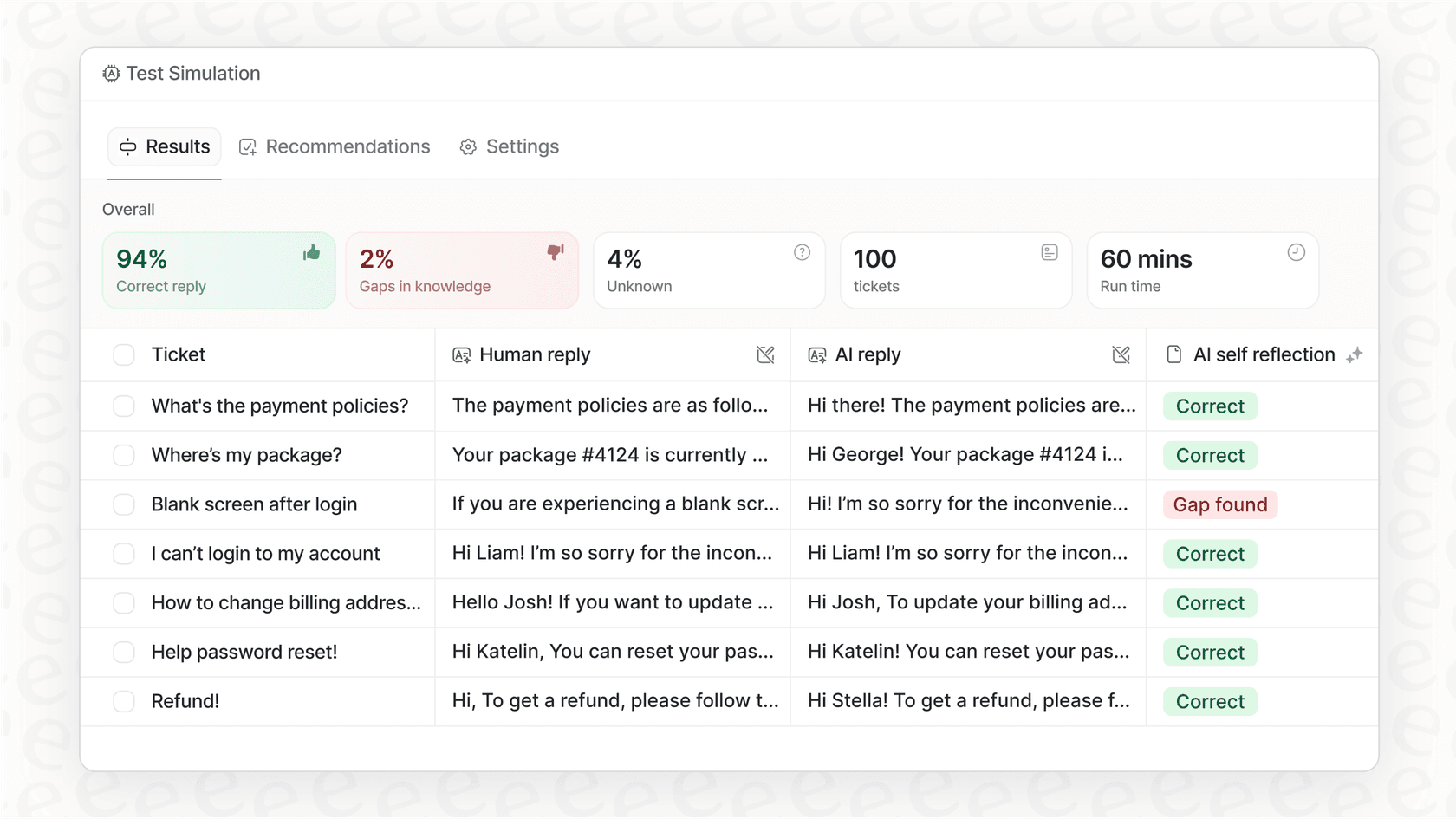
The key difference? eesel AI learns from your existing Zendesk data automatically. No connectors to configure, no data exports to manage, no dashboards to build. You connect eesel's AI agent for Zendesk to your help desk, and it starts surfacing insights right away.
For teams that want support analytics without the BI overhead, this can be a better path. See how eesel AI works with Zendesk.