
When your customers reach out across multiple channels, they expect you to remember who they are. But in Zendesk Messaging, user identities can fragment. A customer might start on your website, continue on WhatsApp, and follow up via email, creating three separate user profiles. This is where conversation merging becomes essential.
Understanding how Zendesk handles user and conversation merging helps you build a seamless support experience. Let's break down how the process works, when it triggers, and what you need to know to manage it effectively.
What Is Conversation Merging in Zendesk Messaging?
Conversation merging in Zendesk Messaging is the process of combining separate user profiles and their associated conversation histories into a single, unified record. This matters because without proper merging, your agents see fragmented customer interactions. A returning customer might appear as three different people, forcing agents to hunt through multiple tickets to understand the full context.
It's important to distinguish between two related concepts:
User merging combines two user profiles into one. The "surviving" user retains the merged identity, while the "discarded" user gets deleted. All profile data, metadata, and conversation histories transfer to the surviving user.
Conversation merging specifically refers to combining separate conversation threads into a single history. This happens automatically in some scenarios but not others, depending on your configuration.
The merge process affects multiple data points. When users merge, their profile information combines, with discarded user values taking precedence in conflicts. Metadata merges too, but stays within a 4KB size limit. Client and device lists deduplicate and combine. Most importantly, conversation histories either merge into a single thread or remain separate, depending on whether you have multi-conversations enabled.
When Does Zendesk Merge Conversations?
Merges don't happen randomly. Zendesk triggers them through three specific mechanisms, each serving different use cases.
API Call Merges
Sometimes you need to manually combine users. The Sunshine Conversations API lets you trigger merges programmatically by specifying a surviving user ID and a discarded user ID. This is useful for:
- Cleaning up duplicate users after data imports
- Fixing identity issues discovered by your support team
- Implementing custom merge logic based on your business rules
Here's a basic example of how an API merge call looks:
POST /v1.1/apps/{app_id}/appusers/merge
{
  "surviving": {"_id": "user_a_id"},
  "discarded": {"_id": "user_b_id"}
}
Be cautious with API merges on SDK users. If an unauthenticated user merges with an authenticated user, their session token gets revoked. They'll need a new JWT to continue. Two authenticated users merging create complications with external IDs. For most cases, letting Zendesk handle merges automatically through authentication is safer.
Channel Transfer Merges
Channel transfers occur when customers want to continue conversations across different platforms. Imagine a customer starts chatting on your website widget but needs to leave. They choose to continue on WhatsApp instead. This transfer can trigger a merge if Zendesk determines both identities represent the same person.
These merges happen through two flows:
Business-initiated transfers happen when your system proactively offers channel switching. For example, a customer provides their phone number during a web chat, and you offer to continue via SMS. When the customer confirms ownership of that phone number, Zendesk merges the web and SMS user profiles.
User-initiated transfers occur when customers choose to continue conversations themselves. A customer chatting on your website clicks "Continue on Messenger," authenticates their Facebook account, and Zendesk recognizes the connection between the two sessions.
Login Event Merges
The most common merge trigger is authentication. When an unauthenticated user logs into your app or website, and that login matches an existing user profile via external ID, Zendesk merges the profiles.
This enables seamless conversation continuity. A customer can browse your site anonymously, start a support chat, then log into their account mid-conversation. After authentication, they see their full conversation history and any previous tickets, all in one place.
The surviving user in login merges is always the user created first. This preserves the established user record while incorporating data from the newer, unauthenticated session.
How the Merge Process Works
Understanding the mechanics helps you handle edge cases and build proper integrations. Here's what happens step-by-step when Zendesk merges users:
Step 1: Survivor election Before anything else, Zendesk determines which user survives. For API merges, you specify this. For channel transfers, the user initiating the transfer becomes the survivor. For login events, the older user account wins.
Step 2: Profile consolidation The discarded user's profile fields merge into the surviving user. If both profiles have conflicting values for the same field (like different names), the discarded user's value takes precedence. For the signedUpAt timestamp, the earlier date is kept.
Step 3: Metadata merging User metadata combines, with discarded values winning conflicts. However, there's a 4KB limit on metadata size. If the merged metadata exceeds this limit, Zendesk discards individual fields one by one until it fits. The webhook event tells you which metadata got dropped.
Step 4: Client and device consolidation Both users' connected clients (messaging channels) and devices merge into a single deduplicated list. The surviving user now has access to all channels and devices from both original users.
Step 5: Conversation handling This step varies significantly based on your multi-conversations setting. With multi-conversations disabled, conversation histories merge into a single thread sorted by timestamp. With it enabled, conversations stay separate even after user merging.
Step 6: Webhook notification Zendesk fires a user:merge webhook containing IDs of surviving and discarded objects, plus any discarded metadata. Your system should listen for these events to update your own user records accordingly.
Understanding Multi-Conversations and Merging
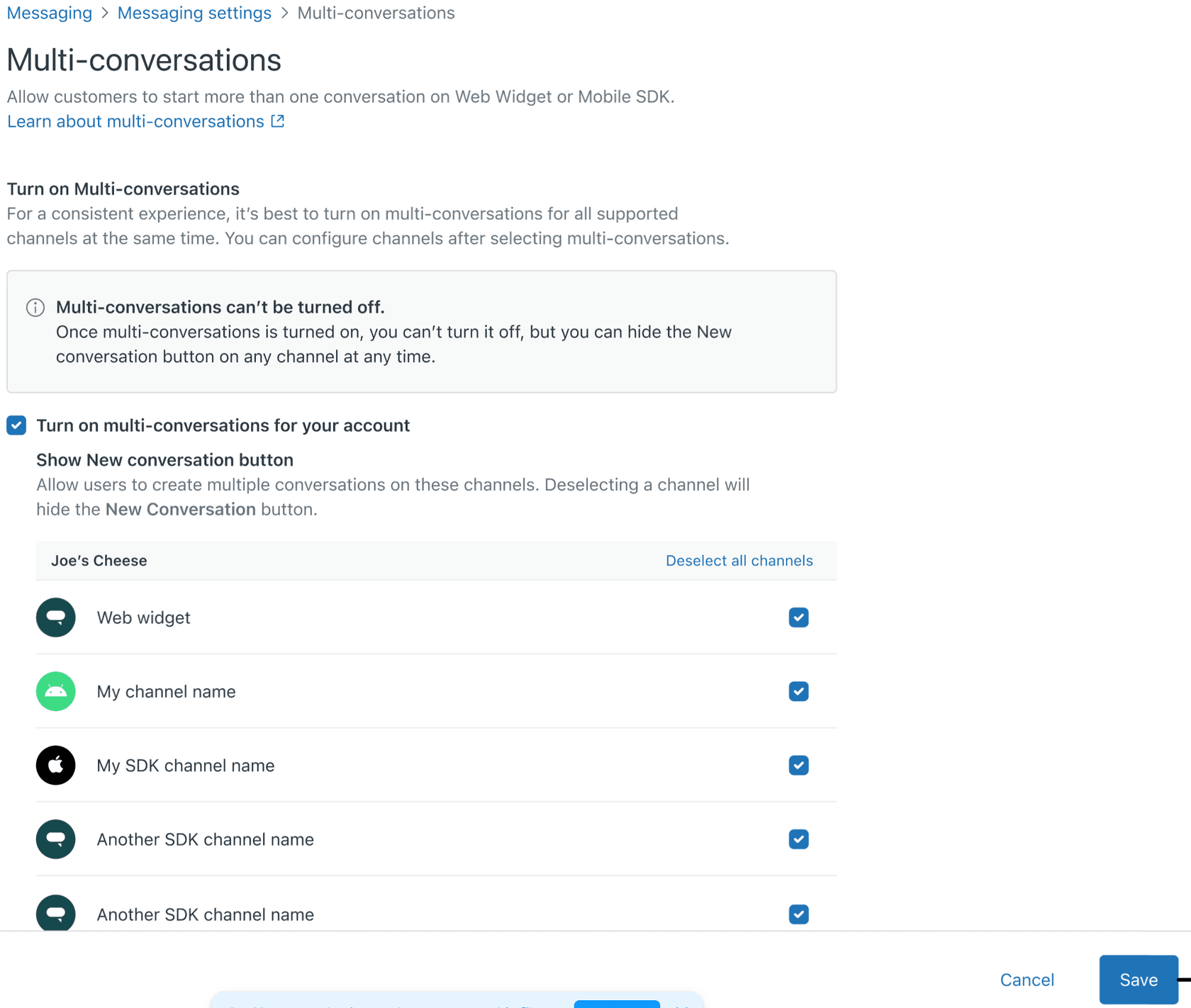
The multi-conversations feature fundamentally changes how merging works. This setting is irreversible, so understanding its implications before enabling it is critical.
Without Multi-Conversations (Default)
In single-conversation mode, when a user authenticates mid-conversation, both the user profiles AND their conversations merge. The unauthenticated conversation joins the authenticated user's conversation history as one continuous thread. This creates a clean, linear view of all customer interactions.
With Multi-Conversations Enabled
When multi-conversations is active, user merging still occurs, but conversations remain separate. The authenticated user profile absorbs the unauthenticated profile, but the conversation stays distinct. This can create duplicate tickets for the same underlying issue.
Here's the risk: if a user starts a conversation before logging in, then authenticates, you end up with two tickets for what should be one support interaction. Your agents must manually identify and merge these tickets.
There's also a capacity limit. While unauthenticated users can have unlimited active tickets, authenticated users are limited to 100 active tickets at a time. If an authenticated user exceeds this limit, Zendesk prioritizes which conversations display the green checkmark icon based on recent activity.
Best Practice: Authenticate Early
To avoid duplicate ticket scenarios, authenticate users BEFORE they start messaging whenever possible. If your website or app requires login, trigger the authentication immediately when the messaging widget loads, not after the conversation begins.
Authentication, Identity, and the Verified Email Flow
One of the biggest pain points in Zendesk Messaging is duplicate user creation. For years, administrators struggled with authenticated users creating new profiles instead of linking to existing ones. Zendesk addressed this through verified email identity.
The Problem: Unverified Identity Risk
Previously, if an unauthenticated user entered an email address matching an existing profile, Zendesk linked that conversation to the existing user. This created a security vulnerability. Anyone could impersonate another customer simply by entering their email address.
The Solution: Verified Email Identity
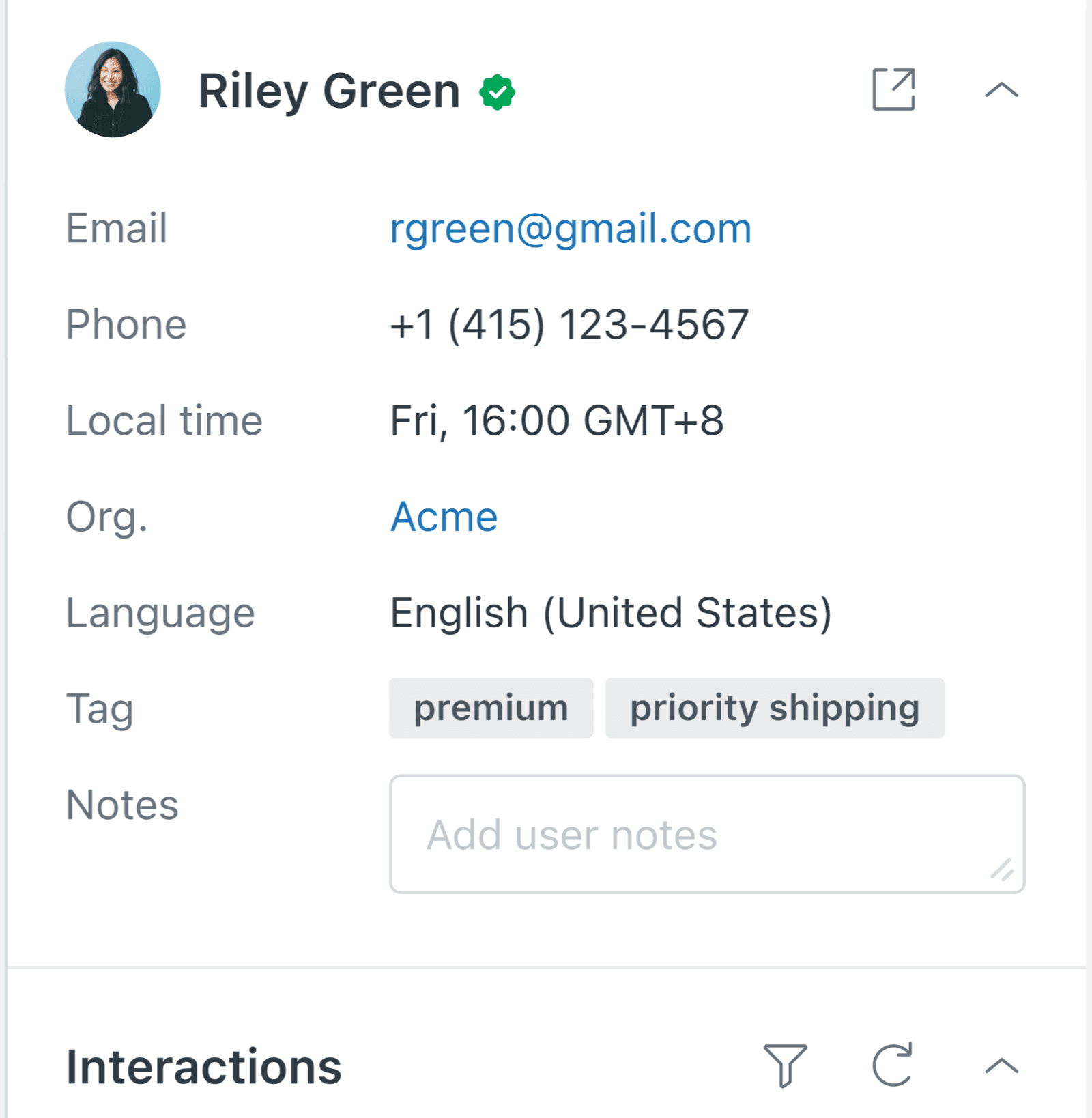
Zendesk now distinguishes between verified and unverified email identities. A verified email means the user authenticated through JWT and proved ownership of that email address. Agents see a green checkmark next to verified users, indicating they can trust the identity.
The 48+ Flow Scenarios Simplified
An expert analysis mapped approximately 48 different authentication flow permutations. While the full matrix is complex, most real-world scenarios boil down to two outcomes:
Authenticated + Verified = Profile Linked When a user authenticates via JWT with an external_id matching an existing Zendesk user, and that user has a verified email, the conversation links to the existing profile. Agents see the green checkmark and full conversation history.
All Other Scenarios = New Profile Created Unauthenticated users, or authenticated users without matching external_ids, create new user profiles. These profiles lack the green checkmark verification status.
Configuration Options
In your Admin Center under Messaging > Settings > Advanced, you'll find email identity options:
- "Use only verified emails" (new default): Maximum security. Only verified, authenticated users link to existing profiles.
- "Use both verified and unverified emails" (legacy behavior): Less secure but allows unauthenticated users to link via email matching.
New Zendesk accounts default to the secure option. Existing accounts may need manual adjustment.
Best Practices for Managing Conversation Merges
After working through the technical details, here are practical recommendations for your implementation:
Authenticate early and consistently. Trigger JWT authentication when your messaging widget initializes, not after the conversation starts. This prevents the duplicate ticket problem entirely.
Handle user:merge webhooks. Build logic to receive and process merge events. Update your internal user records when Zendesk notifies you of a merge to maintain data consistency across systems.
Plan for duplicate cleanup. If you use multi-conversations, train agents to identify and manually merge tickets created by delayed authentication. Consider automation rules to help flag potential duplicates.
Test merge flows in staging. Before going live, simulate merge scenarios in your staging environment. Verify that authentication triggers proper linking, channel transfers work smoothly, and your webhook handlers respond correctly.
Document your authentication decisions. The complexity of email identity settings means your team needs clear documentation on which configuration you chose and why. Include troubleshooting steps for common identity issues.
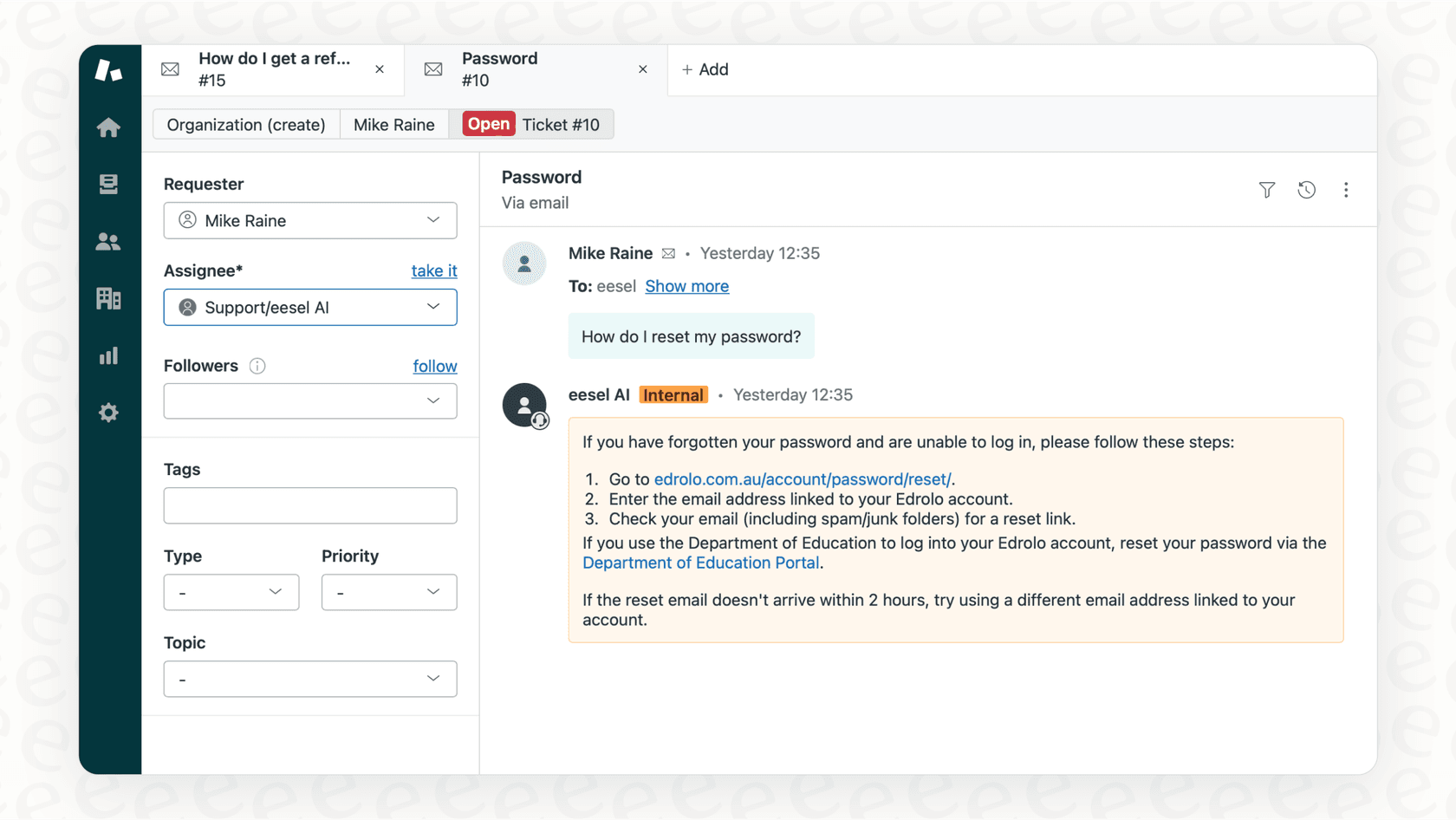
Consider alternative approaches. While Zendesk provides powerful merging capabilities, some teams find that AI-powered support platforms handle cross-channel identity resolution more seamlessly. Solutions like eesel AI's Zendesk integration automatically unify customer context across channels without requiring complex merge logic or JWT implementations.
Implementing Conversation Merge in Your Zendesk Setup
Ready to put this into practice? Here's your implementation checklist:
Before enabling multi-conversations:
- Confirm your authentication flow works correctly
- Verify JWT tokens include external_id matching your user database
- Test the user experience with delayed authentication scenarios
- Document the decision (remember: you cannot revert)
API integration checklist:
- Implement user:merge webhook handler
- Build logic to query for existing users before creating new ones
- Add monitoring for merge-related errors
Common pitfalls to avoid:
- Don't rely on email matching alone for identity (security risk)
- Don't authenticate users mid-conversation without understanding the ticket implications
- Don't ignore the 4KB metadata limit during merges
- Don't forget to update your own systems when merges occur
Resources for further reading: