Managing customer conversations efficiently starts with finding the right tickets quickly. Whether you're tracking escalations, monitoring agent workloads, or reviewing past interactions for quality assurance, conversation filters are the backbone of an organized support operation.
But here's where many teams get confused. Zendesk offers conversation filters in two different contexts: the live messaging interface agents use daily, and the Quality Assurance (QA) module used for reviewing completed conversations. These filters serve different purposes, and understanding the distinction helps you set up views that actually match your workflow needs.
This guide walks through both types of filters, explains how to build and manage custom filters, and explores practical combinations that support teams use every day. We'll also look at where Zendesk's native filtering has gaps, and how alternatives like eesel AI approach conversation organization differently.
Understanding Zendesk messaging vs QA conversation filters
Before diving into filter types, it's worth clarifying the two different contexts where filters appear in Zendesk. The confusion is understandable. Both are called conversations, but they serve entirely different purposes.
Zendesk Messaging refers to the live, asynchronous conversations happening between customers and agents in real time. These are the interactions your team is actively handling through the agent workspace. When a customer sends a message via web widget, WhatsApp, or Instagram, it appears here.
Zendesk QA is a separate module for reviewing and scoring completed conversations. This is where managers and quality coaches evaluate agent performance, identify coaching opportunities, and run calibration sessions. The QA Conversations view pulls from historical data, not live interactions.
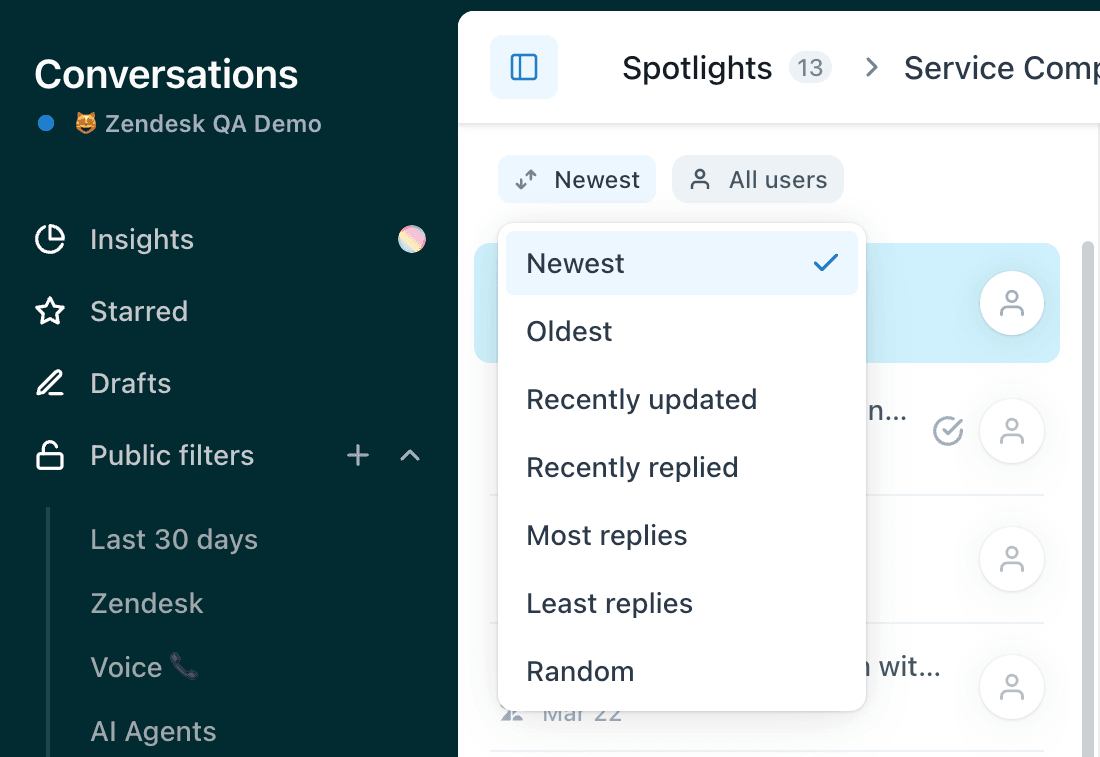
Why does this matter for filtering? The available filter types differ significantly between the two contexts. In the live messaging workspace, you're primarily filtering by status, assignee, channel, and basic metadata to manage workload. In QA, you have access to far more sophisticated filters including AI-powered insights like sentiment analysis, escalation detection, and AutoQA category scores.
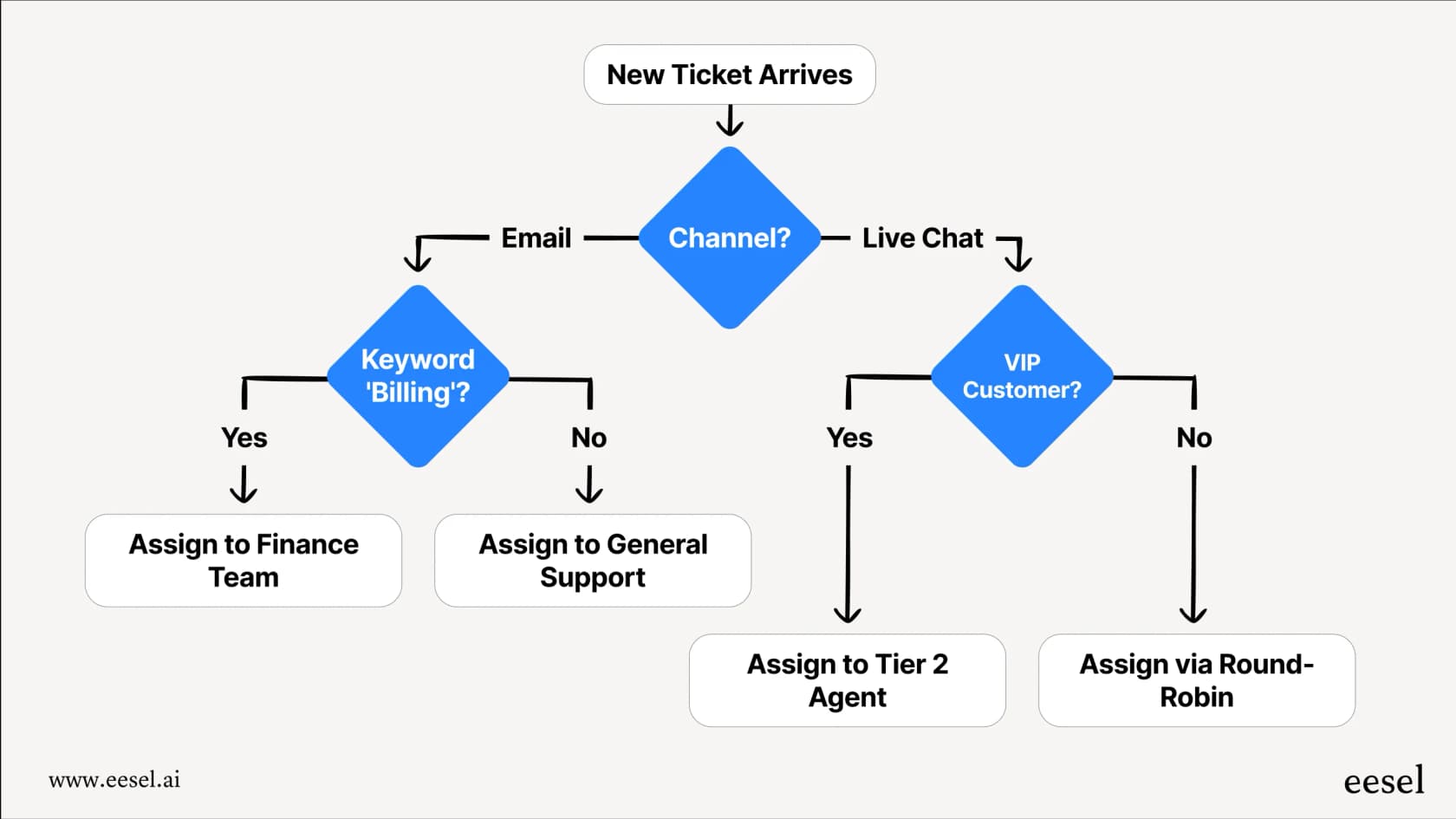
If your team is looking for better ways to handle conversation triage and routing without the complexity of manual filters, our AI triage capabilities offer an alternative approach that works alongside your existing help desk setup.
Core conversation filter categories in Zendesk
Let's break down what's actually available when you start building filters. The exact options depend on your plan, but here are the main categories you'll encounter.
Date-based filters
These let you narrow conversations by timeframe. In the live messaging view, you can filter by creation date, last activity, or when the conversation was solved. This is useful for finding conversations that went stale or identifying patterns in your weekly volume.
In QA, date filtering gets more granular. You can filter by reviewed date to find conversations already scored, commented date for when feedback was left, and even CSAT survey dates to correlate quality scores with customer satisfaction timing.
Status and assignment filters
The bread and butter of live conversation management. Filter by open, pending, solved, or on-hold status. Combine this with assignee filters to see exactly what each agent is handling, or identify unassigned conversations that need routing.
The assignee filter supports both inclusion and exclusion logic. You can create a view that shows all open conversations except those assigned to your tier-2 escalation team, for example.
Channel and metadata filters
Separate messaging conversations from email, voice, or social channels. This matters because messaging interactions have different characteristics. They're often shorter, more transactional, and may require different response time expectations than email tickets.
You can also filter by priority levels, tags, and custom fields you've configured in your Zendesk instance.
How to create and manage custom filters
Building useful filters is straightforward once you know the steps. Here's the process for creating filters in Zendesk QA (the workflow is similar for live messaging views).
Step 1: Access the Conversations view
Navigate to Quality Assurance in your Zendesk admin sidebar, then click Conversations. The left sidebar displays your existing filters divided into Public and Private sections.
Step 2: Create a new filter
Click to add a new filter. You'll choose between public (visible to all QA reviewers) or private (just for you). Public filters are ideal for standardized review processes. Private filters work well for personal productivity shortcuts.
Step 3: Set filter conditions
Select your filter criteria from the available categories. You can stack multiple conditions. For example: conversations created in the last 7 days, assigned to the Premium Support group, with a status of solved, and tagged with "refund_request."
Step 4: Save and organize
Name your filter clearly. Something like "Premium Refunds - Last 7 Days" tells other reviewers exactly what they're looking at. You can reorder filters by dragging them in the sidebar, placing your most-used views at the top.
Managing existing filters
To edit a filter, click the options menu next to it and select Edit. You can modify conditions, rename it, or change its visibility. The Duplicate option is handy for creating variations. If you need a filter that's almost identical to an existing one, duplicate it and tweak the conditions rather than building from scratch.
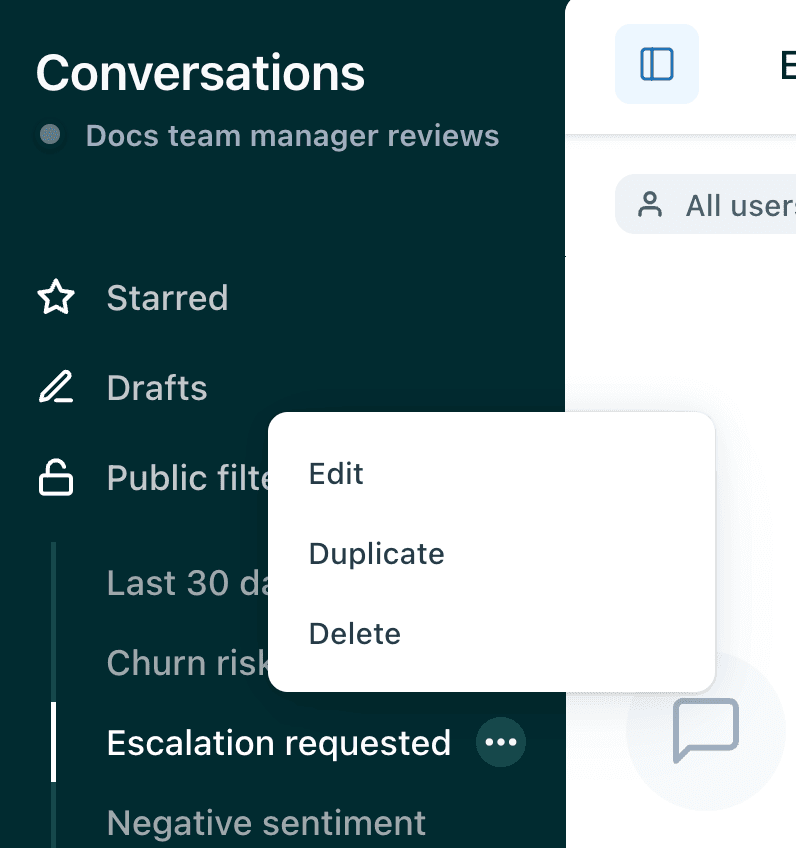
Following a structured setup process ensures that custom filters are organized and accessible for consistent quality assurance reviews. This approach helps teams maintain standardized review processes while allowing for personal productivity shortcuts through private filters.
Practical filter combinations for common workflows
The real power of filters comes from combining them intelligently. Here are combinations that support teams actually use to stay organized.
Escalation monitoring
Create a filter for high-priority open conversations assigned to your escalation group, sorted by longest waiting time. This ensures urgent issues get immediate attention. Add a condition for conversations with more than three replies to catch the ones that are going back and forth without resolution.
Agent workload balancing
Build a view that shows all open messaging conversations grouped by assignee. Include conversation count and average wait time columns. Managers can spot overloaded agents at a glance and redistribute work accordingly.
SLA breach prevention
Filter for open conversations approaching SLA thresholds. Combine status (open or pending), priority (high or urgent), and time-based conditions. The exact time windows depend on your SLA policies, but catching these before they breach is always better than explaining after.
Channel-specific triage
Separate your messaging queue from email. Messaging conversations often expect faster responses. A dedicated view lets you handle these with appropriate urgency without the noise of email tickets mixed in.
Follow-up queue
Build a filter for pending conversations where the customer hasn't replied in more than 24 hours. These often need a proactive check-in or can be closed if the issue resolved itself.
Advanced filtering with Zendesk AI and spotlight insights
Teams on higher-tier Zendesk plans get access to AI-powered filters that go beyond basic metadata. These are particularly useful in the QA context.
Sentiment-based filtering
Zendesk's AI can detect positive and negative sentiment in conversations. In QA, you can filter for conversations with negative sentiment to prioritize quality reviews where customers had poor experiences. This helps you catch training opportunities that basic metrics might miss.
AutoQA category filters
The AutoQA system automatically scores conversations across predefined categories: greeting, comprehension, empathy, solution offered, closing, and more. You can filter for conversations scoring below thresholds in specific categories. Finding all conversations where "solution offered" scored poorly helps identify agents who need coaching on actually resolving issues rather than just responding.
Spotlight insights
These AI-detected patterns surface interesting conversations automatically:
- Churn risk: Conversations where customers expressed intent to leave or cancel
- Escalation: Conversations where customers requested higher-level assistance
- Exceptional service: Conversations with unusually positive customer feedback
- Dead air: Conversations with problematic silence gaps
- SLA breach: Conversations that violated service level agreements
These filters complement manual filtering rather than replacing it. You might run a manual filter for your Premium customers, then within those results, look for conversations flagged with churn risk by the AI.
Limitations and considerations
Zendesk's filtering is powerful but not without constraints. Understanding these helps you set realistic expectations and identify when you need workarounds.
Group-based filtering gaps
A common frustration surfaced in community feedback: filtering by groups of agents is limited. The current system requires manually selecting individual reviewees. While "All reviewees" exists, it doesn't let you filter for specific teams or departments without checking every member individually. This creates extra work for large or cross-functional teams.
API limitations for advanced needs
Some teams need to filter by data not exposed in the standard interface. The API provides additional access, but certain fields like chat completion status and engagement assignment data require workarounds or incremental API exports rather than simple filtering.
Performance at scale
With very high conversation volumes, complex filters with multiple stacked conditions can slow down the interface. If you notice lag, consider simplifying your filters or breaking them into separate, more focused views.
When filters fall short
Filters organize what's already in your system. They don't automatically categorize incoming conversations, route tickets intelligently, or adapt based on conversation content. For teams needing more automation, this is where alternatives enter the picture.
Alternatives for advanced conversation filtering
If Zendesk's native filtering feels limiting for your workflow, there are approaches that shift the paradigm from "manual filter creation" to "intelligent automatic organization."
eesel AI approaches conversation handling as hiring an AI teammate rather than configuring a tool. Instead of building static filters, you train eesel on your past tickets, help center, and documentation. The AI learns your business context, tone, and common issue patterns, then handles conversation triage, routing, and even response drafting automatically.

The key difference is motion versus automation. Zendesk filters help you search through conversations. AI-powered alternatives act on conversations as they arrive, tagging, routing, and escalating based on learned patterns rather than rigid rules.
For teams already using Zendesk, eesel AI integrates directly with your existing setup. You don't replace your help desk. You add an AI layer that handles the repetitive triage and filtering work, letting human agents focus on complex issues requiring empathy and judgment.
Pricing differs significantly too. Zendesk charges per agent, with advanced AI features as add-ons. eesel AI charges one fixed monthly price from $299/month for 500 credits (1 credit per ticket or chat), with no seats and no platform fee. For teams with fluctuating volume or seasonal patterns, this model can be more predictable than adding agent seats.
Getting the most from your conversation filters
Whether you stick with native Zendesk filtering or explore AI alternatives, a few best practices apply.
Name filters for their purpose, not their mechanics. "High Priority Escalations" is more useful than "Status Open AND Priority High AND Group Escalation." Your teammates should understand what a filter shows without reading the conditions.
Review and clean up quarterly. Filters accumulate over time. What made sense six months ago may be obsolete now. Remove filters nobody uses to reduce sidebar clutter.
Train your team on filter logic. Many agents only use the default views. A 15-minute training session on building custom filters often pays off in productivity gains.
Measure the impact. Track whether filtered views actually help response times. If your "Urgent Follow-up" filter identifies conversations that still wait hours, the filter isn't the problem. The workflow is.
For teams ready to move beyond manual filtering entirely, eesel AI offers a different approach. Instead of building increasingly complex filters to manage conversation volume, you invite an AI teammate that learns your business and handles the routing, tagging, and initial responses automatically. The AI learns from your best agents and scales their approach across every conversation.