Sometimes you'll need to hide certain elements in your Zendesk Help Center. Maybe you want to remove the "Powered by Zendesk" footer for a cleaner brand experience. Or perhaps you've got internal categories that shouldn't appear on your public homepage. You might even need to hide article comments globally without disabling them one by one.
Curlybars, Zendesk's templating language, gives you precise control over what renders in your help center. Unlike CSS hiding (which just makes things invisible), Curlybars can prevent components from ever reaching the browser. This matters for both security and performance.
In this guide, you'll learn how to use Curlybars to hide components in your Zendesk Guide. We'll cover finding component IDs, editing theme templates, and implementing the isnt helper. By the end, you'll have working code examples for the most common hiding scenarios.
What you'll need before you start
Before diving into code, make sure you have the right setup. Curlybars customization requires specific Zendesk plans and permissions.
You'll need:
- Guide Professional or Enterprise plan (or Suite Growth and higher). These customizations aren't available on Suite Team.
- Admin access to the Customize design settings in your Zendesk account
- Basic familiarity with HTML/CSS (helpful but not strictly required)
- A backup plan - custom themes aren't officially supported by Zendesk, so document your changes
If you're managing a complex help center with lots of customizations, consider how tools like eesel AI can help you document and maintain your setup. Our AI teammate can track your theme changes alongside your knowledge base content, making it easier to manage everything in one place.
Understanding how Curlybars hiding works
Curlybars is Zendesk's Handlebars-based templating language. It runs on Zendesk's servers before your help center pages ever reach a browser. This server-side processing is what makes Curlybars hiding fundamentally different from other methods.
When you use the isnt helper to hide a component, that HTML simply isn't generated. The browser never receives it. Compare this to JavaScript hiding, where the HTML is present in the page source and just hidden with CSS. Anyone with basic browser skills can reveal JavaScript-hidden content.
Here's why this matters:
- Security: Sensitive content stays off the server response entirely
- Performance: Less HTML means faster page loads
- SEO: Hidden content won't appear in search engine crawls
The isnt helper compares two values using strict inequality (!==). If they don't match, the content inside the block renders. If they do match, nothing renders. This is the primary method for hiding components by their unique ID.
Alternative methods exist but serve different purposes:
- User segments control access at the article level through Zendesk's permissions system
- JavaScript/CSS hiding works for cosmetic changes but isn't secure
- Disabling features in settings (like turning off comments) affects all content globally
For more details, see the official Zendesk documentation on hiding components.
Step-by-step guide to hiding components
Let's walk through the actual implementation. These steps assume you're working with the Copenhagen theme or a custom theme based on it.
Step 1: Find the component ID
Every category, section, and article in your help center has a unique ID number. You'll find it in the URL when you navigate to that component.
Here's how to locate it:
- Open your help center as an end user would see it
- Navigate to the component you want to hide (a category, section, or article)
- Look at your browser's address bar
- Extract the number from the URL
For example, if the URL is /hc/en-us/categories/200420805-General, the ID is 200420805.
The URL pattern varies by component type:
- Categories:
/categories/ID-Name - Sections:
/sections/ID-Name - Articles:
/articles/ID-Name
Write down the IDs for all components you want to hide. You'll need them in the next step.
Step 2: Access your theme code
Now you'll open the theme editor and locate the right template file.
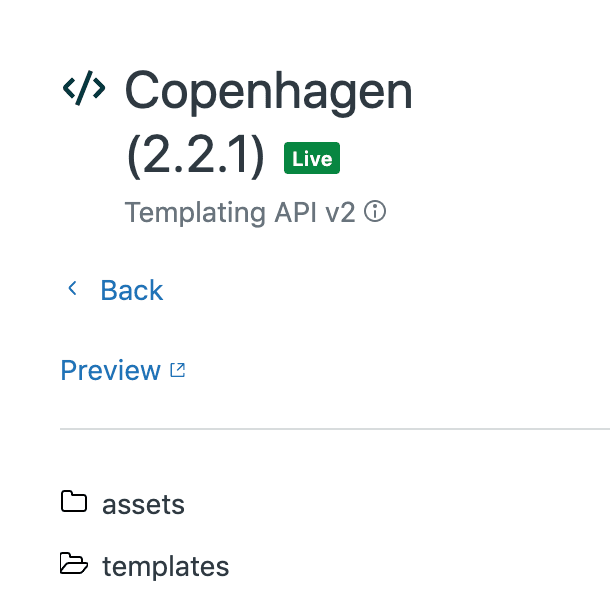
- In Zendesk, go to Guide admin (or Knowledge admin in newer interfaces)
- Click the Customize design icon in the sidebar
- Find your live theme and click Customize
- Click Edit code to open the theme editor
- Navigate to the template file you need in the left sidebar
The template you choose depends on what you're hiding:
home_page.hbs- The help center homepagearticle_page.hbs- Individual article pagessection_page.hbs- Section landing pagescategory_page.hbs- Category landing pagesfooter.hbs- Global footer elementsheader.hbs- Global header elements
Step 3: Add the isnt helper code
Once you have the right template open, locate the component you want to hide. You'll wrap it with the isnt helper.
The syntax looks like this:
{{#isnt id 'YOUR_COMPONENT_ID'}}
  <!-- Component code here -->
{{/isnt}}
Here's a real example. To hide a category from the home page:
{{#each categories}}
  {{#isnt id '200420805'}}
    <div class="category">
      <a href="{{url}}">{{name}}</a>
    </div>
  {{/isnt}}
{{/each}}
To hide multiple components, chain multiple isnt statements:
{{#isnt id '200420805'}}
  {{#isnt id '200420806'}}
    <div class="category">
      <a href="{{url}}">{{name}}</a>
    </div>
  {{/isnt}}
{{/isnt}}
Or use the is helper with an else block for the opposite logic:
{{#is id '200420805'}}
  <!-- This category is hidden -->
{{else}}
  <div class="category">
    <a href="{{url}}">{{name}}</a>
  </div>
{{/is}}
Step 4: Publish and verify
After adding your code, you need to save and test your changes.
- Click Save in the top right corner
- Click Publish to make the changes live
- Click Preview to see how your help center looks
- Navigate to the page where you hid the component
- Verify it's hidden but still accessible via direct link
If the component still appears, double-check:
- The ID number is correct
- You're editing the right template file
- The syntax is exactly
{{#isnt id 'NUMBER'}}(notisn'twith an apostrophe)
Common hiding scenarios and code examples
Here are practical recipes for the most common use cases.
Hide article comments globally
Instead of disabling comments on each article individually, you can hide the comment section in your theme.
In article_page.hbs, find the comments section and wrap it with HTML comments:
{{!--
<div class="article-comments">
  <!-- Comments code here -->
</div>
--}}
This completely removes the comments HTML from the page. Use this when you want comments disabled but don't want to edit hundreds of articles individually.
Hide categories from the home page
To keep categories accessible via direct link but hidden from the homepage:
{{#each categories}}
  {{#isnt id '200420805'}}
    <div class="category-block">
      <h2><a href="{{url}}">{{name}}</a></h2>
      <p>{{description}}</p>
    </div>
  {{/isnt}}
{{/each}}
This is useful for internal documentation categories that agents access via bookmarks but shouldn't appear to general visitors.
Hide footer elements
To remove the "Powered by Zendesk" text or other footer elements:
{{#isnt help_center.name 'Internal Help Center'}}
  <div class="footer-powered-by">
    Powered by Zendesk
  </div>
{{/isnt}}
Or hide it entirely by removing or commenting out the relevant section in footer.hbs.
Hide based on user type
Combine Curlybars with user segments for role-based hiding:
{{#if signed_in}}
  {{#isnt user.role 'end-user'}}
    <div class="internal-notice">
      This section is for agents only
    </div>
  {{/isnt}}
{{/if}}
For true security, combine this with Zendesk's user segments to restrict article access at the permission level.
Hide breadcrumbs on specific pages
To remove breadcrumbs from article pages but keep them elsewhere:
{{#isnt article.id '123456789'}}
  {{breadcrumbs}}
{{/isnt}}
Or use the is helper to show breadcrumbs only on certain page types.
Best practices and security considerations
Before you start customizing, keep these guidelines in mind.
Always duplicate your theme first. Click the three dots next to your live theme and select "Duplicate." Work on the copy, test thoroughly, then switch the live theme when you're confident. This gives you an instant rollback option.
Test in a sandbox environment. If you have a Zendesk sandbox, make changes there first. Some features don't work in preview mode, so you need a real environment to verify everything functions correctly.
Document your customizations. Create a shared document that tracks:
- Which templates you've modified
- What IDs you're hiding
- Why you made each change
- When you made it
This documentation becomes invaluable when you need to troubleshoot or when team members change.
Understand the security implications. Curlybars hiding happens server-side, which means the HTML never reaches the browser. This is secure. JavaScript hiding, where you use CSS to hide elements after they load, is not secure. The content is still in the page source and visible to anyone who knows how to look.
Performance note: Hiding components with Curlybars reduces the HTML sent to browsers, which can improve load times. However, it doesn't reduce database queries on Zendesk's end. The content is still fetched; it just isn't rendered.
If you're managing documentation across multiple platforms, consider how eesel AI can help. Our AI teammate integrates with Zendesk to automatically generate and update help center articles based on your support tickets, keeping your content fresh while you focus on theme customization.
Troubleshooting common issues
Even with careful implementation, things sometimes don't work as expected. Here's how to fix the most common problems.
The component still appears. Double-check the ID number. It's easy to transpose digits or grab the wrong ID from a similar URL. Also verify you're editing the correct template file. Changes to home_page.hbs won't affect article pages.
Your template is broken. If you see error messages or your help center won't load, you likely have a syntax error. Common culprits:
- Using
isn'tinstead ofisnt(no apostrophe in Curlybars) - Missing closing tags (
{{/isnt}}) - Mismatched quotes around IDs
Revert to your backup theme immediately, then carefully review your code changes.
Preview looks different from live. Preview mode doesn't always show exactly what users see. Some features require a full page load to function. Always test changes in a live environment (even if on a duplicate theme) before making them public.
Multiple conditions aren't working. Check your nesting. Each isnt helper needs its own closing tag. For complex logic, consider whether user segments might be a better solution than template code.
Managing help center content with eesel AI
Curlybars handles how your help center looks. But what about the content itself?
While you're customizing your theme, you still need to create, update, and maintain the articles your customers read. That's where eesel AI's Zendesk integration comes in.
Our AI teammate integrates directly with Zendesk to:
- Generate help center articles from your resolved support tickets
- Identify knowledge gaps where new articles would reduce ticket volume
- Maintain consistent tone across all your documentation
- Update outdated articles based on new product information
Instead of manually writing every article, you can let eesel AI draft content based on actual customer questions. You review, edit, and publish. It's like having a technical writer who learns from every support interaction.
For teams managing complex help centers, this means less time writing documentation and more time improving the customer experience. You handle the presentation layer with Curlybars. We handle the content layer with AI.
Learn more about how eesel AI works with Zendesk or explore our complete guide to the Zendesk ticketing system for more ways to optimize your support setup.