How to set up Zendesk CSAT follow-up questions: A complete guide

Stevia Putri
Last edited March 2, 2026
Customer satisfaction ratings tell you that a customer was unhappy. Follow-up questions tell you why. Without them, you're left guessing what went wrong.
Zendesk's CSAT feature includes the ability to ask follow-up questions after customers submit their ratings. When configured well, these questions turn generic feedback into actionable insights. They help you spot patterns in support issues, identify training gaps, and understand what customers need.
This guide walks you through setting up Zendesk CSAT follow-up questions from start to finish. We'll cover the configuration steps, share question templates for different scenarios, and show you how to turn responses into real improvements. We'll also look at how tools like eesel AI can help you improve satisfaction before the survey even gets sent.
What you'll need
Before you start configuring follow-up questions, make sure you've got:
- Administrator access to your Zendesk account. Only admins can modify satisfaction settings.
- Zendesk Suite Professional or higher, or Support Professional/Enterprise plan. CSAT surveys are not available on lower-tier plans.
- An understanding of your support workflow timing. When do tickets typically get resolved? When are customers most likely to respond?
If you're on a lower-tier plan, you'll need to upgrade to access CSAT features. Suite Professional starts at $115 per agent per month when billed annually.
Step 1: Enable customer satisfaction ratings
The first step is turning on CSAT in your Zendesk account. Here's how to do it:
Navigate to Admin Center > Objects and rules > Business rules > Customer satisfaction. This is where all CSAT configuration happens.
You'll see an option to choose between legacy CSAT and the new customizable CSAT experience. The new experience offers more flexibility, including up to 9 custom reasons for negative feedback instead of the default 4. If you're setting this up for the first time, go with the new experience.
Toggle the satisfaction survey feature to On.
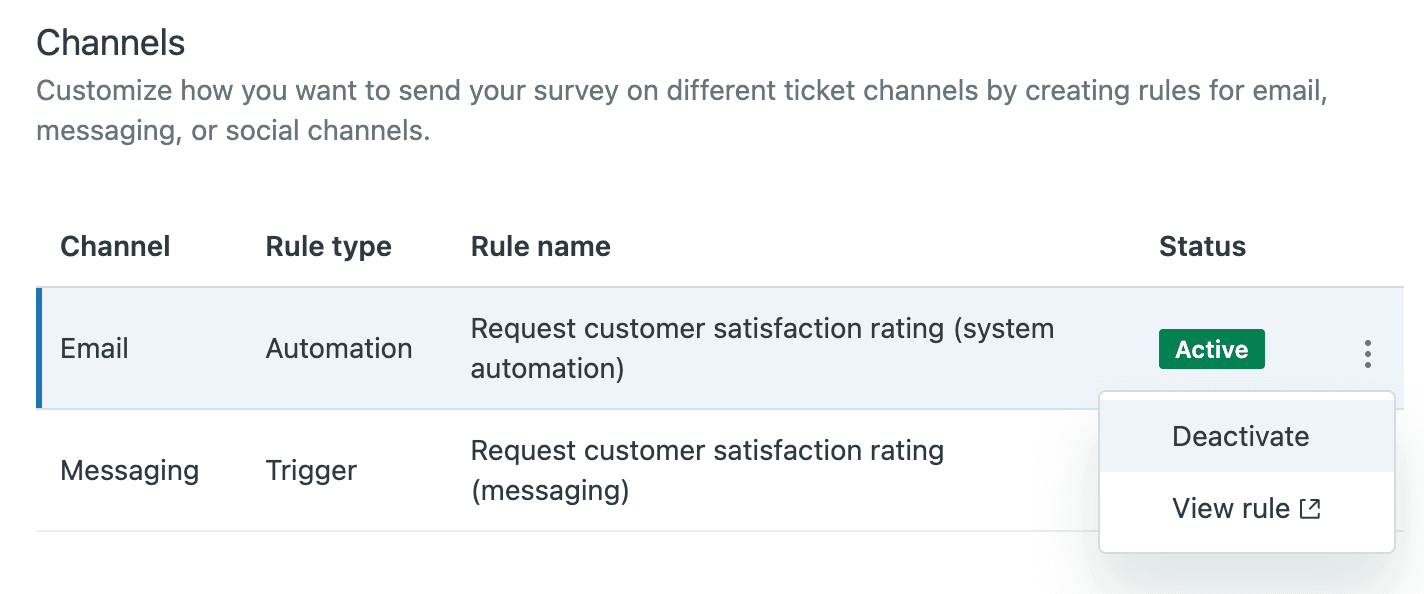
Next, configure which channels will send surveys. Zendesk supports CSAT across multiple channels:
- Email surveys sent automatically after ticket resolution. This is the most common option and works for almost every support team.
- Messaging in-chat surveys appear after conversations end. Good for real-time support channels.
- Voice requires the end user's email address to send the survey.
Most teams start with email since it's got the broadest compatibility. You can always add other channels later.
For more details on initial setup, see our guide on configuring Zendesk account settings for customer satisfaction.
Step 2: Configure your follow-up question
Now for the important part: setting up questions that actually give you useful information.
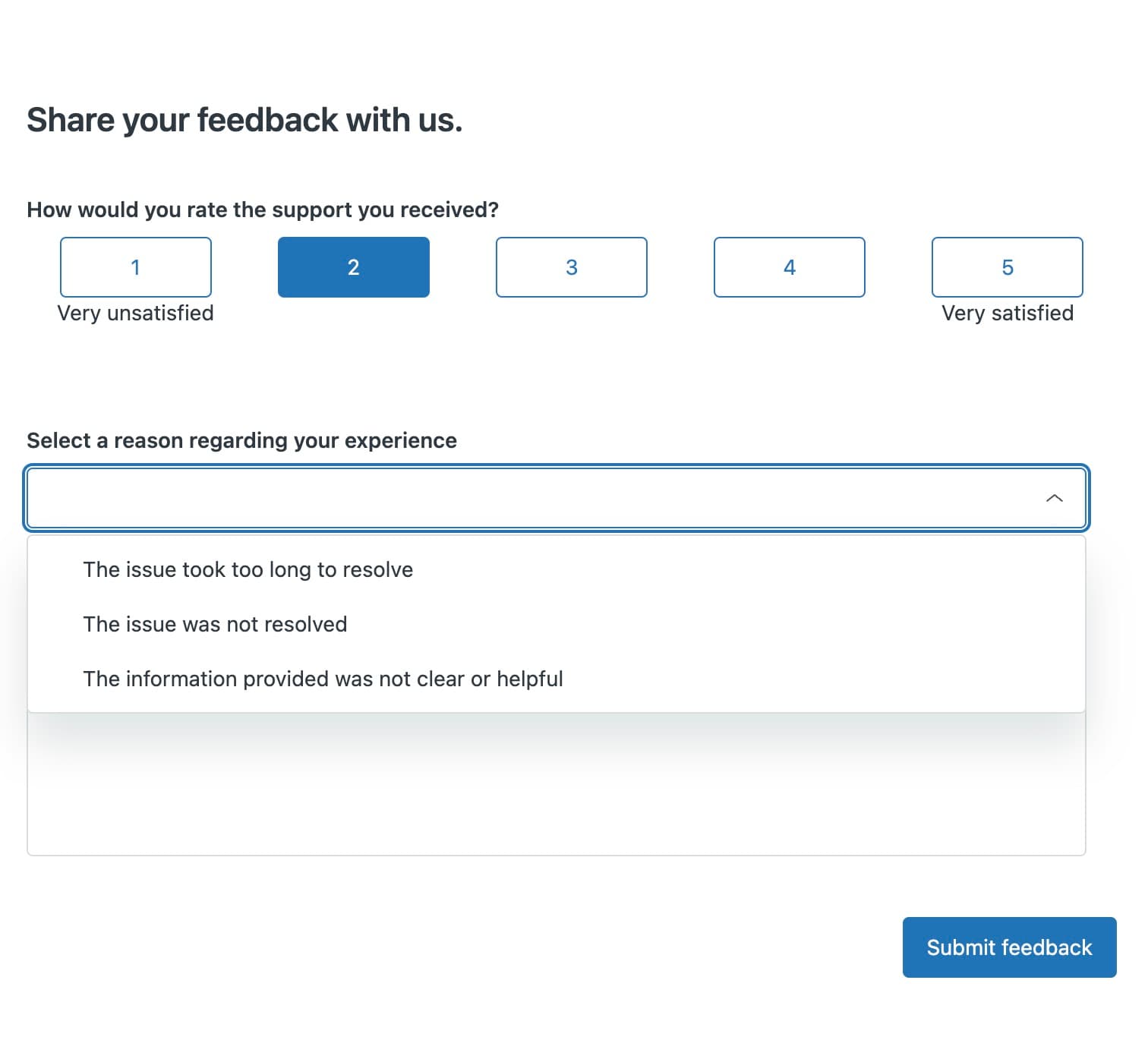
By default, Zendesk shows follow-up questions only after negative ratings. The structure works like this: customer rates the interaction, then sees a dropdown asking why they gave that rating, followed by an optional comment field.
To customize this, stay in the Customer satisfaction section of the Admin Center. Look for the Follow-up questions configuration area.
Here's what you can customize:
The follow-up question text. Instead of the generic "What could we improve?", try something specific to your business. A SaaS company might ask, "What could we have done to resolve your issue faster?" An e-commerce store could ask, "What would have made your shopping experience better?"
Satisfaction reasons as dropdown options. These are the predefined answers customers can select. In the new CSAT experience, you can add up to 9 custom reasons. The defaults are:
- The issue took too long to resolve
- The issue was not resolved
- The agent's knowledge is unsatisfactory
- The agent's attitude is unsatisfactory
Think about what categories would help you identify trends. If you frequently get complaints about shipping times, add that as a reason. If product bugs are a common issue, include that too.
The open-ended comment field. This lets customers explain in their own words. Keep it optional. Required comments lead to survey abandonment.
Step 3: Set survey timing and delivery
Timing matters more than you might think. Send too soon and customers haven't had time to verify their issue is fixed. Send too late and they've forgotten the details.
The default setting sends surveys 24 hours after a ticket is marked as Solved. This works well for most teams. It gives customers time to test the solution while keeping the interaction fresh.
To adjust the timing, go to Admin Center > Objects and rules > Automations. Open the "Request customer satisfaction rating" automation. Here you can change the delay from the default 24 hours.
A few timing considerations:
- Complex technical issues might need 48-72 hours. Customers need time to test that everything works.
- Simple requests like password resets could go out in 12 hours.
- Weekend tickets might need different timing if your team doesn't work Saturdays and Sundays.
You can also configure reminder settings for customers who don't respond to the initial survey. Use these sparingly. One gentle reminder is usually enough. Multiple reminders annoy customers and can actually hurt satisfaction scores.
Set up agent notifications so your team knows when ratings come in. This helps agents learn from feedback in real time. You can configure notifications to go to the assigned agent, their manager, or both.
Follow-up question templates by scenario
The questions you ask should match what you're trying to learn. Here are templates for different situations.
Questions for negative ratings
These help you understand what went wrong:
- "What could we have done to resolve your issue faster?"
- "What information were you looking for that you didn't find?"
- "If you could change one thing about your support experience, what would it be?"
- "What would have made this interaction a 5-star experience?"
Questions for positive ratings
Most teams only ask follow-ups after negative ratings, but there's value in understanding what you're doing right too. Consider asking positive respondents:
- "What did our agent do especially well?"
- "What made this experience stand out?"
- "Is there anything we should keep doing?"
You'd need a third-party tool like Nicereply or Sondar to ask different questions based on rating, since Zendesk's native CSAT only shows follow-ups for negative ratings by default.
Industry-specific examples
SaaS companies:
- "Was our documentation helpful in resolving your issue?"
- "What feature would have prevented you from needing to contact support?"
E-commerce:
- "How could we improve our delivery communication?"
- "What would make you shop with us again?"
B2B support:
- "Did we meet your SLA expectations?"
- "How can we better support your team's workflow?"
Matching tone to your brand
A formal enterprise company might ask: "How satisfied were you with the resolution provided?"
A casual consumer brand could ask: "How did we do? What could we do better?"
The key is consistency. Your CSAT survey should sound like it came from the same company that handled the support interaction.
Best practices for Zendesk CSAT follow-up questions
Getting the configuration right is just the beginning. Here are practices that separate teams who collect feedback from teams who actually use it.

Keep questions concise. One clear question beats three vague ones. Customers are doing you a favor by responding. Respect their time.
Make follow-ups optional. Required fields reduce response rates. You'll get fewer but more thoughtful responses if people can skip questions they don't want to answer.
Use over-surveying protection. Zendesk lets you limit how often the same customer receives surveys. Someone who contacts you three times in a week shouldn't get three surveys. Set this up to avoid survey fatigue.
Train agents on responding to negative feedback. Agents need to know that negative ratings are learning opportunities, not punishments. When a customer gives a bad score and explains why, that's valuable data. Agents should see it as helpful, not threatening.
Create workflows to act on follow-up responses. The worst thing you can do is collect feedback and do nothing with it. Set up triggers that notify managers when certain reasons are selected. Create tickets for follow-up when customers indicate their issue wasn't resolved.
Analyzing and acting on follow-up responses
Collecting feedback is only half the battle. The real value comes from analyzing trends and taking action.
Where to view the data. Zendesk Explore has built-in satisfaction dashboards. Go to Explore > Dashboards > Customer Satisfaction to see your overall score, rating breakdowns, and trends over time.
Identifying trends from follow-up reasons. Look for patterns in why customers give negative ratings. If 40% of bad ratings cite "The issue took too long to resolve," that's a staffing or workflow problem. If "Agent knowledge" comes up frequently, you have a training gap.
Creating follow-up workflows. When a customer gives a negative score, someone should reach out. This isn't about changing the rating (don't ask customers to do that). It's about understanding what happened and making it right. Sometimes a simple apology and explanation turns a detractor into a loyal customer.
Closing the feedback loop. Let customers know you've heard them. If multiple customers complain about the same documentation gap, fix it and tell them. If a product bug keeps coming up, update affected customers when it's resolved.
Using AI to analyze open-ended responses. If you're getting hundreds of CSAT responses, reading every comment becomes impossible. This is where AI can help. Tools like eesel AI can analyze open-ended feedback at scale, categorize comments by theme, and identify emerging issues before they become major problems.
Taking CSAT further with eesel AI
Configuring CSAT follow-up questions helps you understand satisfaction after interactions happen. But what if you could improve satisfaction before the survey is even sent?
This is where we can help. eesel AI integrates directly with Zendesk to help you deliver better support experiences from the first interaction.

Our AI Agent learns from your past tickets, help center articles, and macros to handle routine inquiries autonomously. Customers get faster responses to common questions, which directly improves satisfaction scores.
The AI Copilot drafts replies for your human agents, helping them respond more quickly and consistently. New agents can perform like veterans from day one because they've got AI assistance grounded in your best practices.
Perhaps most importantly, eesel AI analyzes ticket sentiment in real time, flagging at-risk conversations before they turn into negative ratings. This gives agents a chance to course-correct while the interaction is still ongoing.
Unlike Zendesk's per-agent pricing, eesel AI pricing is based on interactions, not seats. Plans start at $239 per month (billed annually) and include AI Copilot, Slack integration, and up to 1,000 interactions. Your entire team can benefit from AI assistance without costs that scale linearly with headcount.
The result is a support operation where CSAT scores improve not just because you're measuring them better, but because the underlying customer experience is genuinely better.


Frequently Asked Questions
Share this article

Article by
Stevia Putri
Stevia Putri is a marketing generalist at eesel AI, where she helps turn powerful AI tools into stories that resonate. She’s driven by curiosity, clarity, and the human side of technology.