How to enable multiple agents on one Zendesk ticket: A complete guide

Stevia Putri
Last edited March 2, 2026
You have a complex support ticket that needs input from your billing team, a product specialist, and a senior agent. But Zendesk only lets you assign the ticket to one person. Sound familiar?
This is one of the most common frustrations for support teams using Zendesk. The platform's single assignee model creates clear ownership, but it also creates bottlenecks when multiple people need to collaborate on resolving an issue.
The good news: Zendesk offers several workarounds for multi-agent collaboration. In this guide, we'll walk through five proven methods to get multiple team members working together on a single ticket, from simple CCs to advanced AI-powered collaboration.
Understanding Zendesk's single assignee model
Before diving into solutions, let's understand why Zendesk works this way. The platform was built around the principle of clear ownership. One person is responsible for the ticket from start to finish, which prevents the "too many cooks" problem where multiple agents accidentally step on each other's work.
This design makes sense for straightforward issues. But modern support is rarely that simple. Customers expect help with complex technical problems, billing disputes that span multiple departments, and escalations that need manager oversight. When these situations arise, you need more than one brain on the problem.
The workaround mindset is key here. Zendesk doesn't natively support multiple assignees, but it provides several collaboration features that let you work around this limitation. Each method has its own strengths and trade-offs.
Method 1: Using CCs and followers
The simplest way to keep multiple people in the loop is using CCs and followers. This feature is available on all Zendesk Suite plans and lets you add both agents and end-users to ticket notifications.
Here's how it works. When you add someone as a CC, they receive email notifications about ticket updates. Followers work similarly but are specific to agents and let them track tickets within the Zendesk interface without being the primary assignee.
The difference matters in practice. CCs are best when you want someone to receive email updates about a ticket, even if they're not actively working in Zendesk. Followers are better for agents who want to monitor tickets from within the agent workspace.
When should you use this method? CCs and followers work well when you need to keep stakeholders informed but don't need them to take action on the ticket. Think of a manager who wants visibility on high-priority issues, or a product manager tracking bugs that affect their feature area.
The limitation is clear: CC'd agents can't change ticket status, add public replies, or perform most ticket actions. They're observers, not participants. For true collaboration where multiple people need to contribute, you'll need a different approach.
To add a CC to a ticket, open the ticket in Zendesk, find the CC field in the ticket properties panel, and start typing the name or email of the person you want to add. For followers, use the @mention feature in a comment to automatically add an agent as a follower.
Method 2: Light agents for internal collaboration
Light agents are Zendesk's solution for giving limited access to people who need to contribute to tickets without being full agents. They're free on most plans (with limits) and can view tickets and add internal notes.

Think of light agents as internal consultants. They can see what's happening, offer expertise through private comments, and stay informed about issues that affect their area. But they can't communicate directly with customers or take ownership of tickets.
What light agents can do:
- View tickets assigned to their groups
- Add private comments (internal notes)
- Be CC'd on tickets
- Create and manage email-based side conversations
- Use macros (with limitations)
- View Explore dashboards (on Professional and Enterprise plans)
What they cannot do:
- Be assigned tickets
- Change ticket status
- Add public replies
- Use @mentions
- Serve chat or messaging conversations
Plan availability varies significantly. Light agents aren't available on the Suite Team plan at all. On Suite Growth you get up to 50 light agents. Suite Professional includes 100, and Suite Enterprise includes up to 1,000. If you need more than your plan includes, you can purchase additional light agent seats as an add-on.
Best use cases for light agents include subject matter experts who provide technical guidance, managers who review and coach without handling tickets directly, and cross-functional team members who need visibility into customer issues.
Setting up light agents requires admin access. In the Zendesk Admin Center, go to People > Team > Roles, assign the Light Agent role to a user, and configure their ticket access permissions based on your needs.
Method 3: Agent groups for shared ownership
When collaboration needs go beyond just observing tickets, agent groups offer a way to distribute ownership across a team. Instead of assigning a ticket to an individual, you assign it to a group, and any member of that group can pick it up.
Groups are fundamental to how Zendesk handles routing and access control. You might have a "Billing" group, a "Technical Support" group, and an "Enterprise Accounts" group. When a ticket comes in, triggers and automations can route it to the appropriate group based on the issue type, customer tier, or other criteria.
The collaboration benefit is clear: multiple agents can see tickets in their group's queue, and anyone with capacity can grab the next ticket. This works well for teams that share a workload rather than owning individual cases end-to-end.
Setting up groups for collaboration involves a few key steps. First, create groups that reflect your team's actual structure or specializations. Then set up triggers to automatically route tickets to the right group based on criteria like keywords, requester organization, or ticket form selections. Finally, train agents to monitor their group queues and take ownership of tickets they can handle.
Groups also enable more sophisticated workflows. You can use skills-based routing to match tickets to agents with specific expertise, set up round-robin assignment within a group, or create escalation paths that move tickets between groups based on priority or time thresholds.
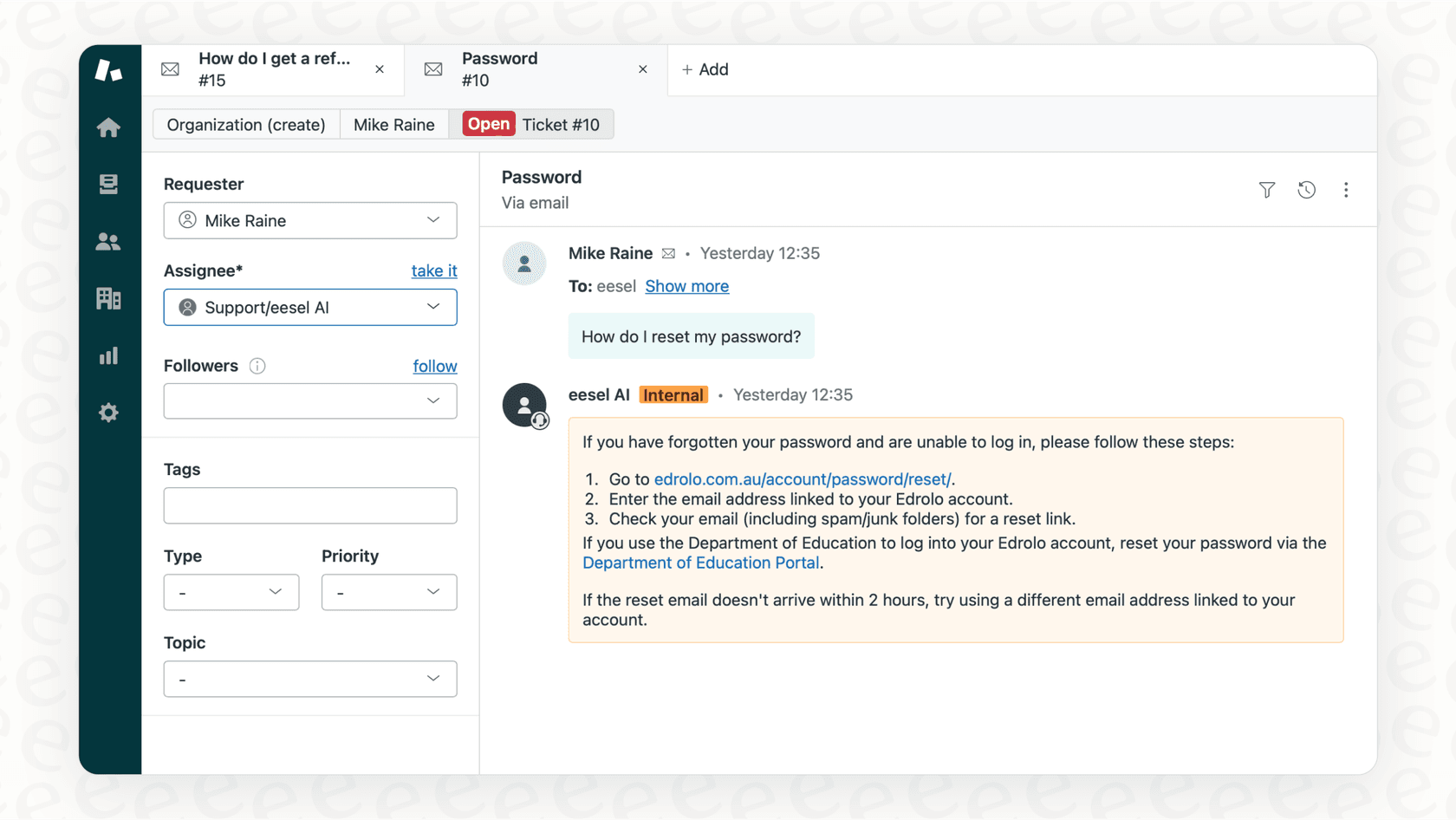
For teams looking to enhance their group-based workflows with AI, eesel AI integrates directly with Zendesk groups. Our AI agent can be assigned to specific groups to handle routine tickets automatically, escalating only the complex issues to human agents. You can learn more about structuring groups effectively in our complete guide to Zendesk agent groups.
Method 4: Side conversations
Sometimes you need to collaborate with people outside your immediate support team: a vendor, a development partner, or someone in another department who doesn't use Zendesk. Side conversations let you have parallel discussions within a ticket without cluttering the main conversation thread.
There are three types of side conversations:
- Email side conversations send messages to external email addresses while keeping everything tracked in the ticket
- Slack side conversations collaborate with team members in Slack channels directly from Zendesk
- Child tickets break complex issues into subtasks that can be assigned to different agents or groups
The benefits are significant. Side conversations keep your main ticket clean while ensuring all collaboration is documented and searchable. When a customer emails back, their response stays in the main thread, not mixed in with your internal back-and-forth.
When should you use side conversations? They're ideal for cross-team collaboration, vendor coordination, complex issues requiring input from multiple departments, and situations where you need to loop in external parties without giving them full ticket access.
Creating a side conversation is straightforward. In a ticket, click the Side Conversations panel, choose the type (email, Slack, or child ticket), add participants, and compose your message. The conversation stays attached to the ticket for full context.
The main limitation is plan availability. Side conversations require the Collaboration Add-on or specific Zendesk plans. On Suite Professional and above, ticket side conversations are included. For Slack side conversations, you may need additional configuration and potentially the Collaboration Add-on depending on your plan level.
Method 5: @Mentions for messaging conversations
For teams using Zendesk messaging and live chat, there's a specific collaboration feature designed for real-time conversations: @mentions. This lets agents add non-assignee agents to messaging conversations as collaborators.
Here's how it works. When handling a messaging conversation, an agent can type @ followed by a colleague's name to mention them. This adds the mentioned agent as a follower on the conversation and sends them a notification. The mentioned agent can then view the conversation and add public replies, even though they're not the primary assignee.
This is different from ticket CCs because it's specific to the messaging channel and allows the mentioned agent to actively participate in the conversation, not just observe it.
There are requirements to keep in mind. Both agents need to have both Chat and Support roles assigned. Light agents, contributors, and Chat-only agents cannot use or receive @mentions. The feature is active by default on all accounts but can be deactivated in Admin Center if needed.
@mentions work best for real-time collaboration on active chat conversations, getting quick input from a specialist while the customer is still online, and training scenarios where a supervisor monitors and contributes to live chats.
To activate or manage agent collaboration for messaging, go to Admin Center > Channels > Messaging and live chat > Agent collaboration. From there you can enable or disable the feature and configure who can use @mentions.

Choosing the right collaboration method
With five different approaches available, how do you choose? The right method depends on your specific collaboration needs, budget, and team structure.
Here's a quick reference table:
| Method | Best For | Plan Requirements | Cost |
|---|---|---|---|
| CCs and followers | Keeping stakeholders informed | All Suite plans | Included |
| Light agents | Internal experts who need visibility | Growth+ (50-1,000 included) | Free up to limit |
| Agent groups | Shared workload distribution | All Suite plans | Included |
| Side conversations | External collaboration, subtasks | Professional+ | Included |
| @Mentions | Real-time chat collaboration | All Suite plans | Included |
Consider these factors when deciding:
- Depth of collaboration needed Do people need to just observe, or actively contribute?
- Internal vs. external Are you collaborating with team members or outside parties?
- Channel Is this for email tickets, live chat, or both?
- Budget Do you have room for add-ons, or do you need to work within your current plan?
Many teams use multiple methods together. You might have a ticket assigned to a group, with a light agent from the product team CC'd for visibility, and a side conversation open with your development vendor. The key is matching the tool to the specific collaboration need.
When Zendesk's native options fall short
These workarounds solve many collaboration challenges, but they have limits. There are scenarios where you genuinely need true multi-agent assignment, where two or more agents share equal responsibility for a ticket and can both take actions on it.
Consider these situations:
- Complex enterprise deals where both a sales engineer and account manager need equal ownership
- Escalations where the original agent and specialist both need to communicate with the customer
- Training scenarios where a new agent and supervisor both need to send replies
- High-value customers with dedicated teams who all need full ticket access
In these cases, Zendesk's workarounds start to feel like exactly that: workarounds. The light agent who cannot reply to customers. The CC'd manager who cannot change ticket status. The group assignment where only one person can actually own the ticket.
This is where AI teammates change the equation. Instead of adding more human agents to a ticket, you can invite an AI agent to handle the routine work, freeing up your human team to collaborate on the complex issues that actually need multiple perspectives.
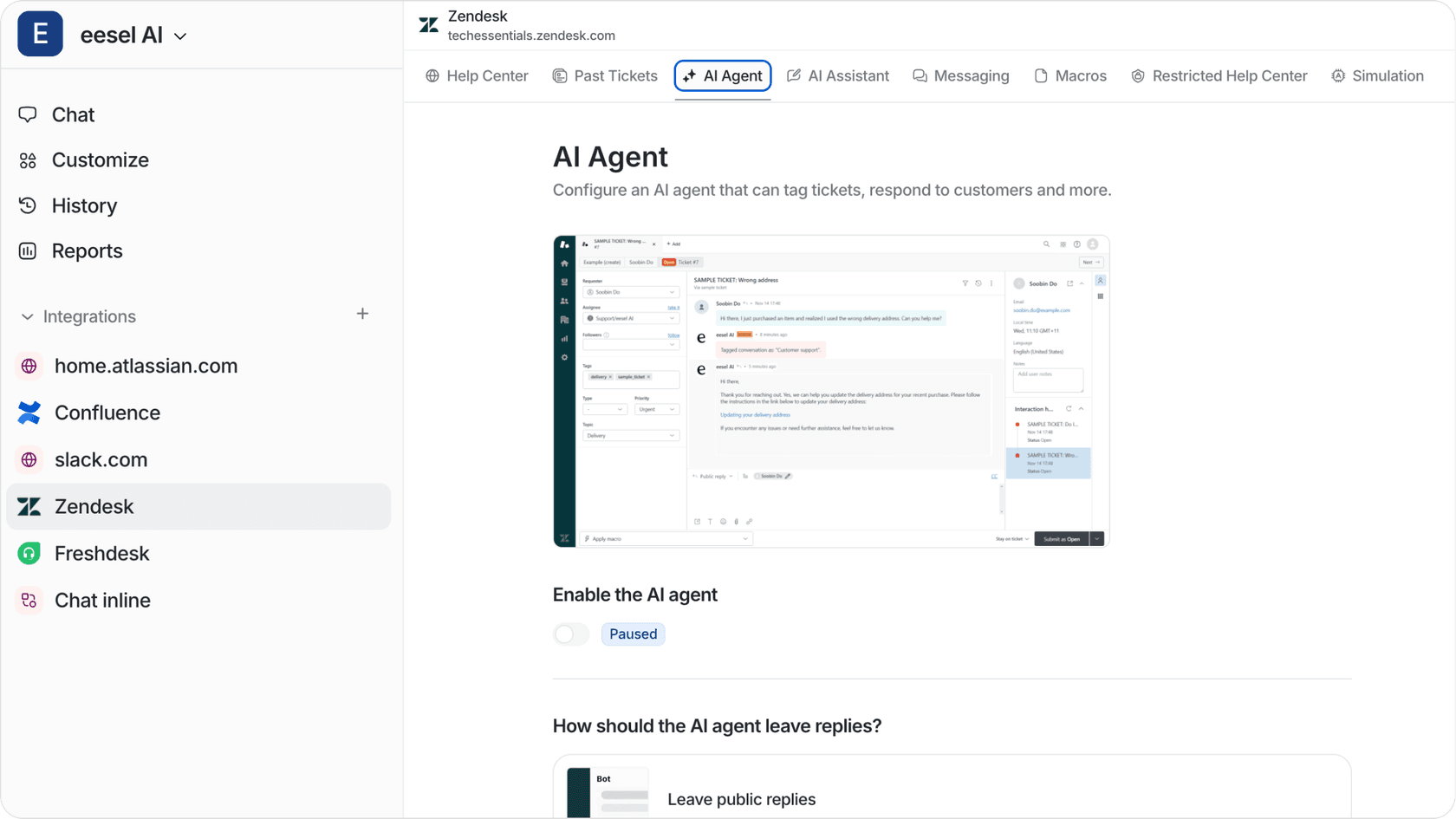
Our AI Agent integrates directly into your Zendesk groups and handles frontline support autonomously. It learns from your past tickets, macros, and help center content to resolve common issues without human intervention. When something complex comes up, it escalates to your team with full context.
For tickets that do need human collaboration, our AI Copilot drafts replies that any agent in the group can review and send. This keeps responses consistent even when multiple agents are involved, and it helps new agents contribute effectively from day one.
The result is fewer tickets that need multi-agent collaboration in the first place, and smoother collaboration when they do. Instead of workarounds, you get a system designed for how modern support teams actually work.
Best practices for multi-agent collaboration
Whether you're using Zendesk's native features or adding AI to the mix, these practices will help your team collaborate effectively:
-
Establish clear communication protocols Define who communicates with the customer and when. Nothing confuses customers more than getting conflicting messages from different agents.
-
Document who does what Use ticket fields or internal notes to track which agent is handling which aspect of a complex issue. This prevents duplication of effort.
-
Avoid confusion for customers When multiple agents are involved, consider having one primary communicator who handles all customer-facing replies, while others contribute internally.
-
Track collaboration patterns Review tickets regularly to see how your team is collaborating. Are there bottlenecks where tickets sit waiting for input? Are certain agents constantly being CC'd on specific types of issues?
-
Regular review of collaboration patterns Monthly or quarterly, look at your collaboration data. Are you using the right methods for your actual needs? Would different group structures or additional light agents help?
Getting started with better collaboration
Let's recap the five methods for enabling multiple agents on one Zendesk ticket:
- CCs and followers for keeping stakeholders informed
- Light agents for internal experts who need visibility
- Agent groups for shared workload distribution
- Side conversations for external collaboration and subtasks
- @Mentions for real-time chat collaboration
Start with the simplest method that meets your current needs. If you just need managers to see high-priority tickets, CCs might be enough. If you have subject matter experts who need to contribute technical guidance, light agents are probably the answer.
As your team's collaboration needs grow, you can layer on additional methods. The key is being intentional about which tools you use for which situations, rather than defaulting to the same approach for every ticket.
And when you're ready to move beyond workarounds to a system that actually handles routine tickets for you, invite eesel AI to your Zendesk team. We offer a 7-day free trial so you can see how AI-powered collaboration transforms your support operation.


Frequently Asked Questions
Share this article

Article by
Stevia Putri
Stevia Putri is a marketing generalist at eesel AI, where she helps turn powerful AI tools into stories that resonate. She’s driven by curiosity, clarity, and the human side of technology.



