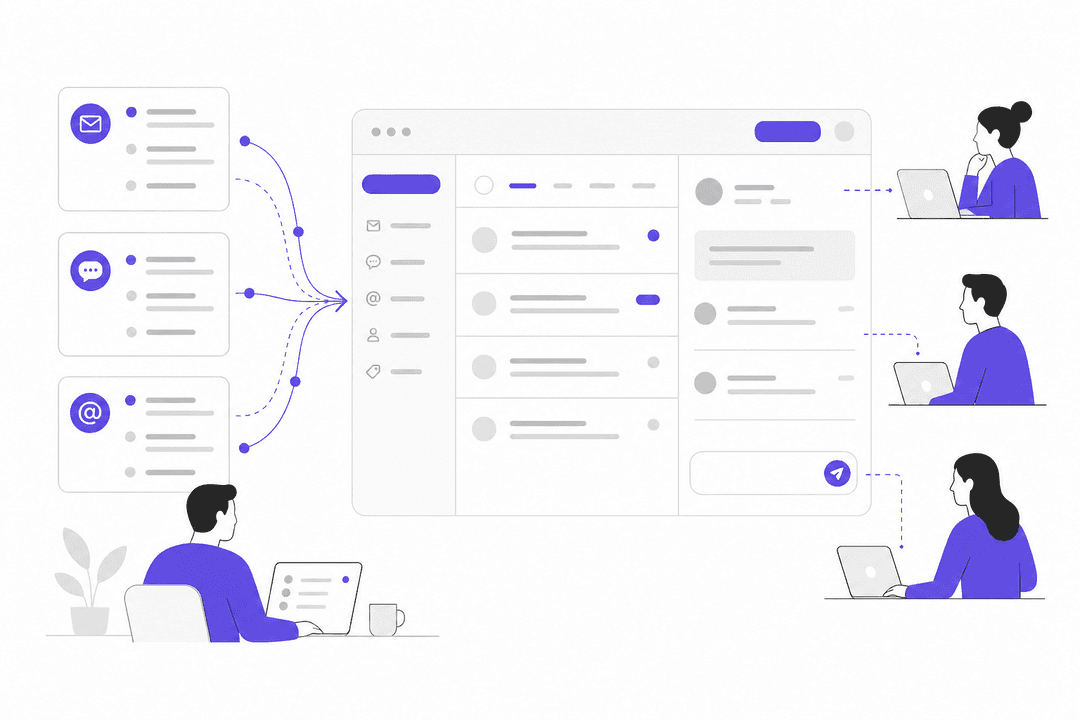
Zendesk automation vs trigger lifecycle: A complete guide for 2026

Stevia Putri
Written by

Stevia Putri

Reviewed by

Stanley Nicholas

Last edited February 24, 2026

Expert Verified

Banner image for Zendesk automation vs trigger lifecycle: A complete guide for 2026

Every support ticket goes through a lifecycle. It arrives as a new request, gets worked on by your team, and eventually reaches resolution. Along the way, dozens of small decisions need to happen: Should this ticket be prioritized? Who should handle it? Has it been sitting too long? Should we ask the customer for feedback?

This is where Zendesk triggers and automations come in. They're the engine that keeps your support operation running smoothly. But here's the thing: they're not interchangeable. Using the wrong one at the wrong time can mean delayed responses, missed SLAs, or tickets that slip through the cracks entirely. For teams looking to enhance these native capabilities, eesel AI integrates with Zendesk to add intelligent automation on top of your existing rules.

Zendesk customer service platform homepage with support solutions

Let's walk through the complete ticket lifecycle and see exactly how these two tools work together. We'll also look at how teams are enhancing these native features with AI to handle the nuances that rules alone can't catch. If you're looking for ways to improve your support workflows, check out our guide on mastering AI and automation in customer support.

Understanding the fundamentals

Before we get into the lifecycle specifics, let's clarify what we're working with.

What are Zendesk triggers?

Triggers are event-driven rules. They fire immediately, every time a ticket is created or updated. Think of them as your support team's reflexes: something happens, and they react instantly.

When a customer submits a ticket, Zendesk checks it against all your active triggers. If the conditions match, the trigger executes its actions right then. Change the ticket status? Update the assignee? Add a comment? Each of these updates causes Zendesk to re-run your triggers against the new ticket state. See Zendesk's comparison of triggers and automations for more details.

Triggers excel at anything requiring immediate attention: sending auto-replies, routing tickets to the right team, adding tags for categorization, or escalating urgent issues the moment they arrive.

What are Zendesk automations?

Automations work on a schedule instead of events. They run approximately once per hour (though not necessarily at the top of the hour) and scan all your non-closed tickets. If a ticket meets the time-based conditions you've set, the automation fires.

Unlike triggers, automations don't react to individual events. They're patient watchers, checking whether tickets have been in a certain state for a specific duration. They're perfect for follow-ups, reminders, escalations based on time elapsed, and closing inactive tickets.

The core difference: Events vs time

Here's the simplest way to think about it:

AspectTriggersAutomations
ExecutionImmediate, on ticket creation/updateScheduled, runs hourly
BasisEvent-drivenTime-driven
Best forReal-time responses, routing, notificationsFollow-ups, reminders, escalations, closures
LimitationsNone (can fire on every update)Max 1,000 tickets per run; hourly minimum interval

The key thing to remember is this: triggers react to changes, while automations wait for time to pass. Both are essential, but they serve completely different purposes in your workflow. For more details, see Zendesk's guide on when to use automations vs triggers.

Timeline comparing trigger instant reactions to automation scheduled hourly checks

Stage 1: Ticket creation and immediate response

The lifecycle begins when a ticket arrives. This is where triggers do the heavy lifting.

How triggers handle new tickets

The moment a ticket hits your Zendesk, triggers spring into action. Here are the most common workflows:

Auto-acknowledgment emails. The classic example: a customer submits a request and immediately receives a "We've received your ticket" confirmation. This sets expectations and provides a ticket number for reference. Without triggers, this would require manual action or leave customers wondering if their message went through.

Keyword-based routing. Triggers can scan ticket subjects and descriptions for specific terms. A ticket containing "billing" might route to your finance team. One mentioning "bug" or "error" goes straight to engineering. This happens instantly, before an agent even sees the ticket.

Priority assignment. High-value customers, urgent keywords, or specific request types can be automatically prioritized. A ticket from a VIP client or one containing "outage" can jump to the front of the queue immediately.

SLA policy application. Different ticket types often have different response time commitments. Triggers ensure the right SLA policy gets attached from the start.

When automations aren't the right choice here

Imagine waiting up to an hour for an auto-reply after submitting a support request. That delay creates anxiety and confusion. Did the ticket go through? Should the customer submit again? By the time the automation runs, the customer may have already sent a follow-up or tried a different channel.

This timing mismatch is why automations are a poor fit for creation-stage workflows. When immediate customer communication is involved, triggers are the only option that makes sense.

Stage 2: Active ticket management and monitoring

Once a ticket is in the system and properly routed, the focus shifts to managing it through resolution. This is where automations take center stage.

How automations monitor ticket age

Automations excel at watching the clock. They can check for tickets that have been in a particular status for a defined period and take action accordingly.

SLA monitoring. An automation can identify tickets approaching breach and notify team leads. If a ticket has been open for 4 hours and your SLA is 8, the automation flags it for attention before it's too late.

Customer follow-ups. When a ticket sits in "Pending" status (waiting for customer response) for 24 hours, an automation can send a gentle reminder asking if they still need help. Another automation might close the ticket if there's no response after 72 hours.

Agent workload balancing. Automations can monitor individual agent queues and redistribute tickets if someone's backlog grows too large.

Escalation workflows. A ticket that's been open too long without resolution can automatically escalate to a senior agent or manager.

Automation conditions that matter

Getting automation conditions right is critical. Here are the key considerations:

Hours since created vs hours since opened. These are different metrics. "Hours since created" counts from when the ticket first arrived. "Hours since opened" counts from when an agent first viewed it. Choose based on what you're trying to measure.

Business hours vs calendar hours. Zendesk can calculate time based on your business hours schedule. This matters for SLAs: you probably don't want weekend hours counting against your response time if your team doesn't work weekends.

Greater than/less than vs "is." Here's a common pitfall. If you set a condition like "Hours since created is 24," you might miss tickets. Why? Because automations run hourly, but not on a predictable schedule. A ticket created at 2:15 PM might be checked at 2:45 PM (0 hours old), then at 3:30 PM (still 1 hour old), then at 4:15 PM (2 hours old). It never hits exactly 24 hours during a check.

The solution: use "greater than" conditions. "Hours since created is greater than 24" catches all tickets that have passed the 24-hour mark, regardless of exactly when the automation runs.

Greater than conditions in automations capture all eligible tickets regardless of scan timing

The 1,000 ticket limit and what it means

Each automation run can update a maximum of 1,000 tickets. For most teams, this isn't an issue. But if you're dealing with a large backlog or bulk updates, you need a strategy.

Let's say you have 8,500 tickets that need a status update. One automation will process 1,000 tickets per hour, taking about 8.5 hours to complete. If you need it done faster, you can clone the automation multiple times. Since each cloned automation also processes up to 1,000 tickets per hour, nine clones can handle all 8,500 tickets in a single hour. Just remember to deactivate them afterward.

Trigger role during active management

While automations handle the time-based monitoring, triggers still play important roles during this stage:

Status change notifications. When an agent updates a ticket status, triggers can notify relevant parties. A move to "Solved" might trigger a customer notification. A change in assignee might alert the new owner.

Internal collaboration. When agents add internal notes or @mention colleagues, triggers can ensure the right people get notified.

Workflow progression. As tickets move through your defined stages, triggers can update related fields, add tags, or initiate related processes.

Stage 3: Resolution and closure

The final stage of the ticket lifecycle involves wrapping things up cleanly. This is where triggers and automations work together most closely.

The handoff from triggers to automations

Here's a typical closure workflow:

  1. An agent marks a ticket as "Solved"
  2. A trigger immediately fires, sending a CSAT survey to the customer
  3. The ticket sits in "Solved" status for 4 days
  4. An automation runs, sees the ticket has been solved for 96 hours with no customer response, and changes the status to "Closed"

This handoff works because triggers handle the immediate customer communication (the survey), while automations handle the time-based cleanup (the eventual closure).

Common closure workflows

The solved-to-closed transition. Most teams don't want tickets sitting in "Solved" forever. An automation that closes tickets after a few days of inactivity keeps your queue clean. The typical pattern is 3-5 days, giving customers time to respond if the solution didn't actually solve their problem.

Customer "thank you" handling. When a customer replies "Thanks!" to a solved ticket, you probably don't want it reopened. Some teams use triggers to detect these simple gratitude responses and keep the ticket closed. Others let them reopen briefly, then use automations to close them again after a short period.

Reopening on response. If a customer responds to a solved ticket with an actual issue (not just thanks), triggers can reopen it and notify the assigned agent. This ensures legitimate follow-ups don't get lost.

Avoiding the automation loop

There's a critical mistake that can trap tickets in endless automation cycles. Here's how it happens:

You create an automation that sends a reminder email when a ticket has been pending for 24 hours. But you forget to add a condition that prevents it from running again. The automation sends the reminder, the ticket is still pending, and an hour later the automation runs again and sends another reminder. And another. Forever.

The fix is simple but essential: add a nullifying condition. After sending the reminder, have the automation add a tag like "reminder_sent." Then add a condition to your automation that it only runs if that tag is NOT present. This ensures each ticket gets one reminder, not infinite reminders.

Best practices for organizing your rules

As your Zendesk implementation grows, organization becomes critical. Here are proven strategies for keeping your triggers and automations manageable.

Naming conventions that scale

Descriptive names save hours of confusion. A trigger named "Trigger 47" tells you nothing. "Notify_Sales_On_Demo_Request" tells you exactly what it does.

Consider using category prefixes:

  • TRI- for triggers related to triage
  • AUT- for automations
  • NOTIF- for notification rules
  • ROUTE- for routing rules

This makes filtering and searching much easier when you have dozens or hundreds of rules.

Trigger ordering strategies

The order of your triggers matters. Zendesk checks triggers sequentially, and they fire in the order they appear in your list.

The SANE model provides a solid framework:

  1. Ticket creation triggers - Categorization, priorities, SLA assignment
  2. Routing triggers - Assignment to teams or individuals
  3. Workflow triggers - Status updates, field changes
  4. Notification triggers - Emails to customers or internal teams

Within each category, order from most specific to most general. This prevents broad triggers from firing before detailed ones that might change the ticket in important ways.

Trigger organization by functional layers prevents conflicting actions

Testing and monitoring

Never deploy a new trigger or automation to your entire ticket volume immediately. Start small:

  1. Build your rule with narrow conditions that affect only a few ticket types
  2. Monitor for 24-48 hours to ensure it behaves as expected
  3. Gradually expand the scope once you're confident
  4. Document what you've deployed and why

If your Zendesk plan includes a sandbox environment, use it. Testing complex workflows in a safe environment prevents surprises in production.

Documentation and team communication

Your agents don't need to know every detail of every automation, but they should understand the workflows that affect their tickets. When a ticket automatically changes assignees or priority, agents should know why. This prevents confusion and helps them identify when automations misfire.

Maintain an internal knowledge base with:

  • What each major automation does
  • Why specific triggers exist
  • How to troubleshoot common automation issues
  • Who to contact if something seems wrong

When to consider AI enhancement

Rules-based automation is powerful but has limits. Triggers and automations work with exact conditions: if X, then Y. They don't understand context, sentiment, or nuance.

Limitations of rule-based automation

Keyword matching falls short. A trigger looking for the word "urgent" won't catch "this is really important" or "we need this fixed ASAP." Customers describe urgency in countless ways, and keyword lists quickly become unmanageable.

Sentiment is invisible. A ticket saying "This feature is broken and costing us thousands" and one saying "This feature is broken, no rush" might contain the same keywords but need completely different responses. Rules can't distinguish them.

Complex routing decisions. Routing based on a single field works fine. Routing based on customer history, ticket content, sentiment, and product area simultaneously becomes nearly impossible with rules alone. For more on intelligent ticket classification, see our guide on using AI to classify support tickets.

How eesel AI complements Zendesk

This is where we can help. Our AI integrates directly with Zendesk to add an intelligence layer on top of your existing rules.

eesel AI no-code dashboard for configuring the supervisor agent

AI Agent for intelligent responses. Instead of keyword-based auto-replies, our AI Agent understands customer questions and pulls precise answers from your knowledge base. It resolves many tickets immediately while routing complex issues to your team.

AI Triage for context-aware routing. Rather than relying on simple keywords, our AI reads the entire ticket to identify topic, sentiment, and urgency. It applies tags and sets priority based on actual understanding, not just pattern matching.

AI Copilot for agent assistance. When tickets need a human touch, our AI Copilot drafts responses in your team's voice. Agents review and send, cutting response time while maintaining quality.

eesel AI Copilot sidebar suggesting a reply in a help desk interface

Simulation mode for safe testing. Unlike native Zendesk rules, you can test our AI on thousands of past tickets before going live. See exactly how it would have performed, then adjust until you're confident.

The approach is complementary, not replacement. Your triggers and automations provide the structural backbone of your workflow. Our AI adds the intelligence to handle nuance and context that rules can't capture.

Building your Zendesk automation strategy

Let's bring this back to the big picture. The ticket lifecycle framework gives you a mental model for deciding which tool to use when:

  • Creation stage: Triggers for immediate response and routing
  • Active management: Automations for time-based monitoring and follow-up
  • Resolution: Both working together for clean handoffs and closure

If you're auditing your current setup, here's a quick checklist:

  • Do your auto-replies send instantly (triggers) or are customers waiting up to an hour (automations)?
  • Are your SLAs monitored with time-based automations, or are you relying on manual checking?
  • Do your closure workflows have nullifying conditions to prevent loops?
  • Are your triggers ordered logically, with specific rules before general ones?
  • Does your team know what the major automations do and why?

Start simple. A few well-designed triggers and automations will serve you better than dozens of poorly organized ones. Expand gradually as you understand what works for your specific workflow.

And if you're finding that rules alone aren't handling the complexity of your support operation, consider adding an AI layer. We integrate with Zendesk in minutes, learn from your existing tickets and documentation, and can start helping your team immediately. You can test everything on historical data before making any changes to your live workflow. See our pricing for plans that fit teams of any size.

The goal isn't to automate everything. It's to automate the right things so your team can focus on what matters: solving problems for your customers.


Frequently Asked Questions

Triggers execute immediately when tickets are created or updated, making them ideal for real-time responses. Automations run on a schedule (typically hourly) and check time-based conditions, making them perfect for follow-ups and escalations. Throughout the ticket lifecycle, triggers handle the immediate moments while automations manage the waiting periods.
Use triggers for any action that should happen instantly: sending auto-replies, routing new tickets, escalating urgent issues. Use automations for anything time-dependent: SLA monitoring, follow-up reminders, closing inactive tickets, or any workflow where you need to wait a specific duration before acting.
Absolutely. In fact, they often work best together. For example, when a ticket is solved, a trigger might immediately send a CSAT survey, while an automation waits several days and then closes the ticket if there's no response. The trigger handles the instant action; the automation handles the time-based cleanup.
Common mistakes include: using 'is' instead of 'greater than' conditions in automations (causing missed tickets), forgetting nullifying conditions (creating infinite loops), ordering triggers incorrectly (broad rules firing before specific ones), and using automations for time-sensitive customer communications (causing delays up to an hour).
Monitor your ticket event logs to see when triggers fire. For automations, check the automation history to confirm they're running as expected. Start with narrow conditions and expand gradually. Regular audits (quarterly is a good rhythm) help catch misfires, outdated rules, and opportunities for improvement.
Yes. While triggers and automations handle structured logic perfectly, AI adds understanding of context, sentiment, and intent. AI can route tickets more intelligently than keyword matching, draft responses that match your team's voice, and identify nuances that rules miss. Tools like eesel AI integrate with Zendesk to add this intelligence layer while keeping your existing rules in place.

Share this post

Stevia undefined

Article by

Stevia Putri

Stevia Putri is a marketing generalist at eesel AI, where she helps turn powerful AI tools into stories that resonate. She’s driven by curiosity, clarity, and the human side of technology.