
Managing ticket reopenings is one of those workflows that seems simple until it isn't. You solve a ticket, the customer replies with a quick "thanks," and suddenly that ticket is back in your open queue, cluttering your workload. Or worse, a ticket sits solved for days when it actually needed follow-up, and now you've missed your window to help.
Getting your Zendesk automation reopen ticket conditions right means building workflows that handle these scenarios intelligently. Not every customer reply requires reopening. Not every solved ticket should stay solved forever. The trick is knowing which tool to use when.
This guide walks you through exactly how to configure automations and triggers for reopen scenarios. Whether you're trying to notify agents of reopened tickets, schedule follow-ups for later, or stop the dreaded "thank you" reopen loop, you'll find the specific conditions and steps you need.
And if you find yourself building increasingly complex trigger chains to handle nuanced scenarios, we'll look at how we approach these challenges differently at eesel AI.

Understanding Zendesk ticket reopening mechanics
Before diving into conditions and configurations, let's clarify how ticket reopening actually works in Zendesk. The platform follows a strict lifecycle that determines what can and cannot happen at each stage.
The standard ticket lifecycle looks like this: New → Open → Pending → Solved → Closed (Zendesk documentation)
Here's what each status means:
- New: The ticket was just created and hasn't been assigned yet
- Open: An agent is actively working on the ticket
- Pending: The agent is waiting for information from the customer
- Solved: The agent believes the issue is resolved
- Closed: The ticket is locked and cannot be modified
The critical rule for reopening: Tickets can only reopen from Solved status. Once a ticket reaches Closed, it's permanent. This is by design. Closed tickets become historical records that preserve data integrity for reporting and compliance.
When a customer replies to a Solved ticket, Zendesk automatically changes the status back to Open. This is the most common reopen scenario. But it also causes the most headaches. That "thank you so much!" email from a happy customer? It reopens the ticket just the same as a "this didn't work" follow-up.
Understanding this lifecycle matters because your automation conditions must account for it. You can't create an automation that reopens a Closed ticket (Zendesk won't allow it). You can, however, create sophisticated workflows that handle the Solved-to-Open transition intelligently.
For teams finding these native limitations restrictive, our Zendesk integration offers an alternative approach that reads intent rather than just checking status fields.
Triggers vs. automations: When to use each for reopen scenarios
Zendesk gives you two tools for automation: triggers and automations. They sound similar, but they work very differently. Using the wrong one for your reopen workflow is a recipe for frustration.
Triggers: Event-based and immediate
Triggers fire the instant a ticket meets their conditions. They're perfect for real-time responses to status changes. Learn more in Zendesk's trigger documentation.
Use triggers when:
- You want immediate notification when a ticket reopens
- You need to take action based on who updated the ticket
- You're responding to status transitions (Solved → Open)
The core condition for reopen triggers:
Ticket: Status category | Changed to | Open
This condition only fires when a ticket's status actually changes to Open, not when it simply "is" Open. That's the distinction that makes triggers work for reopen scenarios.
Automations: Time-based and scheduled
Automations run on a schedule (approximately once per hour). They're designed for actions that should happen after a period of time has passed. See Zendesk's automation guide for details.
Use automations when:
- You want to follow up on tickets that have been solved for X hours
- You're scheduling tickets to reopen at specific times
- You need time-based escalation (ticket open for 24+ hours)
Common time-based conditions:
Ticket: Hours since solved | Greater than | 24
Ticket: Hours since pending | Greater than | 48
Ticket: Hours since due date | Greater than | 0
The decision framework
Here's how to choose:
| Scenario | Use | Why |
|---|---|---|
| Notify assignee when customer reopens | Trigger | Needs to happen immediately |
| Escalate if ticket stays open 24h | Automation | Time-based condition |
| Schedule ticket to reopen next week | Automation | Future time condition |
| Tag reopened tickets for reporting | Trigger | Capture the event when it happens |
| Close tickets solved for 96 hours | Automation | Time-based action |
The key thing to remember: triggers react to events, automations react to time. Most reopen workflows actually need both. You might use a trigger to notify the assignee immediately, then an automation to escalate if the ticket stays open too long.
For more on time-based automation, see our guide to Zendesk automation conditions.
Essential conditions for reopen ticket automations
Building effective reopen workflows requires understanding the full range of conditions available. Here's the complete reference for the conditions you'll actually use.
Status-based conditions
These are your bread and butter for reopen scenarios:
Status category | Changed to | Open
- Fires when a ticket transitions TO Open status
- Use in triggers for immediate notification
- Most common reopen detection condition
Status | Changed from | Solved
- Fires when a ticket leaves Solved status
- More specific than "Changed to Open" (catches Solved → any status)
- Useful when you want to track any movement away from Solved
Status category | Is | Open
- Checks current state, not transitions
- Use in automations for ongoing monitoring
- Example: "Status is Open AND Hours since open > 24"
Time-based conditions
Automations rely heavily on these:
Hours since solved | Greater than | [number]
- Most common for post-resolution follow-up
- Use "Greater than" not "Is" (more reliable)
- Remember: automations run hourly, so timing isn't exact
Hours since pending | Greater than | [number]
- For escalating stale tickets
- Common value: 48 hours (2 business days)
Hours since due date | Greater than | 0
- For scheduled reopen workflows
- Only works with Task-type tickets that have due dates
Hours since open | Greater than | [number]
- For escalating tickets that stay open too long
- Useful for SLAs and priority bumps
Participant conditions
These help you distinguish WHO caused the reopen:
Current user | Is | (end-user)
- Ensures the trigger only fires on customer actions
- Critical for avoiding agent-triggered reopen loops
Current user | Is | (agent)
- For workflows where agent actions matter
- Less common for reopen scenarios
Comment | Is | Public
- Distinguishes customer comments from internal notes
- Essential for "customer replied" workflows
Comment | Is | Private
- For internal-only workflows
- Rarely used for reopen scenarios
Nullifying conditions (preventing loops)
The most common automation mistake: forgetting to prevent the automation from running repeatedly. Always include a nullifying condition.
Tags | Contains none of the following | [your-tag]
- Add the tag as an action when automation fires
- Prevents re-running on the same ticket
- Example: Tag "reopen_notified" after first notification
Why "Greater than" beats "Is" for time conditions
Zendesk automations run on an hourly cycle. If you use "Hours since solved | Is | 24," the automation might check at 23.5 hours (misses) then at 24.5 hours (misses again). Using "Greater than" ensures you catch all eligible tickets.
Step-by-step: Creating a reopen notification trigger
Let's build a practical trigger that notifies assignees when their solved tickets get reopened. This is one of the most common reopen workflows.
Step 1: Navigate to the triggers page
Go to Admin Center > Objects and rules > Business rules > Triggers. You'll see a list of existing triggers. Don't delete the standard ones unless you know exactly what they do. Refer to Zendesk's trigger conditions reference for complete condition options.
Step 2: Create a new trigger
Click Add trigger. Give it a descriptive name like:
- "Notify assignee when ticket reopened by customer"
- "Reopened ticket notification"
Avoid vague names like "Trigger 1." Future you will thank present you when troubleshooting.
Step 3: Set the conditions
Under "Meet ALL of the following conditions," add:
Ticket: Status category | Changed to | Open
Optional but recommended additions:
Ticket: Comment | Is | Public
(This ensures it only fires on customer replies, not internal notes)
Ticket: Current user | Is | (end-user)
(This confirms the customer caused the reopen, not an agent)
Ticket: Tags | Contains none of the following | reopen_notified
(This prevents the trigger from firing twice on the same ticket)
Step 4: Configure the actions
Under "Perform these actions," add:
Notify assignee:
Notifications: Email user | (assignee)
Subject: "Ticket reopened by customer: {{ticket.title}}"
Body: Include ticket details and link
Add a tracking tag:
Ticket: Add tags | reopen_notified
Optional: Set priority:
Ticket: Priority | High
(Useful if reopened tickets need immediate attention)
Step 5: Test your trigger
- Save the trigger (it activates automatically)
- Create a test ticket or use an existing one
- Solve the ticket
- Add a public comment as an end-user (use an incognito window or different account)
- Verify the status changes to Open
- Check that the assignee received the notification
If it doesn't work, check the trigger position. Zendesk processes triggers from top to bottom. If another trigger modifies the ticket first, yours might not fire.
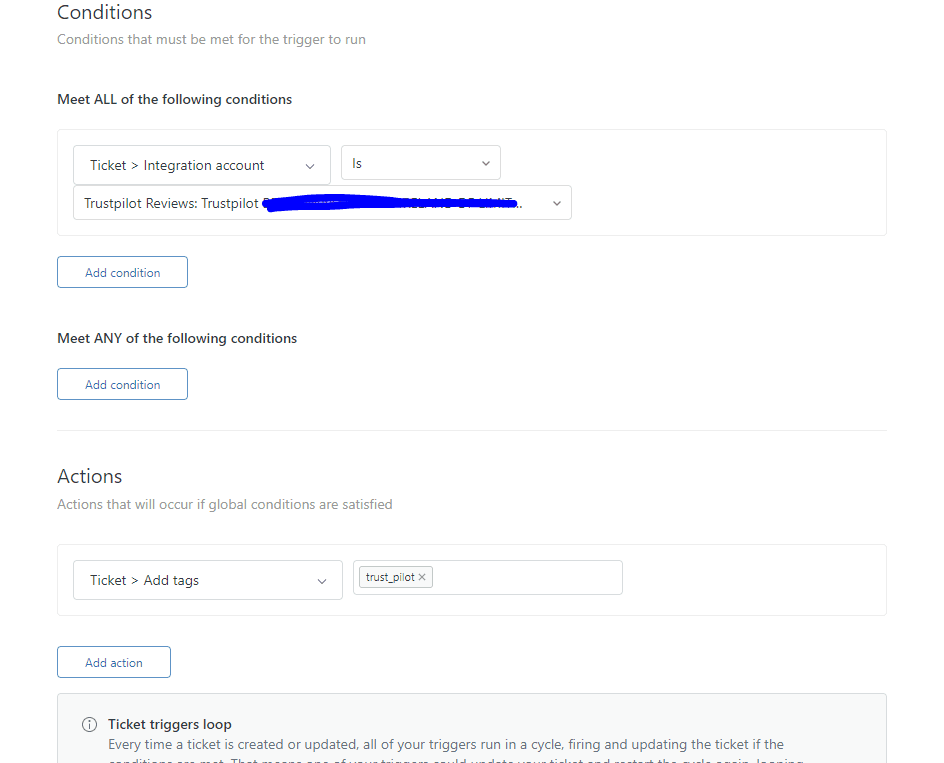
The automation builder uses a similar interface but focuses on time-based conditions instead of immediate events:
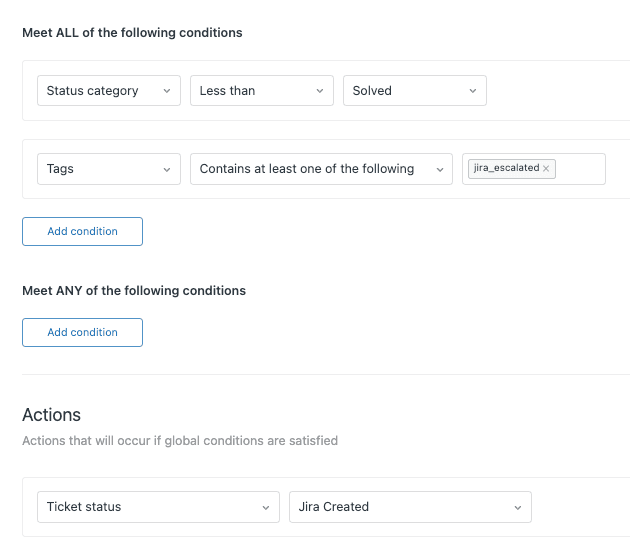
For another approach to status change triggers, check out our guide to creating Zendesk triggers when status changes to open.
Recipe: Scheduling tickets to reopen at specific times
Sometimes you need to "snooze" a ticket for follow-up later. Maybe a customer said "check back with me next week" or you need to verify a fix worked before fully closing. Here's how to build a scheduled reopen workflow.
Step 1: Enable On-hold status
By default, On-hold status isn't active. Go to Admin Center > Objects and rules > Tickets > Statuses and add the On-hold status if you haven't already. See Zendesk's scheduled reopen recipe for more details.
Step 2: Create a macro for agents
Macros ensure agents follow the workflow consistently. Create a macro that:
- Sets Type to Task
- Sets Status to On-hold
- Adds a custom tag (like "schedule_reopen")
- Prompts the agent to set the Due date field
To create the macro:
- Admin Center > Workspaces > Agent tools > Macros
- Add macro
- Actions: Type = Task, Status = On-hold, Add tags = schedule_reopen
Step 3: Create the reopen automation
Now create an automation that watches for due dates:
Conditions:
Ticket: Status category | Is | On-hold
Ticket: Type | Is | Task
Ticket: Tags | Contains at least one of the following | schedule_reopen
Ticket: Hours since due date | Greater than | 0
Actions:
Ticket: Status category | Open
Ticket: Add tags | auto_reopened
The "Hours since due date > 0" condition means "the due date has passed." When the automation runs (hourly), any ticket past its due date will reopen.
How agents use this workflow
- Agent applies the macro to a ticket
- Agent selects the desired reopen date in the Due date field
- Ticket goes On-hold
- On the selected date, automation reopens it automatically
This workflow is particularly useful for:
- Follow-up reminders
- Waiting for external dependencies
- Seasonal or time-sensitive issues
- Customer-requested callbacks
Solving the "thank you" reopen problem
Here's a stat from the Zendesk community that might resonate: 60-70% of ticket reopenings are just customers saying "thank you." Not follow-up questions. Not complaints. Just polite gratitude that creates unnecessary work for agents.
The challenge is distinguishing genuine thanks from "thanks, but I still need help." A simple keyword trigger that auto-solves anything containing "thank you" will eventually miss a real issue.
Solution 1: The hashtag method
Train customers to use a specific hashtag when they actually need reopening. In your solved ticket email, include language like:
"If you need further assistance, reply with #reopen and we'll get back to you. Otherwise, no need to reply."
Trigger setup:
Conditions:
- Status category | Changed to | Open
- Comment text | Does not contain the following string | #reopen

Actions:
- Status | Solved
- Add tags | false_reopen
- Email requester | "Your ticket remains solved. Reply with #reopen if you need help."
This works but requires customer education. Not all customers read carefully.
Solution 2: The auto-solve trigger (with safeguards)
Create a trigger that auto-solves tickets containing "thank you" or "thanks" but ONLY when no question marks are present.
Trigger setup:
Conditions:
- Status category | Changed to | Open
- Comment text | Contains at least one of the following | thank thanks
- Comment text | Contains none of the following | ?

Actions:
- Status | Solved
- Add tags | auto_solved_thanks
This catches "Thanks for your help!" but misses "Thanks, but how do I...?"
Solution 3: Third-party apps
The Thank You GPT app from the Zendesk Marketplace uses AI to detect genuine thanks vs. follow-up questions. It's specifically built for this problem.
Solution 4: AI-powered detection (advanced)
For teams with Zapier and OpenAI access, you can build a sophisticated workflow:
- Trigger detects reopen and adds tag
- Zapier watches a view for tagged tickets
- OpenAI analyzes the comment: "Is this just thanks or is there a real question?"
- If just thanks, Zapier solves the ticket via API
One Head of CX at a major company shared their setup:
I created an automation via Zapier using a prompt in OpenAI, which is working wonders for us. I would highly recommend it.
Zendesk Community
Our recommendation
Start with Solution 2 (auto-solve with question mark safeguard). It's simple, free, and catches most cases. If you're still drowning in thank-you reopens, upgrade to the Thank You GPT app or consider an AI-powered approach.
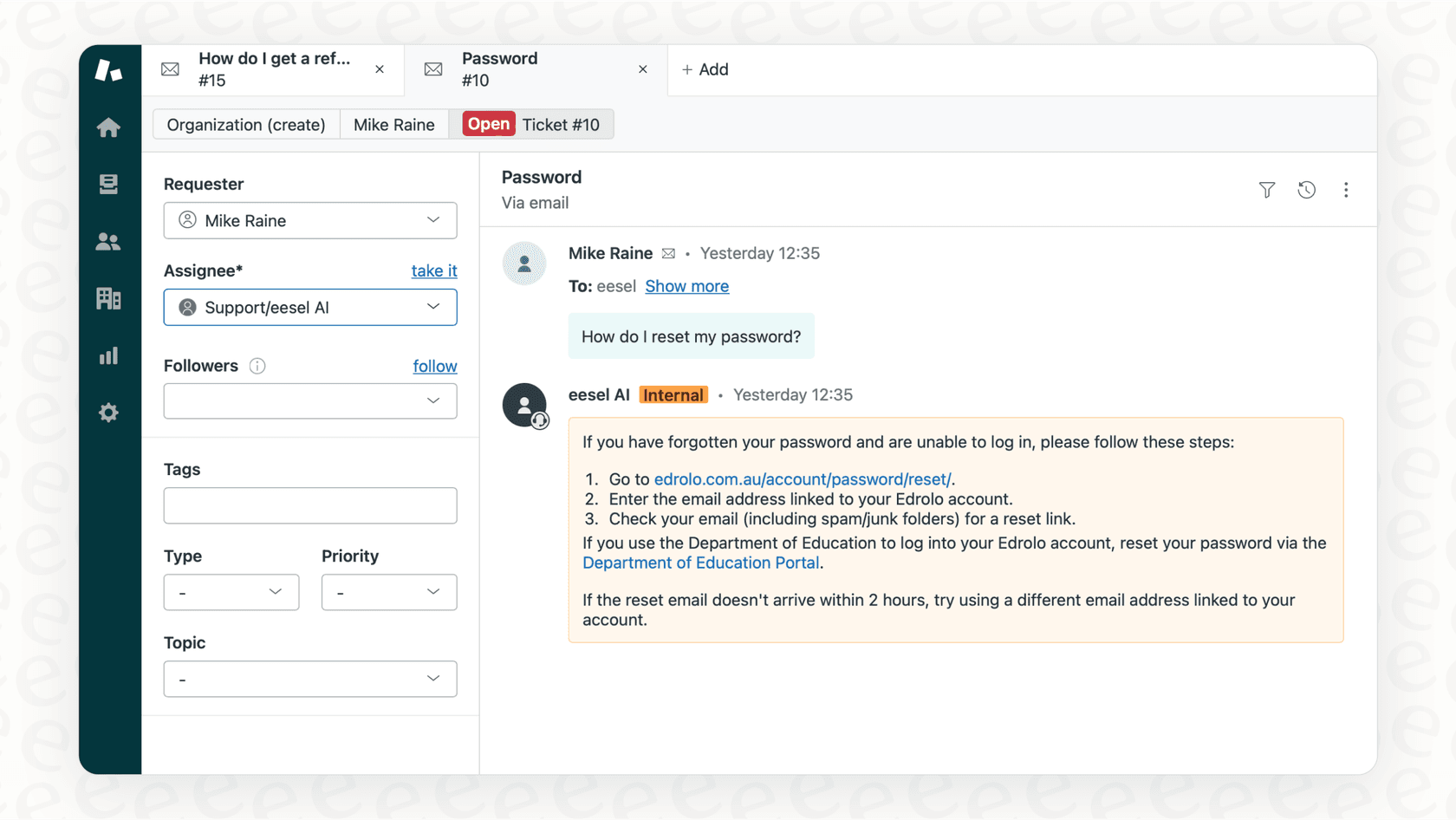
Speaking of which, our AI agent handles this exact scenario by understanding intent rather than just matching keywords. It knows the difference between "thanks!" and "thanks, but..." without complex trigger chains.
Common mistakes and troubleshooting
Even experienced Zendesk admins hit snags with reopen automations. Here are the most common issues and how to fix them.
Trigger not firing
Check trigger position. Zendesk processes triggers top to bottom. If another trigger modifies the ticket first (especially one that changes status or adds tags), yours might never get a chance to run. Move your reopen trigger toward the top.
Verify "Changed to" vs "Is." This is the #1 mistake. "Status is Open" matches any open ticket. "Status changed to Open" only matches tickets that just became open. For reopen detection, you need "Changed to."
Check your status field. If you have custom statuses enabled, use "Status category" not "Status." If you're on a Team plan without custom statuses, use "Status."
Automation running multiple times
You forgot a nullifying condition. Every automation needs a way to prevent itself from running repeatedly. Add a tag when the automation fires, then include "Tags contains none of the following" in your conditions.
Example fix:
Conditions:
- Status | Solved
- Hours since solved | Greater than | 24
- Tags | Contains none of the following | solved_24h_notified

Actions:
- Email assignee | "Ticket has been solved 24 hours"
- Add tags | solved_24h_notified
API updates causing unexpected opens
Third-party tools updating tickets via API can trigger your reopen workflows unintentionally. One common culprit: survey tools writing ratings back to solved tickets.
Fix: Add this condition:
Ticket: Update via | Is not | Web service (API)
This prevents your trigger from firing on API-based updates while still catching user-initiated changes.
Status vs Status category confusion
This trips up almost everyone:
- Status (Team plans): The actual status field (New, Open, Pending, Solved, Closed)
- Status category (Growth+ with custom statuses): Groups of related statuses
If you have custom ticket statuses activated, your standard statuses become categories. Use "Status category" conditions to catch all variations. If you're on Team plan, use "Status."
Time condition missed
Using "Hours since solved | Is | 24" is risky. Because automations run hourly, they might check at 23.5 hours (miss) then at 24.5 hours (miss again).
Always use "Greater than" for time conditions.
When to consider AI-powered automation instead
Zendesk triggers and automations are powerful, but they're fundamentally rule-based. They do exactly what you tell them, nothing more and nothing less. Sometimes that's limiting.
Consider these scenarios:
You have 20+ triggers just for reopen handling. If your trigger list is becoming unmanageable, that's a sign rule-based automation is hitting its limits.
You need to understand intent, not just keywords. "Thanks" vs "thanks, but..." is surprisingly hard to handle with trigger conditions. AI reads context.
You want progressive automation. Start with AI drafting replies for agent review. As it proves itself, let it send responses directly. Eventually, handle full frontline support. You're in control of the pace.
Your team spends more time managing automation than using it. Complex trigger chains require ongoing maintenance. Natural language conditions are easier to manage.
How we approach this at eesel AI
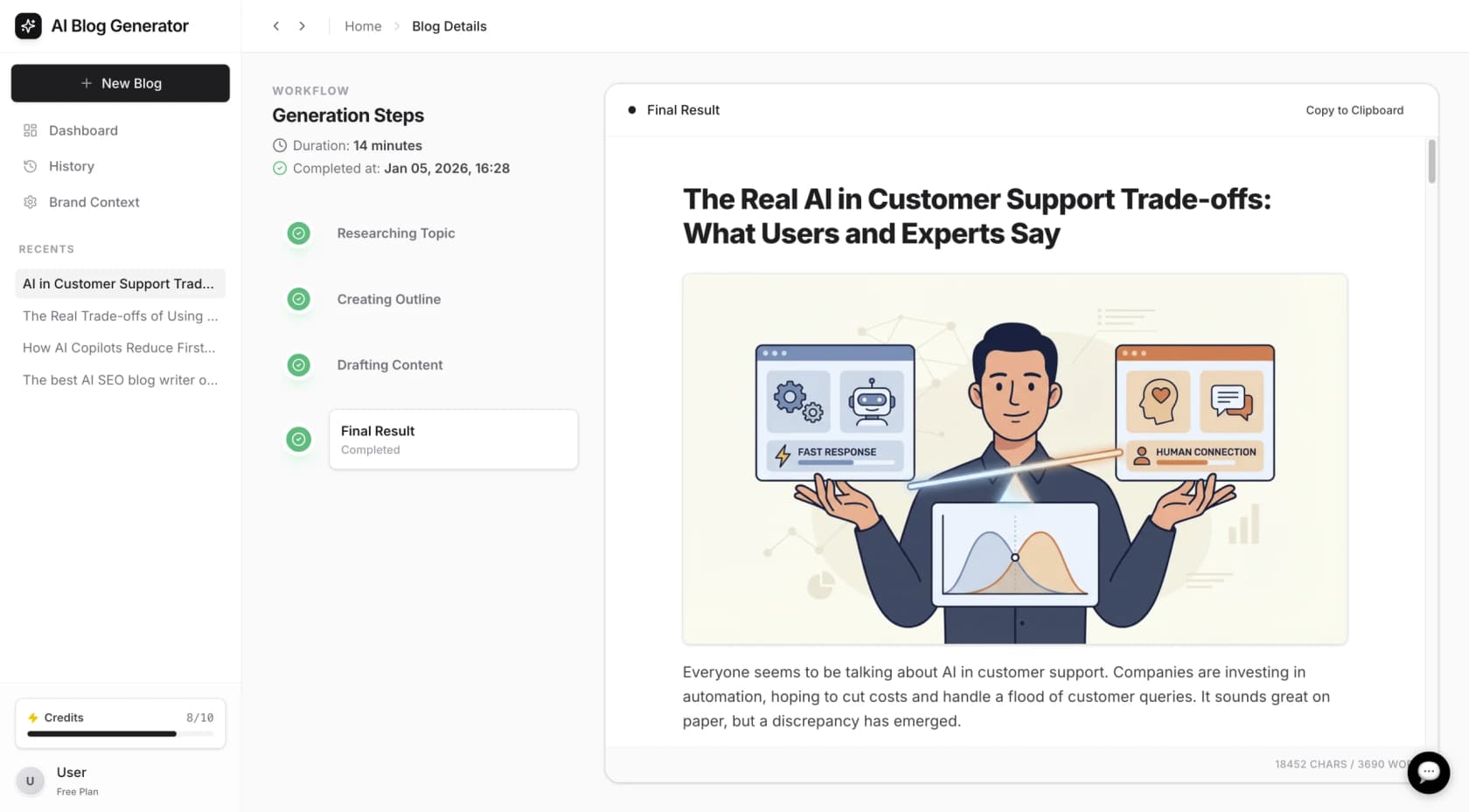
We integrate with Zendesk to provide an AI layer that works alongside your existing setup. Instead of building rigid trigger logic, you hire an AI teammate that learns your business.
Key differences:
- Intent-based handling: Our AI understands the difference between genuine thanks and follow-up questions without complex keyword rules
- Natural language conditions: Say "if the customer seems frustrated about billing" instead of building tag-based logic
- Progressive autonomy: Start with AI drafting replies. Level up to direct responses as confidence grows
- Faster setup: Connect to Zendesk and we learn from your existing tickets and help center in minutes
Our AI Triage product specifically handles routing and tagging based on actual ticket content, not just field values. And our AI Agent can resolve tickets autonomously when appropriate, not just notify and tag.
If you're finding Zendesk's native automation limiting for complex reopen scenarios, see how we can help. You can also learn more about eesel's AI agent for Zendesk and how it handles intent-based ticket routing out of the box.



