Zendesk agent activity and productivity reports: The 2026 manager's guide

Stevia Putri
Last edited April 23, 2026

Data is rarely the problem in modern customer support. Most managers aren't struggling because they lack numbers. They're struggling because they're drowning in them. Between historical trends, real-time status updates, and new AI metrics, the challenge in 2026 is knowing which dial to look at when the pressure is on.
Zendesk provides a massive amount of data, but it's often spread across different tools. You might find yourself jumping between Explore for last week's performance and Workforce Management (WFM) for what's happening right now. This guide is built to help you bridge that gap. We'll break down the key datasets, show you how to use real-time timelines to spot bottlenecks, and explain how to measure the real impact of AI on your team's output.

What are Zendesk agent activity and productivity reports?
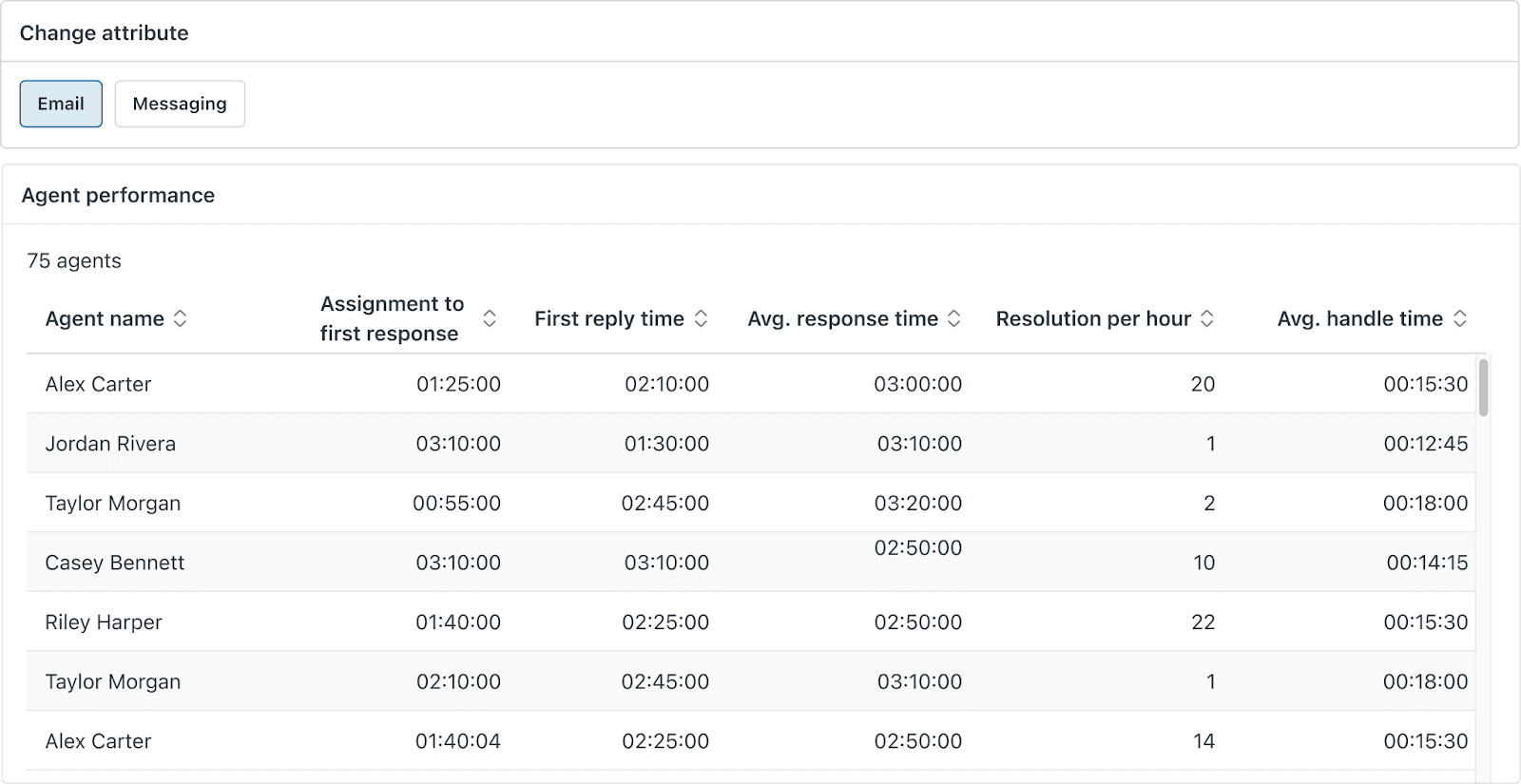
To manage a team effectively, you first need to distinguish between "activity" and "productivity." They sound similar, but they tell very different stories. Activity refers to what your agents are doing at any given moment. Are they online? Are they on a break? Are they in a meeting? Productivity, on the other hand, measures the results of that activity. How many tickets did they solve? How long did it take? What was the customer satisfaction (CSAT) score?
Zendesk handles these two areas through different specialized tools. Historically, Zendesk Explore has been the home for productivity reporting. It's where you go to build long-term reports and dashboards to see how your team is trending over months or years. For real-time activity tracking, you'll look toward Zendesk WFM (formerly known as Tymeshift).
In 2026, the context of these reports has shifted toward "Omnichannel" reporting. Customers no longer just email; they message, they chat, and they use social media. Your reports need to reflect this unified reality. If you aren't looking at your Zendesk agent activity and productivity reports through an omnichannel lens, you're only seeing a fraction of the work being done.
Understanding the foundation of these reports is the first step. You need to know which tool to reach for depending on whether you're planning for next quarter's headcount or trying to fix a sudden spike in wait times this afternoon. If you're still getting familiar with the platform, it's worth understanding Zendesk help desk software more broadly before diving into the granular metrics.
Key Explore datasets for agent productivity
Zendesk Explore is powered by various datasets, each serving a specific purpose. When it comes to your team's output, two datasets do most of the heavy lifting.
Agent state dataset
The Agent state dataset is focused on time. It tracks exactly when an agent enters a state (like Online or Away) and how long they stay there. This is your primary tool for auditing attendance and schedule adherence. It helps you answer questions like, "How much of the shift was actually spent in an Online state?"
One thing to keep in mind is data retention. This dataset typically retains data for events that completed in the last 90 days. It's built for recent performance analysis rather than multi-year historical archiving.
Agent productivity dataset
While the state dataset tracks time, the Agent productivity dataset tracks work items. It reports on work items offered to agents, items accepted, and how much of their capacity is being used. This is where you calculate efficiency.
The KPIs you should monitor here include:
- Average Response Time: How long does a customer wait for a reply?
- Average Handle Time (AHT): How much active time does an agent spend on a single ticket?
- CSAT per agent: Does high productivity correlate with happy customers?
| Dataset Name | Granularity | Key Metric |
|---|---|---|
| Agent State | Timestamp | Time in Online/Away states |
| Agent State Daily | Daily | Total daily hours per state |
| Agent Productivity | Hourly | Work items assigned and capacity |
Managing these datasets requires a bit of technical know-how, particularly when you start building custom queries. If you find yourself struggling with the technical side of the reports, our guide on mastering Zendesk Explore rows and metrics can help you set up your dashboards more effectively.
Real-time monitoring with the Zendesk WFM agent activity page
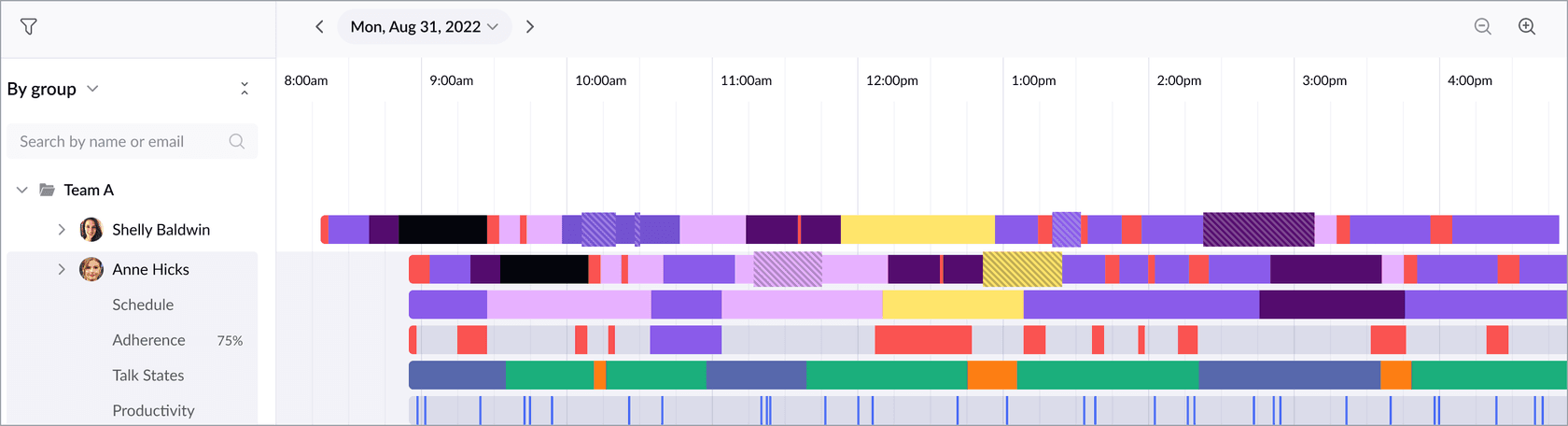
Historical reports are great for strategy, but they won't help you when your queue is blowing up right now. This is where the Agent activity page in Zendesk WFM comes in. It provides a real-time visualization of what your agents are doing compared to what they were scheduled to do.
Workstreams and General Tasks
The timeline view in WFM uses "Workstreams" to categorize different types of ticketing work. If an agent is assigned to a specific channel or tier, you'll see that reflected on their timeline. You can also track "General Tasks," which are non-ticketing activities like meetings, training, or breaks.
This visualization makes it incredibly easy to spot deviations. If you see an agent in an "Away" state when they should be in a "Messaging" workstream, you can reach out and course-correct immediately. This real-time visibility is what allows teams to maintain high service levels during unexpected spikes.
The Points System
Zendesk WFM also uses a points system to measure productivity more granularly. Instead of just counting solved tickets, the system assigns points for various activities, such as updating a ticket or leaving an internal note. This provides a more nuanced view of an agent's contribution. An agent who handles fewer but more complex tickets that require multiple updates might actually be more "productive" than someone who quickly solves simple password reset requests.
Watching how these timelines play out in a live environment is the best way to learn the tool. Here is a quick walkthrough of how it looks in practice:
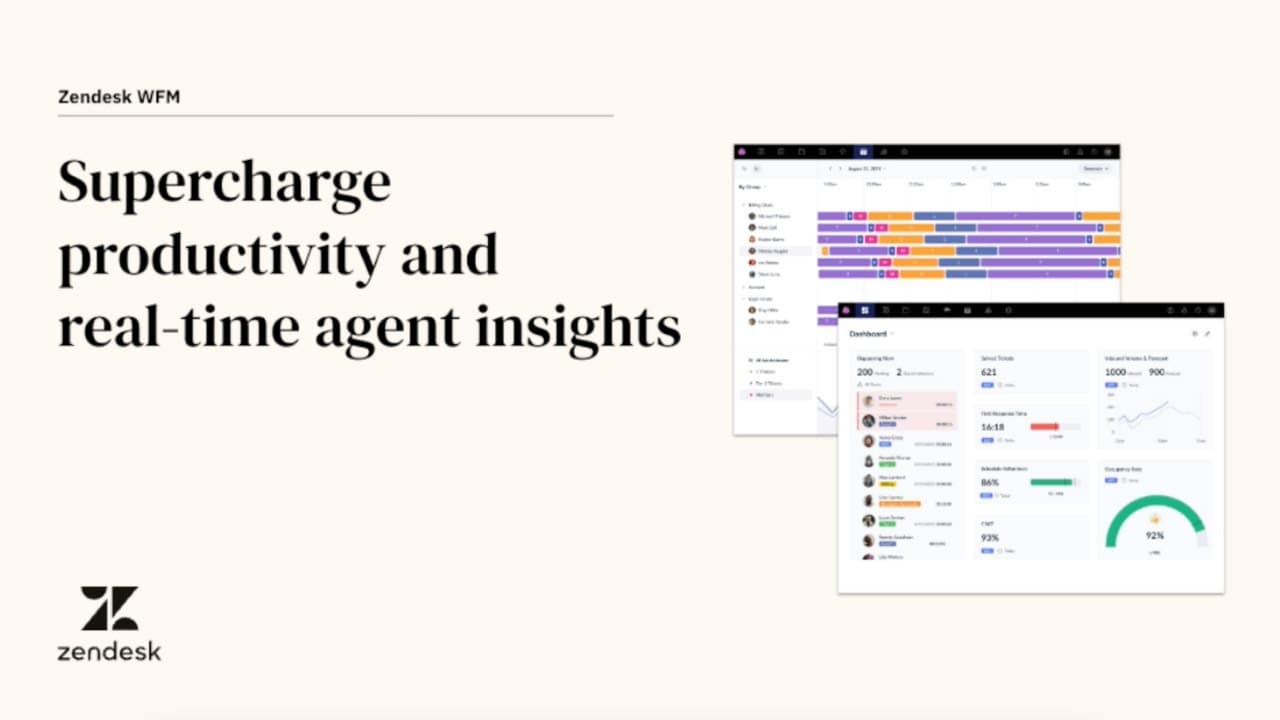
This video walkthrough shows how managers can use the real-time timeline to spot deviations from the schedule and drill down into specific ticket activity to improve handle times. It's a great resource for seeing how the theoretical metrics we've discussed actually appear on a manager's screen.

Tracking AI impact with the Zendesk Copilot dashboard
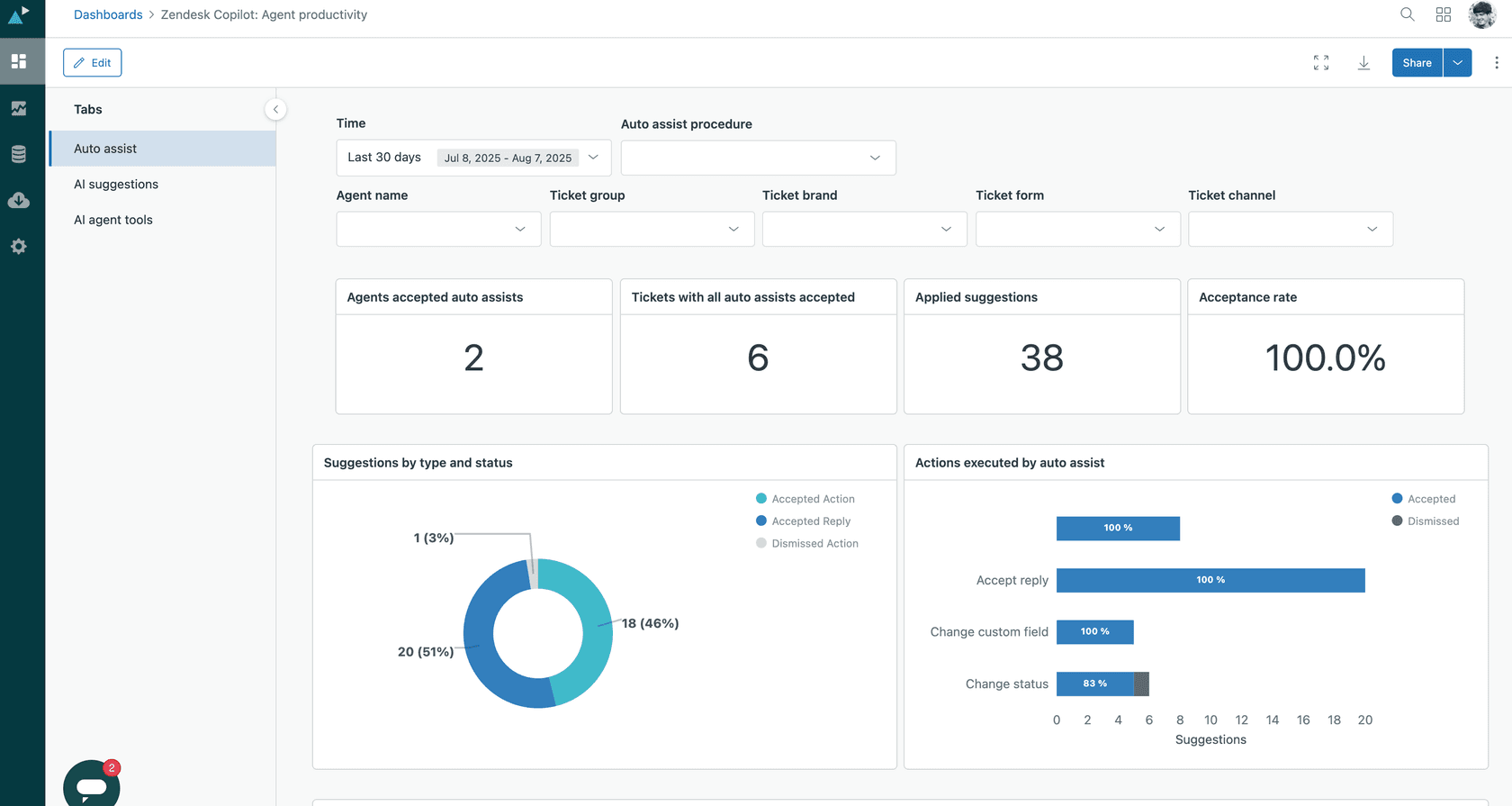
As we move through 2026, AI is no longer a "nice to have" feature. It's a core part of the support stack. But how do you know if your AI tools are actually helping? Zendesk introduced the Copilot: Agent productivity dashboard to answer that exact question.
This dashboard tracks how your agents interact with AI capabilities like suggested replies and generative writing tools. The goal isn't just to see if the AI is "working," but to see if your agents are actually using it to work faster and better.
Key metrics to track in the Copilot dashboard include:
- Adoption trends: Are more agents using AI suggestions over time?
- Acceptance rates: How often do agents use the suggestion the AI provides?
- Generative tool usage: Which writing enhancements (like "make friendly" or "summarize") are being used the most?
The real power comes from correlating this data with your standard productivity metrics. If agents with high AI acceptance rates also have lower handle times and higher CSAT, you've found your "North Star" for training. You can use these top performers as examples to help other team members get the most out of the technology. For a deeper look at whether the investment is paying off, you might want to ask: Is Zendesk AI Copilot worth the cost?
3 Best practices for actionable productivity reporting
Generating a report is easy. Making that report actionable is where most managers get stuck. Here are three best practices we've seen work for teams of all sizes using zendesk agent activity and productivity reports in 2026.
1. Filter by both group and agent
A common mistake in Explore is filtering only by the agent's name. If an agent belongs to multiple groups, their data will often be duplicated in the report, leading to inflated productivity numbers that don't reflect reality. Always ensure your dashboard filters include both the group and the agent to get a clean, accurate view of the data.
2. Remind agents to sign out
Your reports are only as good as the data going into them. If agents stay signed in when they finish their shift, the Agent state dataset will show them as "Online" for 24 hours a day. This ruins your average response time and adherence metrics. Make signing out a part of the end-of-shift ritual to protect your data integrity.
3. Combine WFM with QA
Productivity metrics tell you what happened, but they rarely tell you why. If you see an agent's productivity drop, don't just look at their handle times. Use a tool like Zendesk QA to review the actual tickets from that period. You might find that the agent was handling a series of incredibly complex bugs that required extensive research, rather than just being "slow." By measuring AI containment rate and escalation quality alongside your productivity data, you get a much fairer and more useful view of your team's performance.
Level up your support team with eesel AI
While Zendesk's built-in reports are powerful, managing them still takes a significant amount of a manager's time. This is where we can help. At eesel AI, we build AI teammates that don't just suggest replies, they handle the heavy lifting of support, triage, and operations autonomously.

By integrating directly with your Zendesk instance, our AI teammates can automate ticket tagging and routing, ensuring that your human agents are only ever working on the tickets that truly need a human touch. This naturally improves your productivity reports by reducing "noise" and allowing your team to focus on high-value interactions.
Our AI teammates are onboarded in minutes and start being productive right away. They learn from your existing documentation and ticket history, ensuring they follow your brand's voice and rules from day one. If you're looking for a way to automate your Zendesk ticket tagging with AI and give your managers more time to focus on coaching rather than report-watching, we're ready to help.
Bottom line? Start hiring your AI teammates today to improve your Zendesk productivity and turn your support data into a competitive advantage.

Frequently Asked Questions
Share this article

Article by
Stevia Putri
Stevia Putri is a marketing generalist at eesel AI, where she helps turn powerful AI tools into stories that resonate. She’s driven by curiosity, clarity, and the human side of technology.