Zendesk trigger limit per ticket explained (2026 guide)

Stevia Putri
Last edited February 24, 2026
Support teams rely on automation to keep things moving. When a customer submits a ticket, you need it routed to the right team, tagged correctly, and acknowledged immediately. This is where Zendesk triggers come in.
But here's the problem: most teams don't realize they're approaching limits until things start breaking. Notifications stop sending. Tickets don't get assigned. Workflows that worked yesterday suddenly fail today.
This guide breaks down every Zendesk trigger limit you need to know about. We'll cover the difference between triggers and automations (they're not the same), the specific constraints that apply to each, and what to do when you're hitting ceilings.
Understanding Zendesk triggers vs automations
Before diving into limits, let's clarify what we're talking about. Triggers and automations are both business rules in Zendesk, but they work differently.
What are triggers?
Triggers are event-based rules that run immediately when something happens to a ticket. When a ticket is created, updated, or changed in specific ways, triggers evaluate their conditions and fire if those conditions are met.
Think of triggers as your first line of defense. They handle real-time routing, notifications, and ticket modifications. Common use cases include:
- Routing tickets to specific groups based on keywords or requester organization
- Sending acknowledgment emails when tickets are received
- Adding tags for reporting and categorization
- Setting priority based on subject line content
- Assigning tickets to specific agents
Triggers run in sequence from top to bottom, and the actions of one trigger can affect whether subsequent triggers fire. This cascading behavior is important when we talk about limits and performance.

What are automations?
Automations are time-based rules that run once per hour on all non-closed tickets. Instead of reacting immediately to events, they check conditions on a schedule and act when time-based criteria are met.
Automations handle workflows that don't need instant response:
- Sending reminders when tickets have been pending for 48 hours
- Escalating tickets that haven't been assigned within a timeframe
- Closing solved tickets after a set period
- Notifying managers about stale tickets
The key difference is timing. Triggers are immediate. Automations are hourly.
Why the confusion matters
Here's where teams get into trouble: they mix up trigger limits with automation limits. When someone asks about "Zendesk trigger limit per ticket," they might actually be hitting automation constraints, or vice versa.
The troubleshooting approach is completely different:
- Trigger issues usually show up immediately (ticket doesn't route, notification doesn't send)
- Automation issues show up as delays (reminder sent an hour late, ticket didn't auto-close when expected)
Understanding which system you're actually hitting limits on saves hours of debugging.
Zendesk trigger limits explained
Now let's get specific about the actual limits. Zendesk has different constraint categories depending on what type of trigger you're using.
Ticket trigger limits
For standard ticket triggers, the primary limits are:
| Limit | Value | What it means |
|---|---|---|
| Maximum active triggers | 7,000 | You can't create more than 7,000 active ticket triggers |
| Trigger size | 65 KB | Each trigger must be smaller than 65 kilobytes |
| Execution order | Sequential | Triggers run top to bottom, one after another |
The 7,000 trigger limit sounds generous, and for most teams it is. But enterprise operations with complex routing rules, multiple brands, and sophisticated categorization can approach this ceiling.
The 65 KB size limit matters when you're building complex triggers with many conditions and actions. Each condition, action, and piece of logic consumes space. If you hit this limit, you'll need to split the trigger into smaller ones or simplify your logic.
Object trigger limits
Object triggers work with custom objects in Zendesk and have their own, more restrictive limits:
| Limit | Value |
|---|---|
| Active triggers per object | 100 maximum |
| Total triggers per object | 500 maximum (active + inactive) |
| Conditions per trigger | 50 maximum |
| Actions per trigger | 25 maximum |
| Trigger size | 64 KB maximum |
| Multi-select values | 50 maximum per condition |
Object triggers are only available on Enterprise plans and require custom objects to be activated. If you're using custom objects for asset management, IT workflows, or other specialized use cases, these limits matter more than standard ticket trigger limits.
The 100 active trigger limit per object is what catches teams off guard. When you're building sophisticated workflows around custom objects, it's easy to accumulate triggers quickly.
The "per ticket" reality
Here's the nuanced answer to the original question: there is no explicit "per ticket" trigger execution limit documented by Zendesk. A single ticket can theoretically pass through many triggers in its lifetime.
However, practical limits exist:
-
Trigger loops: Poorly designed triggers can create infinite loops where Trigger A updates a ticket, causing Trigger B to fire, which updates the ticket and causes Trigger A to fire again. Zendesk has some loop protection, but complex cascading triggers can still cause performance issues.
-
System timeouts: If a ticket update triggers too many cascading rules, the operation may timeout. This is rare but can happen with extremely complex trigger chains.
-
Closed tickets: Ticket triggers don't run on closed tickets, with one exception. They can fire when a ticket is being set to closed, but not on tickets that are already closed. This effectively limits trigger execution to the active lifecycle of a ticket.
The real "per ticket" limit is architectural: design your triggers efficiently so they don't cascade endlessly.
Automation limits (often confused with triggers)
Since many teams mix up these systems, let's clarify automation limits too.
Hourly execution limits
Automations have hard quotas that affect how they process tickets:
| Limit | Value | Impact |
|---|---|---|
| Tickets per automation per hour | 1,000 | If more tickets meet conditions, processing queues for next hour |
| Updates per ticket lifetime | 100 maximum | Tickets with 100+ automation updates are excluded from automation runs |
| Maximum active automations | 500 | Same pattern as trigger limits |
| Automation size | 65 KB | Business rules must fit within size constraints |
The 1,000 ticket per hour limit affects high-volume operations. If you have 5,000 tickets that meet an automation's conditions, only 1,000 will be processed in the first hour. The remaining 4,000 queue up for subsequent hours, assuming conditions are still met.
The 100 updates per ticket limit is cumulative across all automations. Once a ticket's been touched by automations 100 times, it's excluded from future automation runs. This rarely affects normal tickets but can impact long-running tickets with complex automation workflows.
When automations fail to fire
If your automations aren't working as expected, check these common limit-related causes:
-
Hourly quota exceeded: The automation ran but hit its 1,000 ticket cap. Check the next hour to see if processing continues.
-
Ticket update limit reached: The ticket has been processed by automations 100 times already. Review the ticket's event log to confirm.
-
Timing issues: Automations don't run exactly on the hour. They start "at some point" during each hour, which means a ticket solved at 10:15 might not be processed until 11:20, depending on when your automation cycle runs.
-
Hours since conditions: Time-based conditions like "Hours since created is 4" can be tricky. Because of slight variations in automation run times, an "is" condition might never evaluate to true if the timing doesn't align perfectly.
What happens when you hit limits
Understanding the behavior when limits are reached helps with troubleshooting and planning.
System behavior at limits
For triggers:
When you hit the 7,000 active trigger limit, Zendesk won't let you create new active triggers. You'll need to deactivate or delete existing triggers first. The system doesn't automatically deactivate old triggers or warn you as you approach the limit.
When you hit the 65 KB size limit on an individual trigger, you'll get an error when trying to save. The trigger won't be created or updated until you reduce its size.
For automations:
When automations hit the 1,000 ticket per hour limit, they queue remaining tickets for the next hour. This creates a cascading delay effect during high-volume periods. If you consistently have more than 1,000 tickets meeting automation conditions each hour, some tickets'll always be delayed.
When a ticket hits the 100 automation update limit, it's silently excluded from future automation runs. There's no error or notification; automations simply stop affecting that ticket.
Warning signs you're approaching limits
Watch for these indicators:
- Slow ticket processing: Tickets take longer to update as trigger chains execute
- Missing notifications: Emails or Slack messages that should fire from triggers don't arrive
- Delayed automation actions: Auto-close or escalation reminders arrive late
- Audit log gaps: The ticket event log shows skipped actions or incomplete trigger execution
- Save errors: Zendesk throws errors when creating new triggers or automations
If you notice these symptoms, audit your trigger and automation counts immediately.
Practical workarounds and solutions
When you're approaching limits, you have several options to optimize or work around constraints.
Optimize existing triggers
Before hitting hard limits, consolidate and streamline your triggers:
-
Merge similar triggers: Instead of five triggers that each add a different tag based on similar conditions, create one trigger that adds all relevant tags
-
Use nullifying conditions: Add conditions that prevent triggers from firing multiple times on the same ticket. For example, add a "processed" tag and include "Tags contains none of the following: processed" as a condition
-
Remove unused triggers: Audit your triggers quarterly. Deactivate anything that hasn't fired in 30 days
-
Simplify complex logic: If a trigger has 40 conditions, consider whether all are necessary. Sometimes broad conditions work as well as specific ones
Alternative approaches
When Zendesk's native limits constrain your workflow, consider these alternatives:
Webhooks for external processing
Zendesk webhooks let you send ticket data to external systems for processing. Instead of building complex logic in Zendesk triggers, you can route tickets to middleware that handles sophisticated routing, enrichment, or notification logic outside of Zendesk's constraints.
This approach moves the complexity out of Zendesk, bypassing trigger limits entirely. The tradeoff is additional infrastructure to maintain.
API-based automation
For time-based workflows that outgrow automation limits, you can build custom automation using Zendesk's API. A scheduled job (running on your infrastructure) can query for tickets meeting specific criteria and update them via API calls.
This gives you full control over timing, batch sizes, and logic complexity. You lose the simplicity of Zendesk's native automations but gain unlimited scalability.
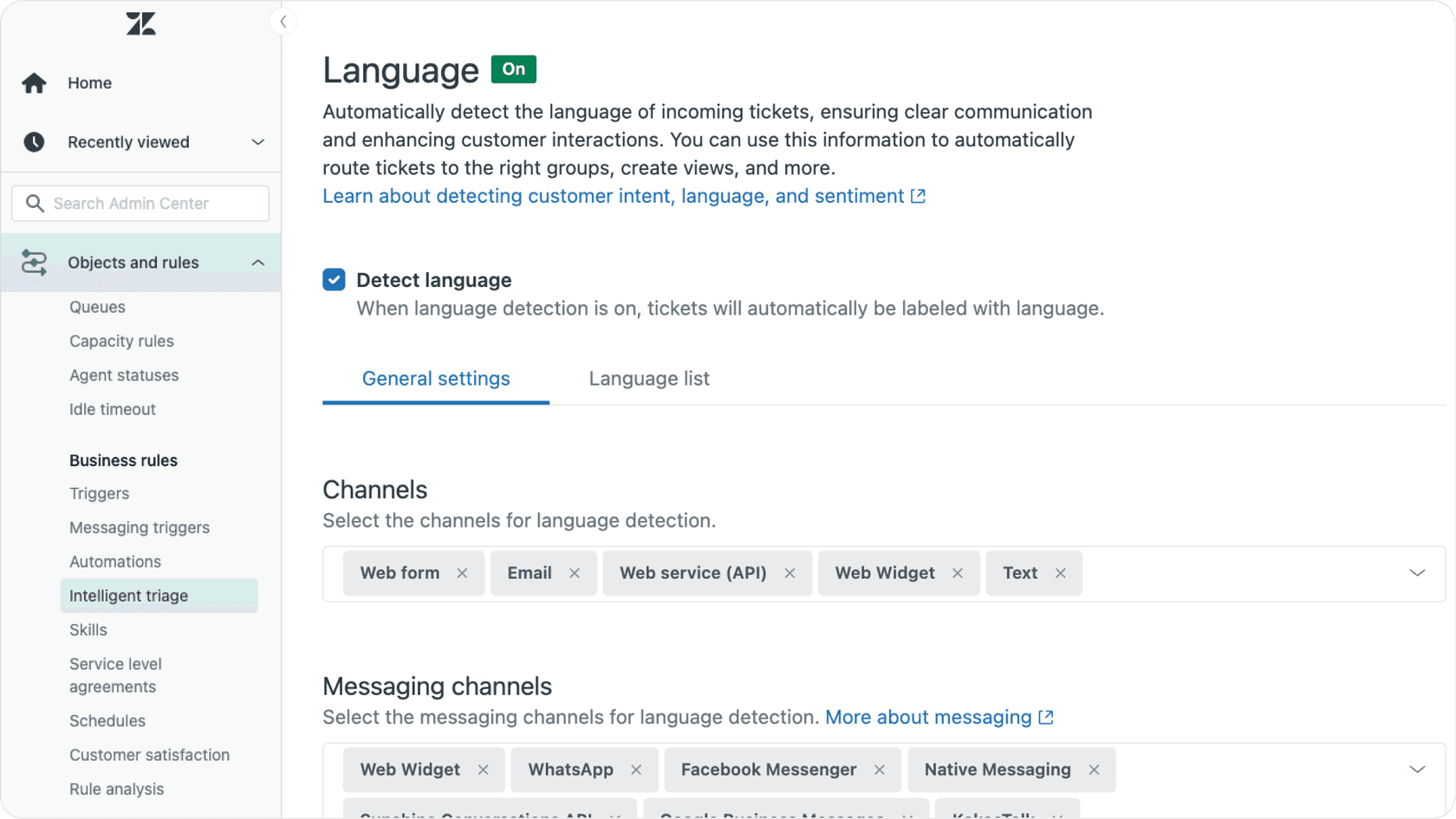
eesel AI for intelligent triage
Here's where we come in. When your routing logic becomes too complex for Zendesk triggers, or when you're consistently hitting trigger limits trying to handle edge cases, we offer an alternative approach.
Instead of writing rules for every scenario, our AI learns from your past tickets. It understands context, sentiment, and intent in ways that keyword-based triggers simply can't match. The customer who writes "I can't log in and my boss needs this report today" gets routed correctly even if they don't use the word "urgent."
We integrate directly with Zendesk and work alongside your existing triggers. You can start with rules, add AI where it helps, and gradually shift from manual configuration to intelligent automation.
The difference? Rules follow instructions. AI learns from outcomes.
Monitoring your usage
Proactive monitoring prevents surprises:
- Review trigger usage reports: Zendesk provides usage statistics showing which triggers fire most frequently
- Track automation backlogs: Monitor whether automations consistently hit their hourly quotas
- Audit trigger effectiveness: Identify triggers that fire but don't meaningfully change ticket state
- Plan for growth: If you're adding 100 triggers per quarter, you'll hit the 7,000 limit in 70 weeks
Best practices for trigger management
Beyond limit management, these practices keep your Zendesk instance healthy:
Document everything
Every trigger should have a clear description explaining its purpose. When you have hundreds of triggers, "Route VIP tickets" is more useful than "VIP routing v3 FINAL."
Use categories
Zendesk lets you organize triggers into categories. Group related triggers together: Routing, Notifications, Escalations, Tagging. This makes audits and troubleshooting easier.
Test in staging
Don't create complex triggers directly in production. Use a sandbox environment to test trigger logic, especially when triggers interact with each other.
Plan trigger architecture
Before building, think about the overall flow. Which triggers should run first? Which depend on others? A little planning prevents the cascading complexity that leads to limit issues.
When to consider alternatives to Zendesk triggers
Sometimes you've outgrown what Zendesk's native triggers can provide. Here are the signs:
- You're consistently at 6,000+ triggers and adding more regularly
- Your routing logic requires dozens of conditions per trigger
- You need AI-powered decision making that understands context, not just keywords
- You're building complex workarounds to bypass trigger limitations
If these sound familiar, it might be time to explore alternatives.
How eesel AI complements Zendesk
We built eesel AI to handle exactly these scenarios. Our approach differs from rule-based triggers in a few key ways:
Learning-based vs rule-based
Instead of writing "if subject contains X, route to Y," you train our AI on your historical tickets. It learns the patterns you might not even realize exist. The result is routing that handles edge cases without explicit rules.
Scalable complexity
There's no 7,000 rule limit because we're not using rules. The AI's decision making scales with your ticket volume and complexity, not your manual configuration.
Works alongside triggers
You don't need to replace your existing Zendesk setup. We integrate directly and can handle the complex routing while your existing triggers handle the simple stuff.
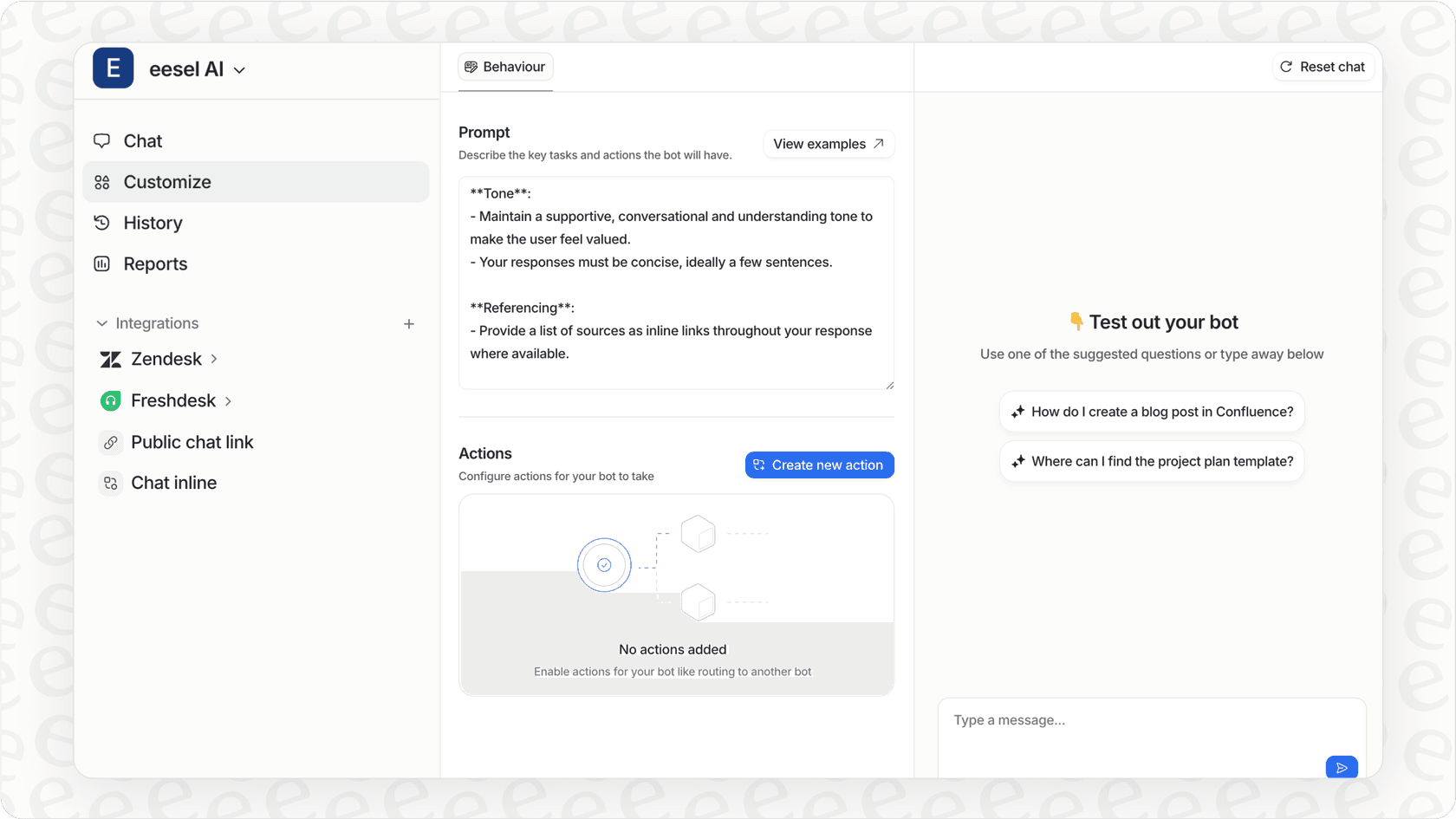
If you're interested in exploring how AI can complement your trigger setup, try eesel AI free or book a demo to see how intelligent triage works.

Frequently Asked Questions
Share this article

Article by
Stevia Putri
Stevia Putri is a marketing generalist at eesel AI, where she helps turn powerful AI tools into stories that resonate. She’s driven by curiosity, clarity, and the human side of technology.