Zendesk trial and onboarding: A complete guide for 2026

Stevia Putri
Last edited March 3, 2026
Starting with a new help desk platform can feel overwhelming. You're trying to evaluate whether the tool fits your team's workflow, but you're also spending hours configuring settings before you can even test a single ticket. This guide walks you through Zendesk's trial and onboarding process so you can get up and running quickly without missing the important details.

What to expect from your Zendesk trial
Zendesk offers a 14-day free trial that gives you full access to Suite Professional features. No credit card is required to start, which means you can explore without commitment.
During the trial, you'll have access to ticketing, messaging, live chat, voice support, and analytics. This is the full feature set, not a stripped-down version. The idea is to test the platform as if you were already a paying customer.
If you need more time, Zendesk allows eligible accounts to extend the trial for an additional 14 days. You can request this extension before or after your initial trial expires.
Trials convert 70% faster when you actually use them. That means importing sample data, creating test tickets, and having your team log in rather than just browsing the admin panel. The trial is your chance to see how Zendesk handles your actual support volume, so treat it like a production environment from day one.
Setting up your Zendesk trial account
The initial setup takes about 5-10 minutes, but getting fully production-ready typically requires 1-2 days of configuration work.
Step 1: Registration and subdomain selection
Head to zendesk.com/register and enter your work email. You'll need to provide:
- First and last name
- Phone number
- Company name
- Employee count (this helps Zendesk recommend appropriate plans)
- Your desired subdomain (yourcompany.zendesk.com)
Your subdomain becomes the home for your support portal and agent workspace. Choose something your team and customers will recognize. Once set, it's difficult to change, so pick carefully.
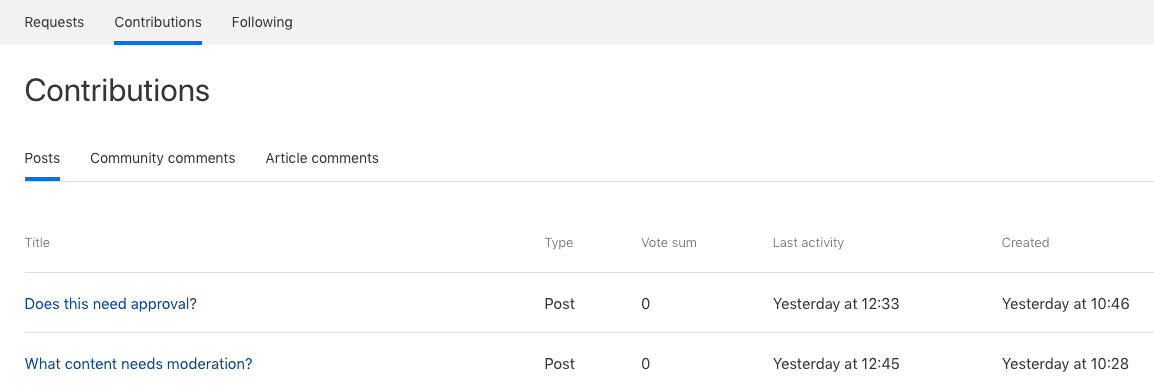
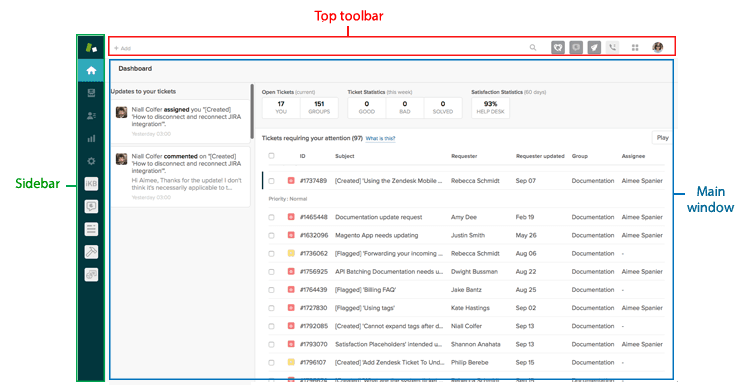
After registration, verify your email and create a password. You'll land in the Admin Center where a setup wizard guides you through the basics.
Step 2: Initial configuration wizard
The wizard prompts you to configure foundational settings:
- Timezone and language: Set these to match your primary business operations
- Default currency: Relevant if you handle billing or e-commerce support
- Security features: Enable two-factor authentication immediately
- Business hours: Define when your team is available (this affects SLA calculations)
Take time with these settings. Getting them wrong means tickets timestamped incorrectly, SLA breaches triggered at wrong times, or security gaps that are harder to fix later.
Step 3: Configure your support email
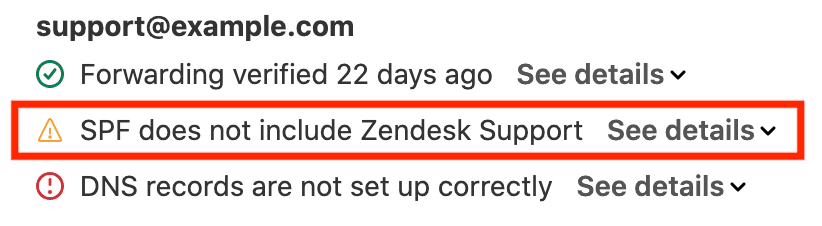
This is where many trials hit their first snag. Zendesk needs to send and receive email on behalf of your domain, which requires DNS configuration.
You'll add:
- SPF records to authorize Zendesk's servers
- TXT records for verification
- CNAME records for branded email links
Without proper DNS setup, your emails will bounce or land in spam folders. Most domain providers (GoDaddy, Cloudflare, Namecheap) have guides for Zendesk specifically. Verify your DNS records within 24 hours of setup to catch issues early.
Adding your team and organizing workflows
Once your account basics are configured, it's time to set up how your team will actually work.
Setting up users and roles
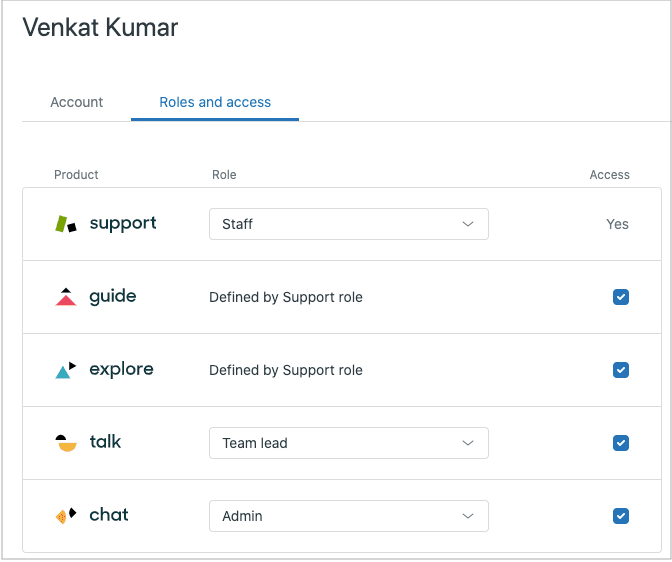
Navigate to Admin Center > People to add your team. You'll create:
- Agents: Can view and solve tickets
- Admins: Can configure settings and manage the account
- Light agents: Limited access for part-time staff or external collaborators
Create groups to organize your team by function (Tier 1 Support, Billing, Technical Escalation). Groups enable round-robin ticket assignment, which distributes work evenly and reduces wait times by about 20% when configured properly.
For larger teams, you can bulk import users via CSV rather than adding them one by one.
Creating views and ticket organization
Views are filtered ticket queues that help agents focus on relevant work. Zendesk includes defaults like:
- Unassigned tickets
- Recently updated
- Your assigned tickets
Create custom views for your specific workflows. For example, a "VIP Escalations" view that shows high-priority tickets from tagged customers, or a "SLA Risk" view showing tickets approaching breach.
Use tags and custom fields to categorize tickets by issue type, product area, or customer segment. This data becomes invaluable for reporting later.

Connecting channels and automating tasks
Modern support happens across multiple channels. Zendesk brings these together in one place.
Email and messaging channels
Connect your existing email accounts through Admin Center > Channels > Email. The process varies slightly depending on your provider:
- Gmail: OAuth authentication through Google's secure connection
- Outlook/Office 365: Requires admin permissions to install the Zendesk add-in
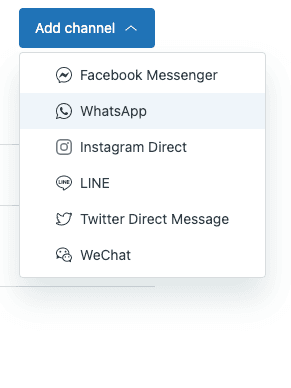
Beyond email, you can connect social channels like Twitter and Facebook, enable live chat on your website, or add messaging through WhatsApp and Instagram.
Each channel you add increases complexity but also gives customers more ways to reach you. Start with email, then expand once that's working smoothly.
Automation and macros
Automation saves time and ensures consistency. Set up:
- Triggers: Immediate actions when tickets are created or updated (auto-responses, routing, notifications)
- Macros: Pre-written responses for common issues (password resets, refund policies, troubleshooting steps)
- Automations: Time-based rules (escalate if no response in 24 hours, close resolved tickets after 4 days)
Test your automation rules thoroughly. A misconfigured trigger can spam customers or route tickets to the wrong team.
Building your help center
A well-built help center deflects 25-40% of potential tickets by letting customers find answers themselves.
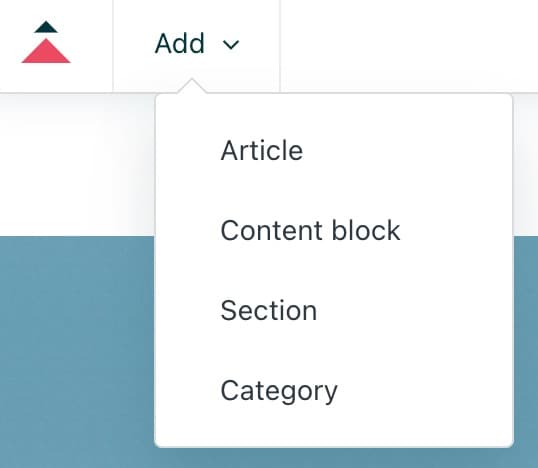
Enable Zendesk Guide through Admin Center > Products. Then:
- Choose a theme and customize colors/fonts to match your brand
- Create sections for different topic areas (Getting Started, Billing, Troubleshooting)
- Write your first articles covering the most common questions
- Set access permissions (public, signed-in users only, or specific organizations)
Start with 5-10 high-quality articles rather than dozens of thin ones. Monitor which articles get viewed and which searches return no results to guide your content roadmap.
Evaluating Zendesk during your trial
With everything set up, focus your evaluation on what matters:
Track these metrics:
- Average first response time
- Ticket resolution rate
- Agent productivity (tickets solved per hour)
- Customer satisfaction scores
Test end-to-end workflows:
- Submit a ticket as a customer
- Watch it route to the right agent
- See the full conversation thread
- Resolve and verify the customer receives confirmation
Involve your team:
- Have agents spend real time in the workspace
- Gather feedback on what feels intuitive vs. clunky
- Test on mobile devices if your team works remotely
If you're hitting limitations or finding the setup too complex, that's valuable data too. You might need the full 14 days just to get oriented, which is why the extension option exists.
Common onboarding challenges and solutions
Even with a clear guide, teams hit predictable roadblocks:
Information overload: New agents face a steep learning curve with Zendesk's extensive feature set. Combat this with focused training on core workflows first, then introduce advanced features gradually.
Time constraints: Proper configuration takes dedicated effort. If your team is already stretched thin, consider whether you have bandwidth for a full implementation.
Integration complexity: Connecting Zendesk to your existing tools (CRM, e-commerce platform, internal systems) often requires technical expertise and API work.
Training requirements: Every new tool requires training time. Factor this into your rollout plan, especially if you have a large team.
Implementation costs: If you need help, Zendesk Professional Services start at $8,000. Third-party consultants offer alternatives, but quality varies.
These challenges aren't unique to Zendesk. Any enterprise help desk requires significant investment to configure properly. The question is whether that investment makes sense for your current stage.
Streamlining your support setup with eesel AI
What if you could skip most of this setup entirely?

eesel AI takes a different approach to support automation. Instead of weeks of configuration, you connect eesel to your existing help desk and it learns from your past tickets, help center articles, and macros automatically. Setup takes minutes, not days.
With eesel AI, there's no DNS configuration, no complex workflow setup, no training your team on a new interface. You start with AI-generated draft responses that agents review before sending. As eesel proves itself, you level up to full autonomy where it handles frontline support directly.
The progressive rollout means you're never guessing whether the AI understands your business. You see exactly how it performs on real tickets before giving it more responsibility. And if you're already using Zendesk, eesel integrates seamlessly as an AI layer on top.
For teams that want AI-powered support without the implementation overhead, eesel AI offers a simpler path. Check our pricing to see how it compares to traditional help desk implementations.


Frequently Asked Questions
Share this article

Article by
Stevia Putri
Stevia Putri is a marketing generalist at eesel AI, where she helps turn powerful AI tools into stories that resonate. She’s driven by curiosity, clarity, and the human side of technology.



