Zendesk ticketing basics: A complete beginner's guide for 2026

Stevia Putri
Written by

Stevia Putri

Reviewed by

Stanley Nicholas

Last edited March 3, 2026

Expert Verified

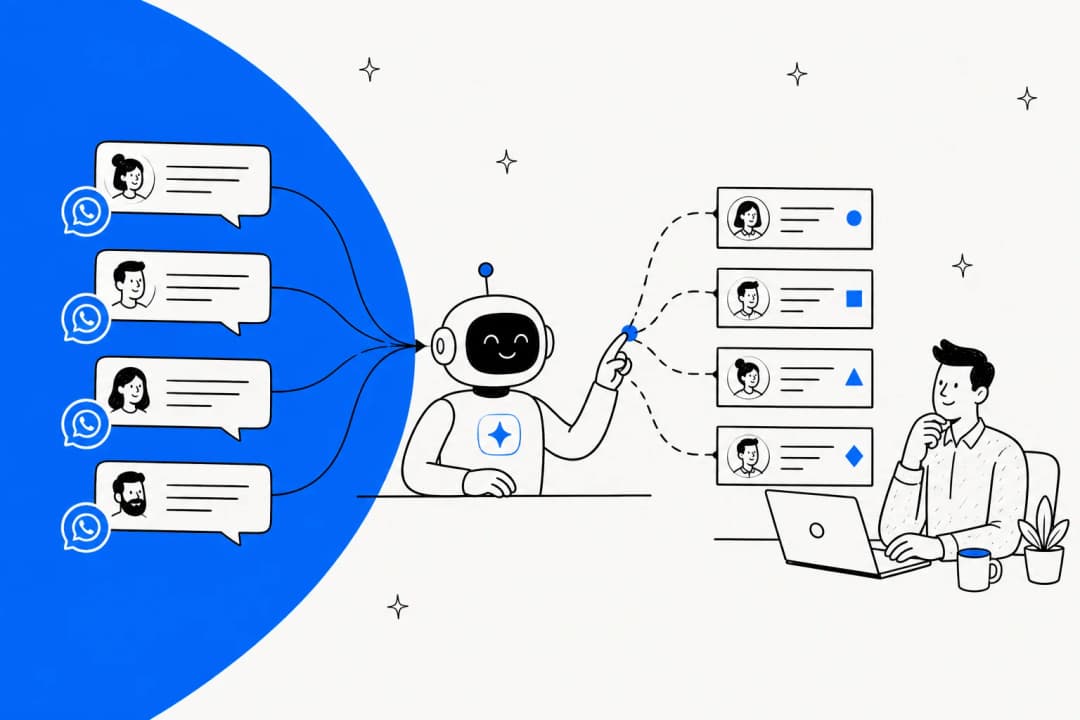
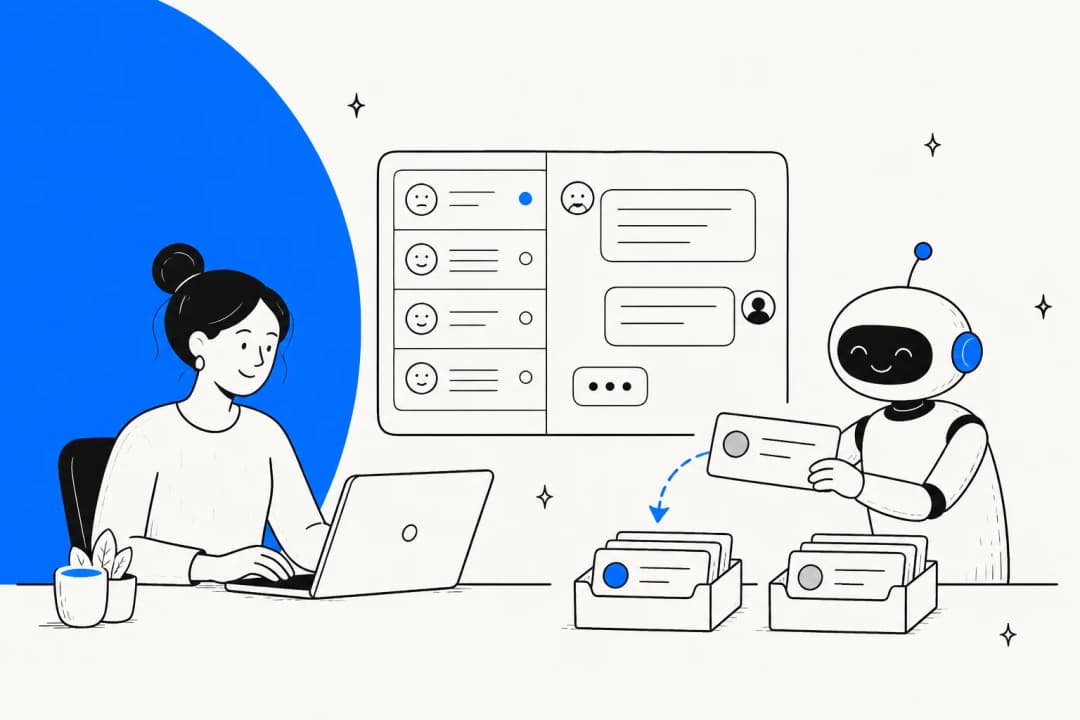
Banner image for Zendesk ticketing basics: A complete beginner's guide for 2026

If you're new to customer support or your team just adopted Zendesk, understanding the ticketing basics is your first step toward handling customer conversations efficiently. A ticketing system might sound technical, but at its core, it's simply a way to organize every customer interaction so nothing falls through the cracks.

This guide walks you through everything you need to know about Zendesk ticketing basics. By the end, you'll understand how tickets work, what each status means, and how to navigate your daily workflow like a pro. We'll also touch on how AI tools can enhance your Zendesk experience, but first, let's build your foundation.

A support ticket interface displaying a customer's request about camera settings and the agent's public reply options.

What is Zendesk ticketing?

Zendesk is a customer service platform that converts every customer conversation into a trackable record called a ticket. Think of it like a digital file folder that follows each customer issue from start to finish.

Here's how it works: when a customer reaches out via email, fills out a support form, sends a message through chat, or even posts on your Facebook page, Zendesk automatically creates a ticket. That ticket captures the entire conversation history, customer details, and any actions taken by your team. Instead of searching through scattered emails or trying to remember what was promised, everything lives in one organized place.

Businesses use Zendesk because it brings order to customer support. You get accountability (every ticket has an owner), metrics (how fast are issues resolved?), and consistency (customers receive the same quality of help regardless of who helps them). For a deeper dive into the full feature set, check out our complete guide to the Zendesk ticketing system.

Understanding ticket statuses and lifecycle

Every ticket in Zendesk moves through a lifecycle defined by six possible statuses. Understanding these is crucial because they tell you exactly where an issue stands and what needs to happen next.

StatusWhat it meansWhen to use it
NewTicket created but not assignedFresh tickets that need routing
OpenAssigned to an agent and activeYou're actively working the issue
PendingWaiting for customer replyYou need more info from the customer
On-holdWaiting for a third partyWaiting on internal teams or vendors
SolvedIssue resolvedCustomer confirmed fix or you're confident it's done
ClosedPermanently lockedSystem-closed; replies create new tickets

The lifecycle typically flows like this: a customer submits a request and the ticket is New. Once someone claims it or it's auto-assigned, it becomes Open. If you need the customer to clarify something, you set it to Pending. If you're waiting on another department or an external vendor, On-hold is your friend. Once you've resolved the issue, mark it Solved. After a set period (usually 4 days by default), solved tickets automatically become Closed.

This lifecycle map shows how tickets move through different stages to ensure no customer request is forgotten or left unassigned.

Here's the key thing to remember: customer replies automatically reopen tickets. If a ticket is Pending and the customer responds, it flips back to Open. If it's Solved and they write back (maybe the fix didn't work), it reopens so you can continue helping them.

Essential Zendesk terminology

Before you dive into daily ticket work, let's decode the jargon you'll encounter. These terms appear constantly in Zendesk, so knowing them will make everything click faster.

Views are pre-filtered lists of tickets. Your admin might set up a view showing only "High Priority Tickets" or "Unassigned in Queue." Views help you focus on what matters right now instead of scrolling through hundreds of tickets.

Groups organize your agents by expertise or function. You might have a "Billing" group, a "Technical Support" group, and a "Sales" group. Tickets get routed to the right group so specialists handle what they know best.

Tags are labels you attach to tickets for categorization. A tag like "refund_request" or "login_issue" makes tickets searchable and helps generate reports on what customers ask about most.

Macros are pre-written responses for common questions. Instead of typing the same password reset instructions for the hundredth time, you insert a macro and send a polished, consistent reply in seconds.

Triggers are automated rules that fire when specific conditions are met. For example, a trigger might automatically assign tickets with "billing" in the subject to your Billing group, or send an auto-response letting customers know you received their message.

Automation is similar to triggers but time-based instead of event-based. Automations can remind agents about tickets that have been Pending for 48 hours, or automatically close tickets that have been Solved for several days.

Key Zendesk terminology concepts including Views, Groups, Tags, Macros, Triggers, and Automation with icons and descriptions.

Getting started: Your first day with Zendesk tickets

Let's walk through what your actual workflow looks like. These steps will get you from logging in to resolving your first ticket.

Step 1: Check your views. When you log in, start with your assigned views. These show the tickets waiting for your attention. Get familiar with what each view contains so you can prioritize effectively.

Step 2: Open and assess. Click a ticket to open it. Read the customer's message carefully, then scan the sidebar for context. You might see their account details, previous tickets, or notes from other agents. This context prevents you from asking questions the customer already answered.

Step 3: Respond using macros when appropriate. If this is a common issue you have a macro for, use it. But always personalize. A macro that says "Hi [Name]" followed by generic text feels robotic. Add a sentence that shows you actually read their message.

Step 4: Set the right status. After responding, update the status. If you need the customer to do something, set it to Pending. If you're waiting on another team, On-hold. If you solved it, Solved.

Step 5: Collaborate when needed. Sometimes you need help. Use internal notes (visible only to your team) to ask questions, or @mention a colleague to draw their attention. Side conversations let you loop in people outside Zendesk via email while keeping everything tied to the ticket.

Common beginner mistakes to avoid: forgetting to update status after replying, sending macro responses without reviewing them first, and missing important context in the ticket sidebar. Take an extra 30 seconds to review before hitting send. It saves headaches later.

Zendesk agent workspace with ticket view panel, conversation area, and customer context sidebar.

Automating your Zendesk workflow

Once you're comfortable with the basics, automation becomes your best friend. The right triggers and macros can save you hours every week.

Understanding the differences between triggers, macros, and automations helps you choose the right tool to streamline repetitive support tasks.

Triggers handle the repetitive routing work. Set up triggers to automatically assign tickets based on keywords, send acknowledgment emails to customers, or escalate urgent issues to senior agents. For example, a trigger might spot the word "urgent" in a subject line and immediately flag the ticket for priority handling.

Macros ensure consistency. Create macros for your top 10 most common responses. But don't stop there. Review your macro usage monthly. If you notice agents constantly editing the same macro before sending, update the macro text to match what agents actually need.

Automations keep things moving. Set up rules to remind agents about stale tickets, notify managers when tickets sit unsolved too long, or automatically close old solved tickets to keep your queue clean.

When should you use each? Triggers handle immediate actions when something happens. Automations handle time-based actions. Macros are for your own efficiency when composing responses. Together, they create a workflow that practically runs itself.

Leveling up your Zendesk ticketing with AI

Here's where things get interesting. While Zendesk provides the foundation, AI teammates like eesel AI can take your ticketing efficiency to another level.

A screenshot of the eesel AI dashboard displaying multiple connected knowledge sources, showcasing an alternative to the self-contained Zendesk Guide pricing model.

Imagine having an AI that reads your incoming tickets, drafts responses based on your help center articles and past ticket history, and only escalates complex issues to you. That's what modern AI support tools do. They learn your business tone, understand your products, and handle routine questions while you focus on the tricky stuff.

With eesel AI's Zendesk integration, you can automate ticket responses without sacrificing quality. The AI drafts replies grounded in your actual knowledge base, not generic templates. It can look up customer orders, process refunds, and update ticket fields automatically. When something requires a human touch, it escalates intelligently based on rules you define in plain English.

Screenshot of a setting in Zendesk AI Agent Workspace.

The result? Faster resolution times, consistent tone across all responses, and significantly reduced workload for your team. You stay in control, reviewing AI drafts before they go out, while the AI handles the repetitive work that bogs agents down.

If you're curious about pricing, our plans scale with your usage, so you only pay for what you need. No per-seat fees, no bloated enterprise contracts.

Quick reference: Zendesk ticketing cheat sheet

Keep this handy as you work through your tickets:

StatusCustomer seesAction needed
NewNothing yetAssign to agent
Open"We're working on it"Active resolution
Pending"We need more info"Wait for customer
On-hold"We're working on it"Wait for third party
Solved"We think it's fixed"Monitor for reopen
Closed"Ticket closed"No action possible

When to escalate vs solve:

  • Escalate when: the issue is beyond your expertise, the customer is frustrated and asking for a manager, or company policy requires approval
  • Solve when: you've addressed the core issue, provided clear next steps, and the customer confirms satisfaction (or 48+ hours pass with no response)

Closing checklist:

  • Did you answer their actual question?
  • Did you set the correct status?
  • Did you add relevant tags for reporting?
  • If using a macro, did you personalize it?
  • Is the ticket assigned to the right person/group?

Frequently Asked Questions

Focus on understanding the six ticket statuses (New, Open, Pending, On-hold, Solved, Closed), how to use views to organize your queue, and when to apply each status. Master these fundamentals before diving into advanced features like triggers and automation.
Most agents become comfortable with core ticketing functions within a few days of active use. Zendesk's interface is intuitive, and the basic workflow (open ticket, read, respond, set status) becomes second nature quickly. Advanced features like macros and triggers might take a week or two to master.
Absolutely. While Zendesk offers excellent training courses, many agents learn by doing. Start with the help center documentation, experiment with test tickets, and don't hesitate to ask colleagues questions. The platform is designed to be approachable for beginners.
Basics include creating, reading, and updating tickets, understanding statuses, and using views. Advanced features include setting up triggers and automation, creating custom reports, managing SLAs, and configuring integrations with other tools.
The ticketing fundamentals work the same regardless of channel. Whether a customer emails, chats, or calls, their request becomes a ticket with the same lifecycle and statuses. The only difference is how the conversation appears (email thread vs chat transcript), but the backend organization remains consistent.
Yes. Zendesk's training portal offers free courses for agents and admins. The Zendesk help center contains comprehensive documentation, and community forums provide peer support. Many teams also create internal wikis with company-specific workflows.

Share this post

Stevia undefined

Article by

Stevia Putri

Stevia Putri is a marketing generalist at eesel AI, where she helps turn powerful AI tools into stories that resonate. She’s driven by curiosity, clarity, and the human side of technology.