Social media support is a double-edged sword. On one hand, customers expect quick responses when they reach out on platforms like Instagram or WhatsApp. On the other hand, those conversations often get lost in the shuffle, buried under notifications and impossible to track properly.
The solution? Convert those social media messages into formal Zendesk tickets. This gives you the best of both worlds: customers get to use their preferred channels, and your team gets proper ticket tracking, assignment, and reporting.
In this guide, I'll walk you through three ways to make this happen: using Zendesk's native social messaging, connecting third-party tools like Brandwatch or Hootsuite, and building custom integrations via the API.
What you'll need to get started
Before diving in, make sure you've got these basics covered:
- A Zendesk Support or Suite account (Team plan or higher for social messaging features)
- Admin access to your Zendesk instance
- Business accounts on the social platforms you want to connect (personal accounts won't work for most integrations)
- For third-party options: active accounts with Brandwatch or Hootsuite at the appropriate tier
- For API approaches: developer resources and API tokens
Method 1: Using Zendesk's native social messaging channels
Zendesk's built-in social messaging is the most straightforward option. It supports WhatsApp, Facebook Messenger, Instagram, LINE, WeChat, and X (Twitter), all running on their Sunshine Conversations infrastructure.
Step 1: Access social messaging settings
Navigate to Admin Center → Channels → Messaging and social to begin setup. You'll see options for connecting various social channels here.
Step 2: Add and authenticate your social channel
Select the platform you want to connect, then authenticate with your business account credentials. Zendesk will guide you through authorizing access for each platform. This typically involves:
- Logging into your business account on the platform
- Granting Zendesk permission to access messages
- Verifying your business ownership (especially for WhatsApp)
Step 3: Configure routing and automation
Once connected, set up triggers to automatically handle incoming social tickets. You might want to:
- Route Instagram DMs to your social media team
- Send WhatsApp messages to your VIP support queue
- Tag Facebook comments by product category based on keywords
Step 4: Test and activate
Send test messages from each connected channel to verify tickets are created correctly. Check that the ticket includes the customer's social profile information and that routing rules work as expected before going live.
Pricing note: Social messaging requires at least the Zendesk Suite Team plan at $55 per agent per month (billed annually). The Support Team plan ($19/agent/month) only includes Facebook and X support.
Method 2: Using third-party social media management tools
If your team already uses social media management platforms, integrating them with Zendesk can be more efficient than managing channels separately.
Brandwatch Social Media Management integration
Brandwatch offers Zendesk integration for their Pro and Premium Social Media Management customers. Here's what it does:
- Creates Zendesk tickets directly from social posts and comments
- Links Zendesk contacts with Brandwatch Engage profiles
- Shows Zendesk customer details and case history within the Engage interface
- Builds relationships between your social and support data
The integration requires Admin role access in both platforms. Since Brandwatch uses custom pricing, you'll need to contact their sales team to confirm the integration is included in your plan.
Hootsuite Inbox 2.0 integration
Hootsuite offers Zendesk integration through their Enterprise plan with the Advanced Inbox add-on. Features include:
- One-click ticket creation from any conversation
- Automatic inclusion of conversation history and attachments
- Contact attribute mapping to pre-fill ticket fields
- Direct links to view tickets in Zendesk
Pricing breakdown:
| Plan | Price | Zendesk Integration |
|---|---|---|
| Standard | $199/user/month | Not available |
| Advanced | $399/user/month | Not available |
| Enterprise | Custom pricing | Available with Advanced Inbox add-on |
Source: Hootsuite Pricing
The Enterprise plan starts at 5+ users and includes additional features like SSO, compliance integrations, and Salesforce connectivity.
Method 3: Using the Zendesk API for custom integrations
Sometimes you need more flexibility than pre-built integrations offer. The Zendesk API lets you create tickets programmatically from any social source.
When to use the API
- You're using social platforms not natively supported by Zendesk
- You need custom data mapping or transformations
- You're building proprietary social monitoring tools
- You want to maintain complete control over the integration logic
Key API endpoints for social ticket creation
The main endpoint for creating tickets is:
POST /api/v2/tickets.json
Key properties for social tickets:
viatracks the social channel source (shows as "via WhatsApp" or "via Instagram")requestersets the social user as the ticket requestercommentcontains the initial message contentcustom_fieldsstores social-specific data like follower count or post URL
Source: Zendesk API Documentation
Example workflow
Here's how a custom social-to-ticket integration typically works:
- Your social monitoring tool detects a mention or DM
- A webhook triggers your custom script
- The script calls the Zendesk API to create a ticket
- The ticket includes a link back to the original social post
- When your agent responds in Zendesk, the response syncs back to the social platform
This approach requires developer time upfront but gives you unlimited flexibility in how social data maps to ticket fields. For more on Zendesk integrations, see our guide on AI chatbots for Zendesk.
Best practices for managing social tickets
Once your social channels are connected, a few operational practices will help you avoid common pitfalls.
Preventing duplicate tickets
Duplicate tickets are a known issue with social messaging integrations, particularly with LINE OA. The fix is usually straightforward: disable duplicate social messaging channel connections in your Zendesk Admin Center. If you're using Zendesk Suite, enable the enhanced Social Messaging Experience which handles deduplication better.
Setting appropriate ticket fields
Social tickets should be treated differently than email tickets in many cases:
- Tag social tickets for reporting (e.g., "social-instagram", "social-whatsapp")
- Set priority based on sentiment or follower count for influencer accounts
- Use custom fields for platform-specific data like post engagement metrics
Response time expectations
Social customers expect faster responses than email. Consider setting:
- Shorter business hours specific to social channels
- Automated responses for after-hours messages
- Priority routing for high-engagement accounts
Troubleshooting common issues
Even with proper setup, you'll occasionally run into problems. Here's how to handle the most common ones.
Duplicate tickets from social messaging
Symptom: The same conversation creates 2+ tickets in Zendesk Cause: Multiple channel connections (social messaging + legacy integration) Fix: Go to Admin Center → Channels → Social messaging and disable any legacy connections. Keep only the current social messaging channel.
Authentication failures
Social platform tokens expire periodically. When authentication fails:
- Check the channel status in Zendesk Admin Center
- Re-authenticate with the social platform
- Verify your business account permissions haven't changed
Missing conversation context
If thread history isn't appearing in tickets:
- Check that webhooks are properly configured
- Verify conversation continuity settings are enabled
- Ensure the social platform supports conversation threading (some older APIs don't)
Enhancing social ticket workflows with eesel AI
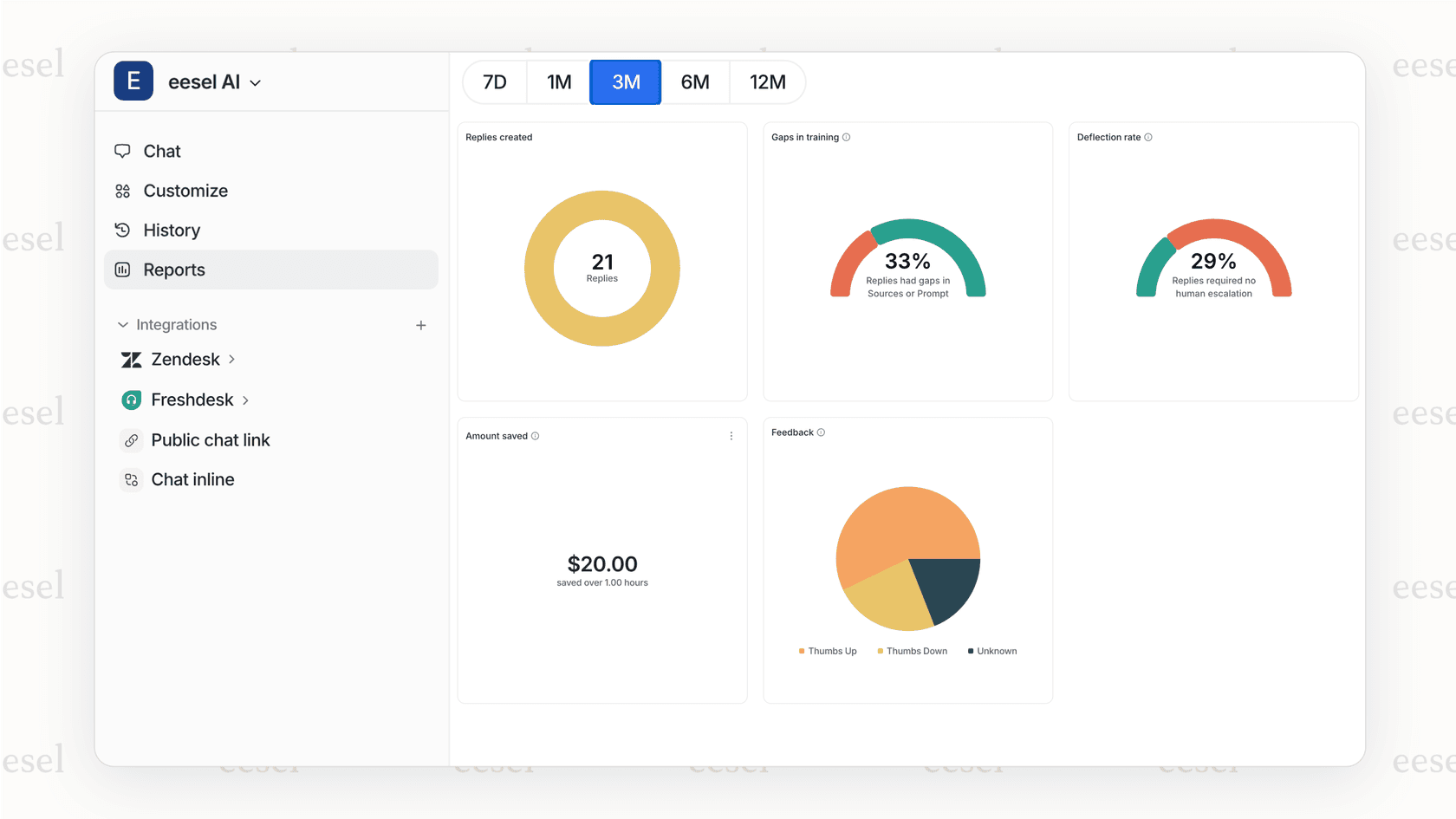
Once your social channels are feeding into Zendesk, you can layer on AI automation to handle the volume more efficiently.
At eesel AI, we've built an AI teammate that integrates directly with Zendesk to automate social ticket handling. Here's how it complements Zendesk's native capabilities:
- AI Triage automatically tags and prioritizes incoming social tickets based on content and sentiment
- AI Copilot generates response suggestions trained on your help center and past tickets
- Continuous learning means the AI improves as your team provides feedback on its suggestions
Unlike per-agent pricing models, we charge based on AI interactions, so you're not penalized for having a large support team. If you're dealing with high volumes of social tickets, this can reduce your cost per resolution. See eesel AI pricing for details on our interaction-based model.
Choosing the right social-to-ticket method for your team
Each approach has its sweet spot:
| Method | Best For | Pricing |
|---|---|---|
| Native Zendesk social messaging | Teams wanting integrated social support without additional tools | From $55/agent/month |
| Brandwatch integration | Teams already using Brandwatch for social listening | Custom pricing |
| Hootsuite integration | Teams using Hootsuite Enterprise for social management | Enterprise pricing |
| Custom API | Teams with specific requirements or unsupported platforms | Developer time + Zendesk plan |
Your choice should depend on your existing tools, social volume, and technical resources. Start with native Zendesk messaging if you're not already invested in third-party social tools. If you're already paying for Brandwatch or Hootsuite at the required tiers, their integrations can streamline your workflow.