How to handle Zendesk SaaS SLA inquiries: A complete guide for 2026

Stevia Putri
Last edited March 4, 2026
Every SaaS company makes promises about response times. Whether it's "we'll get back to you within 24 hours" or "urgent issues resolved in 2 hours," these commitments become part of your customer relationship. But keeping track of those promises across hundreds or thousands of tickets? That's where Service Level Agreements (SLAs) come in.

Zendesk has built-in SLA functionality that automatically tracks whether you're meeting your commitments. For SaaS companies dealing with everything from billing questions to critical outages, this feature can mean the difference between happy customers and churn. Let's break down how it works and how to set it up properly.
If you're looking to consistently hit aggressive SLA targets without burning out your team, eesel AI integrates directly with Zendesk to handle frontline inquiries and draft responses faster. But first, let's cover the fundamentals.
What are Zendesk SaaS SLA inquiries and policies?
SLA policies in Zendesk are essentially contracts between your support team and your customers. They define specific time targets for different types of responses and resolutions, then automatically track whether you're hitting those targets.
Here's how it works: When a ticket meets certain conditions (like being tagged "urgent" or coming from a VIP customer), Zendesk starts a timer. That timer tracks metrics like how long until the first reply, how long between subsequent replies, or how long until full resolution. If you're approaching the deadline, the ticket gets flagged. If you miss it, that's recorded as an SLA breach.
The business value is straightforward. SLAs create accountability. They give customers confidence that their issues won't disappear into a black hole. And they give your team clear priorities (tickets approaching breach get handled first).
There's an important distinction to understand: standard SLAs are customer-facing. They track what the customer experiences. But Zendesk Enterprise also offers Group SLAs, which track internal handoffs between teams. More on that later.
Plan requirements and feature availability
Here's where you need to pay attention. SLA policies aren't available on every Zendesk plan.
| Plan | Price (Annual) | SLA Features |
|---|---|---|
| Support Team | $19/agent/month | No SLA policies |
| Suite Team | $55/agent/month | No SLA policies |
| Suite Professional | $115/agent/month | Standard SLA policies, single business schedule |
| Suite Enterprise | $169/agent/month | Group SLAs, multiple business schedules, advanced settings |
Source: Zendesk Pricing
The jump from Suite Team to Suite Professional is significant ($60/agent/month), but it's the minimum tier for SLA functionality. For most SaaS companies with dedicated support teams, Suite Professional is the starting point.
Suite Enterprise adds Group SLAs (for tracking internal team performance), multiple business schedules (useful if you have global teams), and advanced routing capabilities. If you're managing complex workflows across multiple departments, the upgrade might be worth it.
Setting up your first SLA policy
Let's walk through the actual setup. Before you start, there's one critical prerequisite: your tickets need to have the Priority field set. SLAs apply based on priority levels, so if your tickets don't have priorities assigned, your SLAs won't trigger.
The best way to handle this is with triggers. Set up automated rules that assign priority based on criteria like:
- Keywords in the subject ("urgent," "down," "outage")
- Customer tier (VIP customers get higher priority)
- Ticket source (chat vs. email)
Once that's in place, here's how to create your first policy.
Step 1: Navigate to SLA settings
Go to Admin Center > Objects and rules > Business rules > Service level agreements.
Step 2: Create the policy
Give it a clear, descriptive name. "Standard Support SLA" is better than "SLA Policy 1." Define the conditions that determine which tickets this policy applies to. Common approaches include:
- All tickets (catch-all default)
- Tickets from certain organizations (VIP customers)
- Tickets with specific tags or priorities
Step 3: Select your metrics
Zendesk offers seven different SLA metrics. Don't enable all of them. Start with two:
- First Reply Time: How quickly you acknowledge the issue
- One resolution metric: Either Total Resolution Time or Requester Wait Time
Adding more metrics creates complexity without necessarily adding value.
Step 4: Set targets by priority
Define specific time targets for each priority level. A common starting point:
- Urgent: 1 hour first reply, 4 hours resolution
- High: 4 hours first reply, 24 hours resolution
- Normal: 8 hours first reply, 72 hours resolution
- Low: 24 hours first reply, 1 week resolution
These should be based on your actual capabilities, not wishful thinking. It's better to consistently hit a 4-hour target than to frequently breach a 2-hour target.
Step 5: Choose business hours vs. calendar hours
Business hours means the clock only runs during your defined work schedule. Calendar hours means it runs 24/7. For SaaS companies with global customers, calendar hours are often more appropriate for urgent issues.
Step 6: Order your policies correctly
Zendesk applies SLA policies in order, from top to bottom. Put your most restrictive policies first (like VIP customer SLAs), then broader policies below them.
Key SLA metrics explained
Let's clarify what each metric actually measures.
Reply time metrics:
- First Reply Time: Time from ticket creation to first public agent response. This is your acknowledgment metric. Customers want to know someone has seen their issue.
- Next Reply Time: Time between the customer's last comment and your next response. This keeps conversations from stalling.
Update time metrics:
- Periodic Update: Maximum time between any public agent comment. Useful for keeping customers informed on long-running issues.
- Pausable Update: Same as periodic, but the clock pauses when the ticket is in Pending status (waiting for customer). Fairer for agent workload tracking.
Resolution time metrics:
- Requester Wait Time: Total time the ticket spends in New, Open, and On-hold statuses combined. Measures the customer's actual waiting experience.
- Agent Work Time: Time in New and Open only (excludes On-hold). Measures internal efficiency.
- Total Resolution Time: Entire lifecycle from creation to resolution. The big picture metric.
For SaaS support teams, First Reply Time and Total Resolution Time are usually the most important. They capture the customer's experience from start to finish.
Using Group SLAs for internal accountability
Group SLAs are an Enterprise-only feature, but they're worth understanding if you're on that tier or considering an upgrade.
While standard SLAs track the customer experience, Group SLAs track internal team ownership time. They're sometimes called OLAs (Operational Level Agreements). Here's the use case: a ticket comes into Support, gets escalated to Engineering, then comes back to Support for final resolution. Group SLAs let you measure how long the ticket spent with each team.
This is valuable for identifying internal bottlenecks. If your overall resolution time is 48 hours but Engineering only had the ticket for 4 hours, you know where the delay actually happened.
Group SLAs can also track handoffs between departments. You might set targets like "Support to Engineering handoff within 2 hours" or "Engineering response within 24 hours."
One limitation: Group SLAs can't easily distinguish between primary ownership and escalations. If a ticket gets escalated multiple times, the tracking gets more complex.
Optimizing SLA performance
Setting up SLAs is just the start. Here are practical ways to improve your actual performance against those targets.
Create SLA-based views. Sort tickets by "Next SLA breach" so agents always know what needs immediate attention. This simple change can dramatically reduce breach rates.
Use triggers for proactive escalation. Set up automated rules that escalate tickets (change priority, notify managers, assign to senior agents) when they're approaching breach.
Set realistic targets based on data. Look at your historical performance before setting targets. If your average first reply time over the past quarter was 6 hours, setting a 2-hour target will create constant breaches.
Balance speed with quality. There's a Domino's Pizza problem in support: if you promise 30-minute delivery, drivers will speed and pizzas will arrive cold. If your SLA targets are too aggressive, agents will rush and quality will suffer. Set targets that allow for thorough, helpful responses.
Review quarterly. Your business changes. Your SLAs should too. Review breach rates, customer feedback, and team capacity every few months and adjust targets as needed.
Meeting Zendesk SaaS SLA inquiries targets with AI automation
Here's the reality: even with perfect SLA configuration, you're still limited by human capacity. When ticket volume spikes, something has to give. Either you miss SLA targets, or you burn out your team.
This is where AI changes the equation. eesel AI integrates directly with Zendesk and can help you hit aggressive SLA targets without adding headcount.

Our AI Agent handles frontline support autonomously. It learns from your past tickets, help center articles, and macros, then responds to common inquiries directly in Zendesk. For routine questions (password resets, feature explanations, billing clarifications), the AI can provide instant first replies, driving down your First Reply Time even during volume spikes.
For more complex issues, our AI Copilot drafts responses for your agents to review and send. Instead of starting from scratch, agents get a ready-to-send draft that matches your team's tone and references the right documentation. This cuts response time significantly, helping you hit Next Reply Time targets.
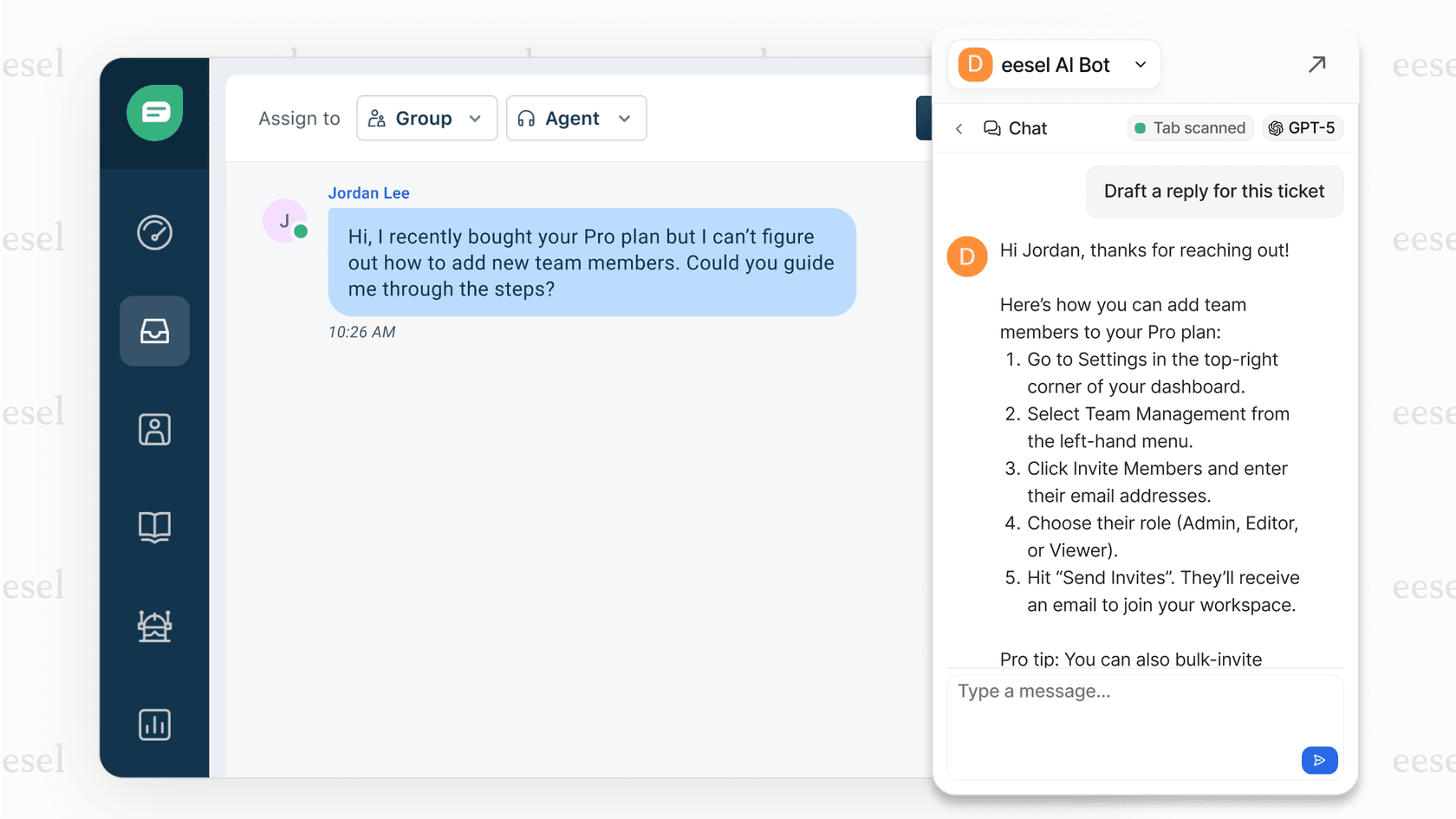
The integration works within your existing Zendesk workflow. There's no separate interface for agents to learn. The AI appears where they already work.
Before going live, you can run simulations on past tickets to see exactly how the AI would perform against your historical SLA data. This lets you measure the impact before touching real customers.
Pricing works differently than Zendesk's per-agent model. eesel AI charges per interaction, not per seat. The Team plan starts at $239/month (annual) for up to 1,000 interactions, and the Business plan at $639/month includes AI Agent capabilities and training on past tickets.
Getting started with Zendesk SaaS SLA inquiries policies
If you're setting up SLAs for the first time, here's a practical roadmap.
First, audit your baseline. Look at your current first reply and resolution times over the past 90 days. This gives you a realistic starting point.
Next, identify your segments. Do VIP customers need different targets? Do technical issues need different handling than billing questions? Create separate policies for segments that genuinely need different treatment, but don't over-segment. Three policies are manageable. Ten are not.
Start simple. Enable First Reply Time and one resolution metric. Set targets based on your baseline data. You can always add complexity later.
Train your team. Make sure agents understand what SLAs are, why they matter, and how to prioritize tickets approaching breach.
Monitor and adjust. Watch your breach rates for the first month. If you're consistently missing targets, either adjust the targets or add capacity (human or AI).
Finally, consider whether AI augmentation makes sense for your volume and targets. If you need sub-hour first replies but can't justify 24/7 staffing, an AI Agent might be the right solution.


Frequently Asked Questions
Share this article

Article by
Stevia Putri
Stevia Putri is a marketing generalist at eesel AI, where she helps turn powerful AI tools into stories that resonate. She’s driven by curiosity, clarity, and the human side of technology.



