
Quality assurance scorecards are the backbone of any serious customer support operation. They're evaluation forms that help you systematically review agent conversations, provide measurable feedback, and ensure your team delivers consistent experiences. Without them, you're essentially flying blind, hoping your agents perform well without any structured way to measure or improve their work.
Zendesk QA gives you the tools to build these scorecards directly in your help desk. But creating an effective scorecard takes more than just clicking through setup screens. You need to understand what to measure, how to weight different factors, and how to design a system that actually drives improvement rather than just generating numbers.
This guide walks you through the entire Zendesk QA scorecard creation process, from initial setup to advanced configuration. Whether you're building your first scorecard or refining an existing one, you'll find practical steps you can follow immediately. And if you're looking to go beyond manual reviews, we'll show you how eesel AI integrates with Zendesk to automate parts of your QA process.

What you'll need
Before you start creating scorecards in Zendesk QA, make sure you have:
- A Zendesk account with the Quality Assurance (QA) or Workforce Engagement Management (WEM) add-on
- Admin access to create and configure scorecards
- Clear understanding of your support goals and which KPIs matter most to your team
- Input from your agents about what quality means in your specific context
Optional but recommended: Consider how eesel AI might complement your manual QA efforts with automated conversation analysis.
Step 1: Access the scorecard settings
Navigate to Quality Assurance settings to begin creating your scorecard.
Start by opening your Zendesk QA workspace. Click your profile icon in the top-right corner, then select Settings. In the sidebar under Account, click Scorecards. This is your central hub for managing all QA scorecards.
Click Create and select Scorecard from the dropdown. You'll see a form where you can configure the basic settings for your new scorecard.
Step 2: Configure basic scorecard settings
Set up the foundation of your scorecard with name and workspace assignments.
Enter a descriptive name for your scorecard. Something like "General Support QA" or "Technical Support Review" works well. The name should make it immediately clear to reviewers what this scorecard is for.
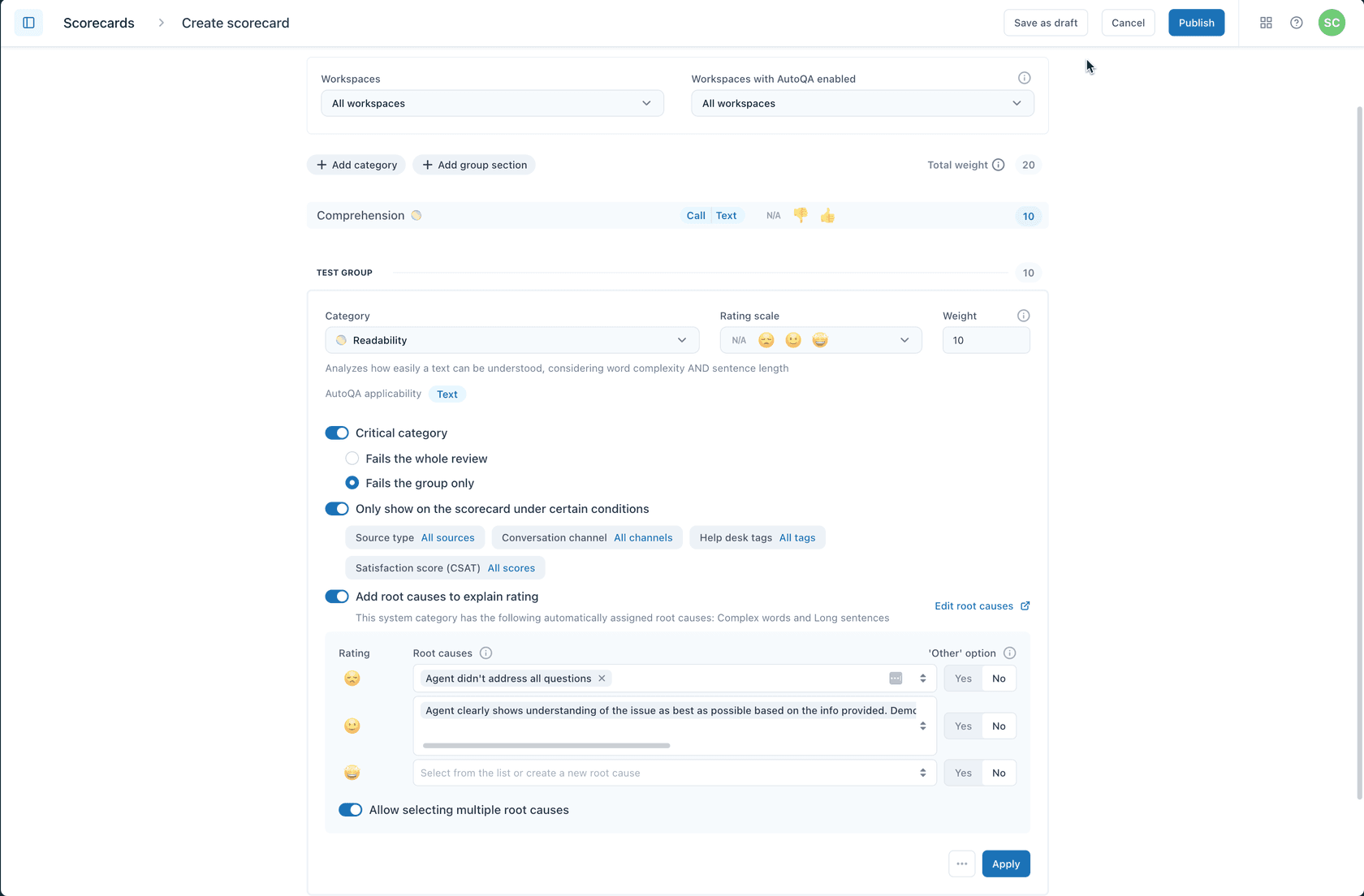
Next, select which workspaces this scorecard applies to. Under Workspaces, choose the workspaces you want to review manually with this scorecard. Under Workspaces with AutoQA enabled, select workspaces where you want automatic scoring applied.
Think carefully about workspace selection. You might want different scorecards for different teams (sales support vs technical support) or different channels (email vs chat vs phone). Creating separate scorecards for distinct use cases keeps your reviews focused and relevant.
Step 3: Create and add rating categories
Define what aspects of conversations you'll evaluate.
Click Add category to start building your evaluation criteria. Zendesk QA lets you select from existing categories or create new ones by typing a name and selecting Create category.
The categories you choose should reflect what matters most for your support quality. According to the Customer Service Quality Benchmark Report, the most popular rating categories are:
- Solution Did the agent solve the customer's problem?
- Grammar Was the response well-written and professional?
- Tone Did the agent match the appropriate voice for the interaction?
- Empathy Did the agent show understanding of the customer's situation?
- Personalization Did the agent treat the customer as an individual?
- Following internal processes Did the agent adhere to company procedures?
- Going the extra mile Did the agent exceed basic expectations?
You can organize related categories into groups using Add group section. This helps reviewers navigate complex scorecards more easily.
Aim for 3 to 7 categories total. Too few won't give you enough insight into agent performance. Too many creates decision fatigue and inconsistent scoring. The benchmark report shows that while the average scorecard has 14 categories, the median is a more manageable 8.
Step 4: Choose rating scales and weights
Determine how each category will be scored.
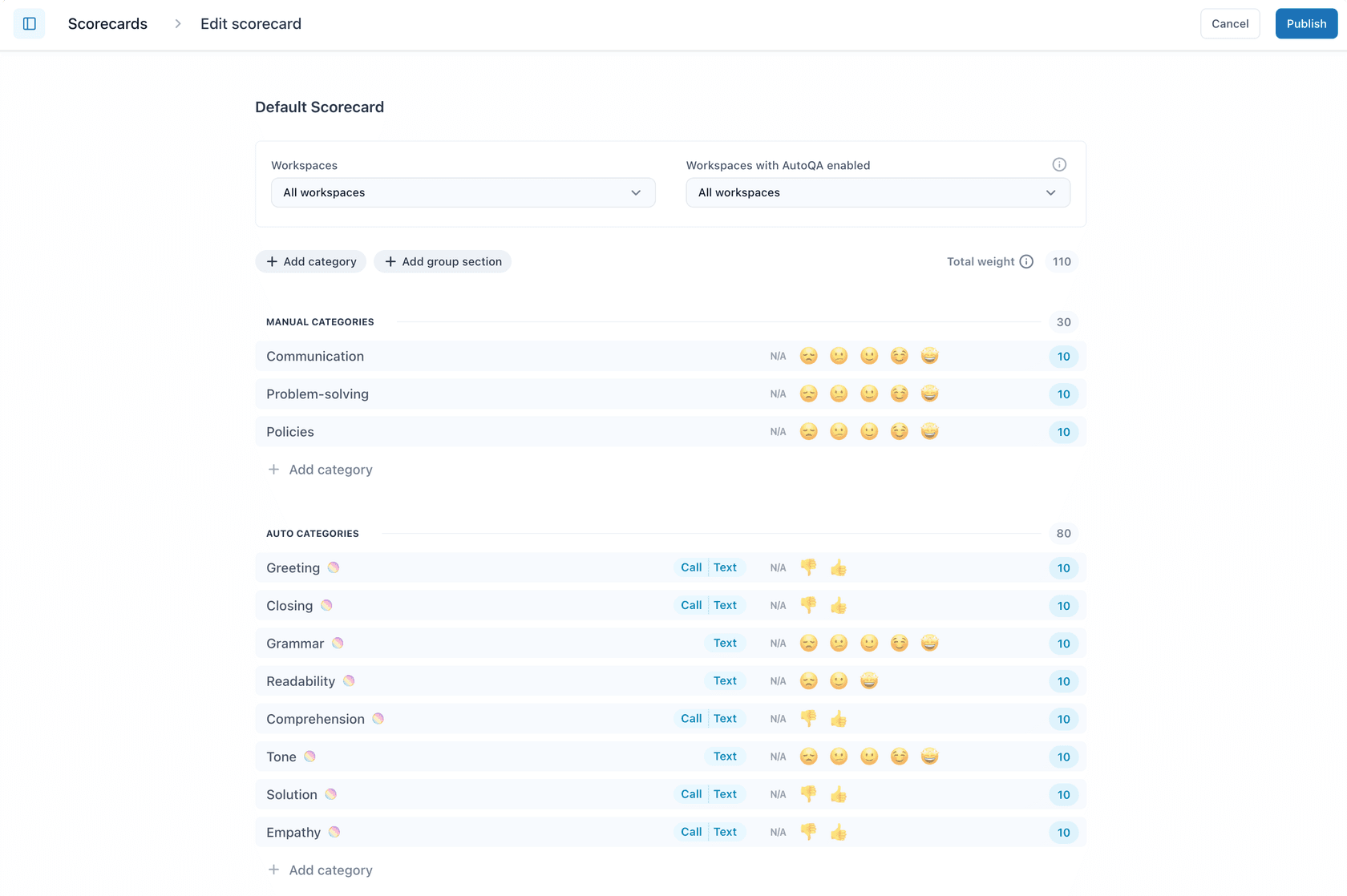
For each category, select a Rating scale that fits your review style:
- Binary (2-point): The fastest option with just good/bad ratings. Ideal for high-volume teams where speed matters more than nuance.
- 3-point: Adds a "satisfactory" middle option. Still quick to grade but gives reviewers more flexibility.
- 4-point: Forces decisive assessment by removing the neutral option. Reviewers must choose between good/slightly good or slightly bad/bad.
- 5-point: Most detailed scale, resembling academic grading. Provides nuanced feedback but takes longer to grade.
Smaller scales work best for quick, consistent reviews across large volumes. Larger scales provide more detail for coaching and quality improvement.
Set a Weight for each category (0-100) to define its importance. The default is 10, but you should adjust this based on your priorities. If empathy is crucial for your brand, give it a higher weight than grammar. When you hover over the weight field, you'll see how it translates to the overall quality score as a percentage.
You can also mark categories as Critical. A rating below 50% in a critical category fails the entire review, resulting in a 0% score. This is useful for tracking regulatory compliance or must-have behaviors.
Step 5: Set up conditional logic and root causes
Add advanced features for more targeted reviews.
Select Only show on the scorecard under certain conditions to make categories appear only for specific conversation types. This saves reviewers time by hiding irrelevant categories.
You can create conditions based on:
- Source type Different scorecards for different ticket sources
- Conversation channel Email, chat, phone, or social media
- Help desk tags Specific tags that indicate ticket type
- Satisfaction score (CSAT) Different criteria for satisfied vs dissatisfied customers
For example, you might show a "Product Knowledge" category only for conversations with a CSAT score of 3 or below, indicating the customer wasn't fully satisfied with the answer.
Enable Add root causes to explain rating to prompt reviewers for more detailed feedback. You can define separate root cause lists for positive and negative ratings. This helps agents understand not just what they did wrong, but why it mattered.
You can also allow reviewers to select multiple root causes and provide an "Other" option with a comment field for non-standard explanations.
Step 6: Publish and start using your scorecard
Finalize and activate your scorecard for reviews.
Review all your settings before publishing. Double-check that your categories align with your support goals, weights reflect your priorities, and any conditional logic is configured correctly.
Click Publish to make the scorecard available to reviewers, or Save as draft if you need to gather more input before going live.
Once published, train your reviewers on the new scorecard. Walk through each category, explain the rating scales, and discuss what different scores mean in practice. Schedule calibration sessions where multiple reviewers grade the same conversation and compare results. This helps eliminate bias and ensures consistent scoring across your team.
Tips for effective Zendesk QA scorecard creation
Building a scorecard that actually improves your support quality requires more than just following the setup steps. Here are some best practices to keep in mind:
Start simple and expand gradually. Launch with 3-5 core categories rather than trying to measure everything at once. You can always add more categories as your QA program matures.
Align categories with actual customer expectations. Don't just measure what you think matters, measure what actually drives customer satisfaction. Review your CSAT feedback to identify what customers care about most.
Customize for different channels. Email scorecards should emphasize grammar and thoroughness. Chat scorecards should focus on response time and multitasking. Phone scorecards need to evaluate tone, pacing, and active listening.
Involve your agents in the process. They're the ones being evaluated, so their input on what constitutes quality is valuable. Agents who help create the scorecard are more likely to buy into the QA process.
Review and iterate regularly. Your scorecard isn't set in stone. Schedule quarterly reviews to see if your categories are still relevant and if your weights accurately reflect your priorities.
Common mistakes to avoid in Zendesk QA scorecard creation
Even experienced support leaders make these errors when building QA programs:
Creating too many categories. When reviewers face 15+ categories, they rush through evaluations or grade inconsistently. Keep it focused.
Using vague category definitions. "Good tone" means different things to different people. Define what each score level looks like with specific examples.
Setting arbitrary weights without strategy. Don't weight all categories equally just because it's easier. Think about which categories actually impact customer satisfaction and business outcomes.
Ignoring agent feedback. If agents consistently question certain categories or ratings, listen to them. They might be identifying real problems with your scorecard design.
Treating scorecards as a one-time project. Markets change, products evolve, and customer expectations shift. Your scorecard needs to evolve too.
Taking QA further with automation
Manual QA has a fundamental limitation: even efficient teams can only review about 2% of their conversations. That means 98% of your customer interactions go unevaluated. You're making decisions about training, coaching, and process improvements based on a tiny sample of your actual support volume.
AI-powered QA changes this equation. Instead of sampling, you can analyze 100% of conversations automatically. This doesn't replace your manual scorecards. It complements them.
eesel AI works alongside Zendesk to provide automated conversation analysis. Our AI reviews every interaction, identifies patterns across your entire support volume, and highlights conversations that need human attention. You get the broad coverage of automation with the nuanced judgment of human reviewers where it matters most.

For teams already using Zendesk QA, eesel AI can pre-screen conversations and flag the ones that deserve manual review. Instead of randomly sampling tickets, your reviewers focus on the interactions that are most likely to contain coaching opportunities or process improvements.
The combination of structured scorecards in Zendesk QA and AI-powered analysis from eesel AI gives you both depth and breadth in your quality assurance program. You get the detailed, criteria-based evaluation that scorecards provide, plus the comprehensive coverage that only automation can deliver.
If you're ready to move beyond manual reviews, check out eesel AI pricing to see how affordable comprehensive QA coverage can be.


