How to prioritize partner and VIP tickets in Zendesk: a complete guide

Stevia Putri
Last edited March 6, 2026
Not all customers are created equal. A password reset from a free trial user and a system outage report from your biggest partner shouldn't sit in the same queue with the same priority. Yet many support teams treat every ticket equally, leaving their most valuable relationships at the mercy of FIFO (first in, first out) routing.
The cost of this approach is real. Partners who feel ignored churn. VIPs who wait too long escalate to executives. Revenue walks out the door while your team's tackling low-priority requests.
Here's the short version: Zendesk gives you the tools to identify and prioritize tickets from partners and VIPs automatically. With the right setup, critical tickets jump the queue instantly, get routed to your best agents, and trigger notifications to account managers before the customer even realizes there's a delay.

Let's break down exactly how to build this system.
Why Partner and VIP Ticket Prioritization Matters
When every ticket carries the same weight, your most important relationships suffer. Partners who generate significant revenue get the same response time as someone asking about your refund policy. This creates a few predictable problems.
First, SLA breaches hit harder with VIPs. A 4-hour response time might be acceptable for general support, but your platinum partner expecting 15-minute responses will notice every minute of delay. Those breaches don't just hurt metrics, they damage trust.
Second, agent attention gets misallocated. Your best support staff spend time on routine questions while partner tickets sit in the general queue. This is inefficient and frustrating for everyone.
Third, revenue is at stake. Partners who feel unsupported take their business elsewhere. The cost of losing a strategic partner far exceeds the cost of building a proper prioritization system.
The solution is to build automation that recognizes partner tickets instantly and treats them accordingly. Let's look at how to set that up. Note that some features mentioned require Zendesk Suite Growth or higher.
Setting Up Partner Detection in Zendesk
Before you can prioritize partner tickets, you need a reliable way to identify them. Zendesk offers two main approaches: organization fields for partner tiers and user tags for individual VIPs.
Creating Organization Custom Fields for Partner Tiers
The most scalable approach is to create a custom field at the organization level. This lets you tag entire companies as partners and assign them tiers (Platinum, Gold, Silver, etc.).
Here's how to set it up:
- Navigate to Admin Center → People → Configuration → Organization Fields
- Click Add field and select Drop-down as the field type
- Name it "Partner Tier" and add your tier values: Platinum, Gold, Silver, Standard
- Set the field key to something like
partner_tier(this cannot be changed later) - Configure permissions: typically agent-only visibility to prevent customers from self-selecting premium tiers
- Save and activate the field
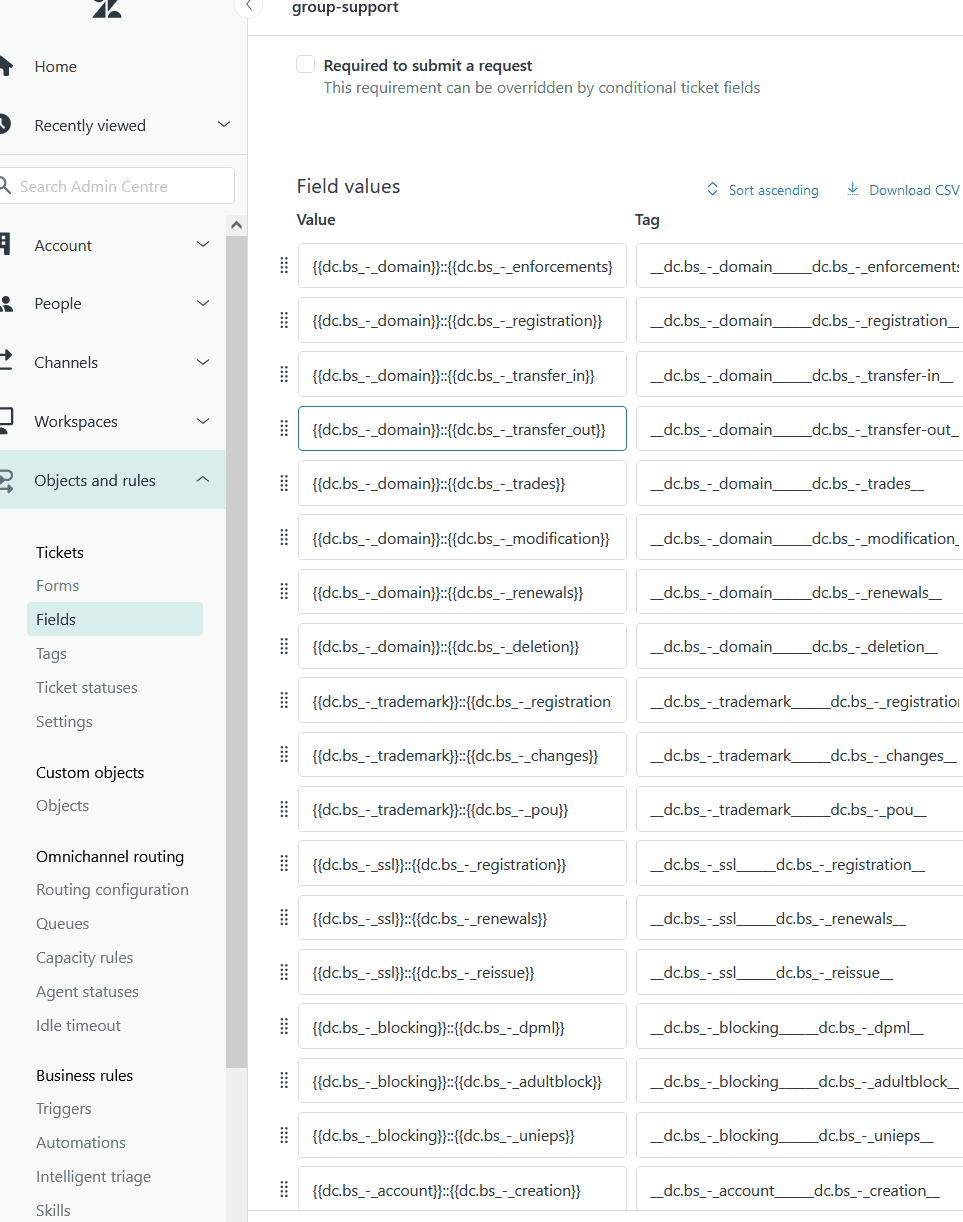
Once created, this field appears on every organization record. You can bulk-update existing partners via CSV import or the API. The field value automatically flows through to every ticket from users in that organization.
Tagging VIP Users and Organizations
For individual VIPs who are not part of a partner organization, use Zendesk's tagging system. Tags are flexible and work across triggers, views, and reports.
Common VIP tagging strategies include:
- Individual tags: Add
viporexecutiveto specific user profiles - Domain-based tagging: Automatically tag users from certain email domains (e.g.,
@partnercompany.com) - Bulk tagging: Use the API or CSV import to tag existing VIP customers
To tag a user manually, open their profile in Zendesk and add tags in the Tags field. For bulk operations, the Zendesk API lets you update thousands of users at once. See Zendesk's documentation on custom fields for more details.
The key is consistency. Document your tagging criteria so the whole team applies them the same way. A ticket tagged platinum by one agent and pltnm by another'll break your automation.
Building Automated Priority Workflows
With partner detection in place, you can now build triggers that automatically prioritize tickets based on who submitted them.
Creating Priority Triggers for Partner Tiers
Triggers are Zendesk's automation engine. They run immediately when tickets are created or updated, checking conditions and performing actions. Read more about creating Zendesk triggers.
Here's a trigger setup for Platinum partners:
Conditions (ALL must be met):
- Ticket > Is > Created
- Organization custom field > Partner Tier > Is > Platinum
Actions:
- Priority > Set to > Urgent
- Group > Set to > Partner Support Team
- Add tags > platinum_partner
- Notify target > Slack channel #partner-alerts
Create similar triggers for Gold (High priority) and Silver (Normal priority) tiers. The key is ordering: place these triggers before general routing rules so partner tickets're caught first.

Using Multiple Conditions for Smarter Routing
Basic triggers work, but smart triggers combine multiple conditions for better accuracy. Consider these additions:
Keyword-based escalation: Add a condition for subject line keywords like "outage," "down," or "critical" to escalate even standard partner tickets when the issue is severe.
Channel-based adjustments: Tickets from live chat might get higher priority than email since the customer is waiting in real time.
Time-based rules: Create separate triggers for business hours versus after-hours to manage expectations and staffing.
Here's an example of a multi-condition trigger:
Conditions:
- Ticket > Is > Created
- Organization custom field > Partner Tier > Is > Gold (or higher)
- Ticket > Subject text > Contains at least one of the following > outage, down, critical, emergency
Actions:
- Priority > Set to > Urgent
- Notify target > SMS to on-call manager
The goal is catching important tickets without creating noise. Too many urgent tickets means nothing is actually urgent.
Connecting Priority to SLAs and Escalation
Priority levels only matter if they're connected to concrete commitments. This is where SLA policies come in.
Setting SLA Targets by Priority
Zendesk lets you define different response and resolution targets for each priority level. Typical setups look like this:
| Priority | First Reply Time | Resolution Time |
|---|---|---|
| Urgent | 15-30 minutes | 2-4 hours |
| High | 1-2 hours | 8-24 hours |
| Normal | 4-8 hours | 24-72 hours |
| Low | 24 hours | 5-7 days |
To create an SLA policy, go to Admin Center → Objects and rules → Service level agreements. Create a new policy, set your targets based on priority, and apply it to the appropriate tickets using conditions. Learn more about Zendesk SLA policies.
Building Escalation Workflows
When a ticket approaches its SLA breach, you need escalation rules to ensure it gets attention. Zendesk supports several escalation types:
- Functional escalation: Transfer to a team with specialized skills (e.g., technical issues go to engineering)
- Hierarchical escalation: Transfer to someone with more authority (e.g., a supervisor for refund approvals)
- Automated escalation: Rules-based routing when SLAs are at risk
Use Zendesk automations (time-based rules) to escalate tickets that sit unresolved too long. For example, escalate any "Normal" priority ticket to "High" after 24 hours without an agent response. This prevents tickets from aging just because they weren't initially flagged as important.
Advanced Triage with AI
Triggers and rules handle the basics, but they have limitations. Keyword-based detection misses context. A ticket saying "slightly concerned about the charge" from a VIP customer needs different handling than the same message from a free trial user.
This is where AI makes a real difference.
How AI Enhances Partner Detection
AI triage systems analyze more than just keywords. They look at:
- Content and sentiment: Is the customer frustrated, confused, or satisfied?
- Customer history: Has this person contacted support before? What's their typical pattern?
- Contextual language: Understanding that "this is affecting our launch" indicates high business impact
Our AI Triage specifically handles intelligent ticket prioritization by learning from your past ticket resolutions and agent actions. It integrates directly with Zendesk to enhance your existing priority workflows.

Reducing False Positives
One challenge with rule-based systems is false positives. A trigger that flags any ticket containing "urgent" will catch legitimate emergencies but also messages like "not urgent, just a question."
AI reduces these false positives by understanding context and sentiment. It learns that "urgent" in certain contexts (like from a partner organization) carries more weight than the same word from a general user.
The result is a prioritization system that gets smarter over time, catching important tickets without overwhelming your team with false alarms.
Best Practices for Partner Ticket Management
Setting up the system is just the start. Keeping it running well requires ongoing attention.
Document Your Partner Tier Definitions
Write down exactly what makes a customer Platinum versus Gold. Include specific criteria like:
- Annual contract value thresholds
- Strategic importance (even if revenue is lower)
- Historical support volume and complexity
- Executive relationships
Share this documentation with your team so everyone applies criteria consistently.
Train Agents to Override When Needed
Automation sets the starting priority, but agents should adjust it when they've got more context. A ticket that looks routine might actually be critical once the agent understands the customer's situation. Encourage your team to trust their judgment and document why they made changes.
Review Your Queue Regularly
Scan for mis-prioritized tickets during shift changes or at set times daily. During busy periods, some high-priority issues inevitably get miscategorized. A quick review prevents small issues from becoming big problems.
Monitor Metrics by Partner Tier
Track first response time, resolution time, and SLA breach rate separately for each partner tier. If your Gold partners consistently miss their SLAs, you either need more staff dedicated to partner support or more realistic targets.
Avoid Common Pitfalls
- Over-prioritizing: If everything is urgent, nothing is. Reserve Urgent priority for genuine emergencies.
- Inconsistent criteria: Partners notice when their tickets get different treatment without explanation.
- Ignoring agent feedback: Agents often spot patterns in mis-routed tickets before management does.
Getting Started with Smarter Partner Prioritization
If you're setting up partner prioritization from scratch, here's your quick checklist:
- Define your partner tiers: Document criteria for Platinum, Gold, Silver, and Standard
- Create organization fields: Set up the Partner Tier custom field in Zendesk
- Tag existing partners: Bulk update your current partner organizations
- Build priority triggers: Create automation rules for each tier
- Connect to SLAs: Set response and resolution targets for each priority level
- Train your team: Walk through examples and give agents permission to override
- Monitor and adjust: Review metrics weekly and refine your rules
For teams looking to go beyond basic triggers, we can help. Our AI Triage learns from your past tickets to suggest or automatically set priorities based on content and customer context. It catches nuances that keyword-based triggers miss, ensuring your partners get the attention they deserve without overwhelming your team. Check out our Zendesk integration to learn more.
Want to see how AI can improve your ticket prioritization? Try eesel AI and see how an AI teammate learns your business to help route and prioritize tickets automatically.


Frequently Asked Questions
Share this article

Article by
Stevia Putri
Stevia Putri is a marketing generalist at eesel AI, where she helps turn powerful AI tools into stories that resonate. She’s driven by curiosity, clarity, and the human side of technology.
