How to map data for Zendesk migration: A complete guide

Stevia Putri
Last edited March 2, 2026
Data mapping is the step that makes or breaks your Zendesk migration. Get it right and your support team picks up where they left off, with full historical context intact. Get it wrong and you're looking at broken workflows, lost customer history, and reports that don't make sense anymore.
This guide walks you through the entire data mapping process for Zendesk migrations. From auditing your current setup to validating the final transfer, you'll learn how to preserve the relationships and context your team depends on.
If you're still evaluating whether Zendesk is the right move, consider that some teams are skipping the migration headache entirely. Tools like eesel AI can plug into your existing help desk and start delivering value without moving a single record. But if Zendesk is your destination, let's make sure you get there with your data intact.
What you'll need
Before you start mapping, gather a few essentials:
- Source system access with export capabilities or API access
- Zendesk account with admin permissions
- Documentation of your current custom fields, tags, and data structures
- Migration method chosen: API scripts, third-party service, or manual CSV import
- Stakeholders identified who can validate data accuracy
Step 1: Audit your source data
Start by understanding exactly what you're working with. Around 60% of migration effort happens before any data moves, and most of that is preparation, according to Zendesk's own migration documentation.
Export all custom fields from your current help desk. Document each field's type (text, dropdown, checkbox, date, integer), its purpose, and whether it's actively used. Pay special attention to tag-generating fields (dropdowns, multi-selects, checkboxes) because these drive automations, triggers, and reporting in most systems. Review Zendesk's custom field documentation to understand how field types translate between systems.
Map out your data relationships. Tickets connect to users. Users belong to organizations. Comments thread under tickets. Knowledge base articles have categories and sections. These relationships give your data context, and losing them turns a searchable history into a pile of disconnected records.
Clean before you migrate. Look for redundant, outdated, or trivial data (ROT). Consolidate duplicate fields. Remove tags that haven't been used in years. A migration is your chance to start fresh, so don't carry over years of clutter.
Step 2: Map fields to Zendesk data types
Zendesk has system fields that exist on every ticket (subject, status, priority, assignee, requester) and custom fields you create to capture business-specific data. Your job is to map your source fields to the appropriate Zendesk equivalents.
Here's a reference table for common field type conversions:
| Source Field Type | Zendesk Field Type | Notes |
|---|---|---|
| String / Enum | Dropdown | Preserves structured data for reporting |
| Boolean | Checkbox | Binary flags like "escalated" or "VIP" |
| Integer | Integer | Numeric counts, IDs |
| Array / List | Multi-select or Text (CSV) | Multiple attributes like "affected services" |
| Date | Date | Standard date fields |
| Text (long) | Multi-line text | Free-form notes and descriptions |
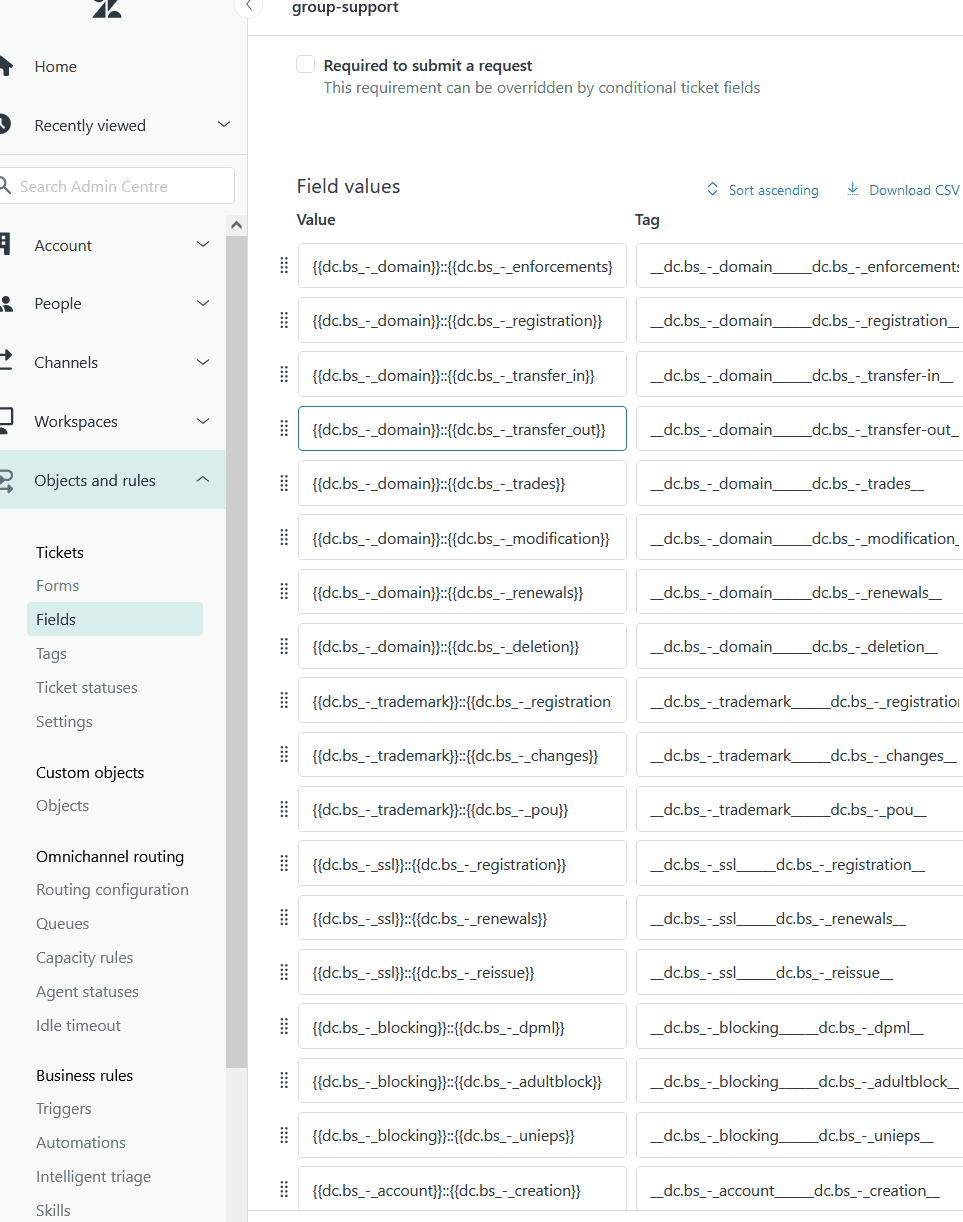
Tag-generating fields deserve special attention. In Zendesk, dropdown fields automatically create tags (selecting "Bug" from an "Issue Type" dropdown creates the tag issue_type_bug). These tags power triggers, automations, and views. If you convert these to free-text fields during migration, you lose that automation capability.
Status mapping is critical. Zendesk uses a specific lifecycle: New, Open, Pending, On-hold, Solved, Closed. Map your source statuses to these carefully. A ticket marked "Resolved" in your old system should become "Solved" in Zendesk, not "Closed." Once a ticket hits "Closed" in Zendesk, it becomes unmodifiable, which can break workflows if you map incorrectly.
One strategic decision: do you preserve your current structure exactly, or use the migration as an opportunity to restructure for better reporting? Preserving exact structure minimizes disruption. Restructuring (consolidating similar fields, converting tags to structured fields) improves long-term reporting but requires more planning and user training.
Step 3: Create custom fields in Zendesk
With your mapping plan in hand, it's time to build the destination structure.
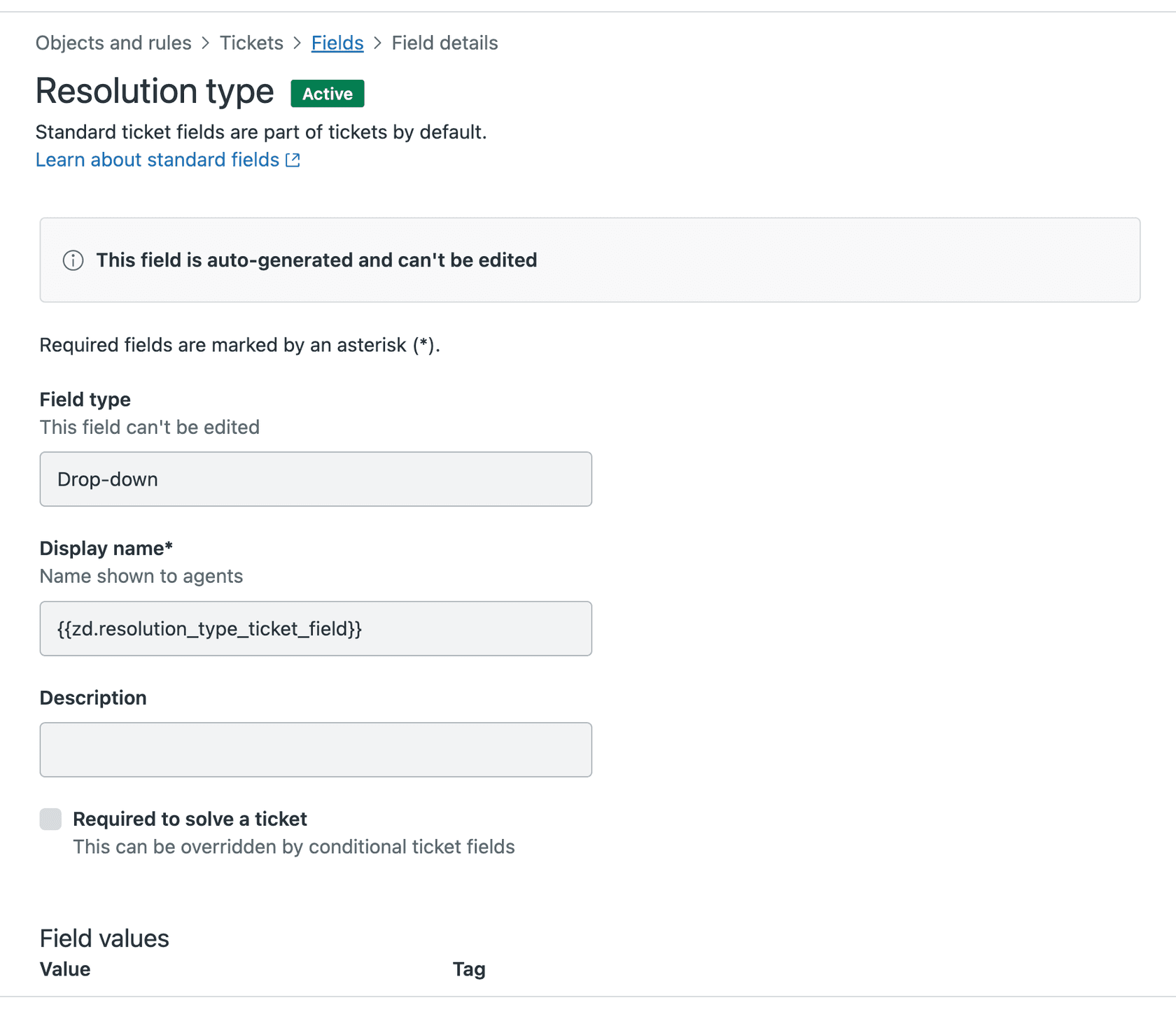
Navigate to Admin Center > Objects and rules > Tickets > Fields. Create each custom field, matching the field type exactly to your source system. If a field was a dropdown before, make it a dropdown in Zendesk with the same options. See Zendesk's field configuration guide for detailed setup instructions.
Set fields as optional during migration. Required fields cause import errors if historical data is missing. You can make fields required again after migration is complete.
Use default values where they make sense. If most tickets should have "Standard" priority, set that as the default rather than leaving it blank.
Consider consolidating similar fields. If you have "Product Area" and "Product Category" with significant overlap, this is your chance to merge them. Just document the change so your team knows where to find what they need.
Step 4: Plan relationship preservation
Data relationships are what turn a database into a useful system. Plan how you'll preserve each one.
Users and tickets: Import users first, then tickets. Every ticket needs a requester, so users must exist before tickets reference them.
Organizations and groups: Map your organizational hierarchy carefully. If your source system has nested organizations, decide how that translates to Zendesk's flatter structure.
Comment threading: Ensure internal notes stay internal and public comments remain public. Losing this distinction exposes sensitive information to customers.
Attachments: Plan for file storage. Large attachments can slow migration and consume significant storage. Some teams choose to archive old attachments separately rather than migrate them.
Knowledge base structure: Zendesk Guide uses categories and sections. Map your existing KB structure to this hierarchy. Articles cannot exist in categories directly, only in sections.
Step 5: Execute and validate
Never run a full migration without testing first. Use a demo migration to validate your mapping.
Most migration tools offer demo capabilities. Help Desk Migration lets you migrate 20 random tickets and 20 knowledge base articles for free, with over 60,000 migrations completed for more than 40,000 companies. Import2, founded in 2011, offers a free sample migration with up to 100 tickets for their 50,000+ customers. Use these to catch mapping errors before they affect your full dataset.
Verify these specific elements in your demo:
- Field values appear correctly in Zendesk
- Ticket assignments match your mapping
- Comments appear with correct authors and privacy settings
- Attachments are accessible and uncorrupted
- Custom field values populate as expected
- Statuses map to the correct Zendesk states
Check that automations haven't triggered on imported data. Zendesk's default triggers might send notifications to customers when tickets are created, which you don't want during migration. Disable triggers before importing, or use a migration tool that bypasses them.
Once your demo validates successfully, schedule the full migration. Timing matters: your team should stop working in the old system when migration begins to avoid creating new data that won't be transferred.
Common data mapping mistakes to avoid
Learn from others' errors to save yourself headaches. According to data migration research, poor data quality costs organizations an average of $12.9 million annually:
-
Misaligned status mappings. Mapping "Resolved" to "Closed" instead of "Solved" makes tickets unmodifiable and breaks follow-up workflows.
-
Converting structured fields to free-text. A dropdown with 10 options becomes a text field with hundreds of variations ("High", "high", "Urgent", "URGENT"). Reporting becomes impossible.
-
Forgetting to disable required fields. Historical data often lacks values for fields that are now mandatory. Optional fields during migration prevent import failures.
-
Not accounting for Zendesk's 28-day auto-close. Solved tickets automatically close after 28 days, then archive after 120 days. Plan your reporting and access needs accordingly.
-
Migrating suspended contacts. Zendesk converts suspended contacts to unsuspended during import. Clean your contact list first.
-
Missing inline images and call recordings. These require special handling and specific migration options. Standard ticket migration won't capture them.
Migration tools and services
You have several options for executing your migration:
| Tool/Method | Best For | Pricing | Key Feature |
|---|---|---|---|
| Help Desk Migration | Most use cases | Starts at $100 for 1,000 records | Unlimited demo migrations, delta migration available |
| Import2 | Smaller datasets | $99-$499+ depending on records | 1-click migration, money-back guarantee |
| Zendesk API | Complex custom needs | Free (development time) | Full control, requires technical resources |
| Professional services | Enterprise complexity | Custom quotes | White-glove handling, dedicated expertise |
Help Desk Migration offers the most comprehensive feature set, including delta migration (for capturing changes during the migration window) and interval migration (for scheduling around business hours). Import2 is simpler and more affordable for straightforward migrations under 50,000 records. For teams looking to avoid migration entirely, eesel AI's AI Agent connects directly to your existing help desk without moving any data. You can also explore Zendesk's native import tools if you prefer a DIY approach.
How eesel AI simplifies data migration
Here's the thing about migrations: sometimes the best migration is no migration at all.
If you're considering Zendesk because your current help desk feels limiting, there's another option. Instead of moving all your data to a new platform, you can invite eesel AI to work alongside your existing setup.

We connect directly to your current help desk (whether that's Freshdesk, Zendesk, or another platform) and learn from your existing data automatically. No field mapping required. No export/import cycles. No downtime. Our AI ingests your ticket history, custom fields, and knowledge base, then starts helping your team immediately.
You can start with AI-drafted replies that agents review before sending. As we prove ourselves, level up to full automation. Handle frontline support autonomously while escalating complex issues to your team. All without moving a single record between platforms.
If you're facing a migration primarily to get better support capabilities, let's talk. You might be able to skip the migration headache entirely.
Ready to explore a simpler option? Try eesel AI free or book a demo to see how we can enhance your current help desk without the migration complexity.


Frequently Asked Questions
Share this article

Article by
Stevia Putri
Stevia Putri is a marketing generalist at eesel AI, where she helps turn powerful AI tools into stories that resonate. She’s driven by curiosity, clarity, and the human side of technology.



