How to set up Zendesk messaging handoff: Complete 2026 guide

Stevia Putri
Last edited March 5, 2026
Zendesk messaging handoff is the bridge between AI automation and human expertise. When your AI agent hits a wall, whether it's a complex billing dispute, an emotional customer, or a request that needs human judgment, the handoff process determines whether that transition feels seamless or frustrating.
But here's the catch: most teams set up handoff once and never touch it again. They miss the nuances that separate a clunky bot experience from one that actually builds customer confidence. This guide walks you through configuring Zendesk messaging handoff properly, whether you're on the Essential tier or have access to Advanced features.
If you find Zendesk's dialogue builder overwhelming, tools like eesel AI offer plain-English escalation rules that skip the visual workflow complexity. But let's focus on getting your Zendesk handoff working first.

What you'll need
Before diving into configuration, make sure you have:
- A Zendesk account with messaging enabled (Suite Team or higher)
- Admin Center access permissions
- Clarity on which AI agent tier you're using (Essential vs Advanced)
- Optional: Sunshine Conversations setup if you're integrating third-party bots
If you're unsure about your tier, check Admin Center > AI > AI agents. The interface will show whether you have Essential or Advanced capabilities.
Step 1: Understand your AI agent tier
Zendesk splits AI agent functionality into two distinct levels, and the difference matters for handoff configuration.
AI agents - Essential comes included with all Zendesk Suite and Support plans. It offers basic escalation settings and simpler configuration through dropdown menus and toggle switches. You can create AI agents across messaging, email, API, and web form channels. The Essential tier is designed for quick, self-service adoption with generative replies powered by your knowledge base.
AI agents - Advanced is available as an add-on for any Suite or Support plan. It includes everything in Essential plus the dialogue builder (a visual workflow tool), conditional routing, API access, and advanced analytics. The Advanced tier targets teams with high support volumes or complex automation requirements.
There's also legacy AI agent functionality for customers who had drafted or published AI agents before February 2, 2025. These accounts retain access to the old bot builder, custom answer flows, intents, and article recommendations, though Zendesk no longer adds new features to these legacy tools.
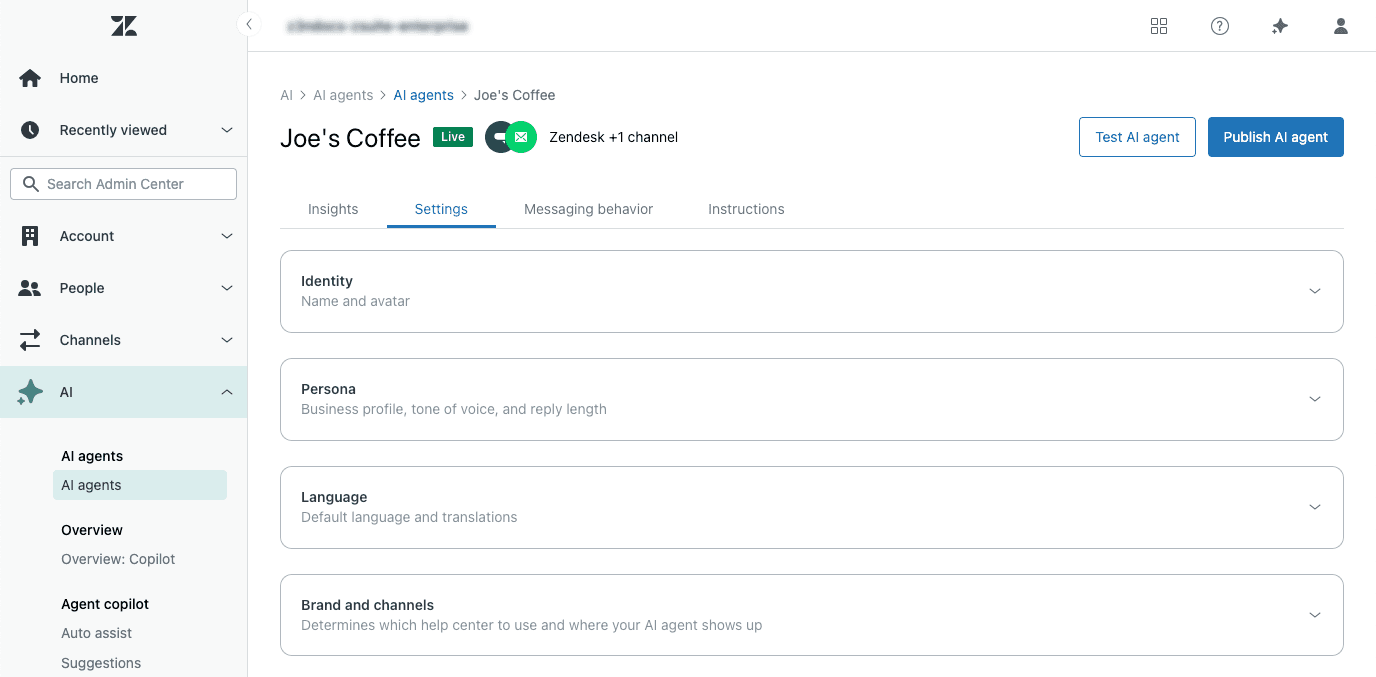
To check your tier, navigate to Admin Center > AI > AI agents and look at the top of the page. If you see options for "Dialogue builder" or "Conversation flows," you're on Advanced. If you only see "Messaging behavior" and "Escalation" tabs, you're on Essential.
Step 2: Configure handoff in AI agents - Essential
The Essential tier keeps handoff configuration straightforward. Here's how to set it up:
- Navigate to Admin Center > AI > AI agents
- Select your AI agent and open the Messaging behavior tab
- Configure "Talk to a human" options in each response type. You can choose when the escalation option appears: always visible, after failed attempts, or hidden entirely
- Open the Escalation tab to customize the handoff message. This is what customers see when they request a human
- Set different messages for business hours and after-hours if needed. After-hours messages should set clear expectations about response times
- Click Publish and test in a sandbox before going live
The limitations here are real: you can't set conditional routing based on issue type, you get a single escalation message for all scenarios, and you can't create complex workflows. But for many teams, this simplicity is a feature, not a bug. You get handoff working in minutes rather than days.
One common mistake: setting the escalation option to "always visible" without considering the customer experience. If every response includes "Talk to a human," customers learn to bypass the AI immediately. Consider using "after failed attempts" to give the AI a fair shot first.
Step 3: Configure handoff in AI agents - Advanced
The Advanced tier unlocks the dialogue builder, which gives you visual workflow tools for more sophisticated handoff logic. Here's the setup process:
- Go to Admin Center > AI > AI agents > Content > Use cases
- Open the dialogue you want to modify, or create a new reply
- Add an Escalation block where handoff should occur. This block must be the last in its branch
- Configure the escalation message and channel (messaging or email). You can route to different channels based on the scenario
- Optionally add an Availability block before escalation to check agent status and business hours
- Use Actions to add tags or populate ticket fields for context. This ensures the human agent sees relevant information immediately
- Use Conditional blocks for different escalation paths based on issue type, customer tier, or other parameters
- Click Validate dialogue to check for errors before publishing
- Publish when ready
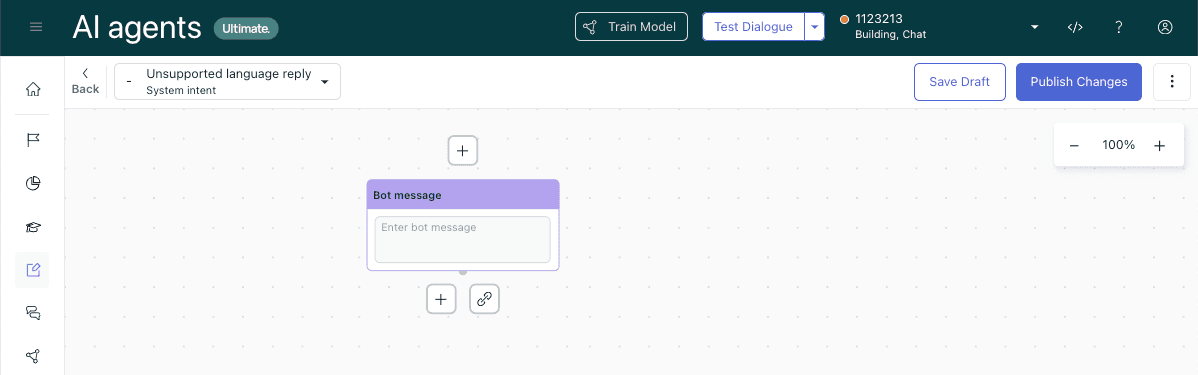
The key blocks to understand:
- Escalation block: Defines the handoff path and must be the last block in a branch. You can't add more blocks after an escalation
- Availability block: Checks business hours and agent status before allowing escalation. Useful for routing after-hours requests differently
- Conditional block: Routes conversations down different paths based on parameters like customer tier, issue type, or custom fields
- Link to block: Connects to reusable escalation flows, so you don't rebuild the same handoff logic repeatedly
The dialogue builder has a learning curve. If you find yourself fighting with the visual interface or wishing you could just write rules in plain English, that's a sign you might benefit from a different approach. Our Zendesk AI integration lets you define escalation logic with sentences like "If the refund request is over 30 days, escalate to billing" rather than dragging blocks around.
Step 4: Fix the handback timing problem
This is the issue that trips up most Zendesk messaging implementations. Here's what happens:
When a ticket is marked "Solved," Zendesk's default automation waits 4 days before changing it to "Closed." During this window, if the customer returns to the messaging widget, they can't start a new conversation. They're stuck in the old ticket thread, often confused about why the bot isn't responding to their new question.
The customer experience is jarring. They think they're starting fresh, but Zendesk sees it as a follow-up to the solved ticket. The AI agent may not engage properly, or the customer might get frustrated waiting for a response that never comes.
You have two options to fix this:
Option 1: Edit the default automation Navigate to Admin Center > Objects and rules > Business rules > Automations. Find "Close ticket 4 days after status is set to solved" and change the timing. You could reduce it to 1 day or even a few hours if your CSAT process allows.
Option 2: Create an immediate-close trigger Build a trigger that closes tickets immediately when they meet specific criteria (like having a certain tag). This gives you granular control over which tickets close fast and which ones keep the 4-day buffer for CSAT surveys.
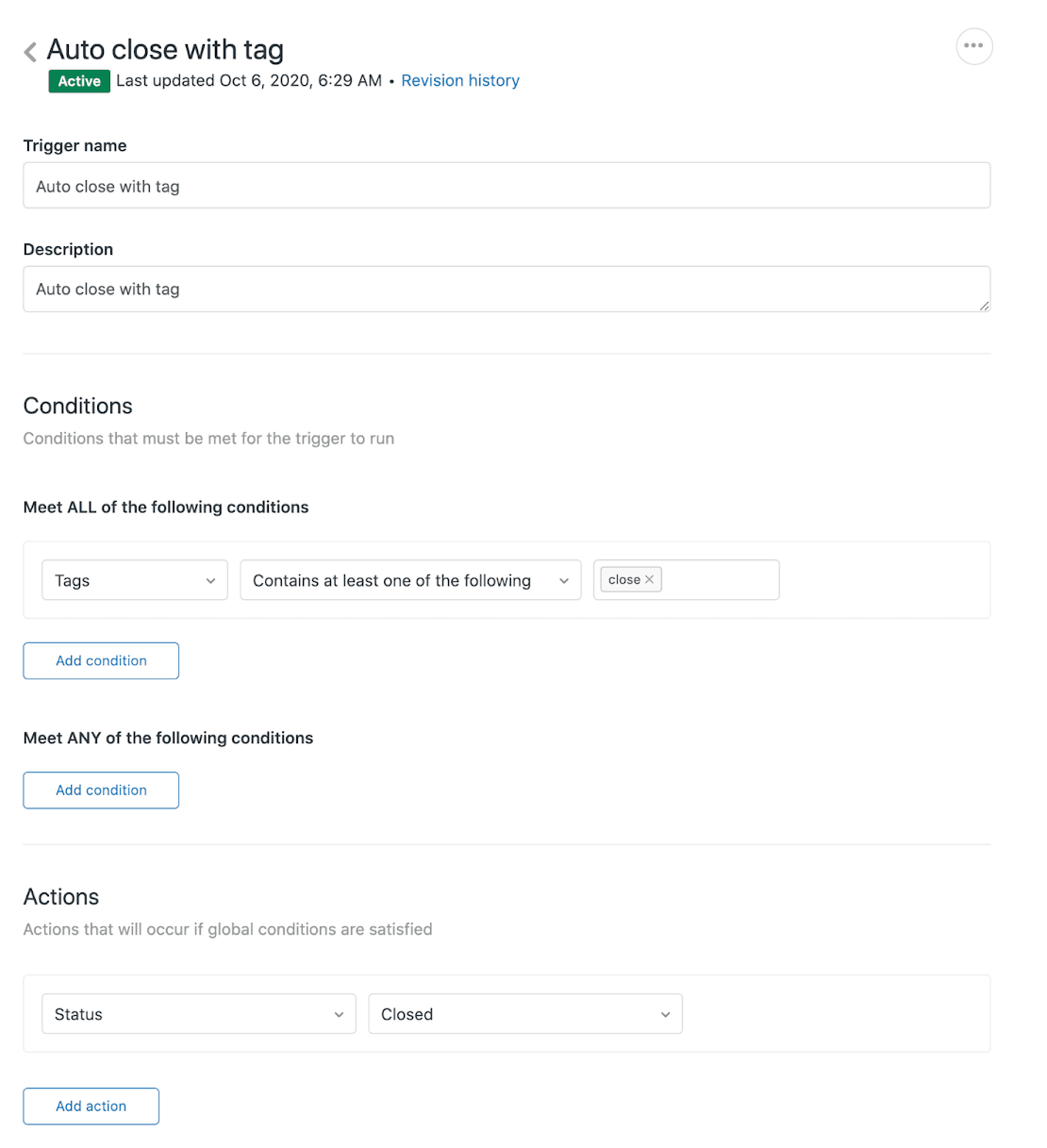
CSAT consideration: If you're using Zendesk's satisfaction surveys, they typically send when a ticket moves to Solved. If you close tickets too quickly, customers might not have time to rate their experience. Test your timing to find the right balance.
Step 5: Set up routing after handoff
Getting the conversation to a human is only half the battle. You also need to ensure it reaches the right human. Zendesk offers several routing methods:
Ticket triggers are the most common approach. After handoff creates a ticket, triggers can assign it based on tags, custom fields, or channel source. For example, you might tag all billing escalations with "billing_handoff" and have a trigger route those to your finance team.
Chat routing rules determine which agents see messaging notifications. You can route by group, skill, or agent availability. This works in real-time for live chat scenarios.
Omnichannel routing (available on Professional and Enterprise plans) routes across email, calls, and messaging based on agent capacity and skills. This is the most sophisticated option but requires more setup.
Transfer groups in dialogue builder (Advanced tier only) let you send escalations directly to specific Support groups as part of the conversation flow.
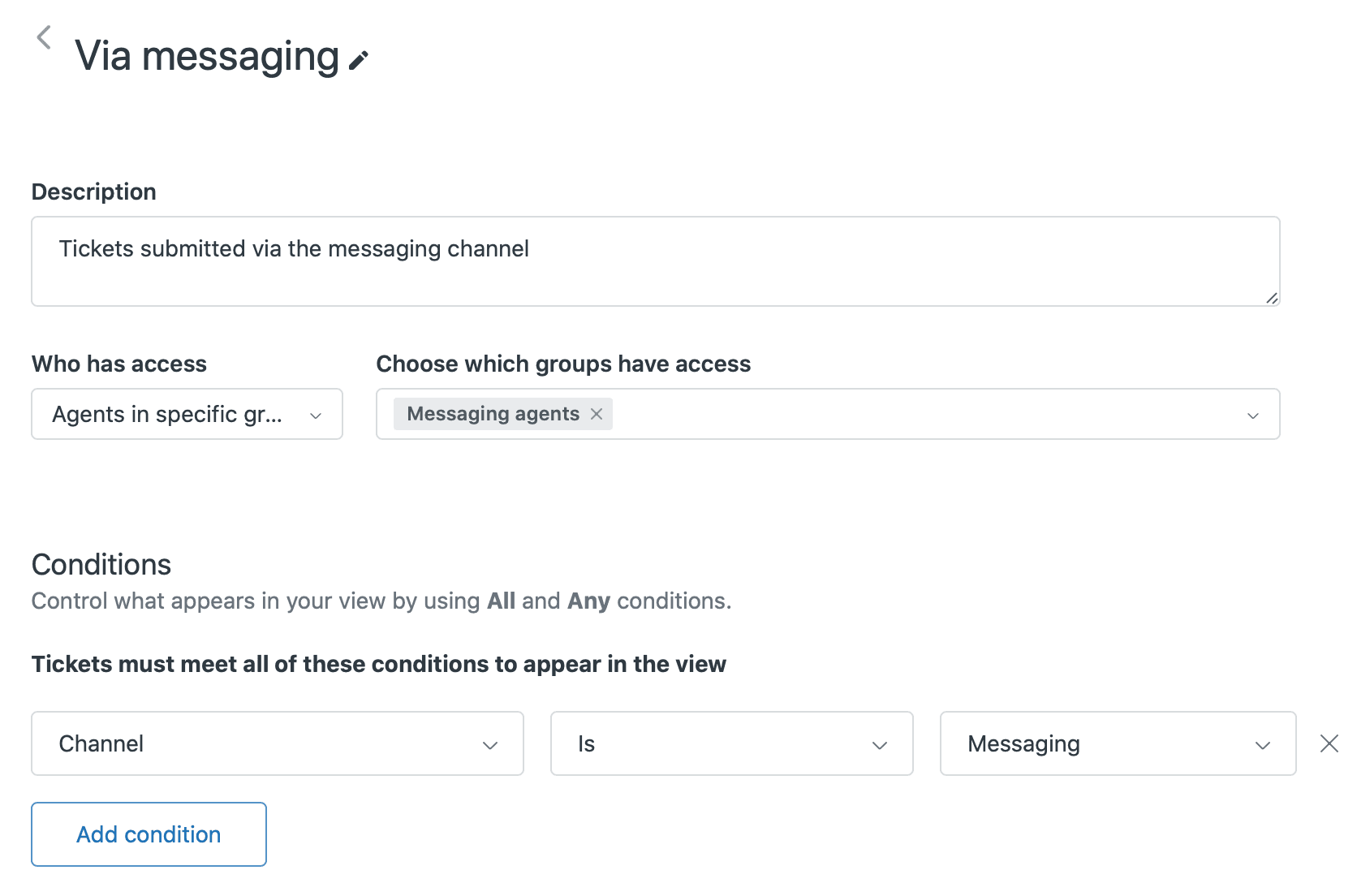
Best practice: Test your routing with sample conversations before going live. Create test tickets through each escalation path and verify they land in the right queues with the right context.
For more on routing best practices, see our guide on Zendesk conversation handoff to agents.
Common mistakes to avoid
After reviewing hundreds of Zendesk messaging implementations, we see the same errors repeatedly:
- Vague handoff messages: "Connecting you to an agent" tells the customer nothing. Better: "Connecting you to Sarah from our billing team. Average wait time: 3 minutes."
- Over-apologizing for the bot: "Sorry our bot couldn't help" undermines confidence in your AI. Instead: "A human agent will handle this complex request now."
- Promising specific wait times you can't guarantee: If your team has variable response times, give ranges or avoid time promises entirely
- Failing to preserve context: Nothing frustrates customers more than repeating information. Use ticket fields and internal notes to pass context to agents
- Not testing the full flow: Always test handoff from the customer perspective, not just the agent side
The goal is a transition that feels intentional, not like a failure of the AI. Customers should feel like the system understood their needs and made a smart decision to involve a human.
Simplify handoff with eesel AI
If you've made it this far, you've probably noticed that Zendesk's handoff configuration requires significant setup time, especially for the Advanced tier. The dialogue builder is powerful but complex. The Essential tier is simpler but limited.
We built eesel AI as an alternative for teams that want sophisticated handoff without the visual workflow complexity. Instead of dragging blocks in a dialogue builder, you write escalation rules in plain English:
- "If the refund request is over 30 days, escalate to billing"
- "Always escalate VIP customers to the priority queue"
- "For technical issues, route to the engineering support team"
Before going live, you can run simulations on your past tickets to see exactly how eesel would have handled them. This lets you refine your rules based on real data rather than guessing.
eesel also learns from your existing tickets, macros, and help center articles across multiple sources. You don't start from scratch; you start from your actual support history.
For teams already invested in Zendesk, our Zendesk AI integration works alongside your existing setup. You can try eesel for specific queues or ticket types without disrupting your current workflow.

Start configuring Zendesk messaging handoff today
You've now got a complete roadmap for setting up Zendesk messaging handoff:
- Identify your AI agent tier (Essential or Advanced)
- Configure escalation in either the simple Essential interface or the Advanced dialogue builder
- Fix the handback timing problem by adjusting the 4-day default
- Set up routing so escalations reach the right team
- Test everything from the customer perspective before launch
The difference between a frustrating bot experience and a helpful one often comes down to these handoff details. Customers don't mind interacting with AI when it works. They mind when it wastes their time or dumps them into a black hole.
Audit your current configuration. Are your escalation messages clear? Does context flow to agents? Is the handback timing causing confusion? Small fixes here can dramatically improve customer satisfaction.
If Zendesk's complexity is slowing you down, try eesel AI or book a demo to see how plain-English escalation rules work in practice. Sometimes the best tool is the one your team will actually use.


Frequently Asked Questions
Share this article

Article by
Stevia Putri
Stevia Putri is a marketing generalist at eesel AI, where she helps turn powerful AI tools into stories that resonate. She’s driven by curiosity, clarity, and the human side of technology.