How to set up Zendesk chat to email in 2026

Stevia Putri
Written by

Stevia Putri

Reviewed by

Stanley Nicholas

Last edited March 4, 2026

Expert Verified

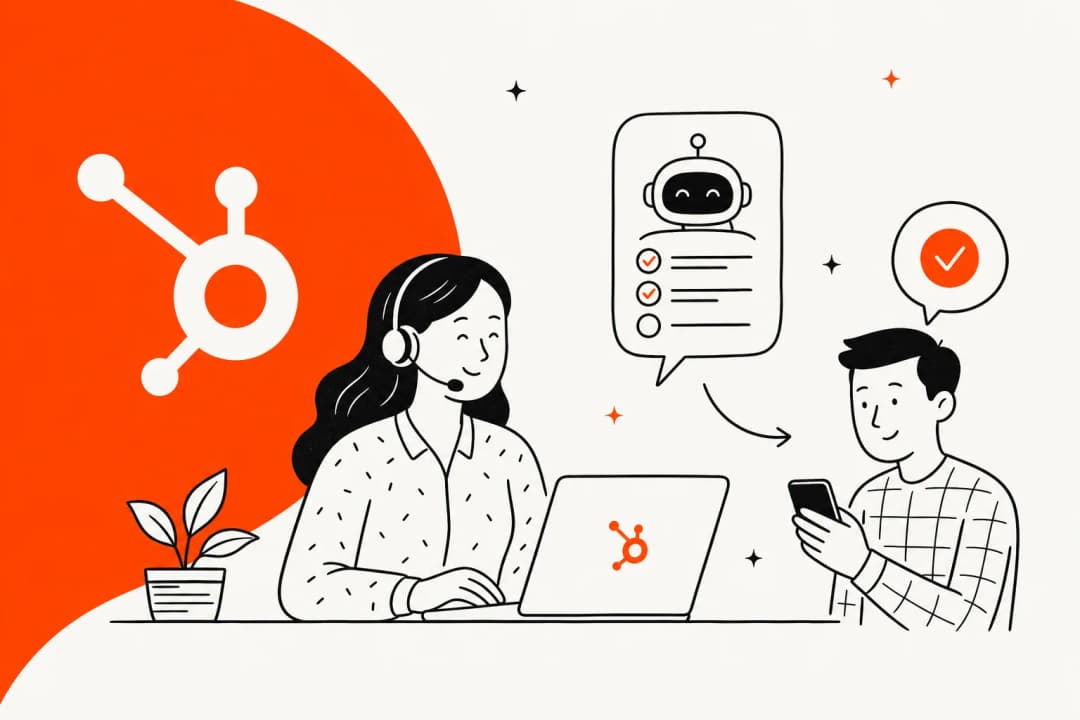
Banner image for How to set up Zendesk chat to email in 2026

Picture this: a customer starts a chat on your website, but then they get distracted, close the tab, or your team goes offline for the evening. That conversation? Gone. Unless you have a way to seamlessly continue it over email.

That's where Zendesk's continuous conversations feature comes in. It lets customers pick up exactly where they left off, switching from chat to email without losing context. No duplicate tickets, no frustrated customers repeating themselves, no missed opportunities.

Let's break down how to set this up properly.

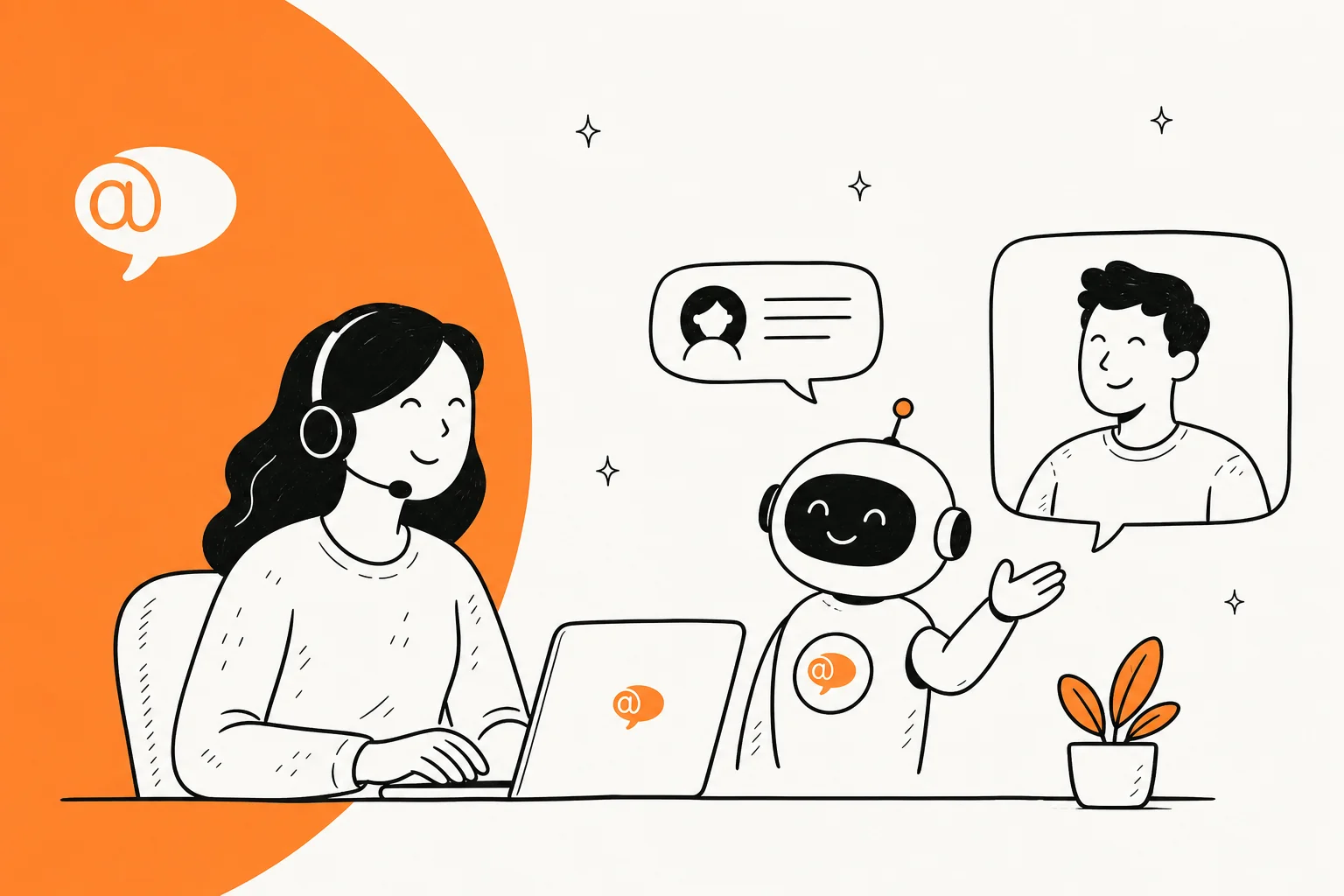
Visual workflow of how chat-to-email handoff works for customers

What you'll need

Before diving in, make sure you have the prerequisites sorted:

  • Zendesk Suite OR Support + Chat (Team plan or higher). Continuous conversations isn't available on the basic Support Team plan alone.
  • Agent Workspace activated. This is the unified interface where agents handle conversations across channels.
  • At least one agent with Chat access. Someone needs to be available to respond.
  • Support email address configured. The system needs a verified email to send from.
  • Web Widget (Classic) with messaging enabled. Note: this feature only works with the web widget, not mobile SDKs.

If you're missing any of these, you'll need to upgrade your plan or configure the missing pieces first.

Step 1: Enable continuous conversations in Admin Center

Here's the short version: enabling this feature takes about 30 seconds once you're in the right place.

Navigate to Admin Center (click the gear icon in the top-right of your Zendesk interface). In the sidebar, select Objects and rules, then Tickets > Settings. Scroll down to find the Continuous conversations section and expand it.

You'll see a checkbox labeled "Switch messaging conversations to email." Select it and click Save at the bottom of the page.

The admin interface for configuring a 'Request email for continuous conversations' trigger, detailing its conditions and actions.

Once you save, Zendesk automatically creates a trigger called "Request email for continuous conversations." This trigger handles the actual email sending logic. You don't need to build anything from scratch.

Step 2: Configure the email request trigger

The auto-created trigger is what makes the magic happen. By default, it sends an email request to the customer after the conversation has been idle for 5 seconds. This gives the customer a chance to provide their email address if they haven't already.

To view or modify this trigger, go to Admin Center > Objects and rules > Business rules > Messaging triggers. Look for "Request email for continuous conversation."

Here's where you might want to make adjustments:

  • Timing: The default 5-second idle time might be too aggressive for your use case. If you're already collecting email at the start of conversations, you might want to deactivate this trigger entirely to avoid duplicate requests.
  • Conditions: You can add conditions so the trigger only fires for specific types of conversations or during certain business hours.

If you're already capturing customer emails through a pre-chat form or authentication, you can safely turn off this trigger. The continuous conversations feature will still work; it just won't prompt for email since you already have it.

The Zendesk (or similar platform) Messaging triggers page, showing a list of configured triggers and the option to create new ones.

Step 3: Understand the email notification template

Here's something important to know: continuous conversation emails use your existing email notification template. You cannot create a separate, customized template specifically for these emails.

What does this mean in practice?

  • The email will match your brand's standard notification format
  • Content is automatically localized based on the user's profile language in Support
  • The email includes: number of unread agent messages, a snippet of the conversation, and instructions for continuing

The customer can respond directly to the email, and their reply flows back into the same ticket. Or they can click a link to return to the website chat. Either way, the entire conversation history stays in one place.

One limitation to be aware of: if the associated ticket status is Closed, the email won't send. This is by design to prevent notifications on resolved issues.

A platform's action settings panel displaying email notification template customization options, including dynamic variables for subject and body.

Step 4: Test the end-to-end experience

Don't skip testing. Here's how to verify everything works:

  1. Start a test conversation on your website using the Web Widget
  2. Leave the chat without ending it (close the browser tab or navigate away)
  3. Have an agent respond to the conversation from the Agent Workspace
  4. Wait for the inactivity threshold (default is when the conversation is deemed inactive with unread messages)
  5. Check that the email arrives with the correct content
  6. Reply to the email and confirm it appears back in the ticket
  7. Verify the channel indicator in the ticket shows whether responses came via email or messaging

The agent experience is straightforward. In the Zendesk Agent Workspace, the entire conversation appears as a single ticket. When the customer responds via email, you'll see an indicator showing the response channel.

The agent workspace interface showing a live chat conversation with Venkat Kumar, customer details, and associated ticket fields.

Troubleshooting common issues

Even with a straightforward setup, things can go wrong. Here's how to fix the most common problems:

"Zendesk chat to email not working"

If emails aren't sending, check these in order:

  • Ticket status: Emails won't send if the ticket is Closed. They will send if the ticket is Solved but the conversation has unread messages.
  • Conversation inactivity: The email only triggers when the conversation is deemed inactive. Check your inactivity settings.
  • Email configuration: Verify your support email address is properly configured and verified in Zendesk.
  • Trigger status: Make sure the "Request email for continuous conversations" trigger is active.

Character encoding issues

End user email addresses cannot contain accented characters (like é, ñ, or ü). If a customer tries to provide an email with these characters, the system won't accept it. There's no workaround; the customer needs to provide an address using standard ASCII characters.

Mobile limitation

This is a hard constraint: continuous conversations only works with the Web Widget. If you're using Zendesk's mobile SDKs for iOS or Android, this feature isn't available. Customers on mobile will have the standard chat experience without email continuation.

Reporting limitations

Here's a pain point many teams discover: there's no automatic reporting on how many conversations switch from chat to email. A Zendesk community post highlights this exact issue.

The manual workaround? Use tags and macros. Create a macro that applies a tag (like "chat_to_email") when you identify these conversations, then report on that tag. It's not elegant, but it works.

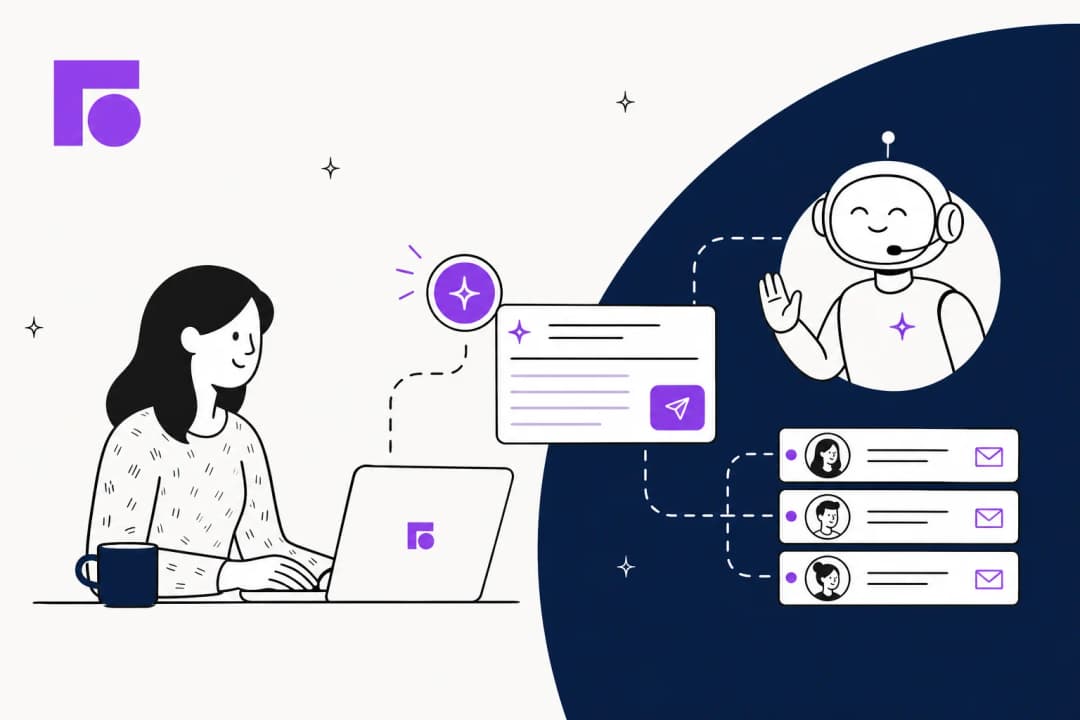
Visual guide for systematically troubleshooting common setup problems

Best practices for chat-to-email workflows

Getting the feature working is step one. Using it effectively is where the real value comes in.

Coordinate with out-of-office triggers

If you're using an out-of-office message trigger, consider deactivating it when using continuous conversations. Both features can send emails to customers who message you while offline, which creates duplicate notifications. Choose one approach and stick with it.

Train agents on cross-channel context

When a customer switches from chat to email, the tone often changes. Chat is informal and brief; email tends to be more formal and detailed. Make sure your agents understand this context shift and adjust their responses accordingly.

Set up tags for tracking

Even though automatic reporting doesn't exist, you can still track these conversions manually. Create a trigger that adds a tag when a conversation receives an email response, or train agents to add the tag as part of their workflow. This gives you data to analyze channel-switching patterns.

Manage customer expectations

Be transparent with customers about how the handoff works. A simple message like "If you need to step away, we'll send our response to your email so you can continue the conversation there" sets the right expectation and reduces confusion.

How eesel AI handles chat-to-email transitions

Zendesk's continuous conversations solve the basic problem, but there's a broader opportunity here: making every channel transition intelligent, not just possible.

At eesel AI, we approach this differently. Instead of just passing the conversation from chat to email, our AI Agent learns from your past tickets to understand context across channels. It doesn't just know what was said; it understands the customer's intent, their history with your company, and how similar issues were resolved.

A screenshot of the eesel AI platform showing the no-code interface for setting up the main AI agent, which uses various subagent tools.

Here's how it works in practice:

  • Progressive rollout: Start with the AI drafting replies for human review. Once you're confident in its performance, let it send responses directly.
  • Plain text control: Define escalation rules, tone, and behavior in natural language. No complex configuration or coding required.
  • Cross-channel memory: Whether a customer reaches out via chat, email, or your help desk, the AI maintains context from every previous interaction.
  • Omnichannel by design: We integrate with Zendesk, Freshdesk, Intercom, and 40+ other platforms, so you can maintain consistent support across all channels.

The result? Customers get seamless transitions not just between chat and email, but between any channel they choose to use. And your team spends less time context-switching and more time solving complex problems.

Our pricing starts at $239/month (billed annually) for the Team plan, which includes AI Copilot, Slack integration, and up to 3 bots. The Business plan at $639/month adds AI Agent capabilities, bulk simulations over past tickets, and unlimited bots.

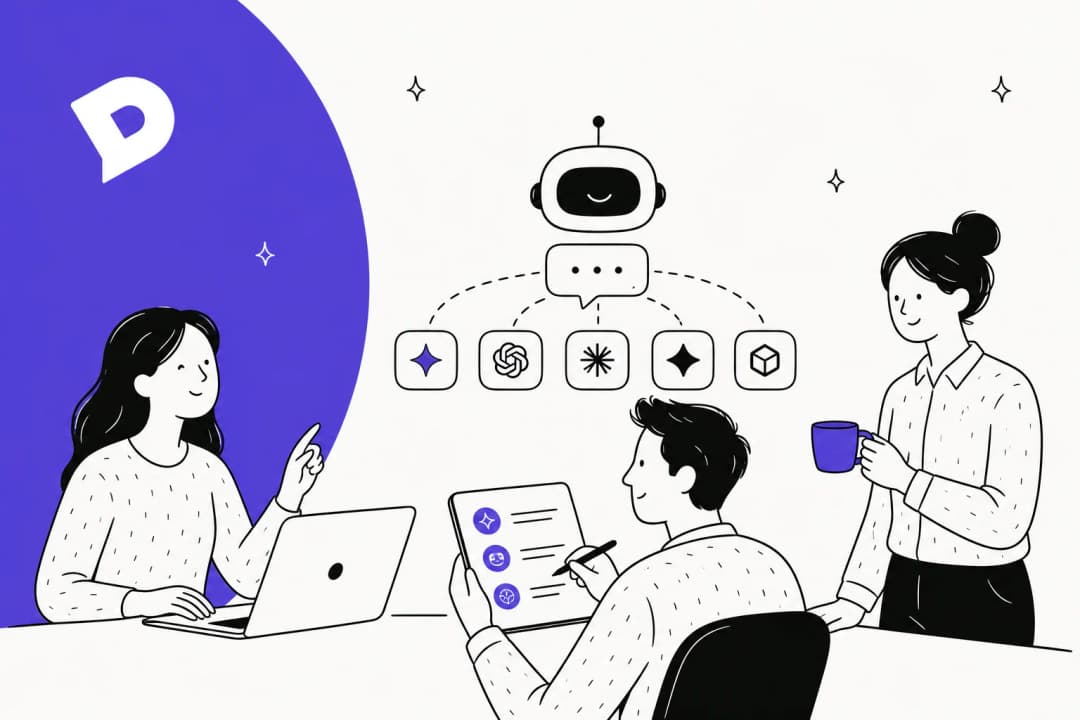
Key differences between basic channel switching and AI-powered conversation continuity

Start improving your omnichannel support today

Zendesk's continuous conversations feature is a solid foundation for chat-to-email workflows. It's built-in, relatively easy to set up, and solves the immediate problem of lost conversations when customers leave your website.

But omnichannel support is about more than just channel switching. It's about maintaining context, understanding intent, and delivering consistent experiences regardless of how customers reach out.

If you're looking to go beyond basic channel handoffs and want AI that actually learns your business, try eesel AI for free. Our 7-day trial lets you see how intelligent automation works across all your support channels, not just chat and email.


Frequently Asked Questions

You need Zendesk Suite OR Support + Chat on the Team plan or higher. The basic Support Team plan ($19/agent/month) doesn't include messaging or continuous conversations. Suite Team starts at $55/agent/month annually.
No. Zendesk's continuous conversations feature only works with the Web Widget on desktop browsers. Mobile SDKs for iOS and Android don't support this functionality.
Zendesk doesn't provide automatic reporting for this. The manual workaround is to create a macro that applies a tag (like 'chat_to_email') to these conversations, then build reports based on that tag.
No. Continuous conversation emails use your standard email notification template. You cannot create a separate template specifically for these emails, though the content is localized based on user language.
Check these common causes: (1) The ticket status is Closed (emails don't send for closed tickets), (2) The conversation hasn't reached the inactivity threshold, (3) The trigger is deactivated, or (4) Your support email address isn't properly verified.
Yes. eesel AI integrates directly with Zendesk and can handle conversations across all channels, including chat and email. It learns from your past tickets and help center to provide consistent, context-aware responses.

Share this post

Stevia undefined

Article by

Stevia Putri

Stevia Putri is a marketing generalist at eesel AI, where she helps turn powerful AI tools into stories that resonate. She’s driven by curiosity, clarity, and the human side of technology.