How to cancel orders in Zendesk: A complete guide for 2026

Stevia Putri
Last edited March 3, 2026
Handling order cancellations efficiently is a critical part of e-commerce customer service. When customers reach out to cancel an order, they expect a quick, hassle-free process. Get it right, and you turn a potentially negative experience into a demonstration of excellent support. Get it wrong, and you risk chargebacks, negative reviews, and lost customers.
This guide covers everything you need to know about canceling orders in Zendesk, from manual processes for agents to automation workflows that save hours of work each week. We'll also look at how AI can handle routine cancellations autonomously, freeing your team to focus on more complex issues.

Understanding order cancellation in Zendesk
Order cancellation in Zendesk typically involves two different workflows: customer self-service and agent-assisted cancellation.
Customer self-service happens when buyers log into their account and cancel directly through your e-commerce platform (like Shopify, WooCommerce, or Magento). They might then reach out to Zendesk for confirmation or questions about refunds. This is the ideal scenario because it requires zero agent time.
Agent-assisted cancellation is what happens when customers contact your support team to request a cancellation. This is where Zendesk shines as a central hub for managing these requests, tracking communications, and ensuring nothing falls through the cracks.
The key challenge is speed. Most e-commerce platforms only allow cancellations before an order ships. Once items are in transit, you're looking at returns and refunds instead, which are more expensive and time-consuming for everyone involved. Efficient cancellation handling in Zendesk directly impacts customer satisfaction and your bottom line.
At eesel AI, we've seen teams reduce their cancellation handling time by up to 80% through smart automation. But before you automate, you need to understand the manual process.
What you'll need to get started
Before you start processing cancellations in Zendesk, make sure you have:
- A Zendesk Support account (Team plan or higher)
- Admin permissions to create triggers and macros, or agent permissions to process tickets
- Access to your e-commerce platform (Shopify, WooCommerce, Magento, etc.) with order management rights
- A clear understanding of your company's cancellation policy (time limits, restocking fees, refund methods)
- Optional but recommended: our eesel AI integration for advanced automation
You'll also want to document your cancellation workflow so all agents handle requests consistently. Inconsistency leads to confusion, missed refunds, and unhappy customers.
Step-by-step: Canceling orders manually in Zendesk
Let's walk through the manual cancellation process. Even if you plan to automate, understanding these steps helps you design better workflows and troubleshoot when things go wrong.
Step 1: Access the ticket and verify order details
Start by opening the cancellation request ticket. Read the customer's message carefully to understand what they want to cancel and why. Sometimes customers ask to cancel when they actually want to modify an order (change size, color, or shipping address). Clarifying the request upfront saves time.
Next, verify the customer's identity. Check that the email address on the ticket matches the order in your e-commerce system. For phone or chat requests, you'll need to confirm details like order number, billing address, or last four digits of the payment card.
Locate the order in your e-commerce platform using the order number. Check the order status carefully. If it shows as "Processing" or "Pending," you can likely cancel it. If it shows as "Fulfilled" or "Shipped," cancellation may not be possible.
Confirm cancellation eligibility based on your company policy. Some businesses allow cancellations within 24 hours, others within a specific window before shipping. Note any restocking fees or special conditions that apply.
Step 2: Process the cancellation in your e-commerce platform
Log into your e-commerce platform with the appropriate credentials. Navigate to the orders section and locate the specific order using the order number from the Zendesk ticket.
For Shopify users, the process looks like this: Click on the order, then select "More actions" and "Cancel order." Choose your refund method (original payment, store credit, or refund later), select a cancellation reason, and decide whether to restock inventory and notify the customer.
Other platforms follow similar patterns. The key is to complete the cancellation in your e-commerce system first, before updating the Zendesk ticket. This ensures the order is actually canceled before you tell the customer it is done.
Note any restocking fees, refund timing, or special circumstances. If you're issuing a partial refund or splitting refunds between payment methods, document this clearly for the customer.
Step 3: Update the Zendesk ticket
Now that the order is canceled in your e-commerce platform, update the Zendesk ticket to reflect this. If you have a cancellation macro set up, apply it now. Macros save time by automatically adding the right tags, setting the status, and inserting pre-written response text.
Add internal notes documenting the cancellation details: order number, cancellation timestamp, refund amount and method, and any special circumstances. These notes create an audit trail and help if the customer follows up later.
Set the appropriate ticket status. "Solved" works well for straightforward cancellations where no further action is needed. "Pending" might be appropriate if you're waiting for a refund to process or need to follow up with the customer.
Add a cancellation tag (like "order_cancelled" or "cancellation") for tracking and reporting. This lets you analyze cancellation rates, identify trends, and measure the impact on your support workload.
Step 4: Communicate with the customer
Send a clear confirmation message to the customer. Include the order number that was canceled, confirmation that the cancellation is complete, and details about the refund (amount, method, and expected timing).
Be transparent about refund timelines. Credit card refunds typically take 3-5 business days, while PayPal or other methods might be faster or slower. Setting clear expectations prevents follow-up tickets asking "where's my refund?"
Include any relevant policy details, such as restocking fees (if applicable) or confirmation that no fees were charged. If the cancellation was outside your standard policy window but you approved it as an exception, a brief note explaining this can build goodwill.
Offer alternative solutions if applicable. If you couldn't cancel because the order already shipped, explain the return process. If the customer wanted a different size or color, let them know how to place a new order or if you can modify the existing one.
Automating order cancellations with Zendesk triggers and macros
Manual cancellation works fine for low volumes, but as your business grows, automation becomes essential. Zendesk offers powerful tools to streamline cancellation workflows.
Setting up cancellation detection triggers
Triggers are automated rules that fire when specific conditions are met. For cancellations, create a trigger that detects cancellation keywords in incoming tickets.
Set the conditions to look for "cancel" or "cancellation" in the ticket subject or comment text. You might also include common phrases like "want to cancel my order" or "please cancel."
When these conditions are met, have the trigger add a tag like "cancellation_request" and assign the ticket to a specific group or agent who handles cancellations. You can also have it set the priority or add a note flagging it for quick attention.
This ensures cancellation requests get routed to the right people immediately, rather than sitting in a general queue.
Creating cancellation macros
Macros are pre-written responses and actions that agents can apply with one click. A well-designed cancellation macro saves time and ensures consistent communication.
Build your macro to include a professional cancellation confirmation message with personalization placeholders (like {{ticket.requester.first_name}}). Set the macro actions to add your cancellation tag, set the status to "Solved," and assign the ticket appropriately.
Organize macros with clear naming conventions. Something like "Orders::Cancellation::Confirmed" makes it easy for agents to find the right macro quickly.
Consider creating multiple macros for different scenarios: standard cancellation, cancellation with refund delay, cancellation for shipped orders (explaining return process), and cancellation with restocking fee.
Closing cancelled tickets automatically
Zendesk automations are time-based rules that run on tickets. Create an automation to close cancelled tickets after a brief delay.
Set the conditions: status is "Solved," tag contains "cancelled," and hours since solved is greater than 2. The action changes the status to "Closed" and removes the "cancelled" tag.
Why the delay? It gives customers a window to reply if they have second thoughts or additional questions. Removing the tag prevents the automation from running repeatedly on the same ticket.
This keeps your ticket queue clean and your metrics accurate, without manual intervention.
Using eesel AI to automate Zendesk order cancellations
Triggers and macros help, but they still require human agents to process each cancellation. For high-volume stores, this becomes a significant workload. Here's how we can help.
At eesel AI, we've built an AI agent that integrates directly with Zendesk to handle routine cancellations autonomously.

Our AI learns from your past tickets, help center articles, and cancellation policies. When a customer sends a cancellation request, the AI reads the ticket, verifies the order details in Shopify (or your e-commerce platform), processes the cancellation if it meets your criteria, and sends a confirmation message to the customer.
The AI can look up orders in real-time, check cancellation eligibility based on your rules, process refunds through your payment system, and escalate to human agents when needed (for example, if the order has already shipped or the request is outside your policy window).
Unlike simple keyword-based automation, our AI understands context. It can handle variations like "I changed my mind about my order" or "Please don't send this item" even if the word "cancel" isn't used.
We offer a simulation mode that lets you test the AI on thousands of past tickets before going live. You can see exactly how it would have handled historical cancellations and fine-tune its behavior until you're confident.
Our pricing starts at $239 per month for the Team plan (billed annually), which includes up to 3 AI bots and 1,000 interactions. The Business plan at $639 per month adds AI agents for your helpdesk, training on past tickets, and up to 3,000 interactions. All plans include a 7-day free trial.
Best practices for handling order cancellations
Whether you handle cancellations manually or with automation, these best practices will improve your process.
Establish clear cancellation policies and communicate them prominently. Customers should know your time limits and any fees before they place an order. This reduces cancellation requests and disputes.
Train agents on when to escalate versus process directly. A first-line agent should be able to handle standard cancellations, but complex cases (high-value orders, VIP customers, edge cases) might need supervisor approval.
Monitor cancellation rates and reasons for insights. If you see a spike in cancellations for a specific product, investigate quality issues. If cancellations cluster around shipping delays, address your fulfillment process.
Use tags and custom fields for tracking and reporting. Beyond a simple "cancelled" tag, consider tracking cancellation reason, product category, and time-to-cancel. This data helps you identify and fix root causes.
Set up CSAT exclusions for cancellation tickets. Customers who cancel are already dissatisfied, so their feedback might skew your satisfaction scores. Excluding these tickets gives you a clearer picture of support quality for customers you actually served.
Maintain an audit trail for compliance and refunds. Document who canceled what, when, and why. This protects you in disputes and helps with financial reconciliation.
Start automating your Zendesk order cancellations today
You've now got a complete picture of order cancellation in Zendesk, from manual processing to full AI automation. Let's recap the options.
Manual cancellation through Zendesk tickets works for low volumes and gives you complete control. Triggers and macros add efficiency by routing requests and standardizing responses. But both approaches still consume agent time for routine requests.
AI automation with eesel AI takes the next step, handling standard cancellations autonomously while escalating exceptions to your team. This frees your agents to focus on complex issues that actually require human judgment.
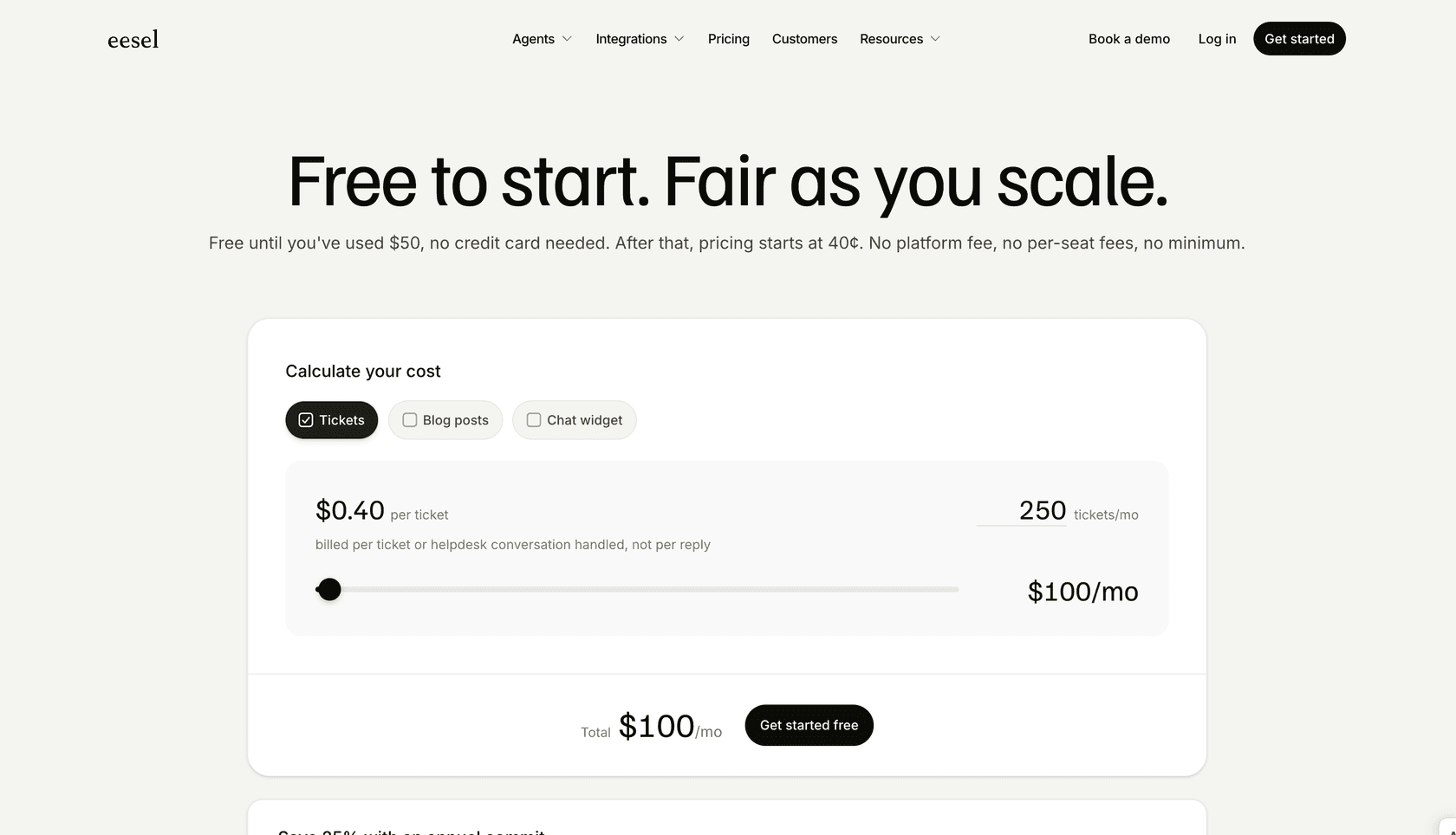
If you're processing more than a few dozen cancellations per week, it's worth exploring automation. Start with our 7-day free trial to see how the AI performs on your historical tickets. You can test everything risk-free before deciding.
Ready to reduce your cancellation workload? Get started with eesel AI and see how much time your team can save.


Frequently Asked Questions
Share this article

Article by
Stevia Putri
Stevia Putri is a marketing generalist at eesel AI, where she helps turn powerful AI tools into stories that resonate. She’s driven by curiosity, clarity, and the human side of technology.



