There's nothing quite like the panic of realizing your Zendesk bot has gone silent. Customers are typing questions and getting... nothing. Or worse, they're getting stuck in loops where the bot keeps asking the same question back. If you're here, you've probably already checked the obvious stuff and you're looking for answers that actually work.
This guide walks through eight proven fixes for when your Zendesk bot stops responding. We'll cover everything from quick configuration checks to the platform limitations that might be blocking you. And if you keep hitting walls with Zendesk's native bots, we'll show you how teams are solving these problems with eesel's AI agent for Zendesk as an alternative approach.

Quick diagnostic checklist
Before diving into specific fixes, run through this two-minute triage to narrow down what's happening:
Check the scope. Is the bot failing on one channel (like web chat) but working on others (like email)? This points to a channel-specific issue rather than a bot-wide problem.
Verify it's published. In Zendesk, bots can be saved but not published. Head to Admin Center > Channels > Bots and confirm your bot shows as "Published" not just "Saved."
Test in incognito. Browser cache and cookies cause weird behavior. Open an incognito window and test the conversation fresh.
Review status pages. Check Zendesk's status page to rule out platform-wide outages.
Capture the details. Note the conversation ID, timestamp, and exactly what the user typed. You'll need these if you escalate to Zendesk support.
If the issue persists after these checks, move on to the specific fixes below.
Common causes and solutions
1. Bot not receiving events or loading
When the widget simply doesn't appear or the bot never triggers, the issue usually sits at the integration layer between your site and Zendesk.
Check your widget installation. The Zendesk Web Widget needs to load on every page where you want the bot available. Verify the script is present in your site's header and that no content security policies are blocking it.
Watch for ad blockers and privacy extensions. Browser extensions like uBlock Origin or Privacy Badger often block Zendesk's widget scripts. This is one of the most common causes of "the bot works for me but not for customers." Test with extensions disabled.
Verify channel credentials. Each bot needs to be published to the correct brand and channel. In Admin Center, check that your bot is associated with the messaging channel your customers are actually using. A bot published to the wrong brand won't respond even if everything else looks correct.
2. Authentication and permission issues
Signed-in users sometimes see different bot behavior than anonymous visitors. This usually traces back to authentication configuration.
SAML vs JWT conflicts. If you're using SAML for agent authentication but JWT for end-user authentication, the bot can get confused about who it's talking to. Zendesk's messaging system expects consistent authentication methods. Review your Admin Center > Channels > Messaging settings and ensure authentication is configured uniformly.
Restricted help center content. Bots trained on help center articles won't respond with content the user doesn't have permission to see. If your help center has restricted sections, the bot may simply have nothing to say to certain users. Either open up the relevant articles or train the bot on additional public sources.
SSO session timeouts. When a user's SSO session expires mid-conversation, the bot often stops responding rather than gracefully handling the auth failure. Check your SSO provider's session timeout settings and consider implementing refresh token handling if your integration supports it.
3. Trigger conflicts and routing problems
Zendesk's trigger system is powerful but can create conflicts that silently break bot conversations.
Overly broad triggers. A trigger set to fire on "all tickets" can intercept bot conversations before they complete. Review your triggers (Admin Center > Objects and Rules > Triggers) and look for any that might be grabbing bot conversations. Add conditions like "Channel is not Messaging" or "Current user is not end-user" to exclude bot interactions.
Business hours routing. If your bot is configured to hand off to agents during business hours, but those agents are in an offline group, the conversation can get stuck in limbo. The bot thinks it handed off successfully, but no agent ever receives it. Check your business hours configuration and ensure your routing targets active groups.
Group assignment loops. Some trigger setups create loops where a ticket gets assigned to Group A, which triggers an action that assigns it to Group B, which triggers reassignment back to Group A. The bot gets caught in this loop and stops responding meaningfully. Audit your trigger chain for circular dependencies.
4. Intent recognition failures
When the bot responds with "I didn't understand that" or keeps asking the same clarifying question, you're dealing with intent recognition issues.
Ambiguous training data. If your training phrases for "Refund request" include things like "I want my money back" but your "Cancel subscription" intent includes "I don't want to pay anymore," the bot can't distinguish between refund requests and cancellations. Review your intent training data and ensure phrases are specific to each intent.
Near-duplicate intents. Having intents like "Check order status" and "Where is my order" dilutes the bot's accuracy. Merge similar intents and use entity extraction to handle variations. One strong intent beats three overlapping ones.
Missing confidence thresholds. Without a minimum confidence threshold, the bot will guess even when it's not sure. Set a confidence threshold (usually 70-80%) so the bot escalates to a human rather than giving a wrong answer. You can configure this in your bot's conversation settings.
5. Knowledge base connectivity issues
Bots that rely on help center articles for answers can fail silently when those articles aren't accessible.
Article permissions and visibility. Draft articles, articles restricted to certain user segments, or articles in inactive sections won't be available to the bot. Audit your help center content and ensure the articles you want the bot to use are published and visible to the appropriate audiences.
Content organization problems. The bot works best when your help center has clear categorization. If everything is dumped in "General," the bot struggles to find relevant content. Implement a clear category structure and tag articles with relevant keywords.
Deleted articles not redirected. When you delete a help center article that the bot was trained on, the bot doesn't automatically know to stop referencing it. It may try to link users to a 404 page. When removing articles, update your bot's training data or set up redirects to replacement content.
6. API and webhook timeouts
This is where things get frustrating. Zendesk has fixed timeout limits for bot API calls, and these cannot be increased.
The timeout constraint. According to Zendesk support, bot API calls have a hard timeout limit. If your bot needs to look up information in an external system (like checking inventory or pulling customer data), and that lookup takes longer than the timeout window, the call fails and the bot stops responding. This is a confirmed platform limitation, not a configuration issue.
Authentication errors (401, 403). When API calls return auth errors, the bot often fails silently rather than surfacing the error. Check your API credentials and ensure tokens haven't expired. If you're using OAuth, verify the refresh token flow is working.
Response time requirements. Any API your bot calls needs to respond fast. If you're integrating with slow external systems, consider caching frequently requested data or moving to asynchronous webhooks where possible.
7. Timeout and inactivity configuration
Zendesk's messaging and legacy chat handle timeouts differently, and the defaults often cause confusion.
Messaging vs chat differences. In Zendesk Messaging (the newer platform), conversations persist across sessions. In legacy Chat, they don't. If you're on Messaging and the bot seems to "remember" things it shouldn't, or if you're on Chat and the bot forgets everything between page loads, you're seeing expected platform behavior that looks like a bug.
The 4-day handback delay. Here's a fun one: when a ticket is marked Solved in Zendesk, there's a default 4-day delay before it moves to Closed status. During this window, if the customer messages again, the same ticket reopens rather than creating a new one. The bot may not re-engage because it sees this as an existing ticket, not a new conversation. You can adjust this delay in your automation settings, but you can't eliminate it entirely.
Inactivity period settings. Bots can be configured to hand off to agents after a period of inactivity. If this is set too short (like 30 seconds), the bot hands off before the user finishes typing. Review your bot's inactivity timeout settings and set them appropriate to your use case.
8. Platform-specific issues (mobile SDK)
Mobile implementations have their own quirks that don't appear in web testing.
Android and iOS SDK differences. The Zendesk SDKs for Android and iOS handle authentication and conversation state differently. A bot that works perfectly on web may fail on mobile due to SDK-specific implementation details. Test on both platforms separately.
JWT authentication on mobile. Mobile apps using JWT for authentication often struggle with token refresh. If the JWT expires mid-conversation, the bot may stop responding. Implement proper token refresh logic in your mobile app and test edge cases around session expiry.
App integration problems. If you're embedding Zendesk messaging inside a native app using a WebView, you may encounter cookie and storage issues that break the bot. Consider using the native SDKs instead of WebView wrappers for more reliable behavior.
Understanding Zendesk's limitations
Some issues aren't bugs, they're platform constraints you need to work around.
API timeouts cannot be increased. This is the big one. If your bot needs to make external API calls that take longer than Zendesk's timeout window, you simply cannot make that work within Zendesk's native bot framework. Teams that need complex integrations often hit this wall hard.
Flow Builder is legacy for new customers. If you created your Zendesk account after February 2025, you don't get access to Flow Builder at all. You're on the newer AI Agent platform, which has different capabilities and limitations. Documentation you find online may reference Flow Builder features that don't exist in your environment.
Advanced AI Agents are paid add-ons. The AI Agent features that resolve 80%+ of conversations aren't included in base plans. You need the Advanced AI Agents add-on, which requires contacting sales for pricing. The base AI agents have more limited capabilities.
Copilot usage is capped. On most Zendesk plans, Copilot (the AI writing assistant for agents) is limited to 5 uses per agent per month. After that, agents lose AI assistance mid-shift. Additional Copilot access costs $50 per agent per month.
When these limitations become blockers for your use case, it's worth evaluating whether Zendesk's native AI is the right fit or if you need something more flexible.
When to consider alternatives
If you've worked through the fixes above and you're still hitting walls, you might have outgrown what Zendesk's native bots can offer. Here are the signs it's time to look at alternatives like eesel AI:
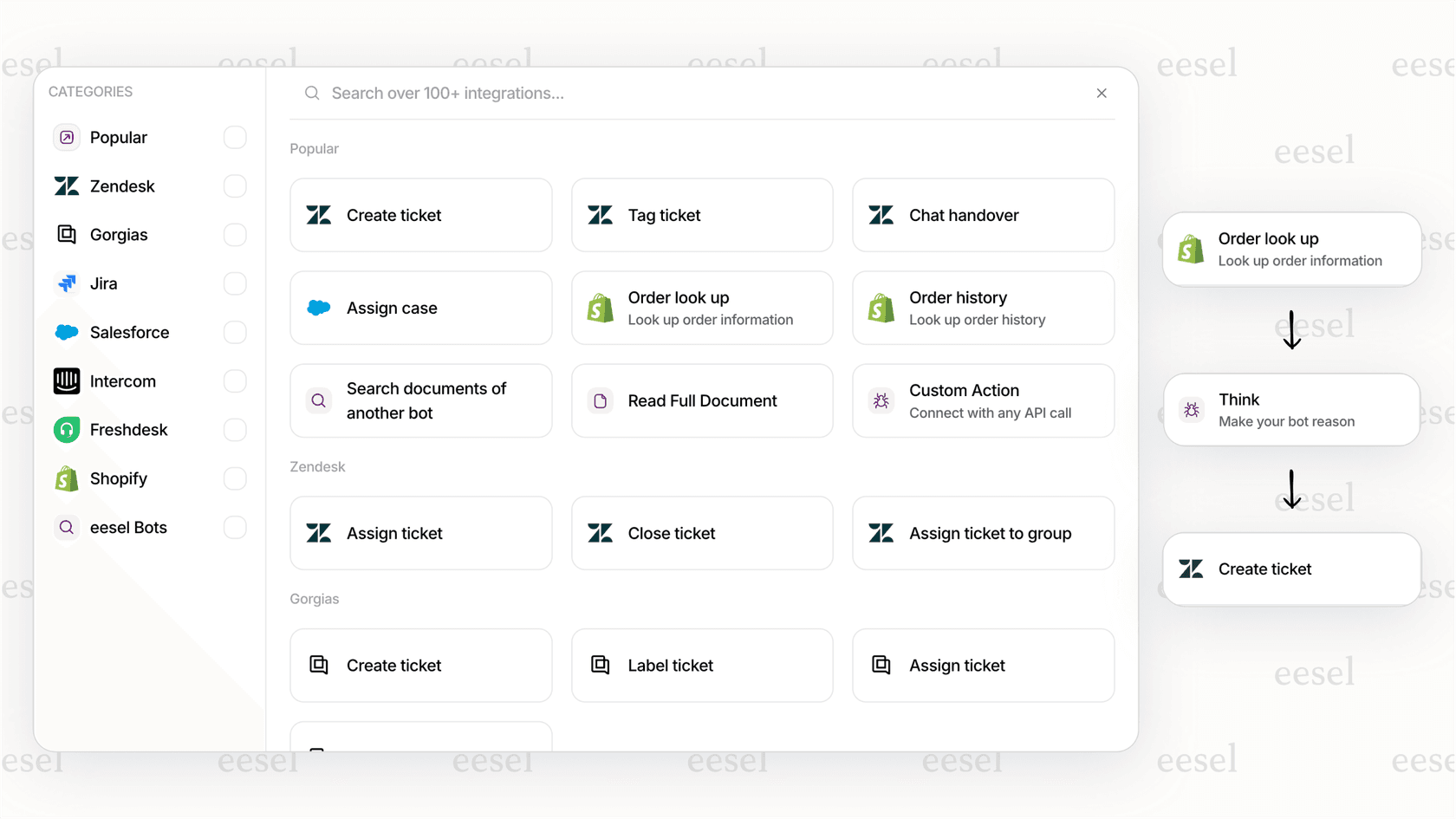
You need complex API integrations. If your bot needs to look up data in multiple systems, calculate pricing, or perform actions that take more than a few seconds, Zendesk's timeout constraints will block you. eesel AI has no API timeout constraints, so your bot can take the time it needs to gather information and complete actions.
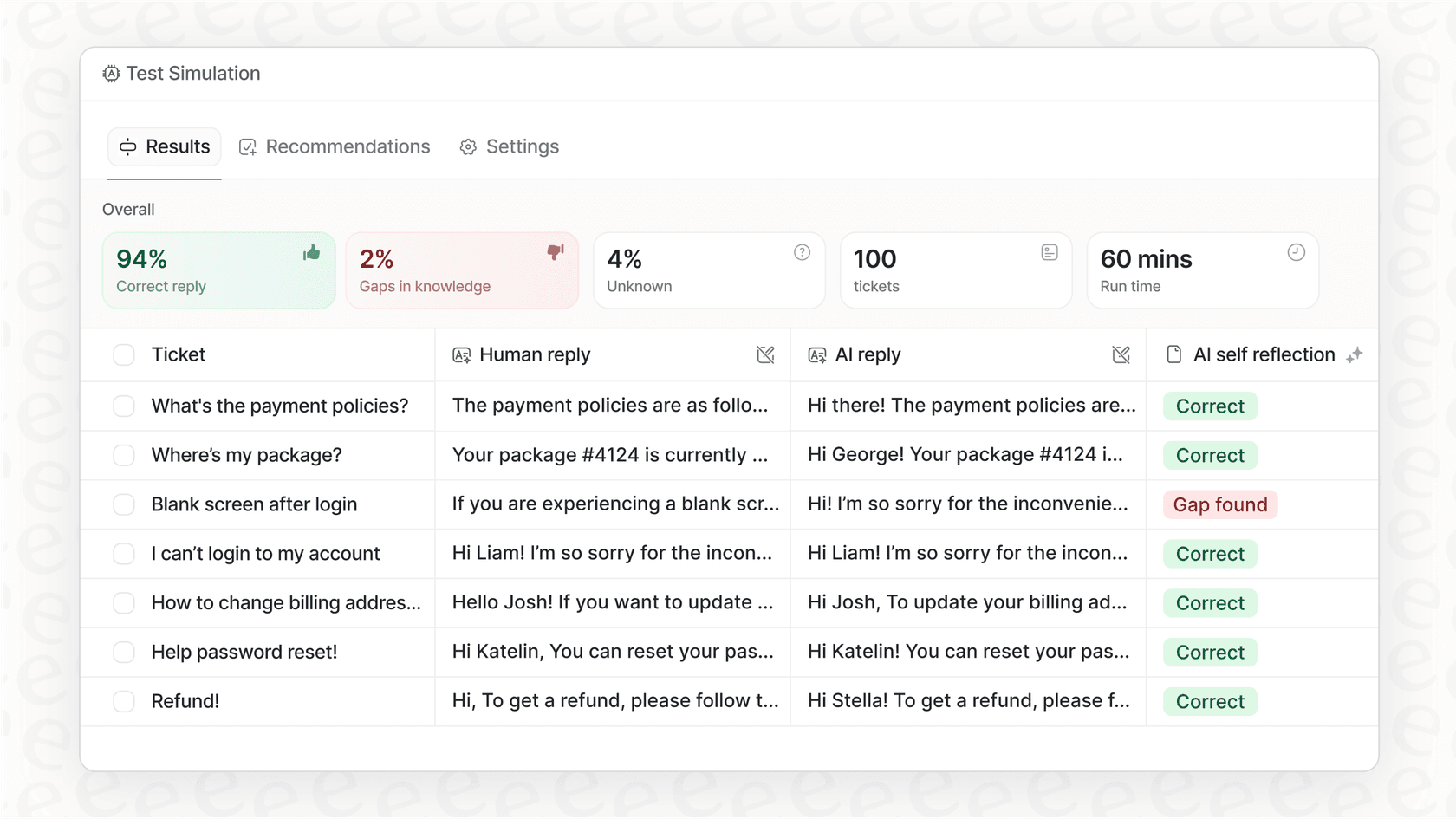
You want to test before going live. Zendesk doesn't offer a way to simulate bot conversations on historical tickets before deploying to customers. With eesel AI, you can run simulations on past tickets to measure accuracy and identify gaps before any customer sees the bot.
You prefer plain English configuration. Instead of building complex trigger trees and flow diagrams, you can describe what you want the bot to do in natural language. "If the customer asks about refunds over 30 days old, politely decline and offer store credit." No code, no rigid decision trees.
You want progressive rollout. Start with the bot drafting replies for agents to review. Once you're confident in its performance, let it send responses directly. Then expand to more ticket types. This controlled progression isn't possible with Zendesk's all-or-nothing approach.
Teams like Discuss.io have made the switch for exactly these reasons. As their Zendesk administrator put it: "eesel AI streamlines our workflow, boosts productivity, and ensures a higher level of service consistency."
Prevention and monitoring tips
Once you've got your bot working, keep it that way with these practices:
Track bot health metrics. Monitor response rates, escalation rates, and customer satisfaction scores weekly. A sudden spike in escalations often indicates a configuration change broke something.
Set up automated testing. Create a suite of test conversations that cover your most common customer intents. Run these weekly to catch regressions before customers do.
Deploy changes incrementally. Don't push major bot updates on Friday afternoon. Make changes during low-traffic periods and monitor for issues before scaling up.
Review conversation logs weekly. Spend 30 minutes each week reading through bot conversations that escalated to agents. You'll spot patterns in what's confusing the bot and can adjust training data accordingly.
Getting your Zendesk bot back online
Let's recap the fixes that actually work:
- Check widget installation and watch for ad blockers
- Verify authentication configuration for signed-in users
- Audit triggers for conflicts and routing loops
- Clean up intent training data and set confidence thresholds
- Ensure help center articles are accessible and organized
- Work around API timeout constraints (or find a platform without them)
- Adjust inactivity and handback timeout settings
- Test mobile SDK implementations separately from web
If you've tried these and you're still stuck, it may be time to escalate to Zendesk support with your conversation IDs and timestamps. Or, if you're hitting fundamental platform limitations, consider whether eesel AI's Zendesk integration might be a better fit for your needs.
The goal isn't to make Zendesk's native bots do something they weren't designed for. It's to get your customers the support they need, however you achieve that. Sometimes that means fixing the configuration. Sometimes it means finding a tool that better matches your requirements.