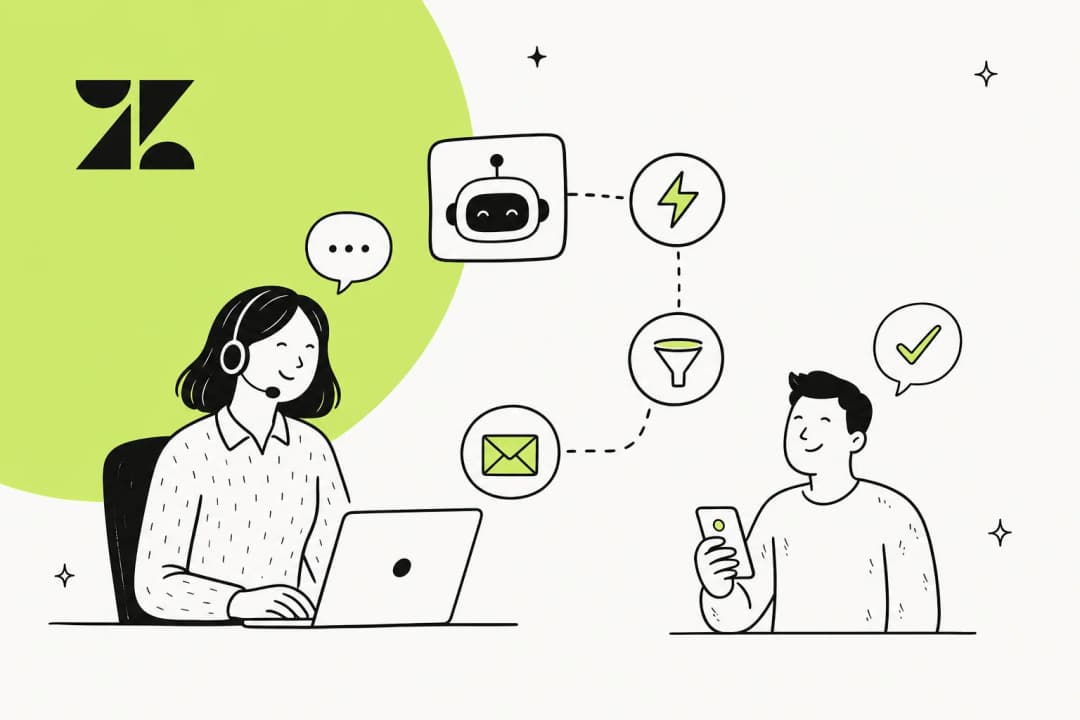
If your support team uses Zendesk and you're looking to speed up response times, you've probably come across Auto Assist. It's one of the newer AI features in Zendesk's lineup, designed to help agents resolve tickets faster by suggesting replies and actions in real time.
But what does Auto Assist actually do? And more importantly, is it worth the investment for your team? Let's break it down.
What is Zendesk Auto Assist?
Zendesk Auto Assist is an AI-powered feature that sits inside the Zendesk Agent Copilot add-on. It works by analyzing incoming tickets and suggesting replies and actions to your agents as they work.
Think of it as having a senior agent looking over your shoulder, offering suggestions based on how similar issues have been resolved before. The difference is that this "senior agent" is an AI that's read your help center articles, your past tickets, and the procedures you've written for handling specific issues.
Here's the key thing: Auto Assist doesn't send anything to customers automatically. Every suggestion requires an agent to review and approve it before it goes out. This human-in-the-loop design means you maintain control over what customers see while still getting the speed benefits of AI assistance.
The feature uses large language model (LLM) technology to understand the context of tickets and generate relevant suggestions. It's not just keyword matching; it actually tries to understand what the customer is asking and what'd be the most helpful response.
How Zendesk Auto Assist works
The magic behind Auto Assist comes down to something called procedures. These're essentially written instructions that tell the AI how to handle specific types of issues.
When a ticket comes in, Auto Assist does the following:
- Analyzes the ticket content using its LLM to understand what the customer needs
- Matches the issue to a procedure you've created (if one exists)
- Pulls from multiple sources including your procedures, help center articles, and similar solved tickets
- Generates a suggestion that could be a reply draft, recommended actions, or both
- Adapts the tone to match the ongoing conversation style
The suggestions appear directly in the agent workspace, replacing the standard composer. Agents can review the suggestion, edit it if needed, and send it with a click.
Auto Assist can recommend two types of actions:
- Agent-approved actions (most common): Suggestions that require explicit approval before they're executed
- Pre-approved actions: Certain actions you've configured to happen automatically, like checking order status or updating specific fields
The system also adapts its writing style to match the conversation. If a customer's writing formally, the suggestions will be formal. If they're casual and friendly, the AI matches that tone. This helps maintain consistency without agents having to manually adjust their writing style for every ticket.
Setting up Zendesk Auto Assist
Getting Auto Assist running requires some upfront configuration. Here's the process broken down into manageable steps.
Prerequisites
Before you can enable Auto Assist, you'll need:
- The Agent Copilot add-on ($50 per agent per month when billed annually)
- A Zendesk Suite Professional or Enterprise plan as your base
- Your account on Zendesk's improved messaging backend
- Admin access to configure the feature
Step 1: Enable Auto Assist in Admin Center
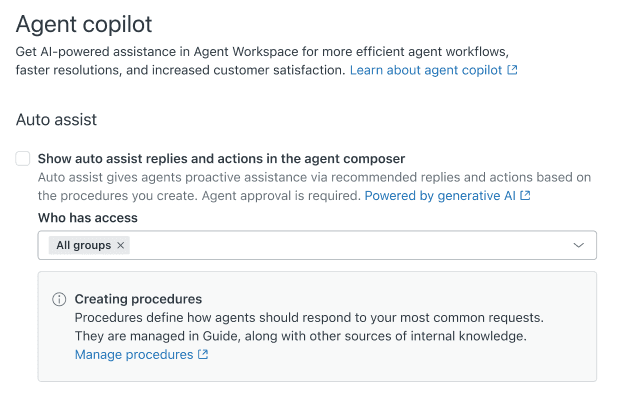
Navigate to Admin Center > AI > Agent Copilot > Auto Assist. Turn on "Show auto assist replies and actions in the agent composer."
You'll also need to define which agent groups have access to the feature. If you're testing, start with a small group that includes only yourself or a few trusted agents.
Step 2: Create your first procedure
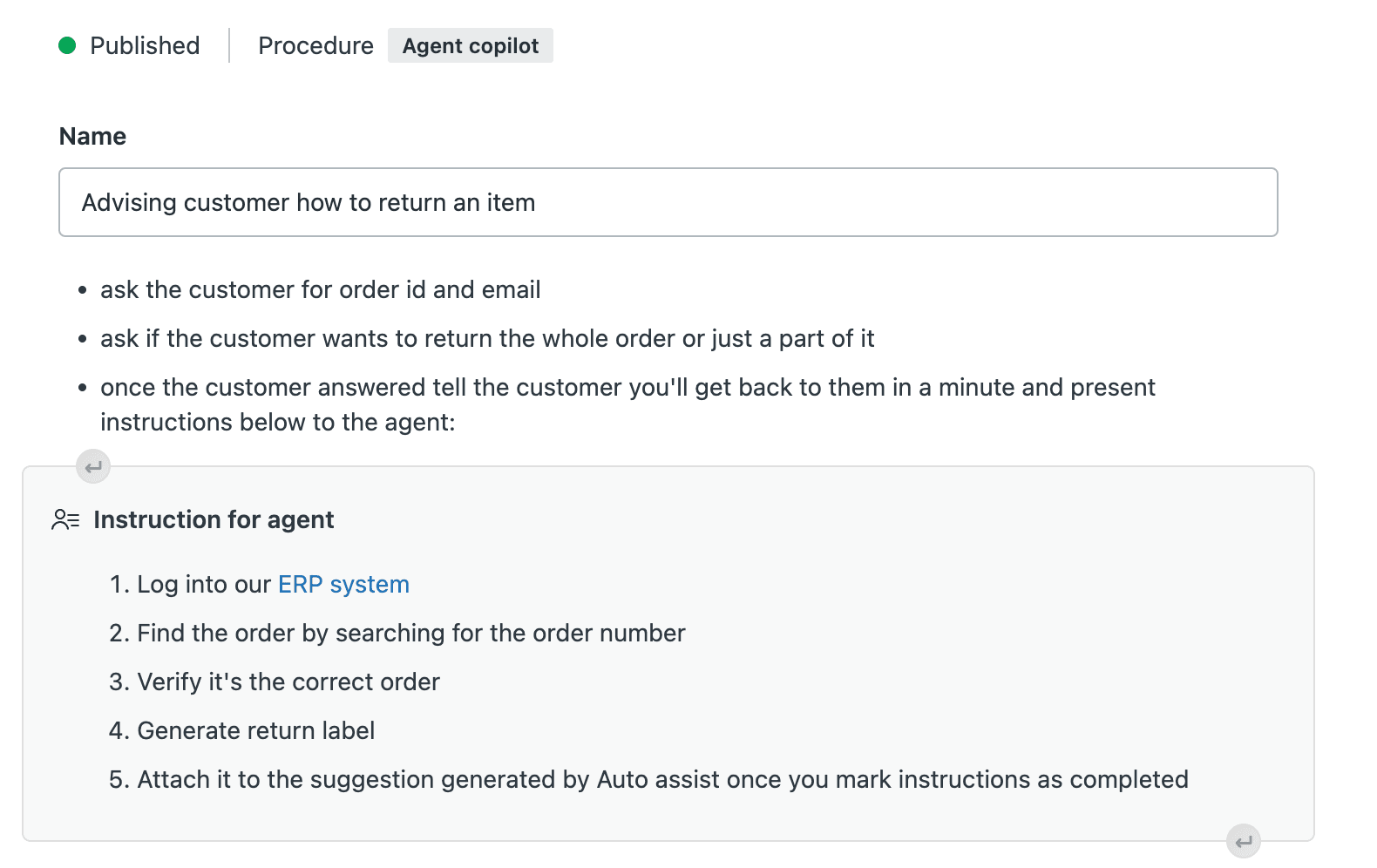
Procedures are the foundation of Auto Assist. They're written instructions that explain how to handle specific types of issues.
To create a procedure:
- Go to Knowledge admin > Manage articles > Procedures
- Click Create procedure
- Give it a descriptive name
- Write step-by-step instructions for handling the issue
- Add actions, macros, or help center content as needed
- Publish the procedure
The key is writing procedures as if you're training a new agent. Be specific, use consistent terminology, and break down complex processes into clear steps.
Step 3: Configure ticket tagging
Auto Assist only works on tickets tagged with "agent_copilot_enabled". You'll need to set up a trigger to automatically add this tag to relevant tickets.
Go to Admin Center > Objects and rules > Triggers and create a trigger that adds the tag based on conditions that match the procedures you've created. It's good practice to only tag tickets for which you've written procedures, otherwise the AI will make suggestions that aren't grounded in your business processes.
Step 4: Test before going live
Before rolling out to your entire team, you'll want to test your setup:
- Limit access to your test group
- Have agents work through real tickets with Auto Assist enabled
- Review the quality of suggestions
- Refine your procedures based on what works and what doesn't
Creating effective procedures is iterative. Expect to make adjustments as you see how the AI interprets your instructions.
Zendesk Auto Assist pricing
Let's talk numbers. Auto Assist isn't a standalone product; it's part of the Copilot add-on, which means you're looking at layered costs.
First, you need a base Zendesk plan. Auto Assist requires at least Suite Professional:
| Plan | Annual Price | What's Included |
|---|---|---|
| Suite Team | $55/agent/month | AI agents (Essential), messaging, 1 help center |
| Suite Professional | $115/agent/month | Everything in Team plus Copilot writing tools (5 uses/month), 5 help centers |
| Suite Enterprise | $169/agent/month | Sandbox, custom roles, up to 300 help centers |
Then you need the Copilot add-on:
| Add-on | Price | Features |
|---|---|---|
| Copilot | $50/agent/month (annual) | Auto Assist, Intelligent Triage, Macro Insights, Reporting |
So for a team of 10 agents on Suite Professional with Copilot, you're looking at $1,650 per month when billed annually ($115 + $50 = $165 per agent).
Zendesk also offers bundled pricing:
| Bundle | Annual Price |
|---|---|
| Suite + Copilot Professional | $155/agent/month |
| Suite + Copilot Enterprise | $209/agent/month |
If these price points are a concern, it's worth looking at alternatives. Our AI agent for Zendesk offers a different pricing model that some teams find more flexible, especially if you're looking for autonomous resolution rather than agent assistance.
Key features and capabilities
Beyond the core functionality, Auto Assist includes several capabilities worth highlighting:
AI-powered reply suggestions
The system generates contextual responses based on the ticket content, your procedures, help center articles, and similar resolved tickets. It's not pulling from generic templates; it tries to craft specific responses for each situation.
Action recommendations
Auto Assist doesn't just suggest what to say; it can recommend what to do. This includes:
- Adding tags for categorization
- Updating ticket fields
- Applying macros
- Executing custom actions you've defined
Tone and style adaptation
The AI reads the conversation history and adapts its suggestions to match the tone. This helps maintain consistency across your team's responses without requiring manual style adjustments.
Multi-language support
Auto Assist works across all languages supported by Zendesk. You can write procedures in one language, and the AI will adapt its suggestions to match the language of the ticket conversation.
Limitations and considerations
Auto Assist is a solid tool, but it's not without constraints. Here're the main ones to consider:
-
Tag dependency: It only works on tickets with the "agent_copilot_enabled" tag. If your trigger setup isn't right, agents won't see suggestions.
-
Procedure writing overhead: You'll need to invest time in writing clear, comprehensive procedures. Without them, the AI's suggestions won't be grounded in your business processes.
-
Potential friction for experienced agents: As one analysis noted, experienced agents who know your processes inside out may find that editing AI suggestions takes longer than just writing responses themselves.
-
No AI agent tickets: Auto Assist doesn't work on tickets being handled by Zendesk's AI agents. It's strictly for human agents.
-
Limited field access: The AI can only read and update certain ticket fields. It can't access lookup relationship fields, for example.
-
Setup complexity: Getting everything configured (triggers, tags, procedures) requires admin time and technical comfort with Zendesk's backend.
-
Ongoing maintenance: As your policies and products change, you'll need to update your procedures to keep the AI's suggestions accurate.
When to consider alternatives like eesel AI
Auto Assist is a good fit for teams that want to augment their human agents with AI suggestions. But it's not the right approach for every situation.

You might want to look at alternatives if:
-
You need autonomous resolution, not just suggestions. Our AI agent can handle tickets end-to-end, escalating only what you define.
-
You want to test AI on historical data before going live. We offer simulation modes that let you see exactly how the AI would have handled past tickets.
-
You need broader knowledge integration. While Auto Assist pulls from Zendesk's help center, our solution connects to Confluence, Google Docs, Notion, and other sources where your team actually documents information.
-
You're looking for different pricing. Our pricing model is based on interactions rather than seats, which can work out better for teams with variable volume.
The good news is you don't have to choose. eesel AI integrates with Zendesk and can work alongside Auto Assist, handling the tickets you want fully automated while your agents use Auto Assist for the ones that need a human touch. If you want to explore the full range of what eesel brings to Zendesk, check out eesel's AI agent for Zendesk.
Getting started with AI-powered support
Auto Assist represents a solid entry point for teams looking to add AI assistance to their Zendesk workflow. It's particularly well-suited if you're already invested in the Zendesk ecosystem and have the budget for the Copilot add-on.
The key to success is starting small. Pick one use case where you've got clear, documented procedures. Enable Auto Assist for a small group of agents. Measure the impact on response times and quality before expanding to more tickets and more team members.
Consider your team's workflow carefully. If your agents spend most of their time on complex, nuanced issues that require judgment and empathy, Auto Assist may add more friction than value. But if a significant portion of your tickets follow predictable patterns with clear resolution steps, it could be a meaningful time-saver.
If you're curious about how autonomous AI resolution could complement or replace agent assistance for certain ticket types, explore how eesel AI works with Zendesk. The combination of agent assistance for complex issues and full automation for routine ones is where many teams are finding the best results.