Zendesk automation not running: A complete troubleshooting guide

Stevia Putri
Last edited March 4, 2026
There's nothing quite as frustrating as building an automation that should work, watching it pass every test, and then discovering it's not actually doing anything in production. If you're here, you've probably been there. Your Zendesk automation is configured correctly, the conditions look right, but tickets are just sitting there untouched.
The good news? Most automation failures stem from a handful of common issues that are relatively easy to fix once you know what to look for. This guide walks you through a systematic approach to diagnosing why your Zendesk automation is not running and getting it back on track.
And if you find yourself hitting the limits of what Zendesk's rule-based system can do, we'll also look at how modern AI alternatives like our eesel AI can handle the intelligent routing and automation that traditional triggers and automations struggle with.
How Zendesk automations work (and why they break)
Before diving into fixes, let's quickly cover how automations actually function. Automations in Zendesk are time-based rules that run on a schedule, unlike triggers which fire immediately when something happens to a ticket.
Here's what you need to know:
- They run once every hour on all non-closed tickets. Not every 60 minutes on the dot, but "at some point" during each hour.
- They process up to 1,000 tickets per cycle. If you have more matching tickets, the rest wait for the next hour.
- They don't touch closed tickets. Once a ticket is closed, automations can't modify it.
- Each ticket can only be updated 100 times by automations over its lifetime (with one exception for the close ticket automation).
The key thing to remember is that automations are not real-time. If you set an automation to act after 24 hours, it won't fire at exactly the 24-hour mark. It will fire during the automation run that occurs after 24 hours have passed. This timing variability is the root cause of many "Zendesk automation not running" issues.
The most common reason: "Hours since" condition mistakes
If your Zendesk automation is not running, the first thing to check is whether you're using "Is" instead of "Greater than" in your time-based conditions.
Here's the problem: when you set a condition like "Hours since pending is 24," you're asking Zendesk to catch that ticket at exactly the 24-hour mark. But because automations run hourly (and not at predictable times), that exact window is incredibly easy to miss.
Let's say a ticket becomes pending at 10:03 AM. If your automation runs at 11:01 AM, the ticket has only been pending for 58 minutes, so the condition isn't met. If the next run is at 12:06 PM, the ticket has been pending for 2 hours and 3 minutes. The "is 24" condition is no longer true, and the automation never fires.
A Zendesk community member named dominik.jemec ran into exactly this issue. They had two automations: one that worked after 3 days and another that should trigger after 7 days. The 3-day automation worked fine, but the 7-day one never fired. They suspected Zendesk couldn't run multiple automations in succession. The actual problem? Using "Is" instead of "Greater than" for the time condition.
"I have trouble with a Zendesk automation not getting triggered... The 3 day automation worked as it should... However, the 7 days automation does not get triggered at all... I discussed this with our Zendesk automatisation specialist and he thinks that Zendesk might not allow to execute two automatisms in succession." dominik.jemec, Zendesk Community
After switching to "Greater than," the automation worked perfectly:
"Worked like a charm. Thank you!" dominik.jemec
The fix: Always use "Greater than" (or "Less than") for time-based conditions. "Greater than 24" evaluates to true for any ticket that's been pending for 24 hours or more, giving your automation a wide window to catch it.
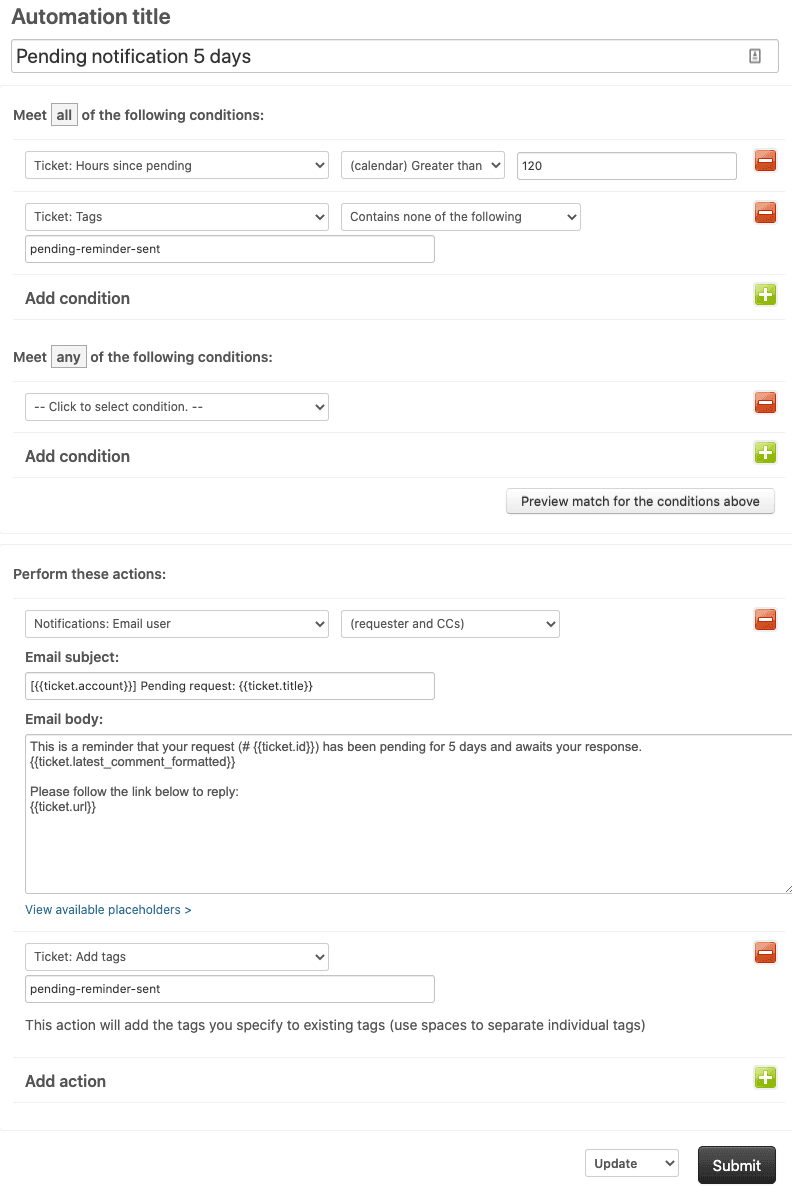
One more thing to understand: Zendesk counts hours starting from "hour zero." The first time an automation runs after an event occurs counts as zero hours. Each subsequent hourly run counts as one additional hour. So if a ticket becomes pending at 9:15 AM and your automation runs at 9:47 AM (32 minutes later), that's hour zero. The next run at 10:47 AM counts as hour one.
Missing or incorrect nullifying conditions
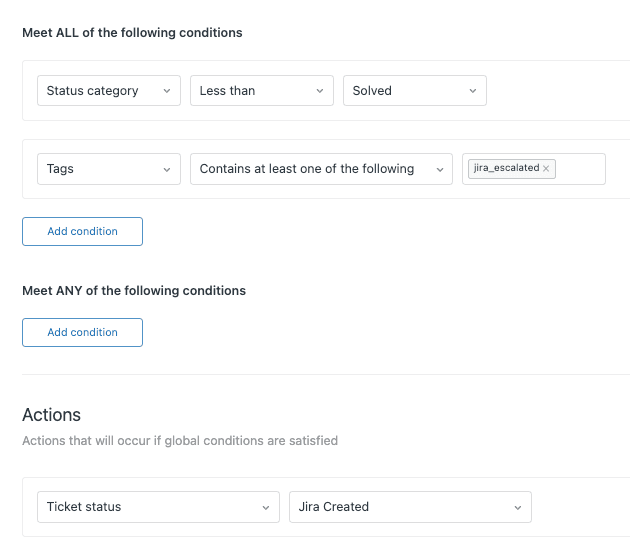
The second most common cause of Zendesk automation issues is missing nullifying conditions. Without them, your automation will run repeatedly on the same ticket.
Here's what happens: automations check every hour to see if their conditions are met. If you have an automation that notifies a manager when "Hours since open greater than 8," and you don't have a nullifying condition, that manager gets notified every single hour until the ticket status changes.
The standard pattern for preventing this uses tags:
- Add a condition: "Tags contains none of the following: automation_fired"
- Add an action: "Add tags: automation_fired"
Once the tag is added, the ticket no longer meets the conditions, so the automation won't fire again. Tags persist even when ticket status changes, making them more reliable than status-based nullifiers.
Common mistakes to watch for:
- Forgetting to add the tag action after checking for its absence
- Using a tag that gets removed by another automation or trigger
- Not realizing that multiple automations might interfere with each other's tags
To verify your nullifying condition is working, check the ticket's event log (add /events to the ticket URL) and look for repeated automation actions.
Other common causes of automation failures
Ticket status issues
Closed tickets cannot be modified by automations. This is a hard limitation. If your automation conditions would match a closed ticket, the automation simply won't act on it. There's also a distinction between "solved" and "closed" in Zendesk: solved tickets can still be updated, but closed tickets are locked.
If you're trying to automate actions on old tickets, make sure they haven't been closed by Zendesk's default automation (which closes solved tickets after 96 hours).
The 1000 ticket limit
Each automation can only process 1,000 tickets per hour. If you have a large backlog and more than 1,000 tickets meet your conditions, the remaining tickets wait for the next cycle.
How to identify if this is your issue:
- Check your automation revision history to see how many tickets were processed
- If you consistently see exactly 1,000 tickets processed, you've hit the limit
- Large operations should consider distributing work across multiple automations
Condition logic errors (ALL vs ANY)
Zendesk gives you two sections for conditions: "Meet ALL of the following conditions" and "Meet ANY of these conditions." Understanding the logic is crucial.
ALL means AND. Every condition in this section must be true.
ANY means OR. At least one condition in this section must be true.
A common mistake is putting multiple status conditions in the ALL section. For example, if you have "Status is New" AND "Status is Open" in ALL, your automation will never run because a ticket can't have two statuses simultaneously. These should go in the ANY section instead.
Automation order and conflicts
Automations run in the order they appear in your list, and one automation's actions can affect another. Consider this scenario:
- Automation #1: If status is Pending greater than 48 hours, notify Assignee
- Automation #2: If status is Pending greater than 48 hours, change priority to High
- Automation #3: If priority is High, notify Escalation group
When these run, Automation #1 fires, then #2 fires and changes the priority. When Automation #3 runs, it sees the High priority and fires too. If you need Automation #3 to NOT fire in this case, you'd need to adjust your conditions or automation order.
Integration and webhook issues
If you're using third-party integrations like n8n or GrowthDot, the failure modes are different from native Zendesk automations.
A common issue with webhook-based integrations is that test webhooks appear in Zendesk but production ones don't. Or they appear once and then disappear.
"I have a workflow that is meant to trigger when a new task is created on Zendesk... When I was creating the workflow, I did the test 'listen for events' and I sent a test task to Zendesk which it picked up no problem. However, since publishing the workflow, the trigger has not picked up any Zendesk tasks." ameliadenormann, GitHub issue
Another user confirmed the same pattern:
"We have the same issue. The test webhook appears in Zendesk and disappears after the test is finished, but the production one does not appear at all or shows up only once in several attempts, then disappears for no identifiable reason." tornister76, GitHub issue
Troubleshooting webhook issues:
- Check that event subscriptions are configured correctly in Zendesk Admin > Webhooks
- Verify the webhook is set to trigger on the right events (e.g., "Support user created" not just "Support user tags changed")
- Look at Zendesk's webhook logs to see if requests are being received
- For n8n specifically, ensure you're using the correct webhook URL for production (not the test URL)
Step-by-step diagnostic process
When your Zendesk automation is not running, follow this systematic approach:
Step 1: Verify conditions are actually met on the ticket Open a ticket that should have triggered the automation and check every condition manually. Is the status what you expect? Has enough time actually passed? Are there tags present that might be blocking it?
Step 2: Check ticket events
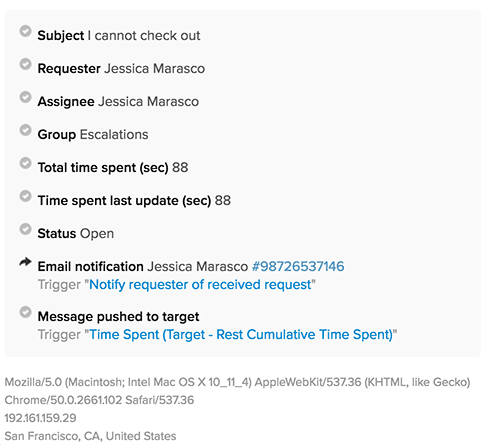
Add /events to the end of your ticket URL to view the full event history. Search for "automation" to see which automations ran and when. If your automation doesn't appear here, it didn't run at all.
Step 3: Review automation revision history Zendesk keeps a log of automation activity showing which automations ran, when they ran, and how many tickets they processed. This helps identify if the automation is running but not finding matching tickets.
Step 4: Test with a single ticket Before deploying to your entire queue, create a test ticket and verify the automation behaves as expected. This catches issues before they affect real customer interactions.
Step 5: Check for conflicts Look for other automations or triggers that might be modifying the same tickets. One automation's actions could be preventing another from firing.
Prevention: Building automations that actually work
The best way to fix automation issues is to prevent them. Here are the practices that experienced Zendesk admins follow:
-
Always use "Greater than" for time conditions. Never use "Is" unless you have a very specific reason and understand the risks.
-
Always include nullifying tags. The tag pattern (check for absence, add as action) prevents repeated execution.
-
Document your automations. Note which use business hours vs calendar hours, what each automation does, and any dependencies between automations.
-
Test thoroughly before deploying. Use test tickets and verify behavior across different scenarios.
-
Monitor automation activity regularly. Check revision history periodically to catch issues before they become problems.
When to consider an alternative to Zendesk automations
Zendesk's rule-based automations work well for straightforward time-based actions, but they have limitations. You might need something more sophisticated if:
- You're constantly hitting the 1,000 ticket limit
- Your routing logic is too complex for simple IF/THEN rules
- You need intelligent prioritization based on ticket content, not just metadata
- You want to reduce manual ticket tagging and categorization
This is where AI-powered alternatives come in. At eesel AI, we approach support automation differently. Instead of rigid rules that break when edge cases appear, our AI Agent learns from your past tickets and help center to make intelligent routing decisions.

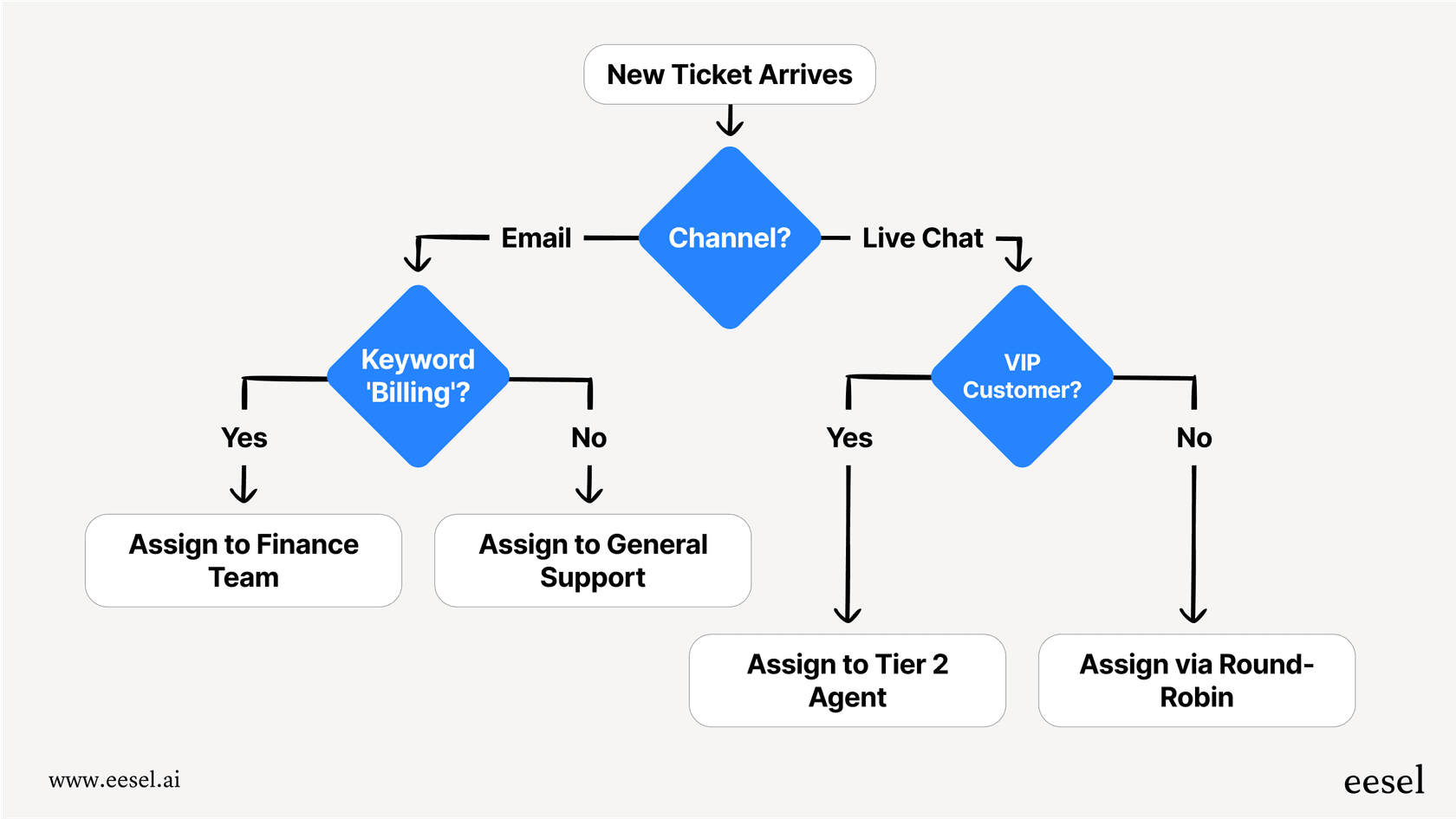
Here's how it works: eesel AI reads incoming tickets and routes them to the right team based on what the customer actually needs. It can identify urgency, sentiment, and intent in ways that rule-based automations simply can't. Then your time-based Zendesk automations handle the follow-ups and escalations according to your schedule.
We also offer AI Triage that works alongside Zendesk to automatically tag, route, and prioritize tickets before your automations even see them. The result is a workflow where tickets reach the right people faster, and your automations handle the timing rather than the decision-making.
If you're finding yourself fighting Zendesk's automation system more than benefiting from it, it might be time to explore what AI can do. You can see how eesel AI integrates with Zendesk and try it on your own tickets to see the difference.


Frequently Asked Questions
Share this article

Article by
Stevia Putri
Stevia Putri is a marketing generalist at eesel AI, where she helps turn powerful AI tools into stories that resonate. She’s driven by curiosity, clarity, and the human side of technology.



