
Getting the distinction right between public and private comments in Zendesk sounds simple until an agent accidentally posts an internal note directly to a customer. It happens more often than you'd think. One moment you're writing a quick note to a colleague about a tricky customer issue. The next moment, that note (complete with your unfiltered thoughts) lands in the customer's inbox.
This guide covers everything you need to know about Zendesk private comments. You'll learn how they work, when to use them, and how to configure your account to prevent those cringe-worthy accidental public posts. We'll also look at how modern AI tools can take some of this cognitive load off your agents entirely.
If you're looking to streamline your support operations further, check out our guide on AI for customer service to see how teams are reducing agent workload.

What are private comments in Zendesk?
In Zendesk, every comment on a ticket falls into one of two categories: public or private.
Public comments are visible to anyone with access to the ticket. That includes the requester, anyone CC'd on the ticket, and of course, your support team. When you add a public comment, the requester gets an email notification (unless you've disabled that trigger). These're your standard customer-facing responses.
Private comments (also called internal notes) work differently. Only agents can see them. They appear with a yellow background in the Zendesk interface, making them visually distinct from public comments. The requester has no idea these comments exist, and private comments don't trigger email notifications.
A ticket that contains only private comments is called a private ticket. This is useful when you need to document internal work, prepare for a customer conversation, or handle sensitive issues without involving the end user until you're ready.
Private comments shine in several scenarios:
- Internal escalation notes when you need to loop in a senior agent or different team
- Sensitive customer data that shouldn't be visible to the requester
- Agent coaching and QA feedback during ticket review
- Internal handoffs between shifts or departments
- Preparing responses before making them public
How to add a private comment to a ticket
Adding a private comment in Zendesk takes just a few clicks. Here's the process:
Step 1: Open any ticket in your Zendesk workspace.
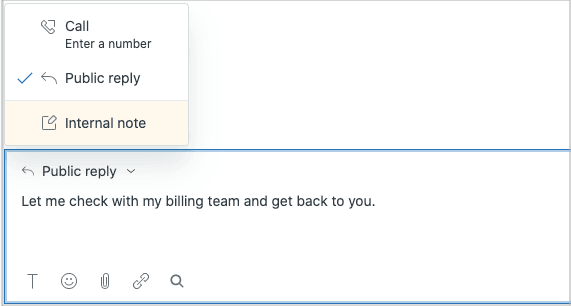
Step 2: Look at the comment composer at the bottom of the ticket. You'll see two tabs: Public reply and Internal note. Click on Internal note.
Step 3: Type your comment in the text area. You'll notice the background is yellow, indicating this is a private comment. When you're ready, click Submit.
A few important things to remember:
- You cannot delete a comment after submitting it. This applies to both public and private comments. If you make a mistake, your only option is to redact the content (which requires admin permissions).
- Attachments in private comments work differently than in public comments. If you have private attachments enabled, inline images won't work. You'll need to add them as attachments instead.
- Comments are permanent. Once a comment is added to a ticket, it becomes part of the permanent record.
You can also add private comments to multiple tickets at once using Zendesk's bulk update feature. This is handy when you need to add the same internal note to a group of related tickets.
Understanding when Zendesk private comments to requester happen automatically
Sometimes comments become private without you explicitly selecting "Internal note." Zendesk follows a specific set of rules to determine comment privacy, especially for email replies.
Here's what triggers automatic private comments:
Email reply behavior: When someone replies to a ticket notification using Reply instead of Reply all, the reply often becomes a private comment. This happens because the requester isn't included as a direct recipient of the reply.
Agent not assigned to the ticket: If an agent replies via email but isn't the assignee, follower, or CC on the ticket, their comment becomes private. This prevents random agents from accidentally jumping into customer conversations.
Third-party replies: If someone forwards a ticket notification to a person who isn't involved in the ticket (not the requester, assignee, or CC), that person's reply becomes a private comment. They're not automatically added to the ticket.
CC behavior: If a CC'd user replies but the requester wasn't a direct recipient of the email, the comment may be private depending on your account settings.
Mail API commands: Advanced users can use Mail API commands to force comment visibility. Adding #note to an email makes it private. Using #public false achieves the same result.
Zendesk actually runs through a 10-step checklist to determine comment privacy for every inbound email. The system checks things like whether the author can edit the ticket, whether the ticket is private, and whether the Mail API was used. If none of the "make it private" conditions are met, the comment becomes public.
How to change the default comment privacy in Zendesk
By default, Zendesk assumes agents want to post public comments. Every time you open a ticket, the composer defaults to "Public reply." For teams that do mostly internal collaboration, this default creates unnecessary risk.
You can flip this setting so that comments default to private instead. Here's how:
Step 1: Navigate to Admin Center > Objects and rules > Tickets > Settings.
Step 2: Scroll down to the Comment options for agents section.
Step 3: Deselect both of these options:
- Set composer to public channel by default
- Allow agent comments via email to be public by default
If you don't have the Zendesk Agent Workspace enabled, the option names are slightly different:
- Allow agent comments by web to be public by default
- Allow agent comments via email to be public by default
Step 4: Click Save to apply the changes.
Once you've made this change, agents'll need to actively select a public channel (like email) if they want customers to see their comments. The default becomes the safer option: internal notes.
One exception to note: tickets that already contain only internal notes will always default to internal notes, even if you have the "public by default" setting enabled. This prevents accidentally exposing existing private conversations.
Common mistakes with Zendesk private comments to requester
Even experienced agents make mistakes with comment visibility. Here're the most common pitfalls and how to avoid them:
Accidentally posting internal notes as public comments. This is the big one. An agent thinks they're in "Internal note" mode, but they're actually typing in "Public reply." The result? Internal discussions, potentially sensitive information, or unfiltered thoughts go straight to the customer. The fix: train agents to always double-check which tab is active before typing. Visual cues (the yellow background for private comments) help, but vigilance matters more.
Forgetting that private comments don't trigger notifications. An agent adds an internal note asking the customer for more information, then wonders why the customer never responded. Private comments don't send emails. If you need the customer to see something, it's got to be a public comment.
Not understanding "Reply" vs "Reply all" behavior. When CC'd users or followers reply using just "Reply" instead of "Reply all," their response may become a private comment because the requester isn't on the recipient list. This can create confusion about whether the customer saw a particular message.
Assuming private tickets can be made public later. While you can convert a private ticket to a public one by adding a public comment, you cannot convert a public ticket back to private (unless it has only one comment). Once information is public, it stays public.
Training tip: Create a simple checklist for new agents. Before hitting submit, ask: "Who needs to see this?" If the answer is "just my team," verify you're in Internal note mode. If the answer is "the customer," verify you're in Public reply mode.
Best practices for using private comments effectively
Private comments are a powerful tool when used intentionally. Here's how to integrate them into your workflow:
Develop a clear decision framework. When should a comment be private vs public? A simple rule: if the comment advances the customer's issue or provides information they need, make it public. If the comment is about process, internal coordination, or contains sensitive details, keep it private.
Use private comments for escalation notes. When escalating a ticket to a specialist or senior agent, add a private comment summarizing what's been tried, what the customer is asking for, and any context that will help the next agent. This creates a clean handoff without confusing the customer with internal jargon.
Document internal handoffs. If a ticket moves between departments or shifts, private comments help maintain continuity. The incoming agent can see what the previous agent was thinking and where things stand.
Provide agent coaching in private comments. During QA reviews, add private comments highlighting what an agent did well or where they could improve. This keeps feedback internal while creating a record for future reference.
Maintain clear boundaries. Once you start a private thread on a ticket, be careful about what gets moved to public comments. Customers can see the full public comment history, but they know something is happening when responses are delayed or reference "internal discussions." Be mindful of the customer experience even when using private comments extensively.
Streamline your workflow with an AI teammate
Managing comment visibility is just one of many cognitive loads your agents juggle. They need to remember ticket details, follow your brand voice, apply the right macros, and decide what should be public vs private. It's a lot to keep track of in the heat of a busy support day.
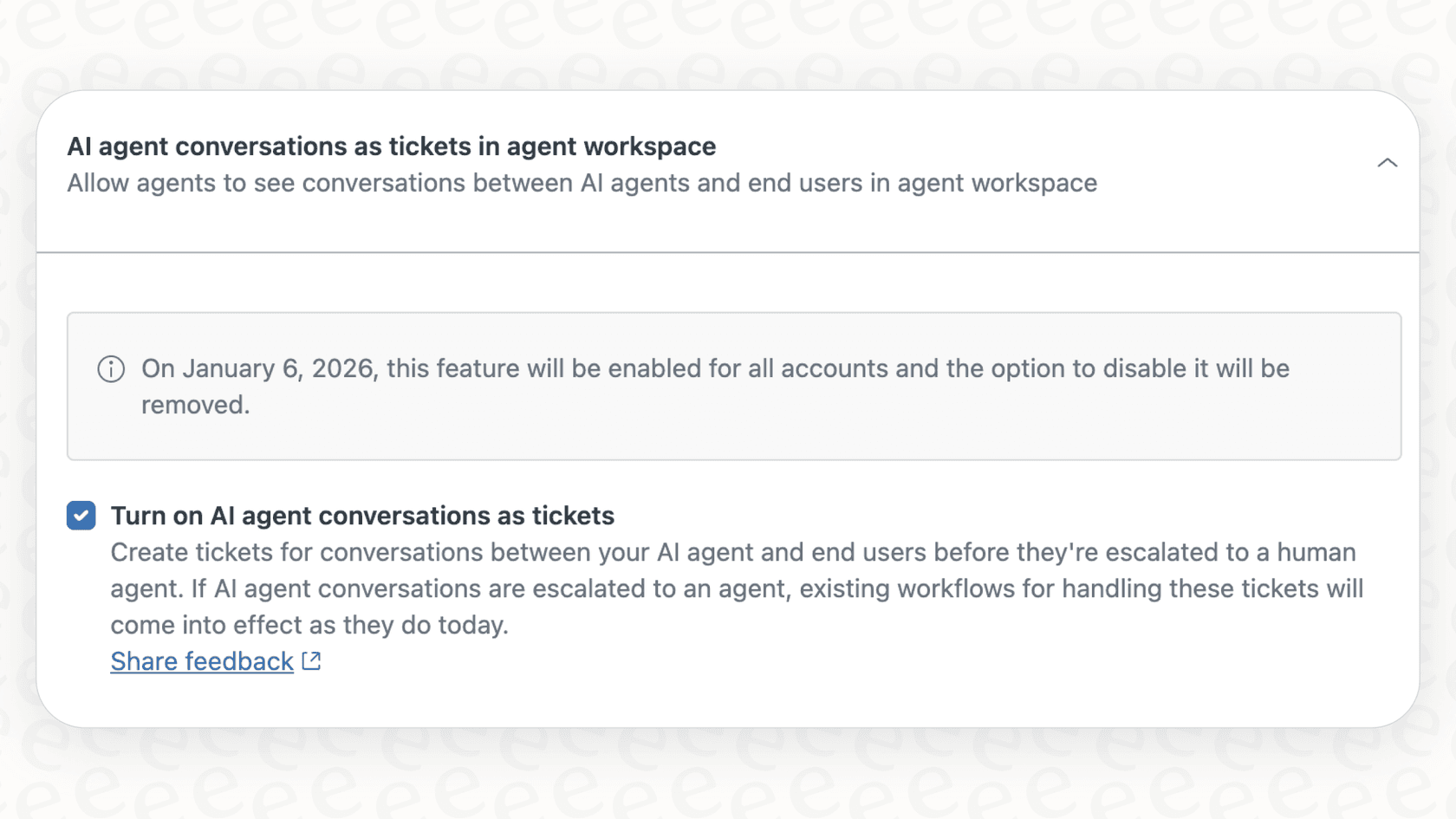
At eesel's AI agent for Zendesk, we approach this differently. Instead of asking agents to remember dozens of rules and settings, you invite eesel to your team as an AI teammate that learns your workflows.
Here's how it works:
No trigger configuration needed. eesel learns from your past tickets, macros, and help center automatically. It understands your communication patterns without you writing a single condition or workflow rule.
Plain-English instructions. Want eesel to handle certain ticket types differently? Just tell it: "For billing disputes, always escalate to the finance team with a private note." No dropdown menus, no complex logic builders.
Test before going live. Run eesel on thousands of past tickets to see exactly how it would respond. Verify quality before customers see a single message.
Progressive rollout. Start with eesel drafting replies for agent review. Once you're confident in its judgment (including when to use public vs private comments), let it send responses directly. You control the pace.
You can learn more about how AI is transforming support in our guide to AI agent assist solutions.
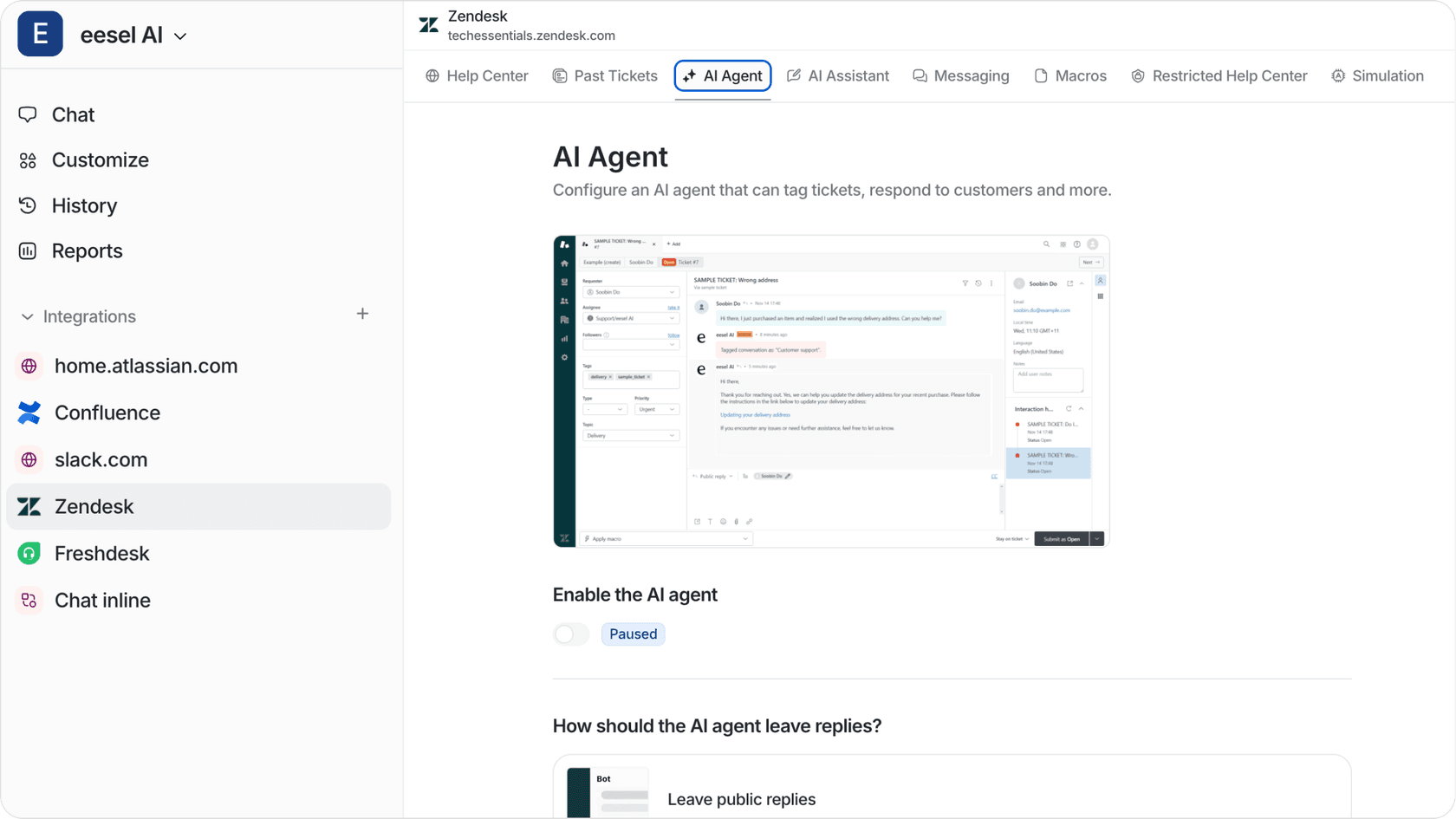
For teams struggling with the complexity of Zendesk's comment visibility rules, eesel offers a simpler path. You don't configure an AI. You hire one, train it on your knowledge, and let it learn your communication patterns.
Ready to see how an AI teammate can transform your support workflow? Try eesel free or book a demo to see it in action.


