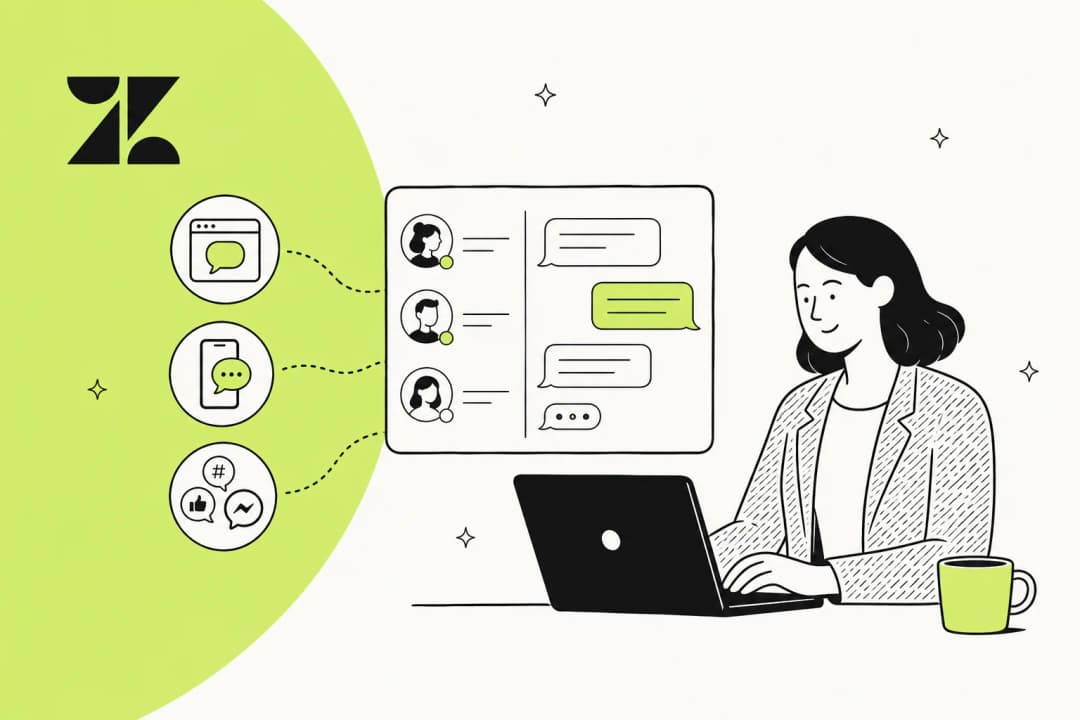
When your support team clocks out for the day, what happens to customers who still need help? For many Zendesk users, the default experience is frustrating. Visitors hit a wall when all agents go offline, left with nothing but a generic form and a promise that someone will get back to them eventually.
The good news is that Zendesk offers several ways to handle offline messages. The configuration options range from simple contact forms to sophisticated messaging triggers. But each approach comes with trade-offs, and none of them solve the fundamental problem: customers want answers, not queue positions. For teams looking to provide 24/7 customer support, native offline forms may not be enough.
This guide walks you through setting up Zendesk's native offline message handling, from basic configuration to advanced workflows. We'll also look at what happens when native features reach their limits, and how AI-powered alternatives can fill the gaps without complex trigger configurations.

What you'll need
Before you start configuring offline message handling, make sure you have:
- A Zendesk account (Chat, Support, or Suite)
- Admin access to configure settings
- Understanding of which widget type you're using (Classic vs Messaging)
- Optional: Web Widget API access for advanced customization
Step 1: Identify your Zendesk setup
Here's the short version: the steps you follow depend entirely on which Zendesk products you're using. Get this wrong, and you'll spend hours looking for settings that don't exist in your account. Understanding the difference between Zendesk Chat and Messaging is essential for proper configuration.
Live Chat is the legacy, session-based product. Conversations happen in real-time, and when the chat ends, the context disappears. Messaging is the newer, persistent conversation model. Customers can start a conversation, close their browser, and pick it up hours later via email or the widget.
The offline form only works with Web Widget (Classic), which is tied to the Chat product. If you're using the newer Messaging Web Widget, you won't find offline form settings because Messaging handles offline interactions differently through Flow Builder and bot conversations.
To check which version you're using, look at your Admin Center sidebar. If you see "Messaging" settings, you're on the newer platform. If you see "Web Widget (Classic)" settings, you can use the offline form.
Step 2: Configure offline forms in Zendesk Chat
If you're using the classic Zendesk Chat, the offline form is your primary tool for capturing messages when agents aren't available.
Navigate to your Chat dashboard. This is separate from the main Zendesk Support interface. Click on Settings in the left sidebar, then select Widget, then Forms.
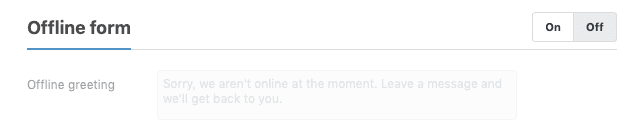
Toggle the offline form to "on." You'll see options to customize which fields appear. At minimum, you'll want name, email, and message fields. The default greeting reads: "Sorry, we aren't online at the moment. Leave a message and we'll get back to you." You can edit this in the Offline Greeting field.
Decide what happens when someone submits the form. By default, it stores messages in your Chat history and sends email notifications to agents. If you have Zendesk Support integrated, you can configure offline messages to create tickets automatically. Go to Settings > Account > Zendesk in your Chat dashboard and ensure the integration is active.
One limitation worth noting: the offline form only appears when all agents are offline. If even one agent is online (or set to "away" but technically logged in), visitors will see the chat interface instead. This can create confusion if that one agent is at capacity and can't actually respond. Check the Zendesk documentation for more troubleshooting tips.
Step 3: Set up contact forms in Web Widget Classic
Many Zendesk users confuse the offline form with the contact form, and the distinction matters for offline message handling.
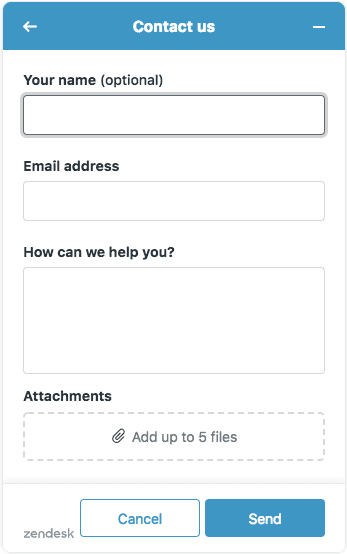
The contact form appears in your Web Widget (Classic) and allows visitors to submit tickets even when agents are online. It's essentially an embedded version of your ticket submission form. The offline form only appears when no agents are available.
You cannot enable both at the same time. If you enable the contact form, the offline form is automatically disabled, and vice versa. This is a common source of frustration for teams that want both Chat-based offline messaging and Support ticket creation.
To enable the contact form, go to Admin Center > Channels > Classic > Web Widget. Select your widget and toggle on the option for Contact form. This form supports custom ticket fields and routes tickets based on your Support workflows, making it ideal for accounts that use Zendesk Support.
Step 4: Create messaging triggers for offline notifications
For teams using Zendesk Messaging, triggers replace the offline form. Triggers are more flexible but also more complex to configure. You can learn more about AI-powered alternatives for Zendesk if you find the native options limiting.
A messaging trigger fires automatically when specific conditions are met. For offline notifications, you'll create a trigger that detects when agents are unavailable and sends an appropriate message.
Go to Admin Center > Objects and rules > Business rules > Triggers. Click Create trigger and name it something descriptive like "Notify when group is offline."
Under "Meet ALL of these conditions," add:
- Group status | [Your group name] | Invisible
This condition checks if all agents in the specified group are offline or invisible. When true, the trigger fires.
Under actions, select Send message to customer and craft your message. Be specific about expectations: "Our team is currently offline. We typically respond within 4 business hours. For urgent issues, call [phone number]."
Test your trigger thoroughly. Set all agents in the group to invisible, then start a conversation as a test user. Verify that the trigger fires and the message appears as expected. See Zendesk's trigger testing guide for detailed testing procedures.
Step 5: Troubleshoot common offline message issues
Even with proper configuration, offline message handling can break in unexpected ways. Here are the most common issues and how to fix them.
Widget shows offline despite agents being logged in
Check your department settings. If agents are online but not assigned to the department linked to that widget, visitors will see the offline state. Also verify that agents haven't set themselves to "invisible" status.
The offline form isn't appearing
Confirm you're using Web Widget (Classic), not Messaging. Check that the offline form toggle is enabled in Settings > Widget > Forms. If you're using the contact form instead, remember that enabling it automatically disables the offline form.
Messages aren't creating tickets
Verify your Chat-Support integration is active. Remember: standalone Chat accounts don't create tickets automatically. You need Zendesk Support integrated with Chat and proper triggers configured.
Department routing issues
If offline messages are going to the wrong team, review your trigger routing rules. Make sure the offline form is creating tickets with the correct default group.
Limitations to consider
Before committing to Zendesk's native offline handling, understand its constraints:
- Cannot use both forms: You're forced to choose between offline form and contact form
- No admin-level notification controls: Each agent must individually disable offline message notifications
- Not available in Messaging: Teams using the newer Messaging widget need alternative approaches
- Manual configuration per site: Each website implementation needs separate setup
- Limited UI customization: Most visual changes require API knowledge
These limitations drive many teams to look for alternatives that offer more flexibility.
When to consider AI-powered alternatives
Zendesk's native offline handling is functional but limited. It captures messages and creates tickets, but it doesn't actually help customers in the moment. For teams looking to provide 24/7 responsiveness without 24/7 staffing, AI offers a different approach.
The fundamental constraint of Zendesk's offline features is that they're reactive, not proactive. They capture information for later follow-up but provide no immediate assistance. For customers with simple questions ("What's your return policy?" "How do I reset my password?"), waiting hours for a human response is unnecessary friction.
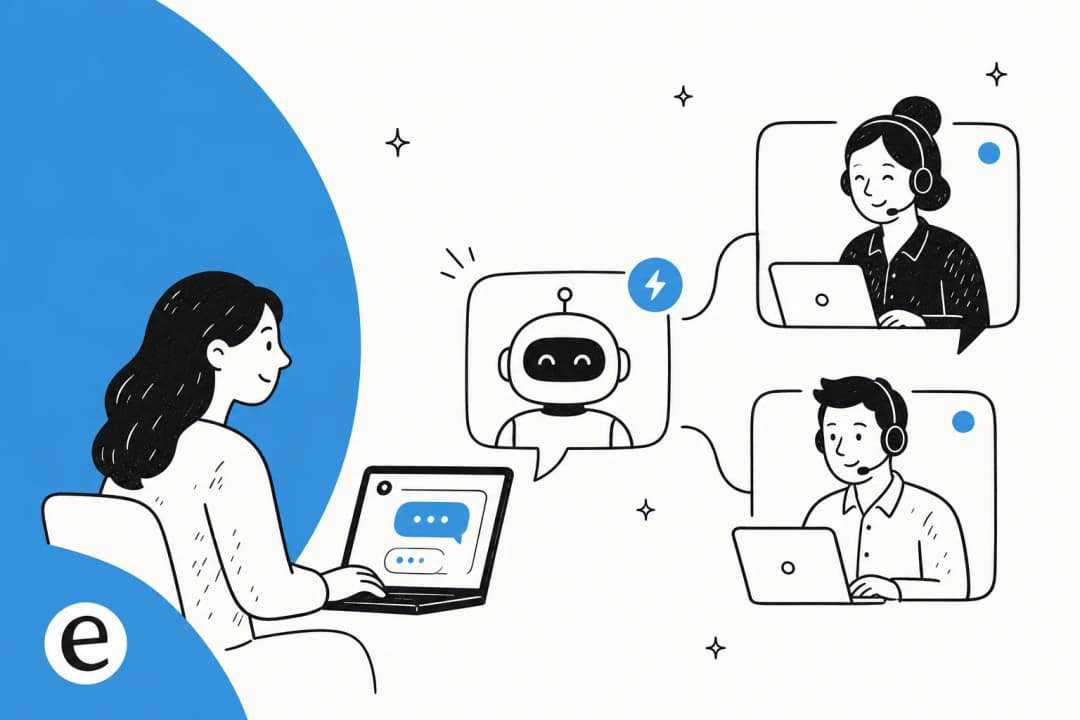
This is where eesel AI takes a different approach. Instead of just capturing messages when agents are offline, our AI teammate responds to customers immediately, 24/7, even when your human team is completely offline.

Here's how we handle Zendesk messaging offline differently:
- Automatic ticket creation and routing: Every interaction creates a properly categorized ticket in your help desk
- No-code customization: Define behavior in plain English instead of writing JavaScript
- 24/7 autonomous responses: Customers get immediate answers, not just a "we'll get back to you" message
- Learns from your existing data: We analyze your past tickets and help center to respond in your voice
- Progressive rollout: Start with AI-drafted replies for review, then expand to full automation as you gain confidence
We integrate directly with Zendesk, so you don't need to replace your existing setup. The AI responds when it can help, and escalates to your human agents when it can't, all within your existing Zendesk workflow. Learn more about our AI Agent for customer support or explore eesel AI pricing to see how it compares to adding more human agents. You can also read our complete Zendesk AI review for a deeper comparison.
Getting started with smarter offline support
The Zendesk web widget offline form is a functional solution for capturing messages when your team is unavailable. It works best for teams already invested in Zendesk Chat who need basic offline message collection.
But if you're finding the limitations frustrating, or if you want to actually resolve customer issues instead of just collecting messages, it might be time to explore AI-powered alternatives.
Whether you stick with Zendesk's native features or upgrade to an AI teammate like eesel AI, the goal is the same: making sure no customer inquiry falls through the cracks, even when your human agents are offline.