How to set up Zendesk for legal practice: A complete guide

Stevia Putri
Last edited March 5, 2026
Law firms depend on clear communication. Client calls about case updates, emails requesting documents, billing questions that need quick answers. When these conversations scatter across inboxes, voicemail, and sticky notes, details get missed. Clients get frustrated. Staff waste time hunting for information.
This is where a structured support system helps. Zendesk, traditionally known for customer service, works surprisingly well for legal practices when configured correctly. It centralizes client communication, creates clear workflows, and helps firms maintain the professionalism clients expect.

This guide walks through setting up Zendesk specifically for legal workflows. We'll cover ticket forms for common requests, automation to reduce manual work, compliance considerations, and how to integrate with your existing tools. For firms looking to go further with AI, we'll also touch on how eesel AI integrates with Zendesk to add autonomous support capabilities.
What you'll need
Before diving into configuration, gather a few basics:
- A Zendesk account. The Suite Professional plan ($115/agent/month annually) unlocks features most legal practices need: custom ticket forms, SLA management, and HIPAA compliance options. Suite Team ($55/agent/month) works for smaller firms with simpler needs.
- A list of your firm's most common client request types. Think case status updates, document requests, billing questions, appointment scheduling.
- Clarity on your compliance requirements. If you handle healthcare-related cases, you'll need HIPAA compliance. All firms should consider state bar rules about client communication records.
- Optional but helpful: an inventory of your current legal tech stack. Calendar systems, document management tools, practice management software. Zendesk integrates with many of these via the Zendesk Marketplace.
Step 1: Configure legal-specific ticket forms
Ticket forms are the foundation of your Zendesk legal support setup. They determine what information clients provide when they contact you, which shapes everything that follows.
Start in Admin Center, then navigate to Objects and rules > Tickets > Forms. Here's where you'll create distinct forms for different request types.
For legal practices, consider these forms:
- Case enquiries Capture case number, matter type, and specific question
- Document requests Track which documents clients need and their urgency
- Billing questions Separate payment issues from legal work
- Appointment scheduling Collect preferred times and appointment purpose
- New client intake Gather initial case information from potential clients
Each form should include custom fields relevant to that request type. For case enquiries, add fields for matter type (litigation, contract review, etc.), case number, and urgency level. For document requests, include document type and deadline.
Privacy notices matter here. Add a field linking to your privacy policy, and consider a checkbox for consent if your jurisdiction requires it. Zendesk supports GDPR compliance tools including data retention policies and redaction features.
Step 2: Set up automated workflows for legal requests
Once forms capture the right information, automation handles the routing and initial responses. This saves hours of manual sorting and ensures urgent matters get attention fast.
Triggers are your first automation layer. Create triggers that route tickets based on form selection or field values. A case enquiry about an active litigation matter might route directly to the assigned attorney. A billing question goes to your accounting team. Document requests route to paralegals.
Set up SLAs (service level agreements) for different urgency levels. Zendesk lets you define response time targets based on ticket priority. A client requesting an urgent document review might have a 4-hour response target, while a general case update request gets 24 hours.
Auto-responses manage client expectations immediately. Configure these to acknowledge receipt and set realistic timeframes. "We've received your document request and will respond within one business day" beats silence every time.
Macros save time on common responses. Create pre-written replies for frequently asked questions: "How do I access my case files?" "What's the status of my invoice?" "Can I schedule a consultation?" Agents apply these with one click and customize as needed.
Step 3: Ensure compliance and data security
Legal practices handle sensitive information. Client confidences, privileged communications, personal data. Your support system needs to protect this information appropriately.
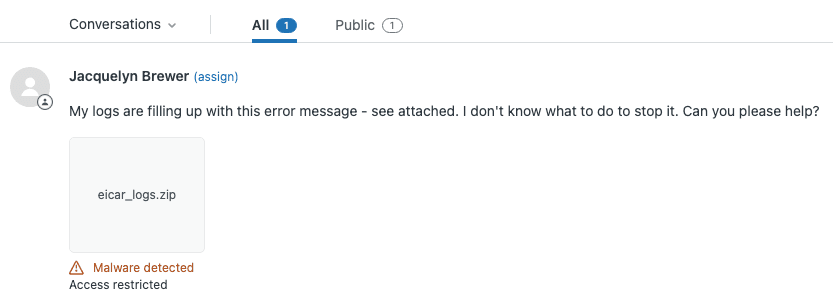
Start with private attachments. Configure Zendesk to require sign-in before clients can view ticket attachments. This prevents unauthorized access if someone forwards an email or shares a link.
Data redaction removes sensitive information from tickets when needed. Zendesk offers both manual redaction (for specific text) and automatic redaction (for credit card numbers). For legal practices, manual redaction helps handle privileged information that shouldn't remain in the system indefinitely.
Role-based access controls limit who sees what. Set up different agent roles for partners, associates, and paralegals. A paralegal might handle document requests but not see billing disputes. A partner might access everything in their practice area.
Zendesk's compliance certifications matter here. The platform holds SOC 2 Type II, ISO 27001:2022, ISO 27018:2019, and ISO 27701:2019 certifications. For healthcare-related legal work, HIPAA compliance is available on Professional and Enterprise plans with a Business Associate Agreement.
Set data retention policies aligned with your bar's requirements. Some jurisdictions require client files be kept for specific periods. Others mandate destruction after a certain time. Zendesk supports both retention and deletion schedules.
Step 4: Integrate with your legal tech stack
Zendesk works best when connected to your existing tools. The platform offers thousands of integrations through its marketplace, plus API access for custom connections.
Calendar integrations streamline appointment scheduling. Connect Google Calendar or Outlook so clients can book consultations directly through Zendesk. Agents see availability without switching systems.
Document management connections vary by your specific system. Some legal document platforms offer native Zendesk integrations. Others connect via Zapier or require custom API development. The goal is letting agents reference case documents without leaving the ticket.
Email forwarding brings existing firm addresses into Zendesk. Configure your domain so support@yourfirm.com and individual attorney emails flow into the ticketing system. Clients keep using familiar addresses while you gain workflow benefits.
Practice management software integration depends on your specific platform. Clio, MyCase, and similar tools vary in their Zendesk connectivity. Zapier often bridges gaps, automatically creating Zendesk tickets from practice management triggers or vice versa.
Step 5: Train your team and go live
Technology only works when people use it correctly. Plan training that goes beyond "here's how to log in."
Create internal documentation specific to your firm's workflows. Document how to handle each ticket type, when to escalate, and what tags to apply. Make this easily accessible within Zendesk using internal notes or a linked knowledge base.
Set up views for different practice areas. A litigation team sees only litigation tickets. A corporate practice sees their matters. This reduces noise and helps attorneys focus on relevant work.
Train staff on tagging and case linking. Consistent tags make reporting possible. Linking related tickets to the same case or organization keeps context visible. These habits matter more than any software feature.
Run a pilot program before full rollout. Select a few tech-savvy clients or limit to one practice area initially. Work out kinks, gather feedback, refine workflows. Then expand gradually.
Common mistakes to avoid
After helping firms set up Zendesk legal support, we've seen patterns in what goes wrong:
- Over-complicating forms. Every field you add creates friction. Start with essentials, add fields only when truly necessary.
- Missing escalation paths. Define clearly what constitutes urgent and who handles it. A client threatening to file a bar complaint needs immediate partner attention.
- Ignoring after-hours. Configure auto-responses for evenings and weekends. Even a simple "We received your message and will respond Monday" helps.
- Set-it-and-forget-it. Review your workflows monthly. Which automations trigger too often? Which forms collect unused data? Optimize continuously.
Scaling Zendesk legal support with AI
Once your basic Zendesk legal support setup runs smoothly, AI can take it further. The platform includes AI features, and third-party tools add more capabilities.
Zendesk's built-in AI handles intelligent triage, automatically classifying and prioritizing incoming tickets. It suggests relevant knowledge base articles to agents and can draft responses for common inquiries.
For firms wanting more autonomous support, eesel AI integrates with Zendesk to add capabilities like:
- Autonomous ticket resolution for common requests
- AI-powered drafting that learns your firm's voice and precedents
- Intelligent escalation that knows when human judgment matters
- Continuous learning from your past tickets and help center

Our AI agent product works alongside Zendesk to handle routine client questions while escalating complex matters to attorneys. It learns from your existing knowledge, so setup takes days rather than months.
Getting started with smarter legal support
Setting up Zendesk for legal practice takes work upfront, but pays off in organized communication, happier clients, and less administrative chaos. Start simple: basic ticket forms, a few key automations, clear privacy settings. Expand as your team gets comfortable.
The firms that succeed with this approach treat it as a process improvement project, not just a software installation. They involve attorneys in workflow design, train thoroughly, and iterate based on real usage.
If you're considering Zendesk for your firm and want to explore AI-powered support, eesel AI offers a different approach. Rather than configuring rules, you train an AI teammate on your firm's knowledge and let it handle frontline support autonomously. It integrates with Zendesk and other help desks, giving you flexibility in how you structure your support operation.


Frequently Asked Questions
Share this article

Article by
Stevia Putri
Stevia Putri is a marketing generalist at eesel AI, where she helps turn powerful AI tools into stories that resonate. She’s driven by curiosity, clarity, and the human side of technology.