Zendesk in-app help: A complete guide for 2026

Stevia Putri
Last edited March 6, 2026
Your customers don't want to leave your app to get help. When they're stuck on a checkout page or confused by a feature, opening a separate support portal breaks their flow and often means they won't bother asking at all. In-app support solves this, and Zendesk has built a comprehensive toolkit to make it happen.
Let's break down how Zendesk in-app help works, what your options are, and how to implement it effectively.
What is Zendesk in-app help?
In-app support means embedding help desk functionality directly into your website or mobile app. Instead of sending customers to a separate support site, they can search your knowledge base, start a chat, or submit a ticket without ever leaving the page they're on.

Zendesk enables this through what they call Embeddables: a combination of the Web Widget for websites and Mobile SDKs for iOS and Android apps. Together, these tools let you meet customers where they already are.
The benefits are straightforward:
- Reduced friction: Customers get help without context switching
- Contextual support: The widget knows what page they're on and can suggest relevant articles
- Seamless experience: Support feels like part of your product, not an external add-on
Here's the short version: Zendesk in-app help turns your support channel from a destination into an integrated experience.
Zendesk Web Widget: In-app support for websites
The Web Widget is a JavaScript snippet you add to your website. Once installed, it appears as a floating button (typically in the bottom corner) that customers can click to access support.
Zendesk offers two versions of the Web Widget, and you need to choose one (they can't run simultaneously). See Zendesk's Web Widget documentation for full details:
| Feature | Web Widget (Messaging) | Web Widget (Classic) |
|---|---|---|
| Live chat | Yes | Yes |
| Ongoing conversations | Yes | No |
| Flow Builder automation | Yes | No |
| Answer Bot | Yes | Yes |
| Contact forms | Via messaging | Yes |
| Help Center search | Yes | Yes |
Web Widget (Messaging) is the newer option. It's built for modern conversational experiences with automated flows and persistent conversation threads. If you want customers to be able to start a conversation on your website and continue it later without losing context, this is the better choice.
Web Widget (Classic) is the original version. It works well for traditional support workflows where you want separate channels: chat when agents are available, contact forms when they're not, and Help Center search always accessible.
Key capabilities across both versions include:
- Live chat: Real-time conversations with agents
- Contact forms: Structured ticket submission
- Help Center search: Instant access to knowledge base articles
- Answer Bot: AI-powered article suggestions before escalating to humans
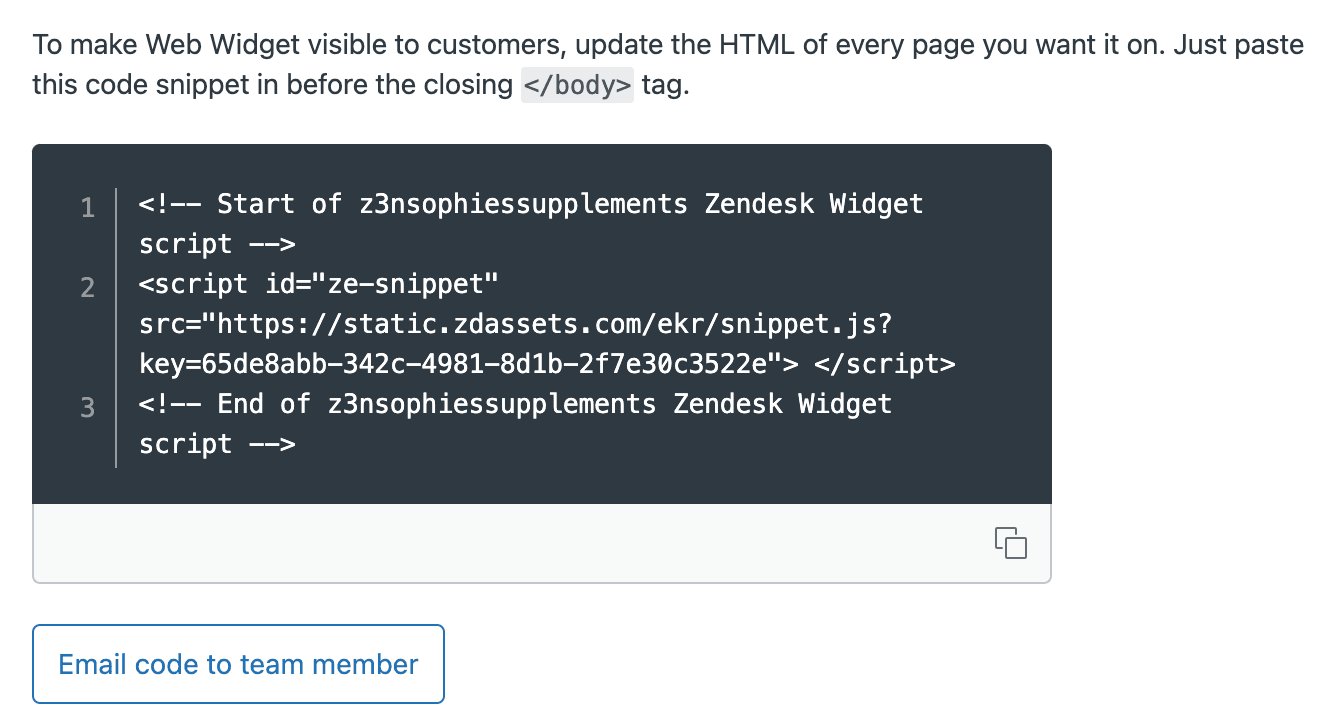
Installation is straightforward. You copy a JavaScript snippet from your Zendesk Admin Center and paste it before the closing </body> tag on your website. For Help Center, it's even easier: one checkbox in Admin Center automatically adds it to every page.
Customization options let you match the widget to your brand: colors, position on screen, which channels appear, and proactive messaging triggers based on user behavior.
Common use cases include SaaS platforms wanting contextual help, e-commerce sites reducing cart abandonment through live chat, and documentation sites making it easy to report issues.
Zendesk Mobile SDK: Native in-app support for iOS and Android
For mobile apps, Zendesk provides Mobile SDKs that embed support functionality natively. Unlike web-based solutions that might feel out of place in a mobile interface, these SDKs render native UI components that match the platform's design patterns.
Like the Web Widget, there are two SDK families:
Zendesk SDK (Messaging) for iOS and Android supports modern messaging experiences with:
- Rich messaging interface
- Push notification support
- Multi-conversation navigation (if enabled on your account)
- Camera and photo library access for attachments
Classic Support SDK provides traditional support features:
- Help Center browsing and search
- Ticket creation and viewing
- Request list management
Platform requirements are reasonable (source):
- iOS: Version 14 or later for Messaging SDK, iOS 12+ for Classic
- Android: API level 21 (Android 5.0/Lollipop) or higher
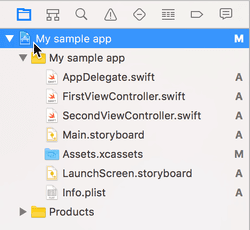
Installation varies by platform. iOS developers can use Swift Package Manager, CocoaPods, Carthage, or manual integration. Android developers add the Zendesk Maven repository and include the dependency in their build configuration.
The SDK size impact is approximately 7.5 MB for both platforms (iOS reference, Android reference), though final app size increase is typically smaller due to app thinning (iOS) and ProGuard/R8 minification (Android).
Native integration brings real advantages over web-based alternatives:
- Faster performance
- Consistent UI with the rest of your app
- Better handling of attachments and device features
- Reliable push notifications
Real-world use cases include fintech apps where users need quick help with transactions, travel apps for booking issues on the go, and productivity tools where users want answers without leaving their workflow.
The Zendesk Support mobile app for agents
There's an important distinction here. The Mobile SDKs we've been discussing are for your customers (end users). But Zendesk also offers a mobile app for your support agents.
The Zendesk Support mobile app lets agents and team leads manage tickets from their phones. It's available on both iOS and Android, with over 500,000 downloads on Google Play and a 3.0-star rating.
Key features for agents include:
- Sorting, filtering, and searching tickets
- Creating and updating tickets on the go
- Push notifications for critical updates
- @mentions support for collaboration
- Adding tags, followers, and custom fields
For managers, the app provides workload tracking and performance metrics from the palm of your hand.
When do agents actually need mobile access? It's most valuable for:
- Teams with on-call rotations who need to respond outside office hours
- Field service teams who aren't at desks
- Managers who want to monitor queue health during commutes or travel
- Small teams where everyone wears multiple hats
The app has limitations compared to the desktop experience (complex macros and advanced administrative functions are better suited to the full interface), but for core ticket management, it gets the job done. If you're looking to enhance your Zendesk setup further, check out our guide on the best AI chatbots for Zendesk.
How eesel AI enhances Zendesk in-app help
Zendesk's embeddables give you the infrastructure for in-app support. But what about the intelligence to handle those conversations effectively?
eesel AI works as an AI teammate inside your Zendesk environment. Instead of treating AI as a separate tool, you invite eesel to your team just like you would a new hire.

Here's how it works with Zendesk in-app help:
Learning from your existing data
Connect eesel to your Zendesk account, and it immediately learns from your past tickets, help center articles, macros, and saved replies. It understands your tone, policies, and common issues without any manual training or documentation uploads.
Progressive rollout
Like any new team member, eesel starts with guidance. You can have it draft replies that agents review before sending, or limit it to specific ticket types while you verify quality. As eesel proves itself, you expand its scope: eventually handling full frontline support, working 24/7, and escalating only the edge cases you define. Learn more about our AI Agent capabilities.
Plain-English control
You define escalation rules in natural language, not code. For example:
- "If the refund request is over 30 days, politely decline and offer store credit"
- "Always escalate billing disputes to a human"
- "For VIP customers, CC the account manager"
Complementary to Zendesk's embeddables
The Web Widget and Mobile SDK bring customers into your support channel, and eesel helps you respond to them intelligently. Whether a customer starts a chat from your website or submits a ticket through your mobile app, eesel can draft responses, look up order information, and resolve routine issues autonomously. Our AI Copilot feature is particularly useful for teams that want AI assistance without full automation.
Implementation best practices
Getting Zendesk in-app help right requires more than just installing the code. Here are practical tips from teams who've done it successfully.
Choosing between Web Widget versions
Go with Messaging if you want automated flows, ongoing conversation threads, and a more modern chat experience. Stick with Classic if you prefer traditional ticketing workflows or need specific Classic-only features.
Mobile SDK integration tips
- Test on real devices, not just simulators
- Plan for offline scenarios (what happens when users lose connectivity?)
- Configure push notifications early in the process
- Consider the SDK size impact on your app store listing
Customization for brand consistency
The widget should feel like part of your product, not an advertisement for Zendesk. Customize colors to match your brand, adjust the launcher button position so it doesn't obscure important UI elements, and write Help Center articles in your company's voice.
Setting up proper escalation paths
Be explicit about what happens when the bot can't help. How quickly do customers reach a human? What's the handoff experience like? Test this thoroughly before launch.
Measuring success
Track resolution rates, customer satisfaction scores, and time-to-resolution. But also measure whether in-app support reduces support volume overall by catching issues before they become tickets.
Testing before going live
Run the widget on a staging environment. Have team members submit test tickets from different devices and browsers. Check that article suggestions are actually relevant to the pages they appear on.
Getting started with smarter in-app support
Zendesk in-app help gives you the infrastructure to meet customers where they are: on your website, in your mobile app, wherever they need assistance. The Web Widget brings support to web visitors, the Mobile SDKs embed help natively in iOS and Android apps, and the Support mobile app keeps your agents connected on the go.
The question is: what happens when those customers actually start conversations? Are your agents ready to respond instantly at 2 AM? Can they maintain quality when volume spikes?
This is where AI enhancement makes sense. If you're already using Zendesk's embeddables to make support accessible, consider adding an AI teammate to make it scalable. We built eesel to learn from your existing Zendesk data and handle the routine queries that clog up agent queues, letting your team focus on the complex issues that actually need human judgment.
Bottom line? Start with Zendesk's in-app help to reduce friction for your customers. Then consider whether an AI teammate could reduce the burden on your team. If you want to see how eesel would perform with your actual tickets, you can run a simulation on your past data or book a demo to see it in action.


Frequently Asked Questions
Share this article

Article by
Stevia Putri
Stevia Putri is a marketing generalist at eesel AI, where she helps turn powerful AI tools into stories that resonate. She’s driven by curiosity, clarity, and the human side of technology.