How to enable and optimize guest checkout in Zendesk

Stevia Putri
Last edited March 3, 2026
The checkout page is where browsers become buyers, or they don't. Nearly 70% of online shopping carts are abandoned before purchase, and forced account creation is one of the biggest culprits. Guest checkout lets customers complete their purchase without creating an account, removing friction and capturing sales that might otherwise walk away.
But here's the catch: when customers check out as guests, they also create support challenges. Without an account, how do they track orders? How do your agents look up their purchase history? How do you provide personalized support when you don't know who they are?
This guide walks you through enabling and optimizing guest checkout support in Zendesk. You'll learn how to configure your help center for guest access, set up ticket forms that capture the right information, integrate with your e-commerce platform for order lookup, and balance customer convenience with your business needs.
What you'll need
Before you start configuring guest checkout support, make sure you have:
- A Zendesk account with admin access (Suite Team plan or higher for full features)
- Your e-commerce platform connected (Shopify, BigCommerce, Magento, or similar)
- A clear understanding of what information you need from guests to resolve their issues
- Access to your help center settings in the Admin Center
If you're on the Support Team plan ($19/agent/month), you'll have basic ticketing but will need to add the Help Center to enable guest submission features. The Suite Team plan ($55/agent/month) includes everything you need for guest checkout support out of the box.
Step 1: Configure help center visibility settings
Your help center is the front door for customer support. Before guests can submit tickets, you need to make sure that door is unlocked.
Start by navigating to Admin Center → Channels → Help Center → Settings. Here you'll find three key options that control guest access:
Open help center: This is what you want for guest checkout support. Anyone can view your help center articles and submit support requests without signing in. Your knowledge base content is public, and the ticket submission form is accessible to all visitors.
Closed help center: The help center is visible to everyone, but only authorized users can submit requests. This blocks guest ticket submission entirely, so avoid this setting if you want to support guest checkout customers.
Require sign in: This prevents any anonymous access to your help center. Every visitor must authenticate before viewing content or submitting tickets. Use this only if you exclusively serve registered customers.
For guest checkout support, select Open and make sure "Require sign in" is unchecked. This lets guest customers browse your help articles and reach out for support without creating an account first.
Step 2: Enable guest access for ticket submission
With your help center open, it's time to set up ticket forms that work for guests. The goal is capturing enough information to help them without creating so much friction that they abandon the request.
Navigate to Admin Center → Objects and rules → Tickets → Forms. Create a new form or edit an existing one with these considerations:
Required fields for guests:
- Email address (for replies and order matching)
- Subject line
- Description of the issue
Optional but helpful fields:
- Order number
- Product name or category
- Issue type (dropdown with options like "Shipping question," "Return request," "Product issue")
The key is balance. Every required field adds friction, but missing information means back-and-forth emails that delay resolution. Research from the Baymard Institute shows that sites with optional account creation see 10-25% higher conversion for first-time buyers. Apply this same principle to your support forms. For guest checkout support, email and order number are usually the must-haves. Everything else can be optional or gathered during the conversation.
Enable email validation to ensure you can actually reach the customer. Zendesk automatically validates email format, but you should also set up automated responses confirming ticket receipt so guests know their request went through.
Test your guest submission flow by opening an incognito browser window and submitting a test ticket. Make sure the confirmation appears and the ticket shows up in your agent workspace properly tagged as a guest request.
Step 3: Set up e-commerce platform integration
Here's where guest checkout support gets tricky. When a customer checks out as a guest, they don't have an account in your system. But they still expect you to know their order history when they contact support. The solution is integrating your e-commerce platform with Zendesk so agents can look up orders by email or order number.
The agnoStack Commerce app is the leading integration for this. It connects Zendesk with Shopify, BigCommerce, Magento, WooCommerce, and several other platforms. Once installed, agents can search orders in real-time without leaving Zendesk.
To set up the integration:
- Go to the Zendesk Marketplace and install agnoStack Commerce
- Connect your e-commerce platform (you'll need API credentials from your store admin)
- Configure the order ID field mapping so Zendesk knows which field contains the order number
- Set up customer matching rules (typically email address is the key identifier)
With the integration active, when a guest submits a ticket with their email or order number, agents can instantly pull up their order details, shipping status, and purchase history. This works even though the customer never created an account.
The app also enables refund processing directly from Zendesk, which is especially useful for guest checkout customers who might need to return items but can't initiate the process through a customer account portal.
Step 4: Customize the guest user experience
Now that the technical foundation is in place, focus on making the experience smooth for guests. The goal is helping them get answers quickly while subtly encouraging account creation for future visits.
Design guest-friendly ticket forms:
- Use clear, plain language (avoid jargon like "SKU" or "fulfillment")
- Add help text explaining what information you need and why
- Include a "What is your order number?" field with a tooltip showing where to find it
- Consider adding a file attachment option for screenshots of issues
Add contextual help: Create help center articles specifically for guest checkout customers. Topics like "Track my guest order," "Return policy for guest purchases," and "How to contact support about my order." Link these articles prominently on your checkout confirmation page.
Configure proactive messaging: The Zendesk Web Widget can be embedded on your checkout page to offer help before customers abandon. Set up triggers to proactively message customers who linger on the checkout page or encounter error messages. This catches issues before they become support tickets.
For guest users specifically, configure the widget to collect email address early in the conversation. This ensures you can follow up even if they close the chat window before resolving their issue.
Step 5: Configure data collection and privacy
Supporting guest checkout means handling customer data responsibly. You need enough information to help them, but you also need to respect privacy regulations and not create unnecessary friction.
Balance information needs with user friction: Every field you add to a ticket form reduces completion rates. Research from the Baymard Institute shows that sites with optional account creation see 10-30% higher conversion. Apply the same principle to your support forms. Ask for email and order number upfront. Gather additional details during the conversation if needed.
Set up GDPR-compliant data handling: If you serve EU customers, configure your data retention policies in Zendesk. Go to Admin Center → Account → Security → Data retention to set automatic deletion timelines for guest data. Consider enabling the "Advanced Data Privacy and Protection" add-on ($50/agent/month) for additional compliance features.
Enable guest-to-account conversion: After resolving a guest's issue, follow up with an email inviting them to create an account. Frame it as a benefit: "Create an account to track this order and get faster support next time." Include a direct link to registration with their email pre-populated.
Best practices for guest checkout support
Now that you have guest checkout support configured, here are strategies to make it work effectively for both your customers and your team.
When to require account creation vs. allow guest access: Require accounts only when necessary. If a customer needs to manage subscriptions, access digital downloads, or view sensitive account information, account creation makes sense. For simple order questions or one-time purchases, guest access is usually better.
How to capture guest data without creating friction: Use progressive profiling. Start with minimal fields (email + order number). During the conversation, agents can ask for additional details as needed. Store this information in custom fields so future agents have context if the customer contacts you again.
Strategies for converting guests to registered users:
- Offer incentives: "Create an account for 10% off your next order"
- Highlight convenience: "Track all your orders in one place"
- Use post-purchase emails: "Save your order history by creating an account"
Measuring guest checkout success: Track these metrics in Zendesk reporting:
- Percentage of tickets from guest vs. registered users
- Resolution time for guest tickets
- Customer satisfaction scores by user type
- Conversion rate from guest ticket to account creation
Troubleshooting common issues
Even with proper setup, you'll encounter some challenges with guest checkout support. Here's how to handle the most common ones.
Guest tickets not linking to orders: If agents can't find a guest's order, check that the email address in the ticket matches exactly what's in your e-commerce platform. Typos are common. Also verify your agnoStack integration is syncing properly and the order ID field is mapped correctly.
Duplicate customer records: When a guest later creates an account, you may end up with two customer records. Use Zendesk's merge feature to combine these. Go to the customer profile, click "Merge," and select the duplicate record to consolidate ticket history.
Authentication loop problems: If guests get stuck in a login loop when trying to access help content, check your "Require sign in" setting. Make sure it's disabled for the help center sections you want guests to access. Also verify any URL redirects aren't forcing authentication.
Missing guest order history: Some e-commerce platforms don't store guest order history long-term. If you can't find an older guest order, check your platform's guest data retention policy. You may need to adjust settings to retain guest order data for longer periods.
Balancing guest convenience with business needs
Guest checkout is a trade-off. Understanding when it helps and when it hurts will guide your strategy.
The pros:
- Higher conversion rates (10-30% increase with optional account creation)
- Faster checkout process
- Better first-time customer experience
- Reduced cart abandonment
The cons:
- No customer data for marketing
- Can't track customer lifetime value accurately
- No abandoned cart recovery possible
- Limited personalization opportunities
- Higher support burden (guests can't self-serve through account portals)
When guest checkout hurts more than helps: If you sell subscription products, digital downloads, or services requiring ongoing access, guest checkout creates more problems than it solves. The same applies if your business model relies heavily on repeat purchases and customer data for personalization.
Strategies for abandoned cart recovery without accounts: Since you can't email guests who abandoned carts, use on-site tactics instead. Exit-intent popups offering help, retargeting ads, and proactive chat messages on the checkout page can recover some of these sales without requiring account creation upfront.
Getting started with optimized guest checkout
You now have a complete setup for supporting guest checkout customers in Zendesk. Let's recap the key steps:
- Configure your help center for open access so guests can submit tickets
- Create guest-friendly ticket forms that capture email and order number
- Integrate your e-commerce platform for order lookup by email
- Customize the experience with contextual help and proactive messaging
- Set up privacy-compliant data handling and guest-to-account conversion
The balance between customer convenience and business needs is different for every company. Start with guest checkout enabled, measure the results, and adjust based on what you learn about your specific customers.
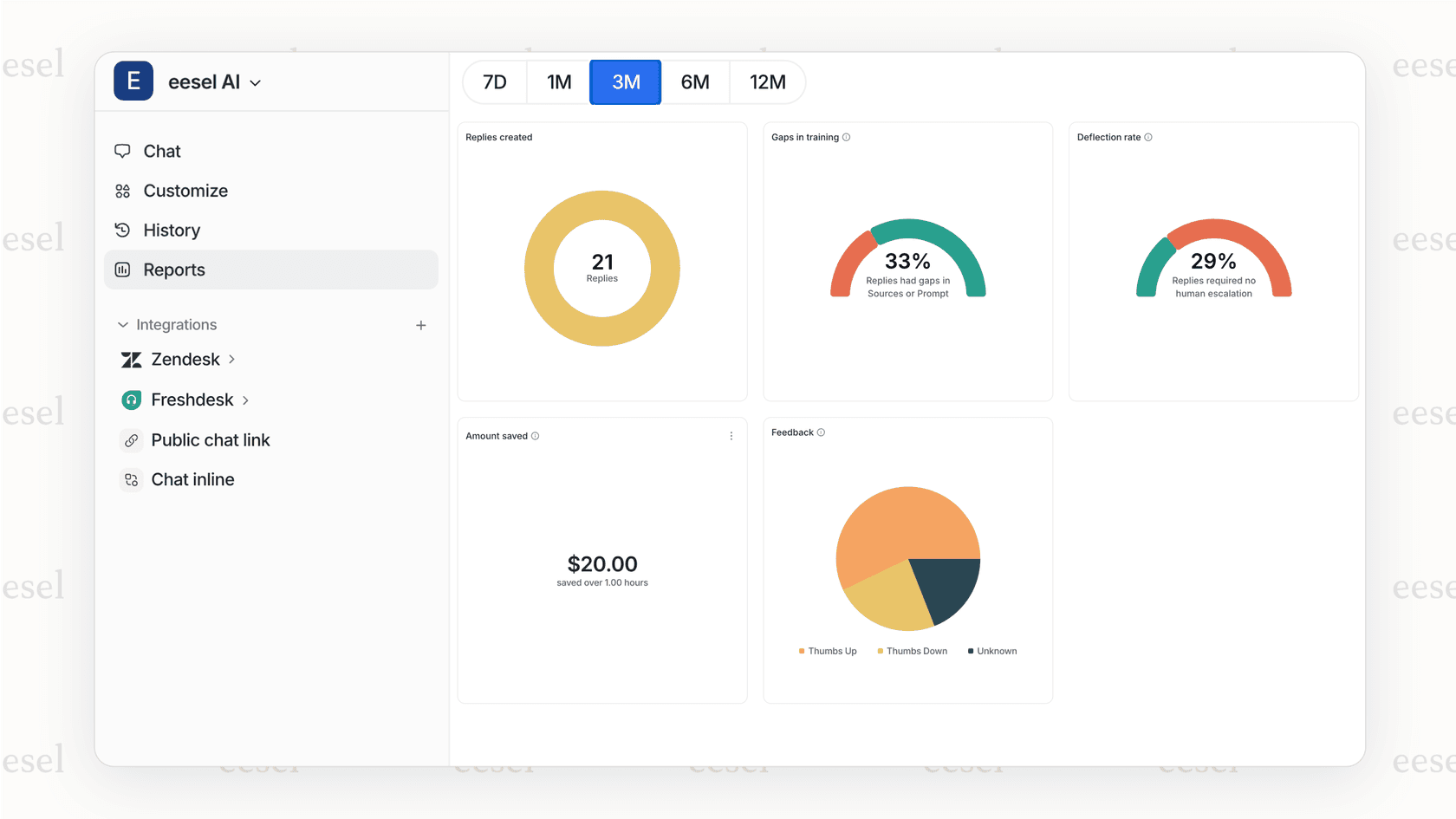
If you're looking to automate more of your guest support, consider how AI can help. eesel AI connects to your Zendesk and handles common guest questions about order status, shipping times, and return policies automatically. It learns from your past tickets and help center articles, so it responds in your brand voice with accurate information. Your team can focus on complex issues that need a human touch while eesel handles the repetitive inquiries.
The key is providing fast, helpful support that makes guests want to come back, whether they create an account or not.


Frequently Asked Questions
Share this article

Article by
Stevia Putri
Stevia Putri is a marketing generalist at eesel AI, where she helps turn powerful AI tools into stories that resonate. She’s driven by curiosity, clarity, and the human side of technology.



