How to use Zendesk ticket triggers for customer health score monitoring

Stevia Putri
Last edited March 3, 2026
Support teams are often the first to know when a customer is struggling. Ticket volume spikes, escalation patterns change, and sentiment shifts. But that knowledge rarely reaches customer success teams in time to prevent churn.
Customer health scores bridge this gap. They're predictive metrics that combine support data with product usage, engagement, and relationship quality to flag at-risk accounts 60–90 days before renewal conversations begin. And with Zendesk ticket triggers, you can automate responses to these scores directly within your support workflow.
This guide walks you through setting up triggers that route, tag, and escalate tickets based on customer health scores. Whether you're starting from scratch or refining existing automation, you'll learn how to connect support operations to customer success outcomes.
What Are Customer Health Scores and Why Use Them in Support?
A customer health score is a single metric, typically 0–100 or red/yellow/green, that predicts whether a customer will renew, expand, or churn. Think of it like a credit score for customer relationships. It combines multiple signals:
- Product usage (login frequency, feature adoption) typically 40% of the score
- Support ticket volume and severity 10–20% weighting
- Engagement patterns (email opens, meeting attendance)
- Relationship quality (CSM pulse, NPS scores)
Support interactions are leading indicators of account health. A customer filing frequent tickets often struggles with your product. Escalations signal frustration. Long resolution times correlate with lower satisfaction. When you connect these signals to automated triggers, support becomes proactive rather than reactive.
For teams that outgrow rule-based automation, we built eesel AI to handle the scenarios where triggers fall short: interpreting ticket sentiment, understanding context, and making judgment calls that require more than simple field matching. But for straightforward health score routing, Zendesk triggers are the right starting point.
Prerequisites for Setting Up Health Score Triggers
Before building your triggers, make sure you have:
- Zendesk Support on Team plan or higher custom fields and advanced triggers aren't available on the legacy Essential plan
- Admin access you need permissions to create custom fields and triggers
- Health score data source this could be a CRM integration (Salesforce, HubSpot), a customer success platform (Gainsight, ChurnZero), or manual input from your CS team
- Basic trigger familiarity understanding how conditions and actions work together
The key limitation to know upfront: Zendesk triggers cannot evaluate numeric thresholds like "health score < 40." You'll need to work around this using drop-down fields or tags, which we'll cover in the steps below.
Step 1: Create a Custom Field to Store Health Score Data
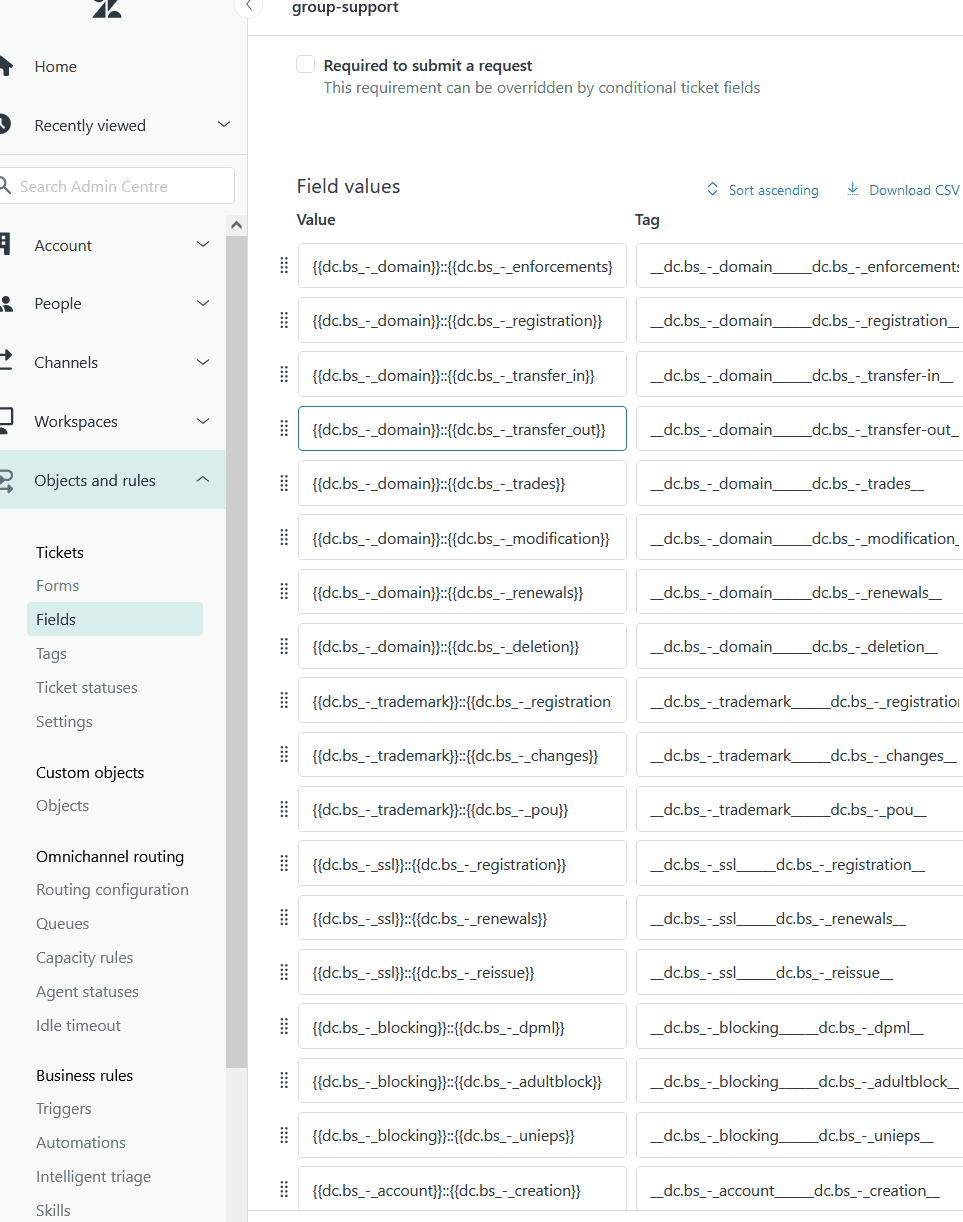
First, you need a place to store health score data on each ticket. Go to Admin Center → Objects and rules → Tickets → Fields, then click Add field.
Choose your field type carefully. Zendesk's trigger system has limitations:
- Numeric fields: Only support "present" or "not present" operators. You cannot create conditions like "greater than 60."
- Text fields: Same limitation no content matching in triggers.
- Drop-down fields: Support "is," "is not," "present," and "not present" operators. This is your best option.
Recommended approach: Create a drop-down field named "Customer Health Score" with these options:
| Option | Score Range | Typical Actions |
|---|---|---|
| Critical | 0–40 | Immediate escalation, CSM alert |
| At-Risk | 41–60 | Priority routing, proactive outreach |
| Healthy | 61–80 | Standard queue |
| Thriving | 81–100 | Expansion opportunity flag |
Configure field permissions based on your workflow. Most teams keep this agents-only since customers don't need to see their own health score. Add the field to all relevant ticket forms so it appears on every ticket.
Alternative for exact scores: If you need granularity, use a numeric field for data storage and a separate automation (via Zendesk API or external tool) that applies tags like "health_35" or "health_68" based on thresholds. Triggers can then check for tag presence.
Step 2: Build Your First Health Score Trigger
Now let's create a trigger that responds to critical health scores. Navigate to Admin Center → Objects and rules → Business rules → Triggers, then click Add trigger.

Name it clearly. Use a descriptive name like "Escalate: Critical Health Score Accounts" so other admins understand its purpose without opening it. Add a brief description explaining what the trigger does and why it exists.
Set your conditions. Under "Meet ALL of the following conditions," add:
- Ticket > Customer Health Score > is > Critical (0–40) This ensures the trigger only fires for at-risk accounts.
- Ticket > Status > is not > Solved Prevents the trigger from firing on closed tickets.
Using "Meet ALL" means both conditions must be true. If you want the trigger to fire when any single condition matches, use "Meet ANY" instead.
Configure your actions. When the conditions are met, the trigger should:
- Priority > Urgent Bumps the ticket to the front of the queue
- Add tags > critical_health_score, escalation_needed Enables reporting and prevents duplicate triggers
- Group > Escalations or Senior Support Routes to your experienced team
- Notify by > User email > (assignee) Alerts the assigned agent with context
For the notification email, include relevant placeholders so agents understand why this ticket is urgent:
Subject: URGENT: Critical health score account   {{ticket.title}}

This ticket is from a customer with a critical health score (0–40).
Please prioritize and consider proactive outreach.

Ticket: {{ticket.link}}
Customer: {{ticket.requester.name}}
Health Score: {{ticket.ticket_field_xxxxxxxx}}
Click Save and test your trigger by creating a test ticket with the health score set to Critical. Verify that all actions fire correctly.
Step 3: Create Additional Triggers for Complete Coverage
One trigger isn't enough. Build a complete set that handles different health scenarios.
At-Risk Account Routing
Create a trigger for customers in the 41–60 range who need attention but aren't in crisis yet.
Conditions:
- Ticket > Customer Health Score > is > At-Risk
- Ticket > Ticket > is > Created
Actions:
- Group > CSM Queue (dedicated queue for customer success follow-up)
- Add tags > at_risk, proactive_outreach
- Priority > High
Thriving Account Expansion Signals
High-health customers present expansion opportunities. Create a trigger that flags these for your account management team.
Conditions:
- Ticket > Customer Health Score > is > Thriving
- Ticket > Comment text > contains at least one of the following words: upgrade expand additional seats more users
Actions:
- Add tags > expansion_opportunity, thriving_account
- Notify by > User email > (account manager)
- Group > Account Management
Health Score Change Notifications
When a customer's health score drops into Critical, your CS team needs to know immediately.
Conditions:
- Ticket > Customer Health Score > changed from > [any value] > to > Critical
Actions:
- Notify by > User email > (customer success manager)
- Add internal note > "Health score changed to Critical. Previous score: [previous value]"
Advanced Trigger Configurations
Once you have basic health score triggers working, layer in additional conditions for more sophisticated routing.
Combining Health Score with Other Conditions
Health score alone doesn't tell the whole story. Add these conditions to refine your triggers:
- Organization > Organization (record) Route Enterprise accounts to senior agents, SMB to general queue
- Ticket > Channel Handle chat tickets differently than email (chat often signals urgency)
- Ticket > Within business hours? Escalate critical scores immediately during business hours, hold for next day after hours
- Ticket > On a holiday? Adjust expectations for response times
Using Tags as a Workaround for Numeric Thresholds
If you need more granularity than drop-down ranges provide, use tags. An external system (your CRM, a Zapier workflow, or a custom app) calculates the exact health score and applies tags like "health_35" or "health_68."
Your triggers then check for tag presence:
- Tags > contains at least one of the following > health_30 health_31 health_32 health_33 health_34 health_35
- This gives you precise threshold control that drop-downs cannot provide
The tradeoff: you need external automation to maintain these tags as scores change.
Auto-Closing Low-Value Tickets from Healthy Accounts
Sometimes the best support is self-service. For thriving customers with simple questions, consider auto-resolution:
Conditions:
- Ticket > Customer Health Score > is > Thriving
- Ticket > Type > is > Question
- Ticket > Priority > is > Low
Actions:
- Notify by > User email > (requester) with knowledge base article suggestions
- Status > Solved
Use this sparingly and only for truly low-risk scenarios. The goal is efficiency, not making healthy customers feel dismissed.
Testing and Troubleshooting Your Triggers
Triggers can have unexpected interactions. Test thoroughly before relying on them in production.
Use Zendesk's test ticket feature. Create tickets with different health score values and verify each trigger fires as expected. Check that actions apply correctly (tags added, priority changed, notifications sent).
Check trigger firing order. Triggers run in the order they appear in your list. If two triggers might apply to the same ticket, position matters. Use the Reorder option in Admin Center to arrange triggers from most specific to most general.
Review ticket events. Open any ticket and click Events to see which triggers fired and in what order. This is invaluable for debugging.
Common issues and fixes:
| Issue | Likely Cause | Solution |
|---|---|---|
| Field not appearing in conditions | Field is inactive or not on ticket form | Activate field and add to all forms |
| Trigger not firing | Using "Meet ALL" when you need "Meet ANY" | Switch condition logic |
| Multiple triggers conflicting | No tag-based suppression | Add "Tags contains none of the following: [trigger_name]_fired" condition |
| Actions not applying | Trigger position in list | Move trigger higher; earlier triggers may be taking precedence |
Scaling Health Score Automation with eesel AI
Rule-based triggers work well for clear-cut scenarios, but they have limits. They cannot interpret context, understand sentiment, or learn from past outcomes. A trigger sees "health score is Critical" but cannot read the ticket to understand why or determine the appropriate response.

This is where we can help. At eesel AI, we built an AI Agent that learns from your past tickets to predict health scores automatically. Instead of relying on external CRM data, our AI reads ticket sentiment, urgency, and customer history to make intelligent routing decisions.
Here's how teams typically evolve their approach:
- Start with triggers Build rule-based automation using the steps in this guide
- Add AI triage Use eesel AI Triage to automatically tag and route based on ticket content
- Progress to full AI Agent Let AI handle frontline responses for healthy accounts while escalating at-risk customers to humans
Our Zendesk integration plugs directly into your existing setup. You don't replace your triggers overnight. Instead, you progressively hand off more complex decisions to AI as you validate its performance.
The key difference: triggers react to fields, while AI understands context. A trigger can route based on "health score is Critical." AI can read a ticket that says "We're evaluating alternatives" and recognize the churn risk even if the formal health score hasn't updated yet.


Frequently Asked Questions
Share this article

Article by
Stevia Putri
Stevia Putri is a marketing generalist at eesel AI, where she helps turn powerful AI tools into stories that resonate. She’s driven by curiosity, clarity, and the human side of technology.



