How to set up Zendesk CSAT survey messaging in-app

Stevia Putri
Last edited March 2, 2026
Customer satisfaction (CSAT) surveys are your direct line to understanding how well your support team is doing. While email surveys have been the standard for years, more teams are now collecting feedback directly inside messaging conversations. The customer is already in the chat, so why not ask them right there?
Setting up CSAT for Zendesk messaging channels (web widget, mobile SDK, and social messaging) works differently than email. The surveys appear as quick replies or buttons within the conversation, making them feel more natural and often boosting response rates. This guide walks you through configuring Zendesk CSAT surveys for messaging, from basic setup to advanced customization.
At eesel AI, we help support teams analyze CSAT feedback at scale to find patterns and improve their service. We'll touch on how AI can help you get more value from the data you collect.

What you'll need
Before you start, make sure you have the following in place:
- A Zendesk Suite Professional or Enterprise plan (CSAT isn't available on lower tiers)
- Admin access to your Zendesk account
- Understanding of which messaging channels you use (web widget, mobile SDK, WhatsApp, etc.)
- Optional: Sunshine Conversations API access if you plan to build custom survey flows
Step 1: Enable CSAT in Zendesk Admin Center
The first step is turning on customer satisfaction ratings in your Zendesk account. This creates the foundation for collecting feedback across all channels.
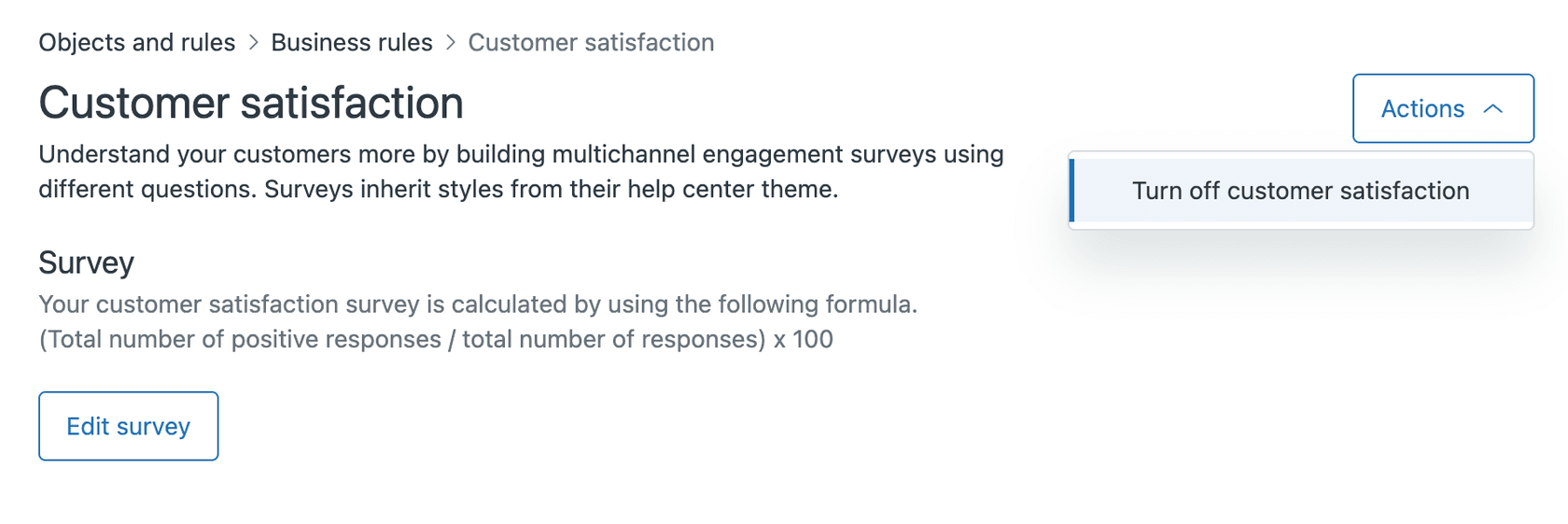
Navigate to Admin Center > Objects and rules > Business rules > Satisfaction. You'll see a toggle to enable Customer Satisfaction ratings. Once you turn this on, Zendesk automatically creates a system automation called "Request customer satisfaction rating" that handles the basic survey delivery.
Here's what happens when you enable CSAT:
- Zendesk adds a satisfaction rating section to solved tickets
- The system creates default triggers for sending surveys
- Your agents can start seeing satisfaction scores on tickets
- Customers receive survey requests based on your configuration
One thing to note: CSAT is only available on Suite Professional ($115/agent/month annually) and Enterprise ($169/agent/month annually) plans. If you're on Suite Team or Support Team, you'll need to upgrade to access this feature.
Step 2: Configure messaging channel settings
Messaging CSAT works differently than email. Instead of sending a separate email, the survey appears as an interactive element within the conversation thread.

Key differences between messaging and email CSAT:
- Timing: Surveys appear when the ticket is marked as solved (you can customize this)
- Customer choice: Unlike email where surveys are mandatory per solved ticket, messaging surveys are optional for customers
- Response window: Customers have 28 days to respond by default
- Appearance: Shows as buttons or quick replies in the conversation thread
To configure messaging-specific settings, go to Admin Center > Channels > Messaging. Here you can control which messaging channels have CSAT enabled and adjust the timing of when surveys appear.
Step 3: Customize your CSAT survey
Out-of-the-box CSAT uses a simple "Good/Bad" binary scale. But Zendesk now offers customizable CSAT that lets you tailor the experience to your brand.
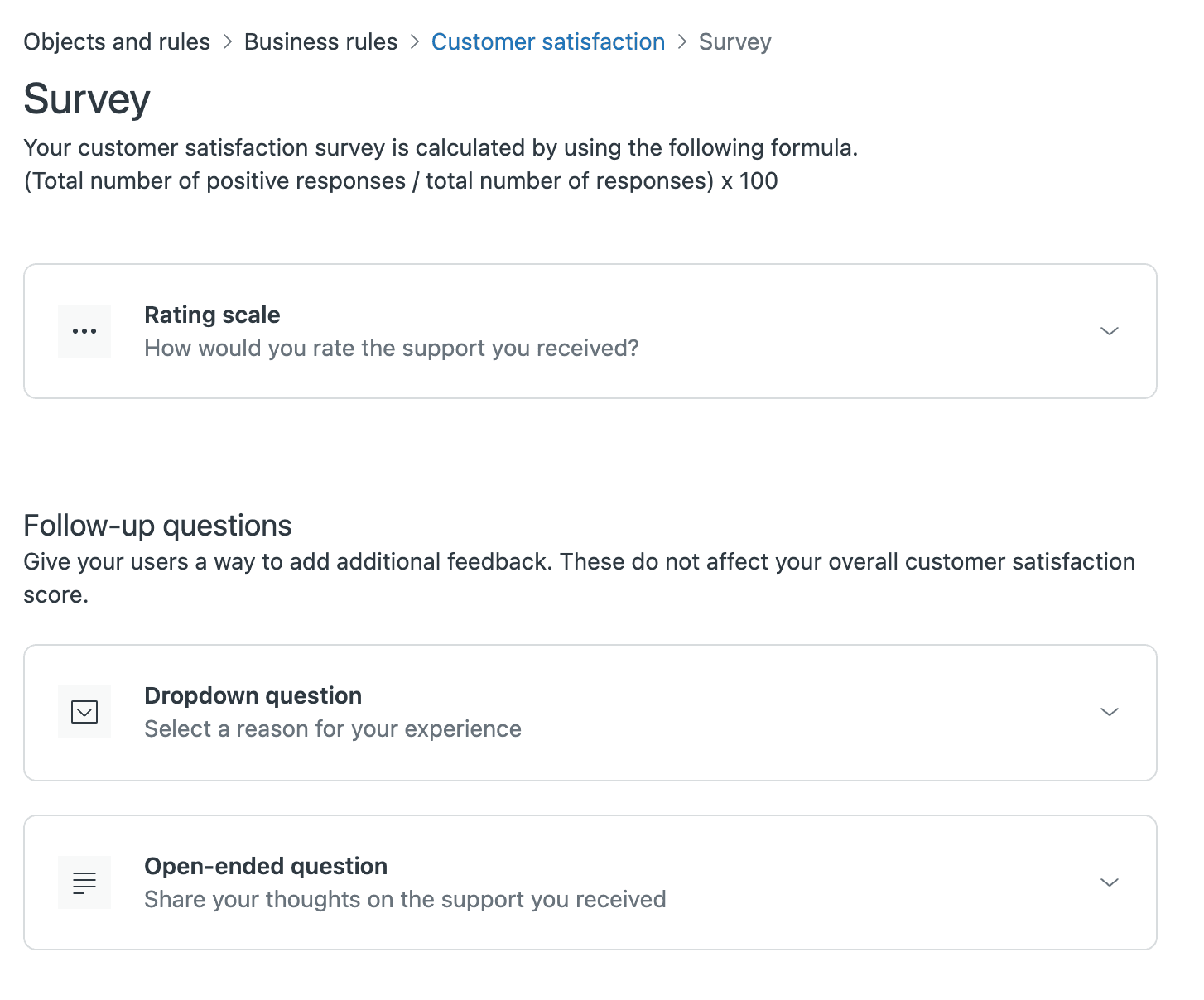
In the Satisfaction settings, you can customize:
- Survey question text: Change from the default "How would you rate the support you received?" to something that matches your brand voice
- Rating scale: Choose between 2, 3, or 5-point scales
- Display type: Use emoji, text labels, or numbers
- Follow-up questions: Add dropdown reasons for negative ratings
- Comment fields: Configure whether comments are required, optional, or hidden
The new customizable CSAT is a significant improvement over the legacy binary system. You can now use 5-star ratings with emoji faces, or a 3-point scale with text labels like "Could be better / Good / Excellent."
One limitation to be aware of: while customers see your customized scale, the Agent Workspace still converts responses back to binary (good/bad) for reporting purposes. For full visibility of the actual ratings customers selected, you'd need to use the Survey Responses API.
Step 4: Set up triggers and automation
The default automation sends surveys 24 hours after a ticket is solved. You might want to adjust this timing or create custom triggers for specific scenarios.
To review the default automation, go to Admin Center > Objects and rules > Business rules > Automations and find "Request customer satisfaction rating." You can modify:
- The delay before sending (change from 24 hours)
- Conditions for when surveys are sent
- The email template used (for email channels)
For more control, create custom triggers. Use the {{satisfaction.rating_section}} placeholder in your email templates to insert the survey. You can also create triggers that only send surveys for specific ticket types, priorities, or customer segments.
Here's an example trigger setup for messaging:
| Condition | Operator | Value |
|---|---|---|
| Ticket > Channel | Is | Messaging |
| Ticket > Status category | Changed to | Solved |
| Ticket > Satisfaction | Is | Unoffered |
Understanding native CSAT limitations
Before you commit to the native Zendesk CSAT solution, it's worth understanding its constraints:
- No manual sending: Agents cannot manually launch a CSAT survey in messaging. It only triggers automatically when a ticket is solved.
- Bot avatar: The CSAT collection in messaging is represented by a bot avatar that cannot be customized.
- Limited question types: You're restricted to rating scales and basic follow-up questions. No multi-question surveys or conditional logic.
- Reporting limitations: Agent Workspace shows binary ratings even if you use a 5-point scale. The conversion happens behind the scenes (typically 1-3 = bad, 4-5 = good).
These limitations might not matter for basic use cases. But if you need more flexibility, third-party solutions exist.
Alternative: Third-party survey solutions
When native CSAT doesn't meet your needs, several third-party apps integrate with Zendesk:
SweetHawk Survey
SweetHawk offers a Survey app that extends Zendesk's capabilities. It costs $100-$180 per month (flat rate, not per agent) and includes:
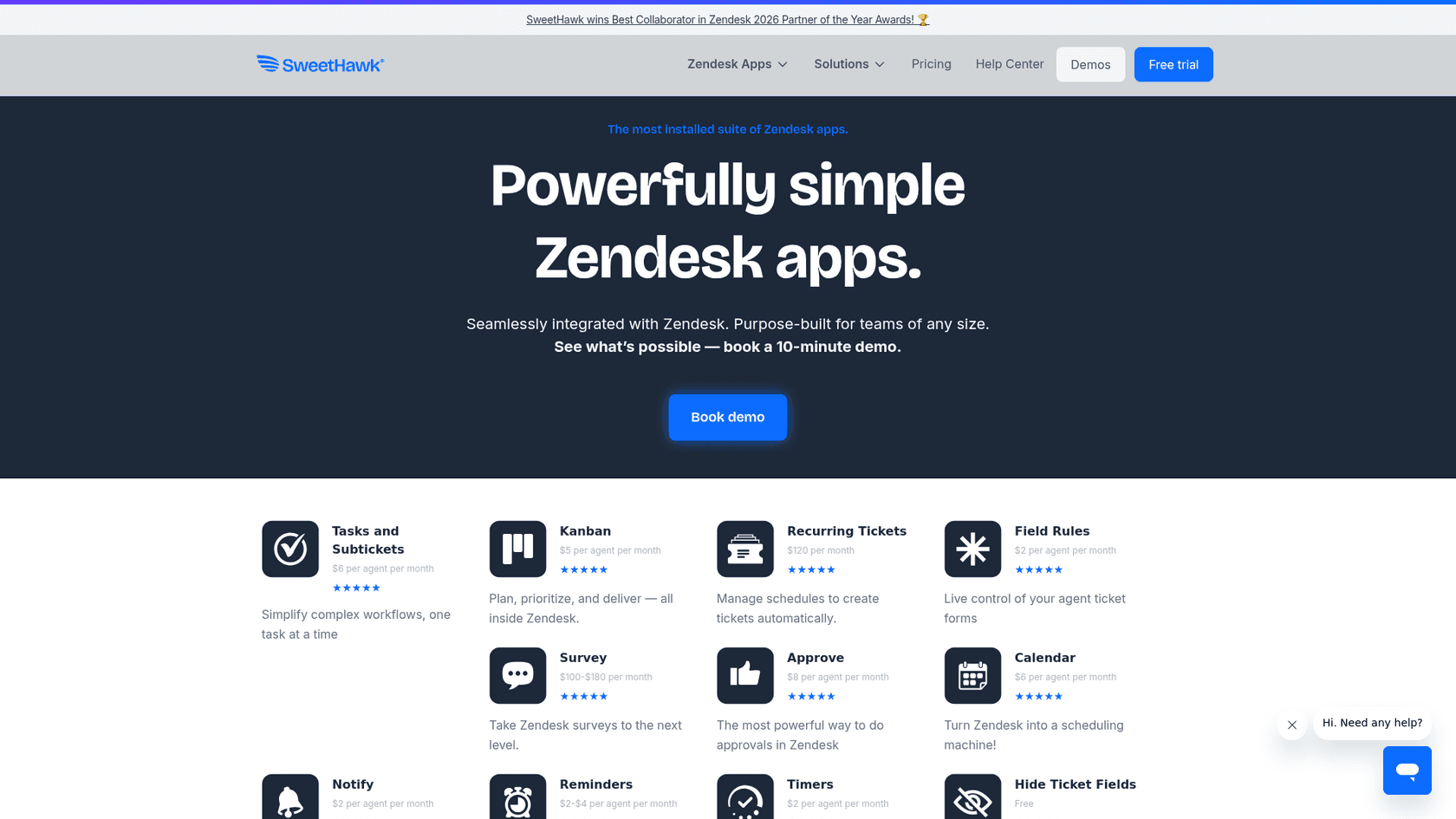
- Richer question types beyond simple ratings
- Sunshine Conversations integration for embedded messaging surveys
- Manual survey sending (agents choose when to send)
- Custom branding options
- Automated triggers based on ticket events
SweetHawk also offers a full suite of all their apps for $12 per agent per month if you want additional workflow tools alongside surveys.
SimpleSat
SimpleSat is an omnichannel survey platform with robust Zendesk integration. Pricing starts at $109 per month (annual billing) for the Standard plan:
| Plan | Monthly Price | Account Users | Monthly Responses |
|---|---|---|---|
| Standard | $109 | 5 | 1,000 |
| Pro | $229 | 15 | 3,000 |
| Elite | $459 | 30 | 7,000 |
| Enterprise | Custom | Custom | Custom |
SimpleSat supports CSAT, NPS, and CES metrics. It syncs ratings back to Zendesk ticket comments, offers advanced reporting, and can publish positive feedback as website testimonials.
Custom Sunshine Conversations API
For technical teams with specific requirements, building a custom solution using the Sunshine Conversations API gives you full control. You can create entirely custom survey flows, integrate with external survey platforms like Qualtrics, and handle responses programmatically.
This approach requires development resources but offers maximum flexibility for complex use cases.
Best practices for better response rates
Getting surveys set up is only half the battle. You also need customers to actually complete them. Here are proven tactics:
- Time it right: Send surveys while the experience is fresh, but give customers a moment to verify their issue is truly resolved. A 2-4 hour delay often works better than immediate delivery.
- Keep it short: The Zendesk CSAT survey is designed to be quick. Don't add extra questions or steps outside the standard flow.
- Train your agents: Encourage agents to mention the survey at the end of positive interactions. A personal nudge from the agent they worked with can significantly boost response rates.
- Sound human: Customize your survey messages to sound like they came from a real person, not a robot. Match your brand voice.
- Test thoroughly: Create test tickets and walk through the entire flow before going live. Check how surveys appear on different devices and channels.
Analyzing your CSAT data
Once you start collecting responses, you need to actually use the data. Zendesk Explore provides built-in satisfaction reports at Reporting > Analytics > Satisfaction.
You can filter by:
- Agent or group
- Channel (email vs. messaging)
- Time period
- Ticket attributes
Read the comments, not just the scores. The qualitative feedback often reveals more than the numbers. Look for patterns: Are certain topics consistently getting low scores? Do specific agents excel?
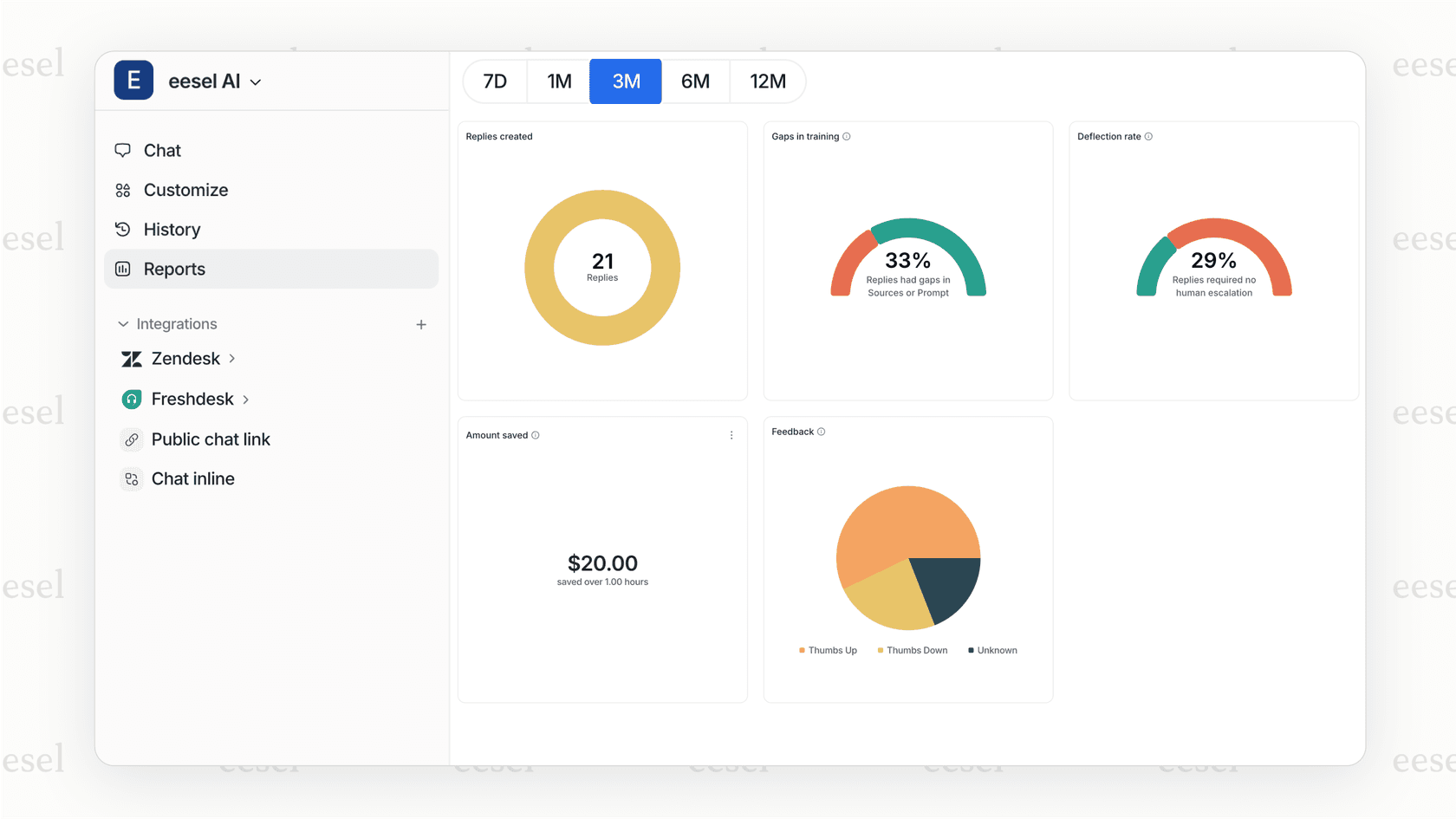
For teams drowning in feedback, AI can help. At eesel AI, we connect with Zendesk to analyze CSAT comments at scale. Our AI spots recurring themes, tracks sentiment trends, and identifies knowledge gaps that might be driving negative ratings. Instead of manually reading hundreds of comments, you get actionable insights automatically.
Getting the most from Zendesk CSAT surveys
Setting up CSAT surveys in Zendesk messaging channels is straightforward once you understand the steps. Enable the feature in Admin Center, configure your messaging settings, customize the survey to match your brand, and set up appropriate triggers.
Remember that CSAT is a continuous improvement tool, not a one-time setup. Review your scores regularly, read the comments, and adjust your approach based on what you learn.
If you're looking to get deeper insights from your CSAT data, eesel AI integrates with Zendesk to help you analyze feedback patterns, identify training opportunities, and spot trends that basic reporting might miss. You can try it free and see how AI-powered analysis complements your CSAT program.


Frequently Asked Questions
Share this article

Article by
Stevia Putri
Stevia Putri is a marketing generalist at eesel AI, where she helps turn powerful AI tools into stories that resonate. She’s driven by curiosity, clarity, and the human side of technology.



