How to route billing inquiries to finance in Zendesk

Stevia Putri
Last edited March 2, 2026
When a customer emails about an incorrect invoice or a refund request, every minute that ticket sits in the wrong queue costs you. The finance team never sees it. The support agent who does see it can't help. And your customer waits, getting more frustrated by the hour.
Getting billing inquiries to the right team fast isn't just about efficiency. It's about keeping customers happy and protecting revenue. A billing issue handled quickly often means a customer retained. One that bounces between departments for days often means a customer lost.
This guide walks you through setting up automated billing-to-finance routing in Zendesk. We'll cover everything from basic trigger setup to advanced AI-powered routing that learns from your tickets. Whether you're starting from scratch or improving an existing setup, you'll have a clear path forward.
What you'll need
Before you start, make sure you have:
- A Zendesk Support account (Team plan or higher for skills-based routing features)
- Admin access to configure triggers, groups, and routing rules
- A clear understanding of your finance team's structure and responsibilities
- A list of billing-related keywords and inquiry types your customers actually use
If you're on Zendesk's Support Team plan ($19/agent/month annually), you can set up basic trigger-based routing. For skills-based routing and advanced queue management, you'll need Suite Professional ($115/agent/month annually) or higher.
Step 1: Create a finance group and define billing categories
Start by organizing your team structure in Zendesk. You need a dedicated group for finance-related tickets and clear categories for different types of billing inquiries.
First, create a Finance or Billing group in your Zendesk Admin Center. Go to Admin Center > People > Groups and add a new group. Name it something clear like "Finance" or "Billing Team." Add the agents who handle billing inquiries to this group.
Next, define your billing inquiry categories. Most teams see these common types:
- Refund requests
- Invoice questions and corrections
- Payment issues and failed transactions
- Account adjustments and credits
- Subscription billing changes
Set up a custom dropdown field to capture this information. Go to Admin Center > Objects and rules > Ticket fields > Add field. Create a dropdown called "Billing Category" with your categories as options. Add this field to your ticket forms so customers or agents can categorize inquiries during submission.
If you have international customers, consider adding a language field too. Routing a German billing inquiry to a Spanish-speaking finance agent doesn't help anyone.
Step 2: Set up trigger-based routing
Triggers are the workhorse of Zendesk routing. They're event-based rules that automatically perform actions when tickets are created or updated. For billing routing, you'll create triggers that detect billing-related keywords and assign tickets to your Finance group.
Go to Admin Center > Objects and rules > Business rules > Triggers and create a new trigger. Name it something descriptive like "Route billing inquiries to Finance."
Set your conditions to catch billing inquiries. The most reliable approach combines multiple conditions:
- Subject contains: invoice, payment, refund, billing, charge, credit
- Description contains: invoice, payment, refund, billing, charge, credit
- Custom field "Billing Category" is not empty
Use the "meets any of these conditions" logic so a ticket matches if it has billing keywords in the subject OR description OR has been categorized via your custom field.
For actions, set:
- Assign to group: Finance
- Add tags: billing, finance, auto-routed
- Set priority: High (for urgent keywords like "refund" or "failed payment")
Test your trigger with sample tickets before going live. Create test tickets with various billing keywords and verify they route correctly. Adjust your conditions if you see false positives (tickets about "payment methods" for a software integration shouldn't go to Finance).

Step 3: Configure skills-based routing
Skills-based routing takes your setup further by matching tickets to agents based on their expertise, not just group membership. This matters when your finance team has specialists (refund processors, invoice analysts, international billing experts).
First, enable skills-based routing. Go to Admin Center > Objects and rules > Business rules > Skills and turn it on.
Create skills that reflect your team's expertise:
- Language skills: English, Spanish, German, French
- Billing expertise: Refunds, Invoices, Payment Processing, International Billing
- Seniority levels: Junior Finance, Senior Finance, Finance Manager
Assign these skills to your finance team agents based on their actual capabilities. An agent who speaks Spanish and specializes in refunds gets both skills.
Now modify your billing trigger to apply skills. Add an action: "Set skills" and choose the appropriate skills based on your conditions. For example, if the ticket description contains "refund" and the language is Spanish, apply the "Refunds" and "Spanish" skills.
Configure skills timeout and overflow so tickets don't get stuck. If no agent with the required skills is available after 30 minutes, route to the general Finance group. During peak periods (month-end, tax season), this prevents bottlenecks.
Enable omnichannel routing to consider skills across all channels. This ensures a billing inquiry that starts in chat and moves to email maintains its skill requirements.
Step 4: Implement advanced routing with queues
For larger teams or complex billing operations, queues provide more control over how work is distributed. Queues let you organize tickets into specific buckets with dedicated handling rules.
Set up billing-specific queues in Admin Center > Objects and rules > Business rules > Queues. Create queues for:
- Urgent billing issues (refunds, payment failures)
- Standard billing inquiries (invoice questions, account adjustments)
- International billing (language-specific routing)
- Escalated billing (complex cases requiring senior agents)
Configure primary and fallback groups for each queue. Your "Urgent Billing" queue might have senior finance agents as primary, with junior agents as fallback during high-volume periods.
Set capacity rules so agents aren't overwhelmed. If your finance agents can handle 5 concurrent tickets, set that limit. Omnichannel routing respects these limits and won't assign new tickets to agents at capacity.
Define business hours for billing support. If your finance team only works business hours in your timezone, set those hours so urgent after-hours billing tickets route to an on-call agent or create a special queue for next-day handling.
Monitor queue performance in Zendesk's routing dashboard. Watch for queues that consistently have long wait times or high reassignment rates. These indicate you need more agents, different skill assignments, or adjusted capacity rules.
Step 5: Add AI-powered intelligent routing
Once your basic routing is working, AI can make it smarter. Zendesk's Intelligent Triage uses AI to detect intent, sentiment, and language in real-time, routing tickets based on what customers actually mean, not just the keywords they use.
Enable Intelligent Triage in your Zendesk account (requires Suite Professional or higher, or the Copilot add-on). The AI analyzes incoming tickets and automatically applies intent labels like "Request refund," "Question about invoice," or "Payment issue."
Train the AI on your specific billing terminology. Review the intent predictions on your billing tickets and correct any misclassifications. When the AI labels a refund request as "General inquiry," fix it. These corrections improve accuracy over time.
Configure sentiment-based priority routing. A ticket saying "I'm extremely frustrated about this incorrect charge" gets higher priority than "Quick question about my invoice." The AI detects this emotional tone and routes accordingly.
Set up auto-tagging for billing categories. Instead of relying on customers to select the right dropdown option, the AI reads the ticket and applies tags like "refund," "invoice_error," or "payment_failed." Your triggers can then route based on these AI-generated tags.
Review and refine AI predictions regularly. Zendesk provides accuracy reports showing how often the AI correctly identified intent. Aim for 85%+ accuracy on billing-related intents. Below that, you need more training data or clearer category definitions.

Common mistakes and how to avoid them
Even well-planned routing setups can fail. Here are the most common pitfalls and how to prevent them.
Overly broad keywords cause misrouting. A trigger that catches any ticket with "payment" will grab tickets about "payment gateway integration" and "payment method setup" that belong in technical support, not finance. Use specific phrases like "refund my payment" or "incorrect charge" instead of single keywords.
Not updating routing rules as team structure changes. When you hire a new finance agent or someone changes roles, update your skills assignments immediately. Stale skill mappings send tickets to agents who can't handle them.
Failing to set up overflow for peak periods. Month-end billing cycles, tax season, and product launches create billing inquiry spikes. Without overflow routing, tickets pile up in queues. Set fallback groups and capacity limits before you need them.
Neglecting to train AI on your specific terminology. Generic AI models don't know that "ACH reversal" or "pro-rated credit" are billing terms in your business. Review and correct AI predictions weekly during the first month to train it on your language.
Not monitoring routing accuracy metrics. If you don't track misrouting rates, you won't know there's a problem until customers complain. Check Zendesk's routing reports monthly for tickets that were reassigned multiple times or sat unassigned too long.
Measuring success: Key metrics to track
You can't improve what you don't measure. Track these metrics to ensure your billing routing is working:
| Metric | Target | How to measure |
|---|---|---|
| First response time for billing tickets | Under 2 hours | Zendesk Insights: median first reply time by group |
| Resolution time by inquiry type | Varies by complexity | Zendesk reports: median resolution time by custom field |
| Misrouting rate | Under 5% | Tickets reassigned within 24 hours / total billing tickets |
| Customer satisfaction (CSAT) for billing | 4.0+ out of 5 | Zendesk CSAT surveys filtered by Finance group |
| Finance team workload distribution | Even across agents | Tickets solved per agent per week |
Review these metrics monthly. If first response times are climbing, you may need more finance agents or better overflow rules. If misrouting rates are high, refine your trigger conditions or AI training.
How eesel AI improves billing routing
Setting up routing rules in Zendesk works, but it requires ongoing maintenance. Every time your billing process changes, someone has to update triggers and skills. Every new type of inquiry needs new rules. And the system never learns from mistakes.
We built eesel AI to handle routing differently. Instead of writing rules, you describe what you want in plain English. Instead of manual updates, the AI learns from your corrections. And instead of hoping your rules work, you test them on past tickets before going live.

Here's how it works for billing routing:
Automatic learning from your history. Connect eesel AI to your Zendesk account and it reads your past tickets, help center articles, and macros. It learns how you categorize billing inquiries, what language your customers use, and how your finance team responds. No manual training required.
Progressive rollout with confidence. Start with eesel AI drafting replies for your finance agents to review. When you're satisfied with accuracy, let it send responses directly. Eventually, it handles full ticket resolution including routing, tagging, and closing. You control the pace based on actual performance.
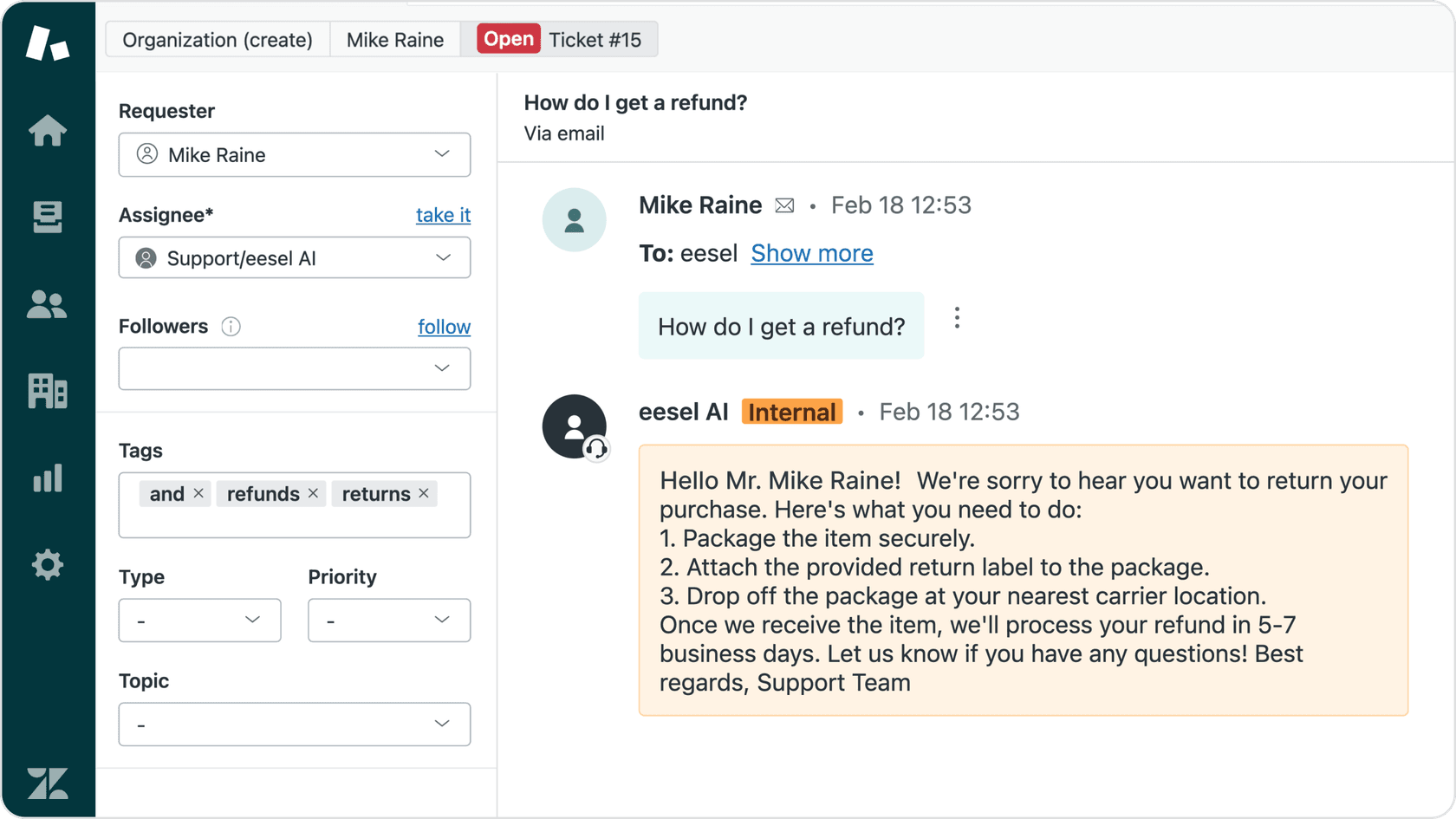
Plain-English instructions for complex scenarios. Instead of building complex trigger logic, just tell eesel AI: "If a refund request is over 30 days old, politely decline and offer store credit" or "Always escalate billing disputes over $1,000 to a manager." The AI follows these instructions consistently.
Simulations before going live. Test eesel AI on thousands of your past billing tickets. See exactly how it would have routed them, what responses it would have sent, and where it would have escalated. Fix gaps in its training before it touches real customers.
Continuous improvement. When you correct an eesel AI response or routing decision, it learns from that correction. Update a policy in your help center and eesel AI knows immediately. No retraining cycles or rule updates needed.
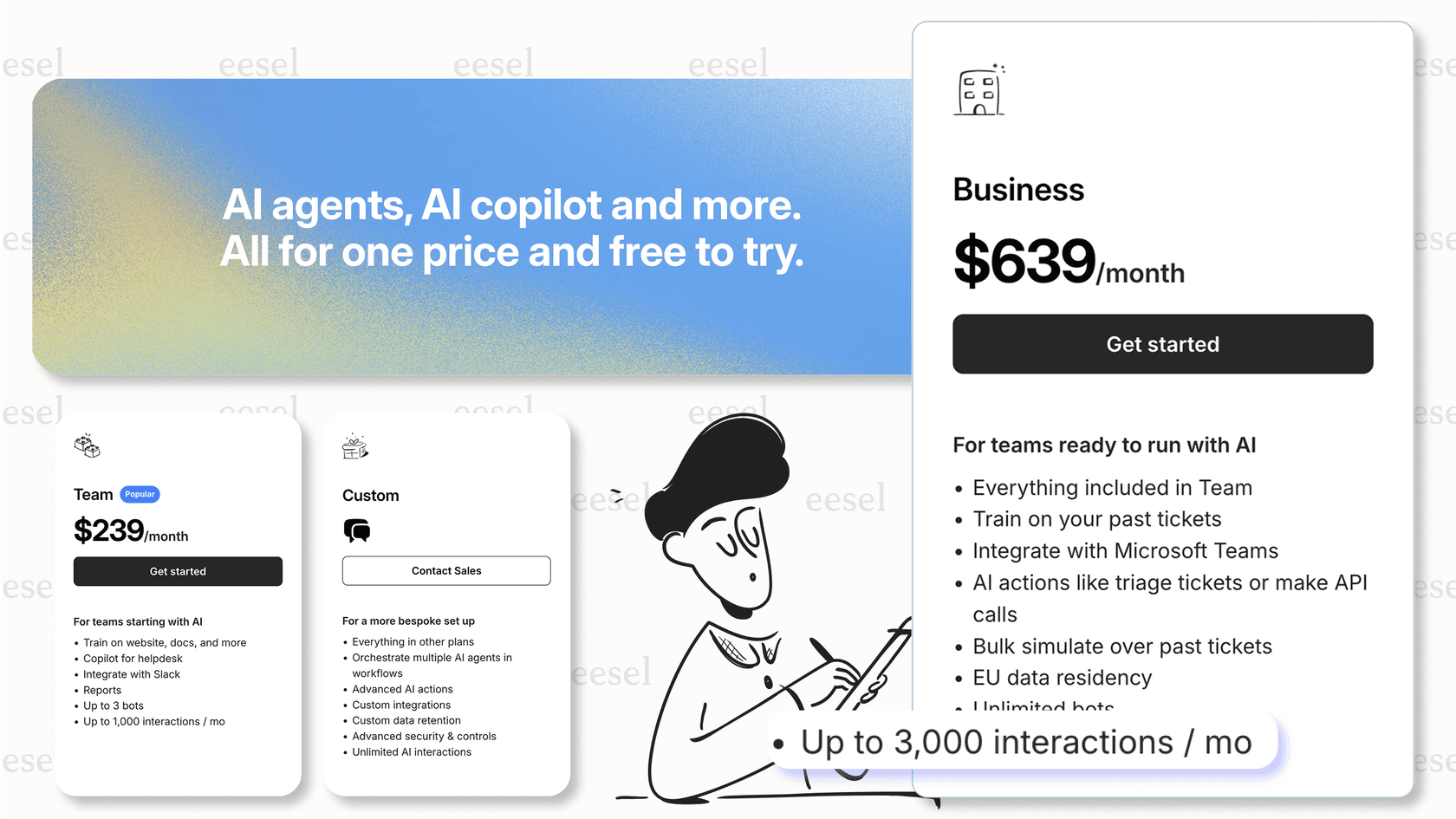
Pricing starts at $239/month (annual) for up to 3 bots and 1,000 AI interactions. The Business plan at $639/month includes AI Agent capabilities, bulk simulation over past tickets, and unlimited bots. All plans include a 7-day free trial.
Ready to see how eesel AI can transform your billing routing? Book a demo and we'll show you how it works with your actual Zendesk data.


Frequently Asked Questions
Share this article

Article by
Stevia Putri
Stevia Putri is a marketing generalist at eesel AI, where she helps turn powerful AI tools into stories that resonate. She’s driven by curiosity, clarity, and the human side of technology.



