Picture this: your customer sends an urgent support request. Two of your agents both see it in the queue, open it simultaneously, and start crafting responses. Ten minutes later, the customer receives two different answers to the same question. Confusing for them, embarrassing for your team, and a waste of valuable agent time.
This is agent collision, and it's one of those problems that seems small until it happens to you. If you're using Zendesk, you have built-in tools to prevent this. But understanding how they work (and what to do when they don't) isn't always straightforward.

Here's everything you need to know about Zendesk's agent collision warning system.
What is agent collision and why does it matter?
Agent collision happens when multiple support agents work on the same ticket at the same time without knowing about each other. The result is usually duplicate or conflicting responses, which creates a poor customer experience and wastes your team's time.
The impact goes beyond just looking unprofessional. When two agents research and respond to the same issue independently, you're essentially paying twice for the same work. In high-volume support environments, these collisions can happen dozens of times daily.
Here's the short version: collision detection isn't just a nice-to-have feature. For teams sharing ticket queues, it's essential for maintaining efficiency and professionalism.
Some support platforms handle this better than others. In the HubSpot community, users have been requesting collision detection for years, with one member noting: "This is a basic feature that all modern ticket systems have." Teams switching from Zendesk to platforms without this feature often find themselves struggling with workflow disruptions they never had to think about before.
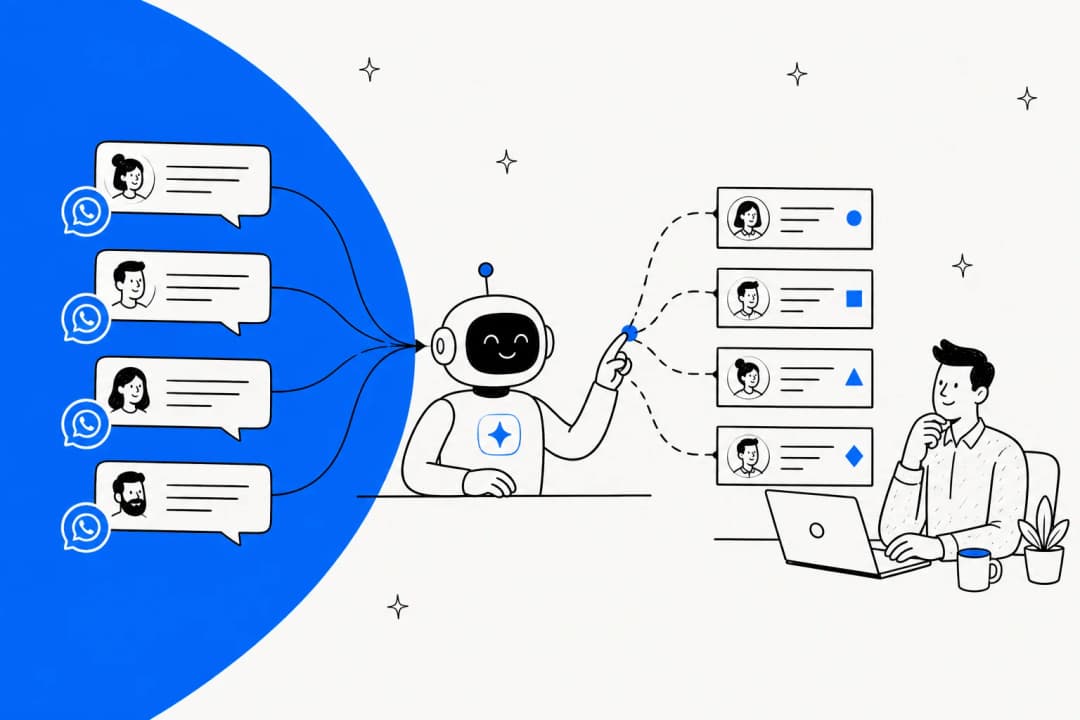
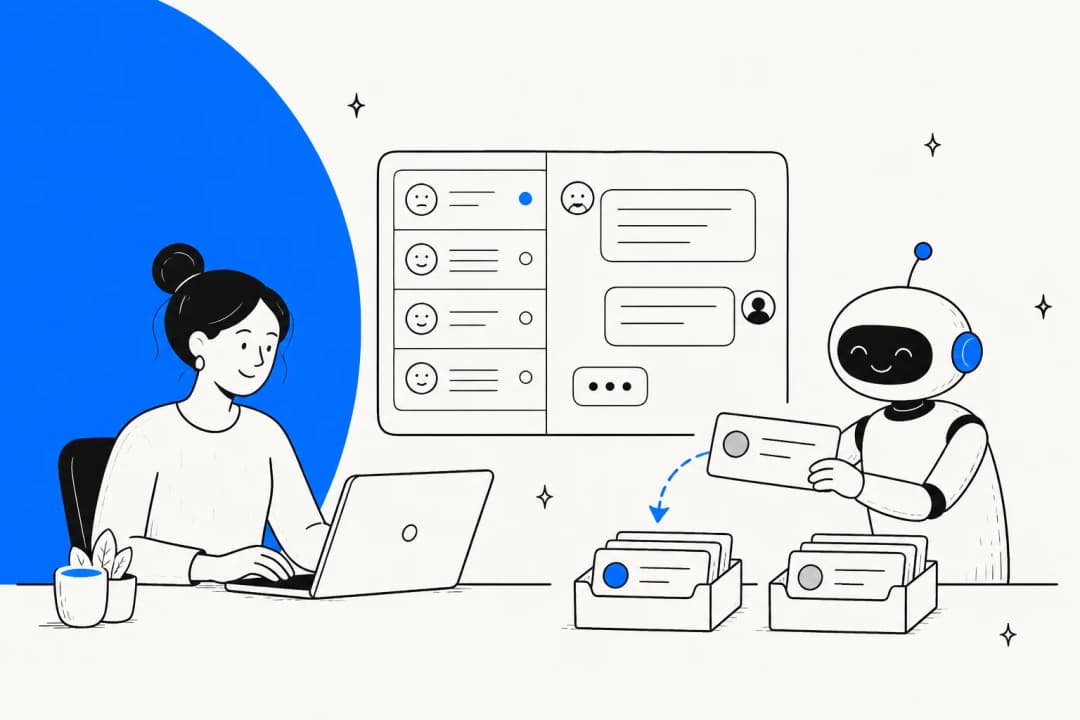
While detection helps, prevention is even better. That's where intelligent ticket routing comes in. By automatically assigning tickets to specific agents based on content and availability, you reduce the chance of multiple agents even opening the same ticket. Our AI Triage handles this by reading and categorizing incoming tickets, then routing them immediately to the right person. Clear ownership from the start means fewer collisions overall.
According to Zendesk's customer experience trends report, teams that implement intelligent routing see significant improvements in response times and agent efficiency.
How Zendesk's agent collision detection works
Zendesk uses a technology called "Radar" to track agent presence in real time. This system maintains a persistent connection between each agent's browser and Zendesk's servers, allowing the platform to know who's viewing which ticket at any moment.
Visual indicators you'll see
Zendesk provides several visual cues to help agents avoid stepping on each other's work:
In ticket views:
- An eye icon appears next to tickets that another agent is currently viewing
- Hover over the ticket to see exactly which agent is there

Inside individual tickets:
- Agent pictures in the upper left corner show who's on the ticket
- Dimmed pictures mean the agent has the ticket open but navigated away
- Regular pictures indicate the agent is viewing but not actively editing
- Blue outlines around pictures mean the agent is currently editing
Update notifications:
- A "Ticket updated" message appears at the top when someone else makes changes
- Click "Show more" to see which agent made the update
These indicators update in real time, so agents can see presence changes as they happen.
Plan availability
Here's the catch: agent collision detection is not available on Zendesk's Team plan. You'll need at least the Growth plan ($89/agent/month when billed annually) to access this feature.
| Plan | Annual Price | Collision Detection? |
|---|---|---|
| Suite Team | $55/agent/month | No |
| Suite Growth | $89/agent/month | Yes |
| Suite Professional | $115/agent/month | Yes |
| Suite Enterprise | Custom pricing | Yes |
Source: Zendesk pricing and collision detection documentation
If you're on the Team plan and experiencing collision issues, upgrading is your only option for built-in detection. Alternatively, workflow improvements (which we'll cover later) can help reduce collisions even without the feature. You can learn more about Zendesk's plan features and limitations in their official documentation.
Common agent collision scenarios
Even with collision detection enabled, certain situations can still lead to conflicts. Understanding these scenarios helps you prevent them.
Play mode collisions
Play mode is designed to prevent collisions by automatically assigning tickets that no other agent is viewing. But it's not perfect.
Scenario 1: Manual override When an agent is working through tickets in Play mode, another agent can still manually open any of those tickets from a view, search results, or a direct link. The agent in Play mode will see the collision indicator, but the damage (duplicate work starting) may already be done.
Scenario 2: Connection issues If an agent loses internet connection or becomes inactive while viewing a ticket, the system assumes they've left. The ticket then becomes available in Play mode. When the original agent reconnects, they may find someone else has picked up "their" ticket.
Tag update collisions
When two agents update ticket tags simultaneously, Zendesk handles this gracefully. Rather than one update overwriting the other, the system merges both tag changes. All tags from both agents are included, regardless of who saved first.
This is one area where Zendesk's collision handling works well automatically. Still, it's better to coordinate tag changes when you know another agent is on the ticket. For more details on tag management best practices, see Zendesk's support documentation.
Auto assist collisions
If your account has auto assist activated, multiple agents on the same ticket will see the same AI suggestion. When one agent approves it, other agents see that suggestion sent in the conversation, and auto assist enters a "waiting for reply" state.
This prevents multiple agents from sending the same AI-generated response, but it can still create confusion about who should handle the follow-up.
Troubleshooting agent collision issues
Sometimes collision detection doesn't work as expected. Agents can't see the eye icon, or their presence isn't showing to others. Here's how to fix the most common issues.
Browser and cache issues
Zendesk uses cookies to manage agent presence. If these get corrupted, collision detection can fail.
First steps:
- Clear your browser cache and cookies
- Try incognito or private browsing mode
- Test in a different browser (Chrome, Firefox, Safari)
These simple fixes resolve most collision visibility issues. If problems persist, check Zendesk's browser requirements to ensure your setup meets their recommendations.
Network and firewall configuration
This is where it gets technical. Zendesk's presence detection uses different URLs than the main application. Your firewall or VPN may be blocking them.
The system confirms agent presence through URLs with this format:
pubsub-shardC-P-N.zendesk.com
Where:
- C = cluster (value between 1-3)
- P = your account's pod number
- N = random number from 1-4

For example, if your account uses cluster 2 and pod 17, these URLs need to be allowed:
https://pubsub-shard2-17-1.zendesk.comhttps://pubsub-shard2-17-2.zendesk.comhttps://pubsub-shard2-17-3.zendesk.comhttps://pubsub-shard2-17-4.zendesk.com
To find your specific URLs:
- Open Chrome Developer Tools (F12)
- Go to the Network tab
- Filter by "pubsub"
- Look for requests to pubsub-shard URLs
If you're on a corporate VPN or behind strict firewalls, you may need to ask your IT team to whitelist these URLs. Some users have reported that using a personal VPN (like Windscribe) actually resolved their collision issues by bypassing ISP-level blocking.
Multi-device and inactivity issues
Multiple devices: When agents sign in to Zendesk on multiple devices (laptop + phone, work computer + home computer), the system can't accurately track which tickets they're viewing. This causes collision detection to fail. Best practice: view tickets on one device at a time.
Inactivity timeouts: If you leave a ticket open without activity for an extended period, the system stops registering your presence. The screen being inactive means Zendesk assumes you've moved on. Close tickets when you're done working on them.
Best practices to prevent agent collisions
Detection is helpful, but prevention is better. Here are workflow strategies that reduce collisions regardless of your tools.
Establish clear ownership
- Assign immediately: When you start working a ticket, assign it to yourself right away. This signals ownership to other agents.
- Use internal notes: If you need to pause work on a ticket, leave an internal note explaining the status. Other agents can see this and know not to duplicate your effort.
- Close when done: Don't leave resolved tickets open in your browser. Close them to clear your presence.
Optimize your routing
The fewer unassigned tickets sitting in a general queue, the fewer opportunities for collisions. Consider:
- Skills-based routing: Automatically route tickets to agents with the right expertise
- Round-robin assignment: Distribute tickets evenly so agents aren't competing for the same items
- Priority queues: Separate urgent tickets so they get immediate attention without queue competition
Our AI Triage takes this further by reading ticket content and routing based on topic, urgency, and agent availability. When tickets arrive already assigned, there's no race to claim them.

Communication protocols
- Announce when taking complex tickets: In team chat, mention when you're picking up a high-priority or complex issue
- Use status fields: Update ticket status to "Pending" or "On-hold" when appropriate so other agents know it's being worked
- Handoffs: When transferring a ticket to another agent, use an internal note to summarize what's been done
How eesel AI prevents collisions at the source
Collision detection solves the symptom. But what about the underlying cause?
The root problem is often unclear ticket ownership. When multiple agents can grab any ticket from a shared queue, collisions are inevitable. The solution is intelligent routing that assigns tickets before agents see them.
Here's how our approach works with Zendesk:
AI Triage reads incoming tickets as they arrive, categorizes them by topic and urgency, and routes them to the most appropriate agent immediately. No shared queue means no race to claim tickets. Each agent gets work tailored to their skills, and tickets have clear ownership from minute one.
AI Agent handles routine inquiries automatically. When common questions get resolved without human intervention, your agents have fewer tickets competing for their attention. The remaining tickets are the complex ones that truly need human expertise.
AI Copilot drafts replies based on your knowledge base and past successful conversations. Agents work faster, which means tickets spend less time in "being worked" status. Less time per ticket equals fewer opportunities for overlap.

The difference is proactive versus reactive. Zendesk's collision detection tells you when there's a problem. Our approach removes the conditions that create problems in the first place.
You can see how this works with your own tickets. Our Zendesk integration connects in minutes and can simulate results on your historical data before you change anything.
Choosing the right approach for your team
Should you rely on Zendesk's built-in collision detection, or look at AI-powered workflow improvements? It depends on your situation.
Zendesk's collision detection is sufficient when:
- You're on Growth plan or higher (so the feature is available)
- Your team is small (under 10 agents)
- Tickets are mostly straightforward with quick resolution times
- You have clear workflow protocols agents actually follow
Consider AI-powered improvements when:
- You're experiencing frequent collisions despite having detection enabled
- Your team is growing and shared queues are becoming unmanageable
- You want to reduce ticket volume through automation
- Agents spend significant time on routine inquiries that could be automated
The two approaches aren't mutually exclusive. Many teams use Zendesk's collision detection as a safety net while implementing smarter routing to prevent collisions at the source.
Start preventing agent collisions today
Agent collisions waste time, confuse customers, and create unnecessary stress for your support team. While Zendesk's built-in detection helps, the real solution is preventing those situations from occurring.
If you're dealing with frequent collisions, start by auditing your current workflow. Are tickets sitting unassigned too long? Are agents clear on ownership protocols? Sometimes simple policy changes solve the problem.
For teams ready to go further, AI-powered routing and automation can eliminate the root causes of collisions while improving overall efficiency. Our AI solutions for customer support work alongside Zendesk to create a smoother workflow for your team and better experiences for your customers.

Want to see how much of your ticket volume could be intelligently routed or automated? Try eesel AI free and run a simulation on your past tickets. You'll see exactly what smarter workflows could do for your team.
Frequently Asked Questions
Share this post

Article by
Stevia Putri
Stevia Putri is a marketing generalist at eesel AI, where she helps turn powerful AI tools into stories that resonate. She’s driven by curiosity, clarity, and the human side of technology.