How to integrate Re:amaze with WooCommerce: Complete guide 2026

Stevia Putri
Last edited March 13, 2026
Managing customer support for your WooCommerce store can feel like juggling too many balls at once. You're switching between your WordPress admin, email inbox, and maybe a separate chat tool, all while trying to help customers who want quick answers about their orders.
Re:amaze is a helpdesk platform designed specifically for e-commerce businesses that brings all your customer conversations (email, live chat, social media, SMS) into one shared inbox. The best part? When you connect it to your WooCommerce store, your support team gets instant access to customer data, order history, and even the ability to process refunds without leaving the conversation.
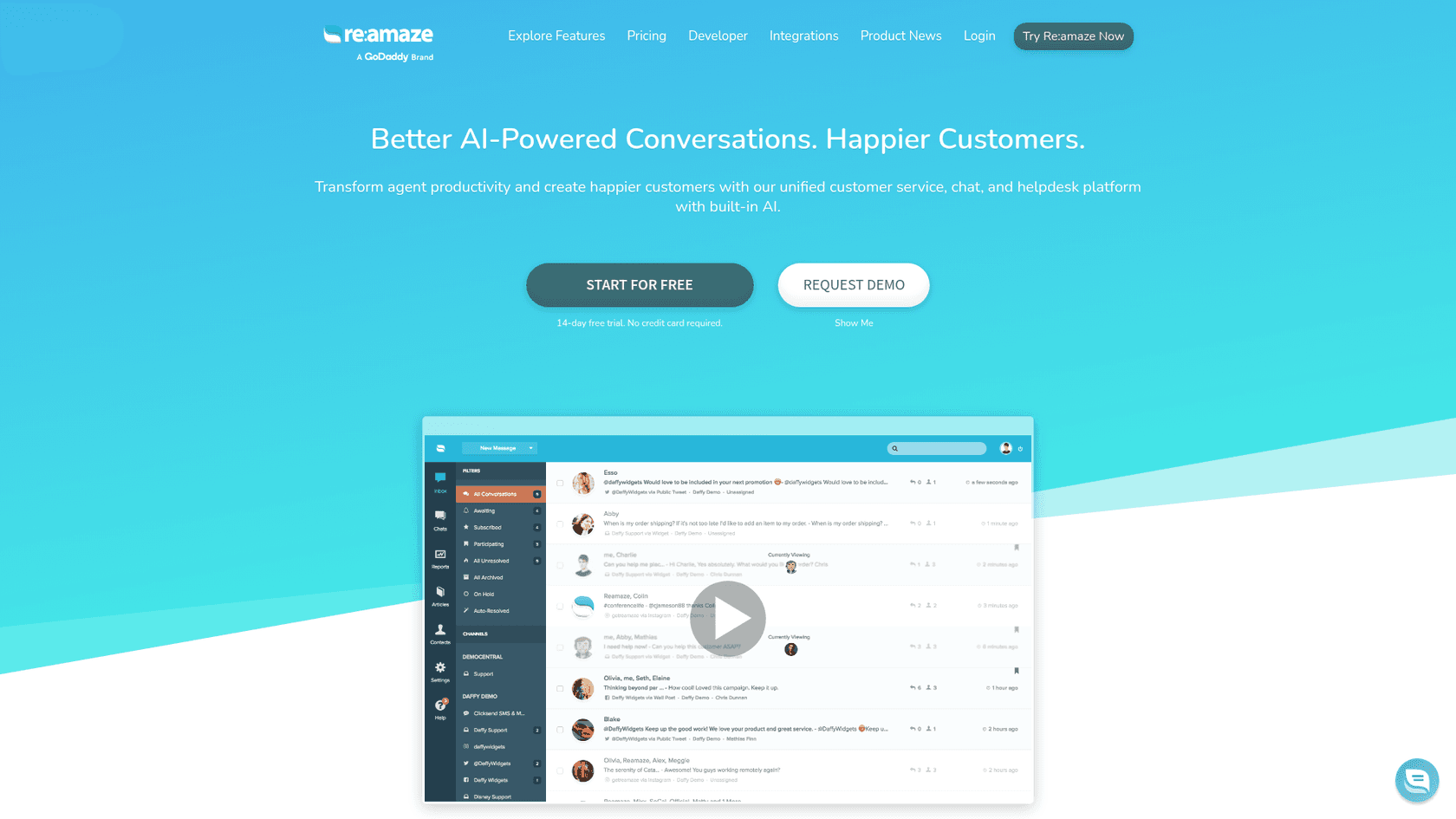
In this guide, I'll walk you through setting up the Re:amaze WooCommerce integration step by step. You'll learn how to connect your store, what features become available, and how to get the most from this integration. I'll also introduce eesel AI as an alternative approach if you're looking for AI-powered support automation.
What you'll need
Before you start, make sure you have the following in place:
- WooCommerce 3.0 or newer The integration requires a relatively recent version of WooCommerce
- WordPress 4.4 or newer Your WordPress installation needs to be up to date
- An active Re:amaze account You can start with their 14-day free trial (no credit card required)
- WordPress admin access You'll need to install a plugin and configure settings
- API credentials These are generated during the setup process, so don't worry about having them ready now
The whole setup takes about 10-15 minutes if you have everything ready. Let's break it down.
Step 1: Connect your WooCommerce store to Re:amaze
First, you need to establish the connection between Re:amaze and your WooCommerce store.
Log into your Re:amaze account and navigate to Settings > Apps and Integrations > WooCommerce. You'll see an overview of the integration requirements and what it can do. Click the "+ Connect a WooCommerce Store" button to begin.
The system will ask you to authenticate the connection. This involves granting Re:amaze permission to access your WooCommerce store data through the API. Don't worry, this is a secure, read-and-write connection that only accesses the data needed for customer support (orders, customer info, products).
Once authenticated, you'll see a success message and the option to manage your integration settings. That's your cue to move to step 2.
Step 2: Configure integration settings
Now that the connection is established, you need to tell Re:amaze which brand and store this integration belongs to.
Click "Manage Settings" to open the configuration panel. Here you'll need to:
- Select the correct brand If you manage multiple brands in Re:amaze, choose the one associated with this WooCommerce store
- Input your store name This helps identify the store in your Re:amaze dashboard
- Enter your store URL The full web address of your WooCommerce store
- Verify API credentials Re:amaze should have pulled these automatically during authentication, but double-check they're correct
Click Save and test the connection. You should see a confirmation that Re:amaze is now pulling data from your WooCommerce store. If you encounter any errors, check that your WooCommerce API is enabled and that your store URL is entered correctly.
Step 3: Install the Re:amaze WordPress plugin
With the backend connection established, you now need to add the Re:amaze chat widget to your storefront. The easiest way is through their official WordPress plugin.
Log into your WordPress admin dashboard and navigate to Plugins > Add New. In the search box, type "Re:amaze" and look for the official plugin by Reamaze. Click Install Now, then Activate once installation completes.

After activation, you'll see a new Re:amaze menu item in your WordPress sidebar. You don't need to configure anything here yet. The plugin is ready and waiting for the final step.
Step 4: Publish your chat widget
Re:amaze offers a One-Click Publish feature that makes going live incredibly simple.
Return to your Re:amaze dashboard and navigate back to Settings > Apps & Integrations. Find your WooCommerce integration and click "One-Click Publish". This automatically pushes your chat widget configuration to your WordPress site through the plugin you just installed.
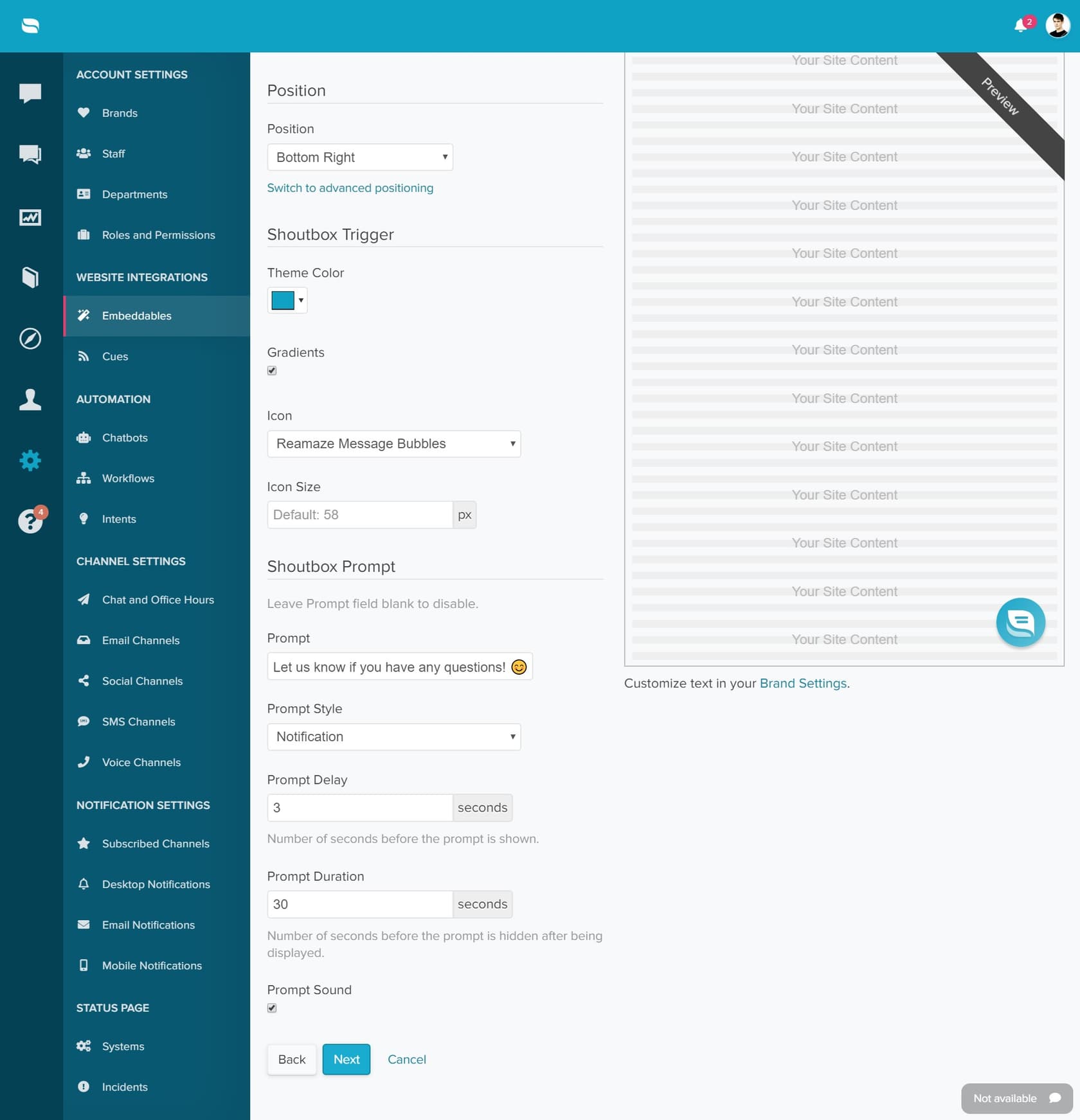
Visit your WooCommerce storefront and refresh the page. You should see your Re:amaze chat widget appear in the corner. That's it. Your integration is live.
If the widget doesn't appear immediately, try clearing your WordPress cache or checking that the plugin is properly activated.
What you can do with the Re:amaze WooCommerce integration
Now that you're connected, let's look at what this integration actually gives you. When a customer contacts you through any channel (email, chat, social), Re:amaze automatically pulls their WooCommerce data into the conversation sidebar.
Here's what's visible to your support team:
- Customer overview Total orders, total spend, customer lifetime value, and account creation date
- Order details Complete order history with line items, total values, and current status
- Shipping information Billing and shipping addresses, plus tracking data when available
- Order actions Process refunds, update order status, and change payment status directly from Re:amaze
- Customer notes Add private notes for your team or public notes visible to the customer
- Product recommendations Insert WooCommerce products directly into your replies with a click
The real power comes from combining this data with Re:amaze's automation features. You can create response templates with dynamic variables that automatically pull in order numbers, shipping dates, or product names. You can also set up workflows that trigger based on order status, customer value, or other criteria.
For example, you could create a workflow that automatically tags high-value customers (based on lifetime spend) and assigns them to your senior support agents. Or set up a macro that inserts a refund policy explanation with a single click.
Alternative integration methods
The native WooCommerce integration is the most straightforward approach, but it's not your only option. Depending on your needs, you might consider these alternatives:
Zapier If you need to automate workflows between Re:amaze and other tools, Zapier offers 50+ triggers and actions. For example, you could automatically create a Re:amaze conversation when a new WooCommerce order comes in, or update a customer record when a ticket is resolved. This is useful if you have complex automation needs beyond what the native integration provides.
Zoho Flow Similar to Zapier, Zoho Flow provides a no-code workflow builder with connections to 1000+ apps. If you're already in the Zoho ecosystem, this might be a more natural fit.
ChannelReply For sellers managing multiple channels (Amazon, eBay, Shopify, and WooCommerce), ChannelReply acts as middleware that brings all marketplace messages into Re:amaze with enhanced order data. This is worth considering if WooCommerce is just one of several platforms you sell on.
Tips for getting the most from your Re:amaze WooCommerce integration
Once you're up and running, here are some practical ways to maximize the value of this integration:
- Create response templates for common questions Set up macros for "Where's my order?" and refund requests that automatically insert relevant order data using dynamic variables
- Train your team on the customer data sidebar Make sure everyone knows they can view order history, process refunds, and add notes without switching tabs
- Set up automated workflows Use Re:amaze's workflow engine to tag VIP customers, route specific order types to specialized agents, or send automated responses to common inquiries
- Monitor conversation metrics Track response times, resolution rates, and customer satisfaction scores to identify areas for improvement
- Use the mobile app Download the Re:amaze mobile app for iOS or Android so you can handle urgent customer issues even when away from your desk
eesel AI: An AI-powered alternative for WooCommerce support
While Re:amaze provides a solid traditional helpdesk experience, you might be looking for something more automated. eesel AI offers a different approach.
eesel AI is an AI teammate for customer support that handles frontline tickets autonomously. Instead of just giving your human agents better tools, eesel AI can actually respond to customers directly, grounded in your WooCommerce data, help center articles, and past ticket history.

How eesel AI differs from traditional helpdesk tools:
- True automation eesel AI can resolve up to 81% of frontline support tickets without human intervention, not just draft replies for review
- Learns instantly Connect eesel AI to your WooCommerce store, and it immediately understands your products, policies, and order data
- Progressive rollout Start with AI drafting replies for review, then level up to full autonomy as you gain confidence
- Plain-English control Define escalation rules and policies in natural language, no complex workflows needed
We also integrate natively with WooCommerce, so you get the same order data and actions as Re:amaze, but with an AI agent that can actually use that data to help customers directly.
If you're curious how AI-powered support compares to a traditional helpdesk, you can try eesel AI free or book a demo to see it in action.
Start improving your WooCommerce customer support today
The Re:amaze WooCommerce integration gives your support team something invaluable: context. Instead of asking customers for order numbers and switching between tabs, your agents see everything they need in one place. That means faster responses, happier customers, and more efficient support operations.
Setting it up takes less than 15 minutes, and the 14-day free trial lets you test everything before committing. If you're looking for a traditional helpdesk with deep WooCommerce integration, Re:amaze is a solid choice.
But if you're ready to explore what AI can do for your support workflow, consider giving eesel AI a look. We handle the routine tickets so your team can focus on the conversations that actually need a human touch.
Either way, the key is getting your customer support out of email inboxes and into a system that actually understands your WooCommerce business. Your customers (and your support team) will thank you.


Frequently Asked Questions
Share this article

Article by
Stevia Putri
Stevia Putri is a marketing generalist at eesel AI, where she helps turn powerful AI tools into stories that resonate. She’s driven by curiosity, clarity, and the human side of technology.