Zendesk multi-currency: A complete guide for 2026

Stevia Putri
Last edited March 3, 2026
Managing international sales means dealing with multiple currencies. Whether you're quoting deals in euros, pounds, or dollars, your CRM needs to handle these transactions without creating a mess in your reporting. Zendesk Sell offers multi-currency features, but there are important distinctions between what the CRM can do versus how you pay for your Zendesk subscription.
This guide breaks down how Zendesk multi-currency works, what you can configure yourself, and where you might need third-party solutions or workarounds.
What is Zendesk multi-currency?
When people search for "Zendesk multi-currency," they're usually looking for one of two things: currency handling in Zendesk Sell (the CRM) or payment currency options for their Zendesk subscription. These are different features with different capabilities.
Zendesk Sell multi-currency lets you track deals, forecast revenue, and generate reports in multiple currencies. This is essential for sales teams working across borders.
Zendesk payment currency refers to which currency you use to pay for your Zendesk subscription. This is more limited and affects your billing, not your sales operations.
For support teams dealing with international customers, having an AI teammate that understands these currency complexities can help. We built eesel AI to work alongside Zendesk, handling routine support tickets (including billing and currency questions) so your team can focus on complex issues.
How multi-currency works in Zendesk Sell
Zendesk Sell handles multiple currencies at two levels: account-wide defaults and individual deal settings. Here's how it breaks down.
Every Sell account has one default currency set at the account level. This becomes your baseline for reporting and forecasting. However, individual deals can use different currencies. A deal with a German client might be in euros while a UK deal is in pounds, even if your default is USD.
Exchange rates come from openexchangerates.org. Zendesk pulls these rates automatically, though you should know they're not updated in real-time for every transaction.
Reporting and forecasting differences
This is where it gets interesting. Zendesk Sell treats forecasting and closed deals differently when it comes to exchange rates:
Forecasting reports use the current exchange rate to calculate active deal values. Sales reports use the exchange rate from the deal's closing date for closed deals.
This distinction matters for accuracy. A deal closed six months ago in euros gets calculated at that day's exchange rate, not today's. This prevents your historical revenue numbers from shifting every time exchange rates fluctuate.
When you view deals in a list, Sell sorts them by value in your default currency, recalculating where needed. You can also filter deals by currency to see only euro deals or only dollar deals.
Important: Multi-currency features are only available on Sell Professional plans and above. The Team plan does not include this functionality.
Setting up currencies in Zendesk Sell
Getting multi-currency working in your Sell account takes a few steps. Here's the process:
Step 1: Access your account settings
Navigate to your Sell account settings. You'll need admin permissions to make these changes. The currency settings are found under your main account configuration, not in individual deal settings.
Step 2: Add additional currencies
Most major currencies are available in Sell. You can add euros, pounds, yen, or dozens of others. If you need a specific currency that isn't showing, contact Zendesk support to confirm availability.
Step 3: Set exchange rates
Zendesk pulls rates from openexchangerates.org, but you should understand how these update. The rates are not real-time for every calculation. For historical reporting, rates are locked at the time of deal closure.
Step 4: Apply currency to deals
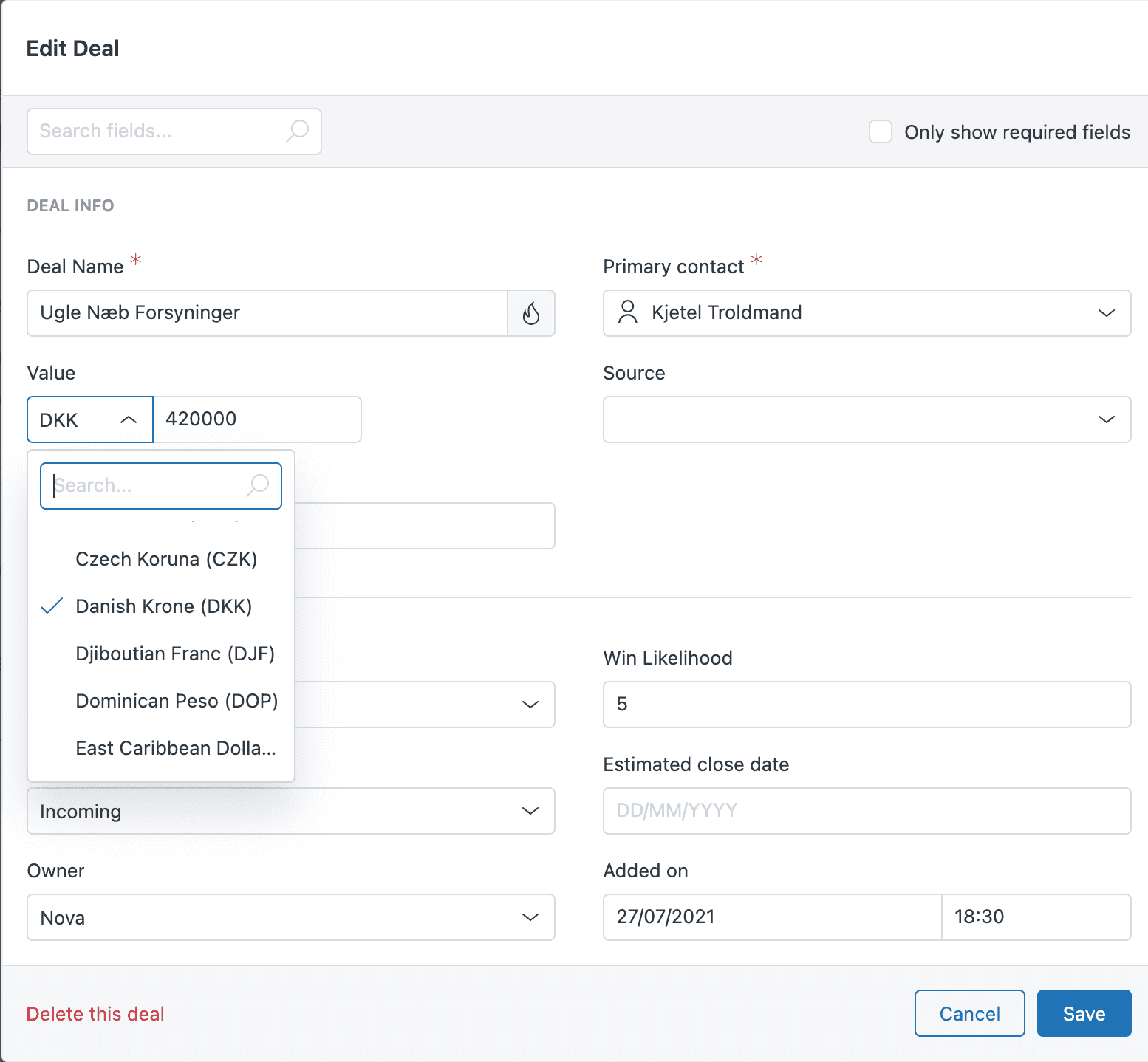
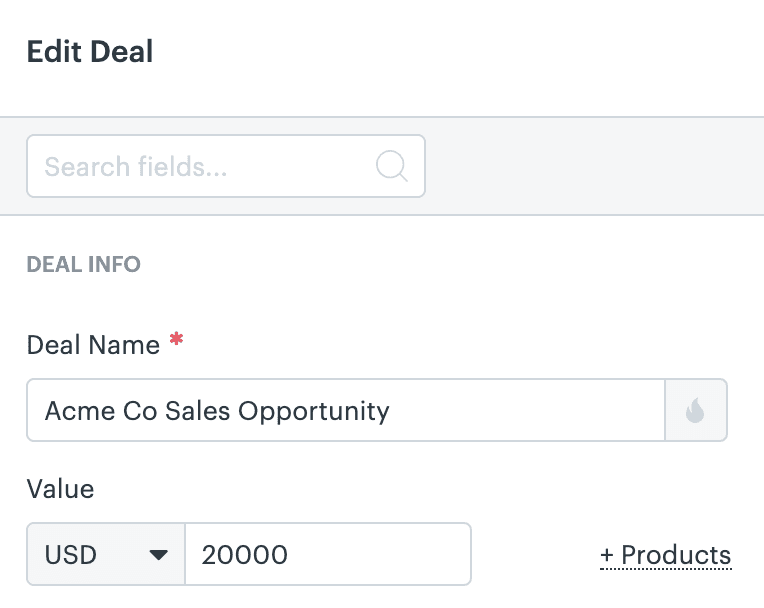
When creating or editing a deal, you can select the currency from a dropdown. This is done at the individual deal level in Deals > Edit deal. Each deal can have its own currency independent of your account default.
Step 5: Filter and report by currency
Once you have deals in multiple currencies, use filters to segment your pipeline. You can create smart lists showing only deals in a specific currency or run reports that break down performance by currency.
Understanding payment currency limitations
Now for the confusing part. The currencies you can use to pay for Zendesk are more limited than the currencies you can track in Sell.
Zendesk currently supports these payment currencies for Support accounts:
| Currency | Code | Self-Serve Change |
|---|---|---|
| US Dollar | USD | Yes |
| Euro | EUR | Contact support |
| British Pound | GBP | Contact support |
| Brazilian Real | BRL | Yes (USD to BRL only) |
The self-serve limitation
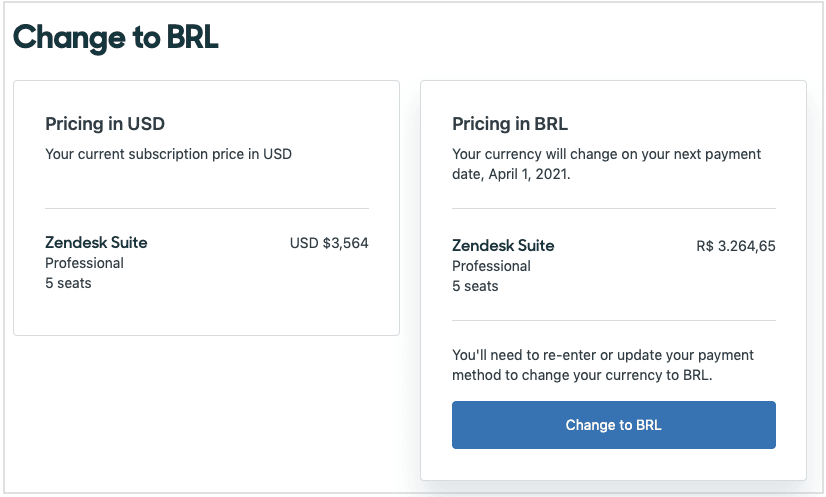
Here's the catch: you can only change your payment currency yourself if you're switching from USD to BRL. For all other currency changes, you need to contact Zendesk Customer Support.
Even then, only account owners can request these changes. Billing admins cannot modify payment currency. If you're not the account owner, you'll need to loop them in.
Timing matters
When you do change your payment currency, the change applies to your next billing cycle. If you pay annually, that could be months away. Plan accordingly if you're trying to optimize for exchange rate fluctuations.
For Brazilian customers specifically: if you have a self-service account created with a Brazilian IP address and are currently paying in USD, you can switch to BRL through the Admin Center. New customers with Brazilian IPs can select BRL during signup.
Native limitations and user feedback
Zendesk Sell's multi-currency features work well for basic international sales, but they have limitations that frustrate some users. The Zendesk Community has been vocal about these gaps.
One default currency per account
You can only set one default currency for your entire Sell account. This becomes problematic for multinational companies with regional teams. A company with major operations in both the US and Europe cannot set dollars as default for the American team and euros for the European team.
No pipeline-specific currencies
Users have requested the ability to assign currencies to specific pipelines. For example, a "Europe Pipeline" could default to euros while a "US Pipeline" defaults to dollars. This feature does not exist.
One can set only one default currency. Being able, either to have multiple default currencies, or assign a currency to a pipeline, would be useful for international uses.

No user-level preferences
Individual users cannot set their preferred currency view. A sales rep in London sees the same default currency as a rep in New York, even if they primarily work with different currencies.
Defining Currency settings by User would be a good solution.. currently it is only by the entire Account... this would be a view to the data, and all data in backend to be stored in base units defined by each account.
Dashboard widget limitations
Dashboard widgets display values in your account default currency. You cannot create a widget that shows deal values in euros while your default is USD. This limits visibility for international teams.
For multinational corporations, it's not user-friendly when users add products.
These limitations mean Zendesk Sell works best for companies with one primary currency and occasional international deals, rather than truly multinational operations with distributed sales teams.
Third-party solutions for advanced multi-currency needs
When native features fall short, several Zendesk Marketplace apps extend multi-currency capabilities. Here are the main options:
Sparkly Refunds App
The Refunds app by Sparkly focuses on multi-currency refund processing. If your bank supports multiple currencies in a single payout, this app lets you process refunds in the original transaction currency.
Key features include refund requests directly from Zendesk tickets, approval workflows between finance and support teams, SEPA XML export for EU bank transfers, and multiple bank account support for different currencies.
| Plan | Price | Refund History Limit |
|---|---|---|
| Professional | $199/month | Up to 1,000 refunds |
| Enterprise | $349/month | Up to 5,000 refunds |
The app requires Zendesk Custom Objects and offers a 7-day free trial.
agnoStack for Shopify
agnoStack provides enhanced commerce integration for Zendesk, particularly for Shopify merchants. Their platform includes advanced multi-currency handling that goes beyond native Zendesk features.
Recent updates (version 5.30.0) added an enhanced currency selector for complex scenarios, multi-market catalog support when markets share currencies, display price maintenance when applying overrides, and support for Shopify Store Credit refunds.
agnoStack is designed for retailers who need deep commerce functionality within Zendesk. Pricing is tiered (Starter, Professional, Enterprise) with specific rates available upon request.
When to consider integrations
Third-party solutions make sense when you process frequent refunds in multiple currencies, you run an e-commerce operation on Shopify or similar platforms, your finance team needs export capabilities for accounting systems, or native currency handling creates workflow bottlenecks.
For simple sales tracking, Zendesk Sell's built-in features are usually sufficient. Add integrations when currency complexity starts slowing down your operations.
Best practices for managing multi-currency in Zendesk
Whether you stick with native features or add integrations, these practices will keep your multi-currency setup running smoothly:
Choose your default currency strategically. Pick the currency where most of your revenue lands or where your headquarters operates. This minimizes conversion complexity in your primary reporting.
Establish exchange rate update procedures. While Zendesk pulls rates automatically, understand how often they update and communicate this to your finance team. Set expectations about rate accuracy for deal forecasting.
Train agents on currency implications. Make sure your sales team understands that changing a deal's currency affects reporting. A deal created in euros and changed to dollars will show different values in historical reports versus forecasting.
Consider regional team structures. If you have distinct regional sales teams, you might need separate Zendesk Sell instances or accept the limitations of a single default currency.
Plan reporting around currency conversions. When presenting revenue numbers to leadership, clarify whether figures are in your default currency or mixed currencies. Conversion timing (deal close date versus report date) affects the numbers.
Streamline your international support with eesel AI
Managing multi-currency sales is complex enough without your support team getting bogged down in routine tickets. When customers ask about currency conversions, billing in different currencies, or refund processes, these questions follow predictable patterns.
We built eesel AI to handle exactly these scenarios. Our AI Agent integrates with Zendesk and learns from your past tickets, help center articles, and macros. It can resolve common currency-related questions autonomously, escalating only the edge cases to your human team.
You define escalation rules in plain English: "Always escalate billing disputes over $1,000 to the finance team" or "For VIP customers, CC the account manager on currency questions." The AI follows your instructions exactly.
Unlike traditional chatbots that require complex configuration, eesel learns your business context from existing data. Most teams are up and running in minutes, not weeks.
If you're already using Zendesk for sales and support, adding eesel AI creates a complete system: Zendesk Sell handles your multi-currency deals, Zendesk Support manages tickets, and eesel AI resolves routine questions before they reach your agents.
Ready to reduce your support workload? Invite eesel to your team and see how AI can handle the repetitive work while your team focuses on complex international deals.

Frequently Asked Questions
Share this article

Article by
Stevia Putri
Stevia Putri is a marketing generalist at eesel AI, where she helps turn powerful AI tools into stories that resonate. She’s driven by curiosity, clarity, and the human side of technology.