How to set up and optimize Zendesk CSAT surveys: A complete guide

Stevia Putri
Last edited March 3, 2026
Customer satisfaction is the heartbeat of any support operation. Without a clear way to measure it, you're essentially flying blind. That's where CSAT (Customer Satisfaction) surveys come in. They give you direct feedback from customers about their support experience.
Zendesk includes a native CSAT feature that lets you collect this feedback automatically after tickets are resolved. It's simple to set up, customizable to your brand, and integrates directly with your existing workflows.
In this guide, I'll walk you through everything you need to know about Zendesk CSAT. From initial setup to advanced customization, reporting, and strategies for improvement. I'll also show you how AI tools can complement your CSAT data to give you even deeper insights into customer sentiment.
What you'll need
Before diving in, make sure you have the following:
- Zendesk Suite plan: CSAT surveys require Growth, Professional, Enterprise, or Enterprise Plus plans
- Zendesk Support: Professional or Enterprise level (CSAT isn't available on Essential or Team)
- Admin access: You'll need administrator permissions to configure CSAT settings
- Explore access (optional): For advanced reporting and custom dashboards (available on Professional+)
If you're not sure which plan you're on, check your subscription settings in the Admin Center.
Step 1: Enable the native Zendesk CSAT survey
Getting started with Zendesk CSAT is straightforward. Here's how to turn it on:
-
Navigate to Admin Center: Click the gear icon in the left sidebar, then go to Objects and rules > Business rules > Customer satisfaction
-
Start the setup: Click Get started if this is your first time enabling CSAT. If you see a banner about legacy CSAT being active, you'll need to deactivate that first.
-
Activate channels: Once in the Customer satisfaction section, you'll see available channels (Email and Messaging). Click the actions icon next to each channel you want to activate and select Activate.
-
Confirm activation: Click Activate rule to turn on the automated survey delivery.
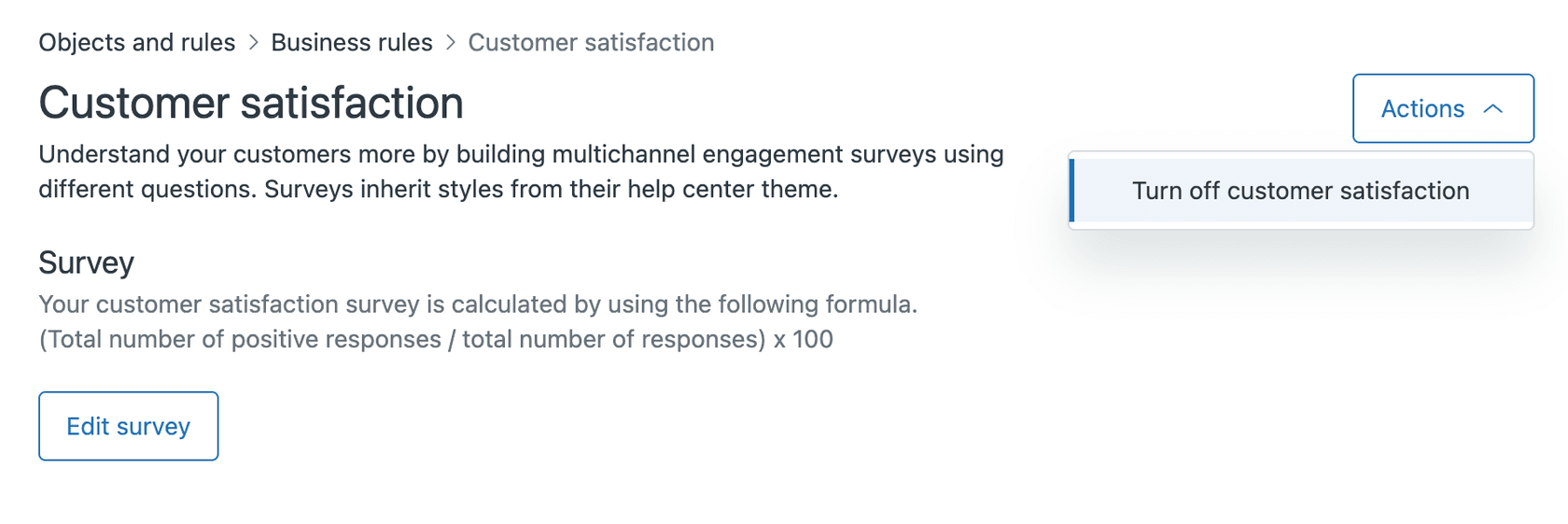
Once activated, Zendesk automatically creates the necessary business rules. For email, this means an automation that sends the CSAT survey 24 hours after a ticket is marked as solved. For messaging, a trigger presents the survey immediately when the ticket status changes to solved.
Customers have 28 days to respond to the survey, which gives them plenty of time even if they're away or busy.
Step 2: Customize your Zendesk CSAT survey
The default survey works fine, but customization makes it feel like part of your brand. Here's what you can adjust:
Rating scale options
Zendesk now offers flexible rating scales:
- 1-2 scale: Simple good/bad (1 = bad, 2 = good)
- 1-3 scale: 1-2 = bad, 3 = good
- 1-5 scale: 1-3 = bad, 4-5 = good
You can also choose how ratings display:
- Numerical: Shows numbers (1, 2, 3, etc.)
- Emoji: Uses smiley faces or other emoji
- Custom text: Write your own labels
Survey questions
You can customize:
- The main CSAT question (default: "How would you rate the support you received?")
- Open-ended follow-up questions for negative ratings
- Drop-down questions asking for the reason behind negative ratings
To customize:
- In the Customer satisfaction section, click Edit survey
- Modify the Headline text for your main question
- Choose your Scale range and Scale type
- Add optional follow-up questions in the Open-ended question and Drop down question sections
- Click Save
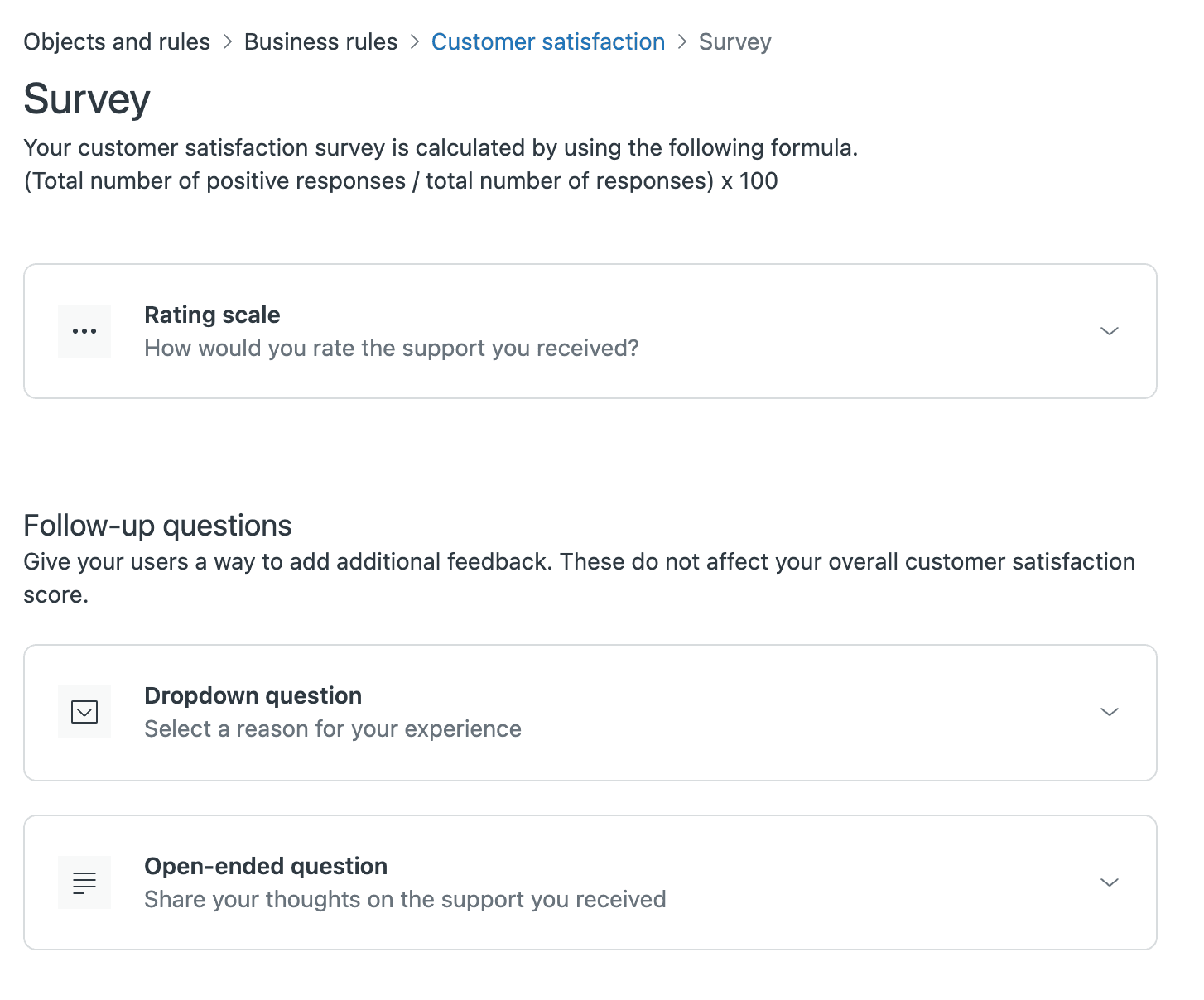
The drop-down options are particularly useful. You can ask customers to select from reasons like "Issue took too long to resolve" or "Agent wasn't knowledgeable" to get actionable feedback.
Step 3: Adjust survey timing and delivery
Timing matters when it comes to CSAT surveys. Send them too soon and customers haven't had time to process the interaction. Too late and they've forgotten the details.
Default timing
Zendesk's defaults are designed to maximize response rates:
- Email: Survey sent 24 hours after ticket is marked solved
- Messaging: Survey presented immediately when ticket is solved
- Response window: 28 days for customers to respond
Customizing email timing
To adjust when email surveys go out:
- Go to Admin Center > Objects and rules > Business rules > Automations
- Find the automation called "Request customer satisfaction rating"
- Edit the conditions to change the timing (for example, 48 hours instead of 24)
You can also add conditions to exclude certain ticket types or groups from receiving surveys.
Channel-specific settings
Email and messaging behave differently:
- Email surveys are mandatory once enabled (customers can't opt out of receiving them)
- Messaging surveys are optional for customers to complete
- Customer Portal allows users to submit feedback directly on their request page
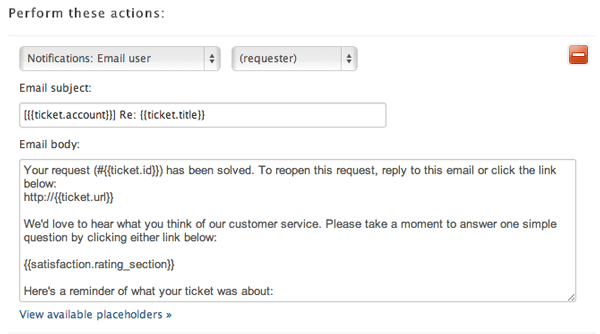
One important note: once a ticket is closed (not just solved), the CSAT link remains active for 28 days from when the survey was sent. This ensures customers can still provide feedback even if your team closes tickets quickly.
Step 4: Set up Zendesk CSAT reporting and analytics
Collecting feedback is only half the battle. You need to analyze it to spot trends and identify improvement areas.
Agent dashboard view
Individual agents can see their CSAT data directly in Zendesk Support:
- Number of good and bad ratings for the past week
- Overall CSAT score for the last 60 days
- Recent rating trends
This gives agents immediate visibility into their performance without needing additional tools.
Zendesk Explore dashboards
For deeper analysis, use Zendesk Explore:
- Open Explore from the product tray
- Select the Zendesk Support dashboard
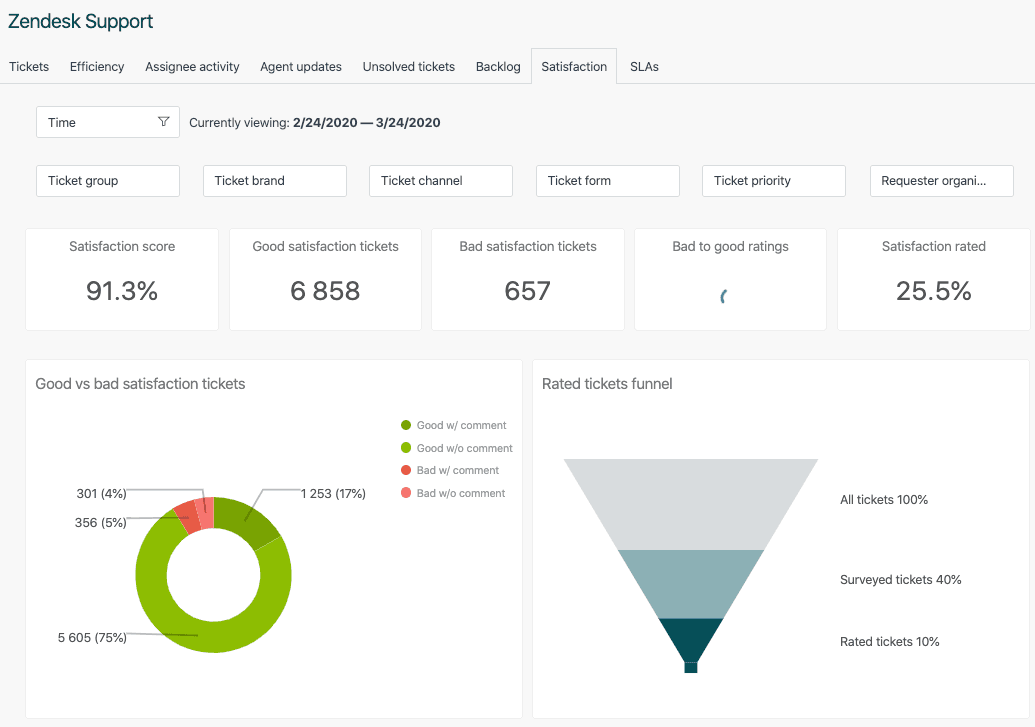
- Click the Satisfaction tab
The Satisfaction tab shows:
- Overall CSAT score for your account
- Number of good vs. bad tickets
- Response rate (how many customers actually respond)
- Bad to good ratio
- CSAT trends over time
- Breakdown by channel, language, and other attributes
Creating custom reports
If you're on Suite Professional or higher, you can build custom reports:
- CSAT by agent: Identify top performers and coaching opportunities
- CSAT by ticket type: See which issue categories get lower scores
- One-touch vs. multi-touch tickets: Understand how resolution speed impacts satisfaction
- Ratings with comments: Focus on qualitative feedback
Custom reports help you dig into the "why" behind your scores, not just the "what."
Step 5: Act on your Zendesk CSAT data
Data without action is just numbers. Here's how to turn CSAT feedback into improvements:
Set up automated triggers
Create triggers to respond automatically to ratings:
- Good ratings: Send a thank you message or request a review
- Bad ratings: Notify a manager or escalate to a senior agent
- Ratings with comments: Create a follow-up task
To set this up, go to Admin Center > Objects and rules > Business rules > Triggers and create conditions based on "Ticket > Satisfaction" values.
Create dedicated views
Build views in Zendesk Support to monitor feedback:
- Tickets with bad ratings from the past 24 hours
- Tickets with ratings but no comments (for follow-up)
- High-priority tickets with any rating
Close the loop
When customers give negative feedback, follow up quickly:
- Acknowledge their dissatisfaction
- Explain what went wrong (if known)
- Share what you're doing to prevent it happening again
- Offer compensation if appropriate
This turns a negative experience into a chance to rebuild trust.
Identify knowledge gaps
Use negative feedback comments to spot patterns:
- Are customers confused about a particular feature?
- Do certain issues keep coming up?
- Are there common misunderstandings about your product?
These insights should drive updates to your help center articles and agent training materials.
Tips for improving your Zendesk CSAT scores
Now that your CSAT system is running, here are strategies to push those scores higher:
Keep surveys short. The simpler the survey, the more responses you'll get. Zendesk's binary good/bad scale often outperforms longer surveys.
Respond fast to negative feedback. Speed matters. A quick response to a bad rating can turn a detractor into a promoter.
Train agents on soft skills. Technical knowledge gets tickets solved. Empathy and communication get good ratings.
Monitor response rates. Low response rates mean your data might not represent your customer base. If only your happiest customers respond, you're getting a skewed picture.
Close tickets completely. Make sure issues are actually resolved before marking solved. Nothing hurts CSAT like having to reopen a ticket.
Set realistic expectations. Be clear about timelines and next steps. Customers who know what to expect are more satisfied.
Enhancing Zendesk CSAT with eesel AI
CSAT surveys tell you what happened after the fact. But what if you could spot problems before they turn into bad ratings?
That's where AI comes in. eesel AI works alongside Zendesk to give you real-time insights:

Real-time sentiment analysis
Instead of waiting for the survey, AI can analyze conversations as they happen. It spots negative sentiment, frustration, or confusion and alerts agents or managers immediately. This gives you a chance to save the interaction before it ends badly.
Proactive escalation
AI can identify at-risk tickets based on:
- Customer language and tone
- Issue complexity
- Previous interaction history
- Time spent waiting
These tickets get flagged for priority handling or manager oversight.
Knowledge gap detection
By analyzing tickets that result in low CSAT scores, AI can identify patterns in what customers are struggling with. This helps you:
- Update help center articles
- Create new training materials
- Fix product issues
Predictive insights
AI can analyze your historical ticket data to predict which types of issues or customers are most likely to give low ratings. This lets you intervene proactively rather than reactively.
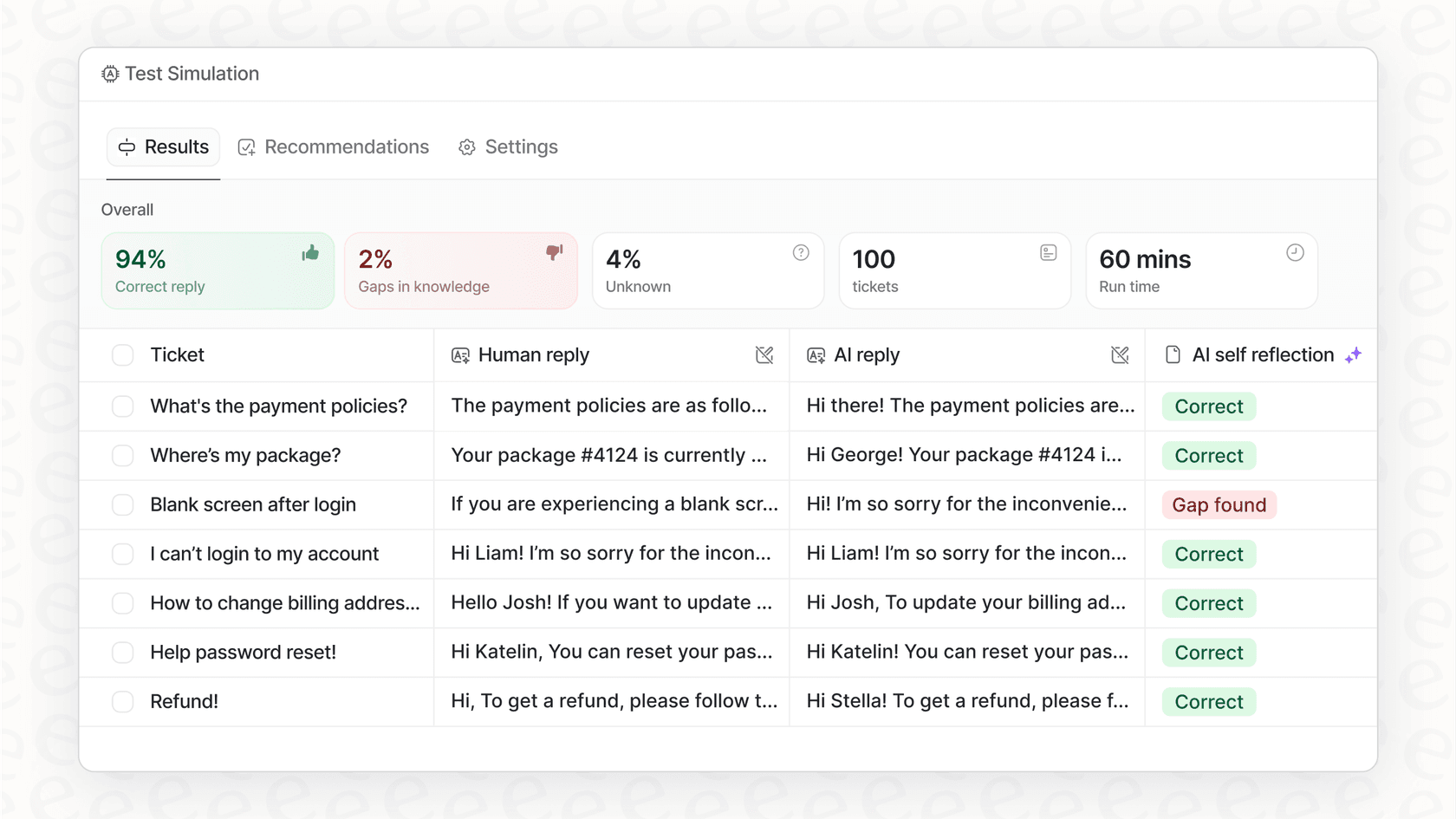
eesel AI offers a simulation mode that analyzes your past Zendesk tickets to show how AI could have helped. It's a risk-free way to see the potential impact before making any changes.
Start improving your customer satisfaction today
You've now got a complete roadmap for setting up, customizing, and optimizing Zendesk CSAT surveys. From enabling the feature to analyzing results and taking action on feedback, you're equipped to turn customer opinions into concrete improvements.
The key is consistency. CSAT isn't a "set it and forget it" metric. Review your scores regularly, dig into the comments, and use what you learn to train your team and improve your processes.
Remember: CSAT surveys tell you what customers thought of their experience. But combining that feedback with real-time AI insights gives you the full picture. You can spot problems as they develop, not just after they're over.
If you're looking to take your customer satisfaction strategy further, consider how AI can complement your Zendesk setup. eesel AI helps support teams analyze conversations, identify at-risk tickets, and close knowledge gaps. All while working seamlessly with the Zendesk platform you already use.
Want to see how it could work for your team? Try our simulation mode on your historical tickets and discover new ways to keep your customers happy.


Frequently Asked Questions
Share this article

Article by
Stevia Putri
Stevia Putri is a marketing generalist at eesel AI, where she helps turn powerful AI tools into stories that resonate. She’s driven by curiosity, clarity, and the human side of technology.